DHCPCFG'
s Subnetwork Profile Form
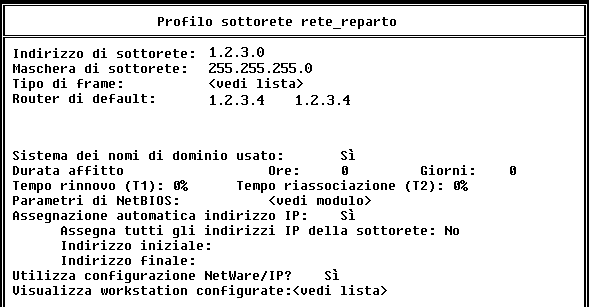
A subnetwork profile contains configuration information for a specific network segment. A subnetwork profile is defined using DHCPCFG's Subnetwork Profile form.
Figure 12-1.
DHCPCFG'
s Subnetwork Profile Form
The information required on the subnetwork segment can be divided into the following categories:
TCP/IP configuration information ---this identifies general TCP/IP parameter values for the subnetwork, such as the subnetwork mask and subnetwork address.
Name service information ---this identifies Domain Name System (DNS) parameter values for the subnetwork.
IP address assignment information ---this indicates whether static or automatic IP address assignment is used on the subnetwork. This information also identifies the range of IP addresses to use if automatic assignment is selected.
NetWare/IP information ---this defines parameter values to be sent to NetWare/IP clients. This information is required only if there are NetWare/IP clients on the network that use the NetWare DHCP service.
Every network segment that includes DHCP clients must have a subnetwork profile. When a client broadcasts a DHCP request, the DHCP server determines the correct configuration information for that client based on the network segment the client is on.
The following sections
The NetWare DHCP service enables you to configure the following TCP/IP-related parameters:
The Domain Name System (DNS) provides name-to-IP address mapping services that enable computers to locate each other on a TCP/IP internetwork by name or by IP address. If DNS is not used on your network, you do not need to complete the name service information. If DNS is used on your network, you must know the following information:
You can list up to three DNS name servers.
DHCP enables clients to be assigned a network address for a fixed time, allowing serial reassignment of network addresses to different clients. The period over which a network address is allocated to a client is referred to as a lease .
The Lease Time information tells the DHCP server how long a client wants to lease its assigned IP address. The client can extend its lease with subsequent requests, or the client can issue a message to release the address back to the server when it no longer needs the address. The client can ask for a permanent address assignment by asking for an infinite lease.
You might use DHCP because you have a limited number of IP addresses. If you run out of IP addresses, the DHCP allocation mechanism can re-use addresses that were assigned to clients whose lease has expired. The server uses whatever information is available in the configuration repository to choose an address to re-use.
If the Lease Time parameter is not configured otherwise, the default lease period is three days.
The NetWare DHCP service enables you to configure NetBIOS related information that can be used by NetBIOS over TCP/IP clients. NetBIOS configuration information includes the following:
DHCP enables you to configure a list of IP addresses for NetBIOS name servers. DHCP clients that use NetBIOS over TCP/IP can request a list of NetBIOS name servers from the DHCP server.
DHCP enables you to configure a list of NetBIOS node types. The following 4 node types are supported: B-node (broadcast nodes), P-node (Point-to-Point nodes), M-node (Mixed nodes) and the H-node.
A NetBIOS scope is the population of computers across which a registered NetBIOS name is known. NetBIOS multicast and broadcast datagram operations must reach the entire extent of the NetBIOS scope. DHCP enables you to define the NetBIOS scope.
NOTE: For more information on NetBIOS related issues, please refer to RFC 1001 and RFC 1002.
The NetWare DHCP service enables you to assign IP addresses statically or automatically.
When assigning IP addresses statically, the DHCP server assigns each workstation a specific IP address. Static assignments are based on a defined list of workstation-to-IP address associations.
When assigning IP addresses automatically, the DHCP server assigns a workstation the next available IP address from a pool of IP addresses. The IP address pool may include all IP addresses for a network segment or a subset of IP addresses.
If you choose to have automatic IP address assignment from a subset of IP addresses available for a network segment, you need to define the limits of the IP address pool by designating a start and end IP address for the pool. Addresses that are outside the designated pool limits are still available for static assignment by the DHCP server.
If NetWare/IP clients on a network segment are using DHCP to obtain an IP address and network configuration information, the subnetwork profile for that segment must include the following NetWare/IP configuration information:
An NSQ broadcast is a UDP broadcast that a NetWare/IP client sends out at startup in the following cases:
NetWare/IP clients must locate a NetWare/IP server at startup. If a nearest NetWare/IP server is not provided by DHCP, NetWare/IP clients will send an NSQ broadcast or query a DSS server to locate a NetWare/IP server.
IMPORTANT: You need to specify NetWare/IP configuration information only if NetWare/IP clients on the subnetwork are using DHCP or BOOTP to obtain their TCP/IP and NetWare/IP configurations. If TCP/IP and NetWare/IP are configured locally, you do not need to complete the NetWare/IP Configuration form.
When you install the NetWare DHCP service, DHCPCFG automatically detects all subnetworks to which the DHCP server is directly connected and creates a subnetwork profile for each one. For example, if the DHCP server has three network cards, each attached to a different subnetwork, DHCPCFG automatically creates an initial subnetwork profile for each of the three subnetworks. However, the information on these initial subnetwork profiles may be incomplete. Therefore, you should edit the initial subnetwork profiles to reflect the configuration information you want the DHCP server to return to the workstations on each subnetwork.
Use the following procedure to customize a subnetwork profile that was automatically created by DHCPCFG during installation:
Start the DHCPCFG utility by typing the following command at the server console prompt:
load dhcpcfg
<Enter>
From DHCPCFG's Configuration Menu, choose the following:
To change the name of a subnetwork profile, choose the profile you want to modify from the list of subnetwork profiles and press <F3> .
When prompted, enter a new name for the subnetwork profile.
To display the Subnetwork Profile form, choose the profile you want to modify from the list of subnetwork profiles and press <Enter> .
Edit the subnetwork profile configuration as necessary.
When you finish editing a subnetwork profile, press <Esc> .
When prompted, choose Yes to save your changes.
To return to DHCPCFG's Configuration Menu, press <Esc> .
You must manually create new subnetwork profiles for any subnetworks that contain DHCP clients and to which the DHCP server is not directly connected.
Start the DHCPCFG utility by typing the following command at the server console prompt:
load dhcpcfg
<Enter>
From DHCPCFG's Configuration Menu, choose the following:
At the list of subnetwork profiles, press <Insert> .
When prompted, enter a name for the new subnetwork profile.
When prompted, enter the subnetwork address.
On the Subnetwork Profile form, choose the subnetwork mask used on this network segment.
Press <Enter> in the Subnetwork Mask field.
From the Available Subnet Masks list, choose the appropriate subnetwork mask and press <Enter> .
Choose the TCP/IP frame type used on this subnetwork.
Press <Enter> in the Frame Type field.
From the Frame Type list, press <Insert> .
From the Available Frame Types list, choose a frame type or choose Specify Other and enter the name of another frame type.
To save the entry and return to the Subnetwork Profile form, press <Esc> .
Enter the IP address of the default router for this subnetwork.
Indicate whether the network uses DNS.
If you enter No, skip to Step 21 .
Set up DNS support.
In the Domain Name field, enter the fully qualified name of the DNS domain for the DNS clients, or resolvers, on this subnetwork.
In the Primary Name Server field, enter the IP address of the first DNS name server the hosts on this subnetwork should contact to resolve DNS queries.
In the Secondary Name Server and Tertiary Name Server fields, enter the IP addresses of the second and third DNS name servers the hosts on this subnetwork should contact to resolve DNS queries.
To return to the Subnetwork Profile form, press <Esc> .
In the Lease Time Hours or Days field, enter the amount of time an IP address assignment lease is valid.
In the Renewal Time (T1) field, enter the percentage of lease time remaining when the client should attempt to contact the DHCP server that originally issued it an IP address.
In the Rebinding Time (T2) field, enter the percentage of lease time remaining when the client should attempt to contact any DHCP server.
To configure NetBIOS parameters, choose <See Form> in the NetBIOS Parameters field and press <Enter> .
In the Primary Name Server field, enter the IP address of the first NetBIOS name server the hosts on this subnetwork should contact.
In the Secondary Name Server and Tertiary Name Server fields, enter the IP addresses of the second and third NetBIOS name servers the hosts on this subnetwork should contact.
In the Node Type field, press <Enter> to choose a node type from the list of node types.
In the Scope field, enter the alphanumeric value the indicates the NetBIOS scope.
To return to the Subnetwork Profile form, press <Esc> .
In the Automatic IP Address Assignment field, indicate whether the DHCP server should assign IP addresses on this subnetwork automatically.
If you enter No, skip to Step 33 .
If you enter Yes, the Assign All Subnet IP Addresses field appears on the Subnetwork Profile form.
In the Assign All Subnet IP Addresses field, indicate whether the DHCP server should assign all IP addresses on this subnetwork automatically.
If you enter No, the Start Address and End Address fields appear on the Subnetwork Profile form.
If you enter Yes, DHCPCFG automatically fills in the Start Address and End Address fields on the Subnetwork Profile form. Skip to Step 33 .
In the Start Address and End Address fields, enter the limits of the IP address pool from which the DHCP server should assign addresses.
Indicate whether this DHCP server will support NetWare/IP clients on this subnetwork.
If you enter No, skip to Step 44 .
Set up NetWare/IP support.
In the NetWare/IP Domain Name field, enter the fully qualified name of the NetWare/IP domain to which the nodes on this subnetwork belong.
Indicate whether the NetWare/IP clients on this subnetwork should use NSQ broadcasts to locate the nearest server.
Indicate whether the NetWare/IP clients are using NetWare/IP version 1.1 software.
Enter the IP address of the primary DSS server for the NetWare/IP domain to which the NetWare/IP clients on this subnetwork belong.
Enter the IP addresses or subnetwork addresses of up to five DSS servers that are closest to the NetWare/IP clients on this subnetwork.
Enter the IP addresses or subnetwork addresses of up to five NetWare/IP servers that are closest to the NetWare/IP clients on this subnetwork.
Enter the number of times the NetWare/ IP clients on this subnetwork will attempt to communicate with a given DSS server at startup.
Enter the amount of time in seconds the NetWare/[P clients on this subnetwork will wait before retrying a given DSS server at startup.
To return to the Subnetwork Profile form, press <Esc> .
To exit the Subnetwork Profile form and save your changes, press <Esc> .
When prompted, choose Yes to save the new subnetwork profile.
To return to DHCPCFG's Configuration Menu, press <Esc> .