Two X Window System Displays
XConsole allows you to administer the NetWare server from an X terminal, a workstation that provides X terminal functionality (runs an X server), a VT100/VT220 terminal, or a terminal that provides exact VT100/VT220 terminal emulation.
XConsole runs on a NetWare file server. You can open a console session on the remote workstation and view the NetWare console display. You can perform any operation during the session that you could perform at the server console, except for restarting the server or XConsole module.
You can open multiple XConsole sessions to a single NetWare server and have each session show a different console screen. You can also open sessions to multiple NetWare servers simultaneously.
To run XConsole, you must have the following NetWare Loadable ModulesTM (NLMs) installed and running on your NetWare server:
Load the REMOTE NLM from the NetWare console, if it is not already running, by typing
LOAD REMOTE
<Enter>
Next, load the XCONSOLE NLM from the NetWare console, if it is not already running, by typing
LOAD XCONSOLE [s=sessions ] [/24]
<Enter>
Replace sessions with the number of XConsole sessions that the server can run concurrently (up to 64). The default value is 6.
If you load XConsole using the /24 option, the screen displays lines 2 through 25 of the NetWare server console on a 24-line terminal. Therefore, the first line is not displayed.
You can also start XConsole using the Start/Stop Services option of UNICON.
The following error message may appear in the audit log or on the Product Kernel Message screen when you try to establish a connection through XConsole:
XCONSOLE-Error: Fatal IO error (60), Connection timed out, on: hostname: 0.0(1)
If you receive this message, check the version of the LAN driver you are using for your NetWare server. For example, if you are using a Western Digital LAN driver, you must have version 3.00 or later.
When you start an XConsole session, you are prompted to enter your display and screen numbers.
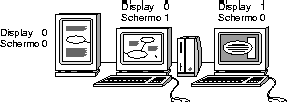
The X Window System defines a display as a monitor with its own separate keyboard or mouse. For example, if you have two monitors attached to a single computer, and each monitor has its own separate keyboard or mouse, you have two displays.
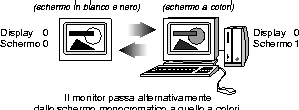
You can also have two monitors linked together with only one mouse, as shown in Figure B-2 (Display 0 Screen 0 and Display 0 Screen 1 are controlled by the same mouse). In this case, you have one display but two screens. Or, one display can have more than one screen, such as a monitor that is switchable between monochrome and color (see Figure B-3 ).
Each workstation display is numbered consecutively beginning with zero. Each screen is also numbered consecutively.
Figure B-2.
Two X Window System Displays
Figure B-3.
One X Window System Display with Two Screens
Start the window manager on your workstation.
You can run XConsole without a window manager, if you prefer. The session is displayed in a window, but you will not be able to manipulate the window.
Give the NetWare file server rights to send data to the workstation display by typing
xhost servername
<Enter>
The xhost command adds the NetWare file server servername to the workstation's X-server access control list. To allow all hosts to write to the display, type a plus sign (+) in place of servername .
NOTE: Before you disable access control and allow all hosts, evaluate the potential security risk.
Connect to the NetWare server running XConsole by typing
telnet servername
<Enter>
Depending on your terminal type, there may be several terminal services available. If there is more than one available service, telnet prompts you to choose the service type.
For example, if your terminal type is set to VT100/220, there are two services available and the following prompt appears:
[Select one of the following Telnet Services]1- X11 Console Session to the NetWare Server2- VT220 Console Session to the NetWare Server________________________Help is Ctrl-? or Ctrl-wExit is Ctrl-x________________________If there is more than one terminal service available, TELNET prompts you to choose the appropriate service. Enter the appropriate number to choose an X Window terminal type.
The TELNET connection prompts you for a password.
Enter either the remote console password or the password for the server's SUPERVISOR account.
When you enter the correct password, the following prompt appears:
Do you want the X-session displayed ona display other than the default[localhost IP address :0.0] (y/n)? [n]Respond to the display prompt.
If you want to display the session on the default display, accept the default response (No) by pressing <Enter> .
The process continues with the response to Step 10 .
If your computer has more than one display or screen, and you want to display the session on a display other then the default, enter Y for Yes.
NetWare prompts for the host name:
Enter the name of the host where XConsoleshould start the X-session [host :0.0]:
Press <Enter> to accept the default (local) host or type the appropriate host name or IP address and press <Enter> .
NetWare prompts for your display and screen number:
Enter display number [0]:Enter screen number [0]:Enter the appropriate display and screen number.
A window displaying the server console opens on your display, and the following message is displayed before the TELNET connection closes:
XConsole session created successfully on host :x .xActivate the window and interact with the console from your keyboard as if you were at the server's console.
To open additional windows, repeat Step 3 through Step 8.
End the XConsole session as required by your window manager.
Some window managers allow you to close the window to end the console session. If your window manager does not allow you to close the window, choose the window and press <Ctrl-X> to end the session.
If an X server cannot establish a session with XConsole, the following error message may appear on your screen:
Cannot open X display, possible cause:1. NetWare host is not authorized to use this X display, or2. X server is not installed properly, or3. This is not an X display
If you receive this message, make sure your workstation is running a true X terminal remote client. Then repeat Step 3 .
XConsole provides remote console operations from VT100/VT220 terminals and terminals that provide exact VT100/VT220 terminal emulation.
To use VT100 /VT220 emulation on a Sun Workstation, run the xterm program instead of running the command or shell tools.
Use this procedure to start and end a VT100/VT200 XConsole session:
Connect to the NetWare server running XConsole by typing
telnet servername
<Enter>
Depending on your terminal type, there may be several terminal services available. If there is more than one available service, telnet prompts you to choose the service type.
For example, if your terminal type is set to VT100/220, there are two services available and the following prompt appears:
[Select one of the following Telnet Services]1- X11 Console Session to the NetWare Server2- VT220 Console Session to the NetWare Server________________________Help is Ctrl-? or Ctrl-wExit is Ctrl-x________________________If there is more than one terminal service available, TELNET prompts you to choose the appropriate service. Enter the appropriate number to choose a VT100/220 terminal type.
When prompted, enter the remote console password or the password for the server's SUPERVISOR account.
After you enter the correct password, you can interact with the console using your keyboard as if you were at the server's console.
To end the session, press <Ctrl-X> .
NOTE: When using VT100/VT220 emulation mode, you may need to use the control key functions listed in Table B-1 .