IPX SAP Filter Example
The Internetwork Packet ExchangeTM (IPXTM) protocol supports the following types of filters:
Refer to Novell Internet Access Server 4.1 Routing Concepts for more information.
NOTE: When you configure a filter for a primary WAN call, an equivalent filter is automatically generated for the backup call. If the primary call should fail, the backup call is automatically connected.
Before you begin, make sure that filtering support is enabled for IPX in NIASCFG.
To configure IPX incoming (or outgoing) SAP filtering, complete the following steps:
Load FILTCFG, then select the following parameter path:
Select Configure IPX Filters > Incoming SAP Filters (or Outgoing SAP Filters)
Select Status and toggle the choice to read Enabled or Disabled.
Any configured filters immediately become active (enabled) or inactive (disabled).
NOTE: It might be easier to configure filters while they are disabled. Otherwise, you might experience temporary service loss while you are adding and setting up wildcard filters.
Select Action and toggle the choice to permit or deny the services on the filter list.
This specifies the action taken when an incoming (or outgoing) service (SAP packet) matches a filter in the filter list. If you select to permit the services, the SAP information is received from (or broadcast to) the local networks. If you select to deny the services, the SAP information is not received from (or broadcast to) the local networks.
NOTE: Changing a filter to permit the services on the filter list when the filter list is empty denies all services and might produce undesirable results.
Select Filters.
This lists the incoming (or outgoing) SAP services that are currently permitted or denied, according to the Action parameter setting.
Modify the service list.
You can select a service from the list and press Enter to modify the service or Del to remove it. Press Ins to add a new service.
If you are modifying an existing filter, or adding a new filter, modify the following parameters from the Define Filter menu:
The header of packets that match the Filters or Exceptions definitions are logged as long as the global logging status and this logging status are both enabled. The logs are viewed using the NetWare Administrator utility.
NOTE: You can use the asterisk (*) and question mark (?) wildcards. The * wildcard is equal to zero or more character matches. The ? wildcard is equal to precisely one character match. For example, SERVER-A* matches Server-A, SERVER-A2, and SERVER-A-MKTG, whereas SERVER-A? matches only SERVER-A2. You can enter several wildcard characters in a string. We recommend that you enter exceptions to wildcards first when working with an enabled filter list.
You can use FFFF as a wildcard for any or all types.
If you specified Interface as the Source (or Destination) Type, select a specific interface on which you want to filter the service. You can select a LAN interface, a WAN interface, the internal network, or all interfaces. The default is All Interfaces.
Local Frame Relay DLCI # (for frame relay)---The DLCI circuit number used for calls.
Remote System ID (for PPP, X.25, or ATM)---The name of the remote system server or remote peer associated with this circuit.
Circuit Parameter Type (for X.25 or ATM)---The type of virtual circuit used to establish a connection.
Remote DTE Address (for X.25)---The X.121 DTE address assigned to the specific remote DTE.
Remote ATM Address (for ATM)---The address assigned to the specific remote ATM.
NOTE: If the optional fields are left blank, the filter will match all WAN calls on the interface. If authentication is not enabled and the optional fields are specified, the filter will not work.
Press Esc and save the information.
Select Exceptions.
This displays a list of exceptions to the incoming (or outgoing) SAP filters. Depending on the Action parameter setting, services that match a filter on this list are always or are never accepted (or advertised) by the router, even if another filter is configured to do the opposite.
Select a service from the list and press Enter to modify the service or Del to remove it. Press Ins to add a new service. Refer to Step 5 and Step 6 to modify or add an exception.
Press Esc to save the information and return to the Configure IPX Filters menu.
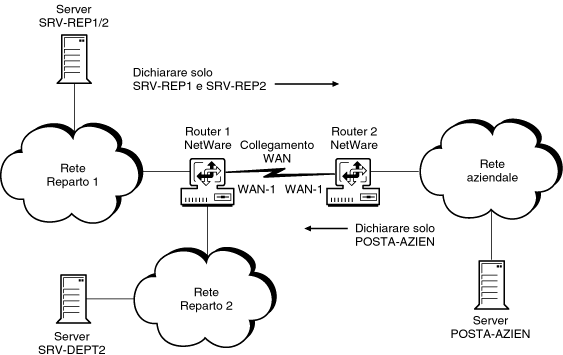
In this example, two departmental networks are connected to a corporate network through a WAN link between Router 1 and Router 2. The two routers use the RIP/SAP routing protocol to communicate with each other. RIP enables routers to send out periodic updates of service and routing information. The internetwork topology is shown in Figure 15-1.
NOTE: Either Router 1 or Router 2 can be set up to do the following: RIP/SAP can be run over the WAN link with an outbound SAP filter and with the NetWare Link Services ProtocolTM (NLSPTM) software on the LAN. RIP/SAP can be run on the LAN with an inbound filter and with NLSP on the WAN. RIP/SAP can be run on the LAN and WAN links, and both inbound and outbound filtering is enabled. On the WAN, both ends need to be consistently configured.
Figure 15-1.
IPX SAP Filter Example
To minimize the load on the WAN link, an IPX SAP filter is configured on Router 1 and Router 2. This filter cuts down the periodic service information updates across the WAN link by advertising only a few selected servers. The clients across the WAN link can access the servers on the other network by first attaching to these selected servers.
When configuring this example, set the parameters as shown in Table 15-1.
Parameter |
Value |
|---|---|
Router 1 Action |
Permit Services |
Router 1 Filters: Filter 1:
Filter 2:
|
. .
|
Router 2 Action |
Permit Services |
Router 2 Filters: Service Name
|
. CORP-MAIL
|
Before you begin, make sure that filtering support is enabled for IPX in NIASCFG.
To configure IPX incoming (or outgoing) RIP filtering, complete the following steps:
Load FILTCFG, then select the following parameter path:
Select Configure IPX Filters > Incoming RIP Filters (or Outgoing RIP Filters)
Select Status and toggle the choice to read Enabled or Disabled.
Any configured filters immediately become active (enabled) or inactive (disabled).
NOTE: It might be easier to configure filters while they are disabled. Otherwise, you might experience temporary service loss while you are adding and setting up wildcard filters.
Select Action and toggle the choice to permit or deny the networks on the filter list.
This specifies the action taken on an incoming (or outgoing) network (RIP packet) in the filter list. If you select to permit networks, the RIP information is received from (or advertised to) local networks. If you select to deny networks, the RIP information is not received from (or advertised to) local networks.
NOTE: Changing a filter to permit the routes on the filter list when the filter list is empty denies all routes.
Select Filters.
This lists the incoming (or outgoing) RIP routes that are permitted or denied, according to the Action parameter setting.
Modify the network list.
Select a filter from the list and press Enter to modify the filter or Del to remove it. Press Ins to add a new network filter.
If you are modifying an existing filter or adding a new filter, modify the following parameters from the Define Filter menu:
NOTE: Whenever the internal network number of a server is filtered, the SAPs from the server are also filtered automatically.
The header of packets that match the Filters or Exceptions definitions are logged as long as the global logging status and this logging status are both enabled. The logs are viewed using the NetWare Administrator utility.
A network number/mask pair of 0/0 matches all IPX networks. A 1 bit in the network mask means that bit must be matched. For example, C9000000/FFFFFF00 matches C90000XX network numbers.
NOTE: Bit masks do not need to be contiguous for filters.
If you specified Interface as the Source (or Destination) Type, select a specific interface on which you want to filter the service. You can select a LAN interface, a WAN interface, the internal network, or all interfaces. The default is All Interfaces.
If you specified Interface Group as the Source (or Destination) Type, select the specific interface group on which you want to filter the service.
Local Frame Relay DLCI # (for frame relay)---The DLCI circuit number used for calls.
Remote System ID (for PPP, X.25, or ATM)---The name of the remote system server or remote peer associated with this circuit.
Circuit Parameter Type (for X.25 or ATM)---The type of virtual circuit used to establish a connection.
Remote DTE Address (for X.25)---The X.121 DTE address assigned to the specific remote DTE.
Remote ATM Address (for ATM)---The address assigned to the specific remote ATM.
NOTE: If the optional fields are left blank, the filter will match all WAN calls on the interface. If authentication is not enabled and the optional fields are specified, the filter will not work.
Press Esc and save the information.
Select Exceptions.
Displays a list of exceptions to the incoming (or outgoing) RIP filters. Depending on the Actions parameter setting, routes that match a filter on this list are always or are never accepted (or advertised) by the router, even if another filter is configured to do the opposite.
Modify the exceptions list.
Select a filter from the list and press Enter to modify the filter or Del to remove it. Press Ins to add a new network filter. Refer to Step 5 and Step 6 to add or modify a filter.
Press Esc to save the information and return to the Configure IPX Filters menu.
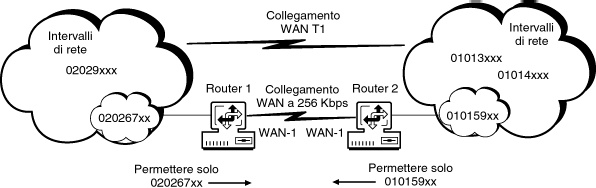
In this example, network clouds are connected to each other through a T1 WAN link and a 256-Kbps WAN link. Packets from specific network ranges in each cloud take longer to be transmitted through the T1 link than the 256-Kbps link because their proximity to the links are different.
To restrict access to the 256-Kbps link to those network ranges that benefit from it most, and to prevent other networks from accessing this slower link, outbound filters are configured in the routers attached to the 256-Kbps link. In this case, Router 1 permits only packets sent to network range 010159xx to be transmitted through the 256-Kbps link. Router 2 permits only packets sent to network range 020267xx to be transmitted through the 256-Kbps link.
The internetwork topology is shown in Figure 15-2.
Figure 15-2.
IPX Routing Information Filter Example
When configuring this example, set the parameters as shown in Table 15-2.
Parameter |
Value |
|---|---|
Router 1 Actions |
Permit Networks |
Filters:
|
.
|
Router 2 Actions |
Permit Networks |
Filters:
|
.
|
IPX packet forwarding filters allow the router to filter a packet according to the source and destination address fields and the packet type. NetBIOS filters allow the router to forward NetBIOS broadcast packets only on selected interfaces.
NOTE: IPX NetBIOS and packet forwarding filters work while using either NLSP or RIP/SAP routing modes.
Before you begin, make sure that filtering support is enabled for IPX in NIASCFG. Otherwise, filtering will not work.
To configure IPX packet forwarding filters, complete the following steps:
Load FILTCFG, then select the following parameter path:
Select Configure IPX Filters > NetBIOS and Packet Forwarding Filters
Select Status and toggle the choice to read Enabled or Disabled.
NOTE: It might be easier to configure filters while they are disabled. Otherwise, you might experience temporary service loss while you are adding and setting up wildcard filters.
Select NetBIOS Broadcast Filters Action and toggle the choice to permit or deny the IPX NetBIOS packets on the listed interfaces.
Select NetBIOS Broadcast Filters Interfaces, then press Enter.
This displays a list of interfaces that are permitted or denied for NetBIOS broadcast. Press Ins to add an interface to the list, or select an interface and press Del to remove it from the list. You can select a LAN interface, a WAN interface, the internal network, or all interfaces.
Select Interface Groups, then press Enter.
This displays a list of interface groups that are permitted or denied for NetBIOS broadcast. Press Ins to add an interface to the list, or select an interface and press Del to remove it from the list.
Select Packet Forwarding Filters Action and toggle the choice to permit or deny the packet forwarding filters on the filter list.
Select Filters.
This lists the NetBIOS filters that are permitted or denied, according to the Action parameter setting.
Select a filter from the list and press Enter to modify the filter or Del to remove it. Press Ins to add a new filter.
If you are modifying an existing filter or adding a new filter, modify the following parameters from the Define Filter menu:
If you specified Interface as the Source Interface Type, select a specific interface on which you want to filter the service. You can select a LAN interface, a WAN interface, the internal network, or all interfaces. The default is All Interfaces.
If you specified Interface Group as the Source Interface Type, select the specific interface group on which you want to filter the service.
Local Frame Relay DLCI # (for frame relay)---The DLCI circuit number used for calls.
Remote System ID (for PPP, X.25, or ATM)---The name of the remote system server or remote peer associated with this circuit.
Circuit Parameter Type (for X.25 or ATM)---The type of virtual circuit used to establish a connection.
Remote DTE Address (for X.25)---The X.121 DTE address assigned to the specific remote DTE.
Remote ATM Address (for ATM)---The address assigned to the specific remote ATM.
NOTE: If the optional fields are left blank, the filter will match all WAN calls on the interface. If authentication is not enabled and the optional fields are specified, the filter will not work.
If you specified Interface as the Source (or Destination) Interface Type, select a specific interface on which you want to filter the service. You can select a LAN interface, a WAN interface, the internal network, or all interfaces. The default is All Interfaces.
If you specified Interface Group as the Destination (or Source) Interface Type, select the specific interface group on which you want to filter the service.
Local Frame Relay DLCI # (for frame relay)---The DLCI circuit number used for calls.
Remote System ID (for PPP, X.25, or ATM)---The name of the remote system server or remote peer associated with this circuit.
Circuit Parameter Type (for X.25 or ATM)---The type of virtual circuit used to establish a connection.
Remote DTE Address (for X.25)---The X.121 DTE address assigned to the specific remote DTE.
Remote ATM Address (for ATM)---The address assigned to the specific remote ATM.
Enter the following information to define the type of IPX packet you can filter:
Name---Enter a name for the packet.
Packet Type---Enter a 1-byte packet type number in hexadecimal. The FF wildcard matches all packet numbers.
Destination Socket---Enter a 2-byte socket number in hexadecimal. The wildcard FFFF matches all socket numbers.
Comment---Enter an optional short description.
A network numbers/mask pair of 0/0 matches all IPX networks. A 1 bit in the network mask means that bit must be matched. For example, C9000000/FFFFFF00 matches C90000XX network numbers.
The header of packets that match the Filters or Exceptions definitions are logged as long as the global logging status and this logging status are both enabled. The logs are viewed using the NetWare Administrator utility.
Select Exceptions.
This lists the exceptions to the IPX forwarding filters. According to the Action parameter specified, the packets that match a filter on this list are always or are never forwarded by the router, even if another filter is configured to do the opposite.
Modify the exceptions list.
Press Ins to add a new filter, or select a filter from the list and press Enter to modify the filter or Del to remove it. Refer to Step 8 and Step 9 to modify or add a filter.
Press Esc to save the information and exit to the Configure IPX Filters menu.
In this example, an FDDI backbone connects several departments in an organization. Routers A, B, and C connect the departmental networks to the backbone. Within the organization, users can access all servers. However, the Human Resources (HR) servers can be accessed only by HR employees. To make the HR servers secure, packet forwarding filters are used in addition to the usual NetWare password security. Note that some of the HR employees are connected to different networks than the one HR servers are connected to. Figure 15-3 shows the internetwork topology.
Figure 15-3.
IPX Packet Forwarding Filter Example
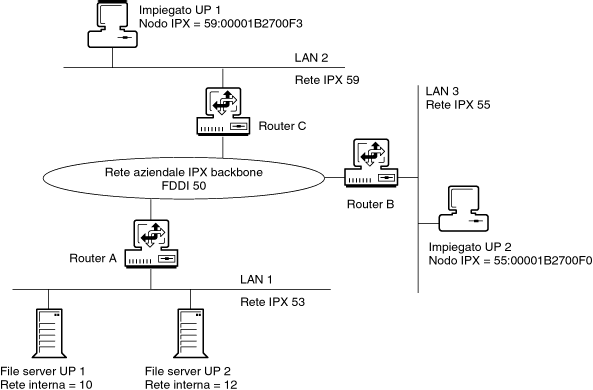
Routers B and C do not require filters because users can access all corporate servers (except for the HR server). Packet forwarding filters are installed on Router A to block packets from the FDDI interface to the HR servers, except when the packets are from the nodes 59:00001B2700F3 and 55:00001B2700F0.
When configuring this example, set the parameters as shown in Table 15-3.
Parameter |
Value |
|---|---|
Action |
Deny Packets |
Filter List:
Source Interface Type
|
.
Interface
|
Exceptions:
Source Interface Type
Source Interface Type
|
.
Node
Node
|
Source Interface Type
|
Node
|