Two Logical IP Networks on an X.25 WAN
This section explains the advanced features available for running IP over a WAN connection. To configure an individual WAN call, use the procedures provided under the following topics:
This section also provides procedures that apply to WAN calls in general. To configure additional advanced WAN features, use the procedures provided under the following topics:
NOTE: Before you can configure IP for a WAN connection, you must configure the following information: the WAN board, the network interface, and the WAN Call Directory.
When you installed Novell Internet Access Server 4.1 routing software, you probably accepted the default configuration for the WAN interfaces on your router. This default configuration specified the numbered single point-to-point mode; however, it did not specify the following:
You can continue using this default configuration, or you can change it on one or more interfaces according to the requirements of the connection. The next two sections discuss permanent and on-demand calls and explain the configuration options available for each call type.
A permanent call is always active between the local router and the remote peer router associated with a WAN call destination. When IP is the only protocol active on this call, the call remains active until IP is unbound from the board. Or, the call remains active until the call is disconnected manually from the Call Manager utility (CALLMGR).
A routing protocol, such as RIP or OSPF, is commonly configured to send routing traffic across a permanent WAN connection.
There are two types of permanent calls, automatic and manual. Automatic calls are brought up when a router comes up. If the connection fails when an automatic call is in process, the router immediately tries to reestablish the call. Manual calls must be brought up through CALLMGR. If the connection fails when a manual call is in process, the router does not reestablish the call.
The permanent call configuration for IP is presented in "Configuring Individual WAN Calls.”
SUGGESTION: Some network modes are not suitable for multiple permanent calls over some WAN media. To decide which network mode is appropriate, refer to "Configuring the WAN Network Mode.”
You can also configure the following features for permanent calls:
The static routes for a permanent call are put in the routing table only when the call is up.
To configure static routes for a permanent call, refer to "Configuring Static Routes for WAN Connections.”
To configure the call type, refer to "Configuring Individual WAN Calls.”
An on-demand call is a WAN connection between two routers that becomes active only when one router has data to send to the other. On-demand calls are well-suited for use with connections that use expensive telecommunications carriers who charge based on the amount of time the link is up.
NOTE: On-demand calls are activated by OSPF and Exterior Gateway Protocol (EGP) packets, but not by RIP packets. To avoid keeping the connection up unnecessarily, disable OSPF and EGP on the WAN interface.
The on-demand call configuration for IP is presented in "Configuring Individual WAN Calls.” To use an on-demand call instead of a permanent call, change the call type of the WAN call destination to on-demand. In addition, you can configure the following features:
To configure the call type, refer to "Configuring Individual WAN Calls.”
For on-demand WAN calls, IP considers only data to be traffic. Maintenance data (for example, RIP updates and ICMP messages) is not considered to be data. Because maintenance data is not considered to be traffic, it does not keep the on-demand WAN link active. When only maintenance data is sent over the link, the link is brought down after the idle-timer value expires.
For each on-demand connection, you configure this time period in the Idle Connection Timeout parameter in the WAN call destination configuration, which has a default of 10 minutes.
To configure the Idle Connection Timeout parameter for an on-demand call, complete the following steps:
Load NIASCFG, then select the following parameter path:
Select Configure NIAS > Protocols and Routing > WAN Call Directory > an on-demand WAN call destination
Select Idle Connection Timeout.
Select a time, between 0 and 18 hours.
Select Outbound Authentication.
Specify PAP (Password Authentication Protocol), CHAP (Challenge Handshake Authentication Protocol), or PAP or CHAP. This field determines the type of authentication protocol used with the outbound connection. You cannot select NONE for on-demand calls because it prevents an authentication protocol from being used.
Select Password.
Enter 1 to 47 ASCII characters to specify the authentication password. This value is offered to the remote system during outbound authentication.
Select Local System ID.
Enter 1 to 47 ASCII characters to specify the symbolic name of this system when you place an outbound call. The default is the local server name.
Select Remote System ID.
Enter 1 to 47 ASCII characters to specify the symbolic name of the remote system when you place an outbound call. Usually, this value is the name of the remote server.
Press Esc, then select Yes to save your changes.
Press Esc to return to the Internetworking Configuration menu.
If you want these changes to take effect immediately, select Reinitialize System and select Yes to activate your changes.
The WAN network mode governs how IP operates over a WAN connection. Depending on which WAN medium you use---PPP (including ISDN over PPP), X.25, frame relay, or ATM---and how you want to use the connection, you can use any of the following network modes:
Use this mode if you do not want the connection to occupy an entire IP network or subnet address.
Use this mode when you have an IP network or subnet address available and you want a single, dedicated connection to a peer router. This mode is usually used only when the unnumbered mode is not supported by the remote router.
Use this mode when you want to use multiple connections to several peer routers through a single interface or an interface group.
Table 11-1 indicates the modes that can operate over each WAN media.
|
WAN Network Mode |
||
|---|---|---|---|
WAN Medium |
Unnumbered Point-to-Point |
Numbered Single Point-to-Point |
Multiaccess |
PPP (including ISDN over PPP) |
Yes |
Yes |
Can be used only with interface groups. |
X.25 |
Yes |
Limited to one connection |
Yes |
Frame relay |
Yes |
Limited to one connection |
Yes |
ATM |
Yes |
Limited to one connection |
Yes |
Use this table as a guide when you are choosing a network mode for your WAN connections.
IMPORTANT: If you are configuring interfaces that are part of a PPP interface group, you must bind to the interface group to configure the WAN network mode.
The rest of this section provides additional information about each network mode and explains how to configure them for permanent and on-demand calls.
IMPORTANT: If you are configuring your router to act as an ISP router or to connect to an ISP router, refer to "Configuring Dynamic Address Assignments” before configuring the WAN network mode.
Unnumbered point-to-point mode is so named because the router's WAN interfaces do not use IP addresses. This mode is useful when you do not want the connection to occupy an entire IP network or subnet address.
You can use unnumbered point-to-point mode with any WAN medium that supports multiple connections to remote peer routers, such as X.25, frame relay, or ATM. If you are using unnumbered point-to-point mode over X.25 or ATM, you can select several WAN call destinations for simultaneously active permanent calls.
With PPP as a single interface, you can configure either one permanent call or multiple on-demand calls. A permanent call is always active when IP is bound to the interface. Because PPP supports only a single call on an interface, an on-demand call cannot be made when a permanent call is configured. You can configure multiple on-demand calls on a PPP interface; however, only one call can be active at a time.
With PPP as an interface group, you can configure multiple permanent and on-demand calls as long as there are enough interfaces for each of the calls.
NOTE: If any of the remote peers is a third-party router, make sure it supports unnumbered point-to-point mode for IP. Some third-party routers do not.
To configure unnumbered point-to-point mode, complete the following steps:
NOTE: All interface-specific configurations, such as routing protocol and header compression, apply to all connections through the same unnumbered interface.
Load NIASCFG, then select the following parameter path:
Select Configure NIAS > Protocols and Routing > Bindings > Press Ins > TCP/IP from the list of configured protocols
Select Network Interface or Each Interface in a Group.
Select Network Interface to bind to a specific interface. Select Each Interface in a Group to bind to an interface group.
Either option can be selected for unnumbered point-to-point mode.
Select a configured network interface or an interface group.
The Binding TCP/IP to a WAN Interface menu is displayed.
Select the WAN Network Mode field.
The default, Numbered Point-to-Point, is displayed.
Press Enter, then select Unnumbered Point-to-Point.
Because unnumbered point-to-point mode does not use IP addresses, you cannot select the Local IP Address and Subnetwork Mask of Connected Network fields.
IMPORTANT: Each router must have an IP address configured on at least one LAN or WAN interface.
Press Esc until you are prompted to save your changes, then select Yes.
Press Esc to return to the Internetworking Configuration menu.
If you want these changes to take effect immediately, select Reinitialize System and select Yes to activate your changes.
NOTE: When configuring an on-demand or permanent X.25 or ATM call, if either end of the connection can initiate the call, enable inbound authentication on the network interface as described in Chapter 17, "Configuring NetWare Link/ATM,” and Chapter 19, "Configuring NetWare Link/X.25.” This automatically creates an authentication entry for an inbound call from the other end of the connection.
Configure a WAN call destination as described in "Configuring Individual WAN Calls.”
Numbered single point-to-point mode is typically used with PPP, which supports either a single permanent or single on-demand dedicated connection to a remote peer router. You can also use this mode with WAN media that support multiple connections, such as X.25, frame relay, or ATM, but you are limited to having only one dedicated connection. Numbered single point-to-point mode is well-suited for a connection that has just one destination, such as a link between a local branch office and the main office.
Numbered single point-to-point mode uses a single IP address for the connection; therefore, you can bind IP only once to the interface.
To configure numbered single point-to-point mode, complete the following steps:
Load NIASCFG, then select the following parameter path:
Select Configure NIAS > Protocols and Routing > Bindings > Press Ins > TCP/IP from the list of configured protocols
Select Network Interface or Each Interface in a Group.
Select Network Interface to bind to a specific interface. Select Each Interface in a Group to bind to an interface group.
Either option can be selected for Numbered Single Point-to-Point mode.
Select a configured network interface or an interface group.
The Binding TCP/IP to a WAN Interface menu is displayed. The WAN Network Mode field is displayed with a default value of Numbered Point-to-Point.
NOTE: The Remote Router Will Dynamically Assign the IP Address parameter should be left at the default value of No.
Configure the following parameters:
Press Esc until you are prompted to save your changes, then select Yes.
Press Esc to return to the Internetworking Configuration menu.
If you want these changes to take effect immediately, select Reinitialize System and select Yes to activate your changes.
Configure a WAN call destination as described in "Configuring Individual WAN Calls.”
Multiaccess mode is typically used with X.25, frame relay, and ATM, which support multiple, simultaneous connections to remote peer routers. You can also use multiaccess mode with PPP interface groups to accept calls for a group of interfaces.
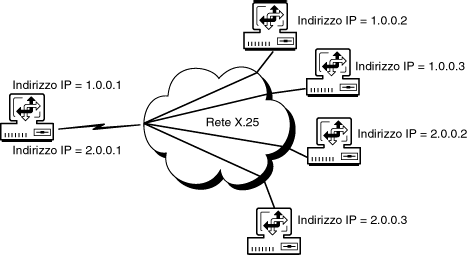
Multiaccess mode supports multiple logical networks; that is, you can bind IP to the local WAN interface for each IP network represented on the connection. Figure 11-1 shows an example of two logical networks, 1.0.0.0 and 2.0.0.0, each supporting two remote peer routers, which are attached to a local router interface through an X.25 WAN.
Figure 11-1.
Two Logical IP Networks on an X.25 WAN
When you bind IP to the local address 1.0.0.1, you add the remote peer routers, 1.0.0.2 and 1.0.0.3, to the WAN Call Destination List. In the same way, when you bind IP to the local address 2.0.0.1, you add the remote peer routers, 2.0.0.2 and 2.0.0.3, to the WAN Call Destination List. For this configuration, you have two bindings---one for each logical network---and two remote peers per network, each mapped to a WAN call destination.
With X.25 and ATM, you can configure multiple, simultaneous permanent calls. Additionally, you can configure multiple on-demand calls for X.25 and ATM. You do not have to use the same call type for these multiaccess connections; you can use any combination of permanent and on-demand calls.
With a PPP single interface, you can configure either one permanent call or multiple on-demand calls. A permanent call is always active when IP is bound to the interface. Because PPP supports only a single call on an interface, an on-demand call cannot be made when a permanent call is active or established. You can configure multiple on-demand calls on a PPP interface; however, only one call can be active at a time.
With frame relay, because all calls are incoming calls, you do not need to configure any WAN call destinations unless you are using static routes over the WAN.
Broadcasts are not supported on multiaccess interfaces. Therefore, routing information must be sent directly to each peer router on the interface. If you want to run a routing protocol over one of the connections, you must do the following:
On an incoming connection, the local router must have a way to discover the IP address of the remote peer router. Frame relay uses the Inverse Address Resolution Protocol (Inverse ARP) for this purpose. PPP uses the Internet Protocol Control Protocol (IPCP). If a remote peer router does not support Inverse ARP or IPCP for an incoming call, or if you are using X.25 or ATM for an incoming or outgoing call, you must map the WAN call destination associated with the remote peer router to its IP address using the procedure described in "Configuring Individual WAN Calls.” Although frame relay does not use WAN call destinations, Novell Internet Access Server 4.1 routing software enables you to configure them if the remote peer router does not support Inverse ARP. You are not required to provide this mapping for frame relay if the remote peer router is running Novell Internet Access Server 4.1 routing software, unless you are using static routes over the WAN.
IMPORTANT: Multiaccess mode operates best when all routers are connected in a mesh topology. If the routers are not connected in a mesh topology, use unnumbered point-to-point mode for each connection between the local router and a remote peer router. For configuration instructions, refer to "How to Configure Unnumbered Point-to-Point Mode.”
To configure multiaccess mode, complete the following steps:
Load NIASCFG, then select the following parameter path:
Select Configure NIAS > Protocols and Routing > Bindings > Press Ins > TCP/IP from the list of configured protocols
Select Network Interface or Each Interface in a Group.
Select Network Interface to bind to a specific interface. Select Each Interface in a Group to bind to an interface group.
Either option can be selected for multiaccess mode.
Select a configured network interface or an interface group.
The Binding TCP/IP to a WAN Interface menu is displayed.
Select the WAN Network Mode field. Press Enter, then select Multi-Access.
Configure the following parameters:
Press Esc until you are prompted to save your changes, then select Yes.
Press Esc to return to the Internetworking Configuration menu.
If you want these changes to take effect immediately, select Reinitialize System and select Yes to activate your changes.
Use this procedure to configure individual WAN calls. The parameters in this procedure apply only to one WAN call. Depending on how you have configured the WAN network mode, you might or might not see all the parameters that appear in this procedure. With frame relay, because all calls are incoming calls, you do not need to configure any WAN call destinations unless you are using static routes over the WAN.
Load NIASCFG, then select the following parameter path:
Select Configure NIAS > Protocols and Routing > Bindings > an existing binding with the WAN network mode configured
Select WAN Call Destinations, then press Ins.
The parameters in this menu apply only to this WAN call. You can select one or more WAN call destinations, depending on how you configured the WAN Network Mode parameter as described in "Configuring the WAN Network Mode.”
Configure the following parameters:
IMPORTANT: If multiaccess mode is used for X.25 or ATM, you must assign a value to the Remote IP Address field.
If you want to customize RIP parameters for this WAN call, complete the following steps:
Select RIP Bind Options. You must configure these parameters for each WAN call.
The RIP parameters in this menu apply to the WAN call destination. The RIP parameters configured here override the RIP parameters configured under the Binding TCP/IP to a WAN Interface menu, except Status. For example, if you enable RIP under WAN Call Destination, you also must set Status to Enabled under the Binding TCP/IP to a WAN Interface menu. Configure the following parameters:
Authentication---Enable authentication when there are routers that you do not want this router to exchange RIP II routing information with.
Authentication Password---Enter a password to allow access to your router. Authentication works only when this password matches the password on another router. The default is the null string.
If you have enabled RIP on this WAN call destination, make sure RIP is enabled at the remote interface and uses the same RIP version.
NOTE: You cannot configure OSPF for individual WAN calls. If you do not want to run OSPF over this WAN connection, disable OSPF by selecting OSPF Bind Options on the Binding TCP/IP to a WAN Interface menu.
Press Esc until you are prompted to save your changes, then select Yes.
Press Esc to return to the Internetworking Configuration menu.
If you want these changes to take effect immediately, select Reinitialize System and select Yes to activate your changes.
Static routes can be configured for both on-demand and permanent WAN calls, but they are most commonly used with on-demand links. When you do not want routing traffic to cross a WAN link, you can manually configure remote routes on the local router as static routes. With the static route configured, an on-demand link can remain inactive until data needs to cross it. IP hosts that need to reach remote destinations send packets to their local IP router that has the static routes configured, assuming the packets can reach their destination. The local router stores the packets and tries to establish a connection to the remote router. After the local router completes the call, it forwards the stored packets to the remote router, which then forwards them to their destination. Static routes for on-demand calls are always present in the routing table.
You can also configure static routes for permanent connections to provide access to isolated networks, reduce routing traffic, provide security, and operate as backup routes. In addition, using static routes and disabling dynamic routing protocols, such as RIP, over slow links improves performance. Static routes for permanent calls are in the routing table only when the permanent calls are established.
NOTE: Use this procedure to specify static routes for any WAN connection.
To configure one or more static routes for an on-demand or permanent call, complete the following steps:
Load NIASCFG, then select the following parameter path:
Select Configure NIAS > Protocols and Routing > Bindings > an existing binding with the WAN network mode configured
Select WAN Call Destinations, then press Ins or select an existing call destination.
The parameters in this menu apply only to this WAN call. Configure WAN call destination parameters if you want to override the WAN interface parameters.
Configure the following parameters:
Select Static Routing Table, then press Ins.
Configure the following static route parameters:
If you want to use the static route as a backup route to a dynamic route, select a value that is higher than the cost associated with the dynamic route so that the dynamic route remains the preferred route under typical conditions.
Do not set this metric value to 16 unless you want to disable the route.
Usually, static routes are not advertised and are categorized as passive routes. When a route is marked as active, TCP/IP expects the next hop router to advertise the route regularly. If a router stops advertising an active static route, TCP/IP assumes the route is no longer available and deletes it from the routing table.
If the static route is active and the router discovers a lower-cost dynamic route to the same destination, it uses the lower-cost route instead of the active static route. If the lower-cost route becomes unavailable, the router returns to using the active static route.
If you want to use the static route as a backup route, select Active.
A passive static route is always used, regardless of whether the router discovers a lower-cost route to the same destination.
Press Esc until you are prompted to save your changes, then select Yes.
Press Esc to return to the Internetworking Configuration menu.
If you want these changes to take effect immediately, select Reinitialize System and select Yes to activate your changes.
When used on a PPP interface, TCP/IP header compression increases the effective throughput of TCP/IP packets. Header compression reduces the size of the combined TCP/IP packet headers to just a few bytes. UDP/IP packet headers are not compressed.
NOTE: TCP/IP header compression can be used only on PPP interfaces.
To enable TCP/IP header compression on this interface, complete the following steps:
Load NIASCFG, then select the following parameter path:
Select Configure NIAS > Protocols and Routing > Bindings > an existing binding > Expert TCP/IP Bind Options
Select the Header Compression field, then select Enabled.
Press Esc until you are prompted to save your changes, then select Yes.
Press Esc to return to the Internetworking Configuration menu.
If you want these changes to take effect immediately, select Reinitialize System and select Yes to activate your changes.
To enable TCP/IP header compression for a WAN call, complete the following steps:
Load NIASCFG, then select the following parameter path:
Select Configure NIAS > Protocols and Routing > Bindings > an existing WAN binding > WAN Call Destinations > an existing WAN call destination
Select the Header Compression field, then select Enabled.
This value overrides the value configured for header compression under the Binding TCP/IP to a WAN Interface menu.
Press Esc until you are prompted to save your changes, then select Yes.
Press Esc to return to the Internetworking Configuration menu.
If you want these changes to take effect immediately, select Reinitialize System and select Yes to activate your changes.
An interface group is a grouping of several PPP or X.25 interfaces with similar characteristics. Interface groups are defined during configuration. Interfaces that belong to a group can be used interchangeably by a WAN call. To configure an interface group, load NIASCFG and select Configure NIAS > Protocols and Routing > Network Interfaces > Group and enter the same group name for each interface that you want to belong to the group.
Defining an interface group lets you make an on-demand call on any of several network interfaces without creating an individual WAN call destination for each interface. By specifying an interface group name in place of the interface name in the WAN call destination, an available interface is selected automatically from the group when a call is made. Interface groups are most commonly used for asynchronous on-demand connections.
To create a WAN connection, you can bind to an interface group as a whole without binding to an individual interface. For an interface group, only the unnumbered and multiaccess modes are practical options for a WAN network.
Use this procedure to run OSPF on a multiaccess frame relay, X.25, or ATM WAN connection. It allows you to assign remote IP addresses to OSPF neighbors when you have configured the network mode as multiaccess. Before assigning OSPF neighbors, enable OSPF. Refer to "Configuring OSPF,” then complete the following steps:
Load NIASCFG, then select the following parameter path:
Select Configure NIAS > Protocols and Routing > Bindings > a multiaccess WAN binding > OSPF Bind Options > Neighbor List > Press Ins
Enter the IP address of the OSPF router at the other end of the connection, then press Enter.
For X.25 and ATM, this is the same IP address as the one you mapped to the WAN call destination associated with this connection.
Make sure OSPF is enabled at the local interface.
Press Esc until you return to the OSPF Bind Options menu. Make sure the Status field is set to Enabled. If it is not, select the field, then select Enabled.
Make sure OSPF is enabled at the remote interface.
Press Esc until you are prompted to save your changes, then select Yes.
Press Esc to return to the Internetworking Configuration menu.
If you want these changes to take effect immediately, select Reinitialize System and select Yes to activate your changes.
Use this procedure to configure your router so that it can dynamically obtain an IP address from your Internet Service Provider (ISP), or to configure your router with a range of IP addresses to dynamically assign to dial-up routers through IPCP. This procedure is valid only on a PPP connection.
To configure your router to connect to a remote router or ISP router, complete the following steps:
Load NIASCFG, then select the following parameter path:
Select Configure NIAS > Protocols and Routing > Bindings > press Ins > TCP/IP > a WAN network interface or interface group
Select Remote Router will Dynamically Assign the IP Address.
If you need an IP address for your WAN link for use with Network Address Translation (NAT) or the IP gateways, you have the following two options:
If you do not need an IP address on the WAN link and the ISP allocates a block of IP addresses to you for your hosts, select No for this option. After you complete this procedure, set the WAN network mode to unnumbered point-to-point as described in "How to Configure Unnumbered Point-to-Point Mode.” The block of IP addresses is then used by the hosts on your LAN segment to access the Internet.
If you need an IP address on the WAN link and want to use the rest of the block of IP addresses the ISP allocated to you for your hosts, select No for this option. After you complete this procedure, set the WAN network mode to numbered point-to-point as described in or "How to Configure Numbered Single Point-to-Point Mode.” You must subnet the addresses as described in RFC 1918, as determined by the size of the block of IP addresses given to you by the ISP. For a brief description of RFC 1918, refer to the description of subnetting in Novell Internet Access Server 4.1 Routing Concepts.
Select WAN Call Destinations and press Ins.
Configure the WAN call destination as described in "Configuring Individual WAN Calls.”
Select Static Routing Table and press Ins.
If you have only one WAN link to the ISP, set Route to Network or Host to Default Route. Otherwise, configure any needed network or host routes as described in "Configuring Static Routes for WAN Connections.”
We strongly recommend that you use static routes instead of a dynamic routing protocol. Because ISPs tend to assign addresses that belong to a subnet or network that is different from its WAN address, the local and remote routers do not accept RIP packets from the other side of the WAN connection to update their routing tables. Therefore, you should configure static routes to reach hosts on the Internet.
Press Esc until you are prompted to save your changes, then select Yes.
Press Esc to return to the WAN Call Destination to IP Address Mapping Configuration menu.
Select RIP Bind Options and set Status to Disabled.
We recommend that you disable RIP for a WAN call to the ISP for the following reasons:
Press Esc until you are prompted to save your changes, then select Yes.
Press Esc to return to the Internetworking Configuration menu.
If you want these changes to take effect immediately, select Reinitialize System and select Yes to activate your changes.
After successfully connecting to the ISP, you can use TCPCON, PPPCON, or the CONFIG command to determine the IP address that is bound to your WAN interface.
To configure your router to dynamically assign IP addresses using IPCP, complete the following steps:
Load NIASCFG, then select the following parameter path:
Select Configure NIAS > Protocols and Routing > Bindings > press Ins > TCP/IP > a WAN network interface or interface group
Select Remote Router will Dynamically Assign the IP Address.
To configure your router to act as an ISP router and dynamically assign IP addresses to dial-up routers, select No. If you have only one incoming interface for this router, leave the WAN network mode at the default value of numbered single point-to-point. If you are using interface groups to allow multiple connections to the router, set the WAN network mode to multiaccess as described in "How to Configure Multiaccess Mode.”
Set Local IP Address to the address that will be used for the WAN link.
Set Subnetwork Mask of Connected Network to the appropriate value the IP address used for the WAN link.
Select WAN Call Destinations and press Ins.
Configure the WAN call destination with Type set to Manual as described in "Configuring Individual WAN Calls.”
If you are not using a dynamic routing protocol on both the local and remote routers, select Static Routing Table and press Ins.
Configure static network or host routes on your router for the dial-up router's networks or hosts. To configure a static network or host routes, refer to "Configuring Static Routes for WAN Connections.”
Press Esc until you are prompted to save your changes, then select Yes.
Select RIP Bind Options, set Status to Enabled, and set Originate Default Route to Enabled.
Press Esc until you are prompted to save your changes, then select Yes.
Select Expert TCP/IP Bind Options.
Select IPCP Address Assignment Range.
Select Range Start.
The IP addresses you assign to Range Start must be within the local network address and network mask for the interface. The value you enter here must be less than the value in the Range End field.
You can include the local address in the range; however, it will not be used for address assignment.
Select Range End.
The IP addresses you assign to Range End must be within the local network address and network mask for the interface. The value you enter here must be greater than the value in the Range Start field.
Press Esc until you are prompted to save your changes, then select Yes.
Press Esc to return to the Internetworking Configuration menu.
If you want these changes to take effect immediately, select Reinitialize System and select Yes to activate your changes.