Setting Up Single Sign-on
To set up Single Sign-on, create an nssoSingleSignon object, enable v-GO, and make global settings.
Creating an NSSO Container Object
To create the nssoSingleSignon object, complete the following steps at your administrative workstation:
-
Using ConsoleOneTM, right-click the context where the nssoSingleSignon object will reside.
To provide the level of control that you need, you can place an nssoSingleSignon object anywhere in an NDS tree, except at the [Root] level. At the Organization level, this object can apply settings and policies to all Novell servers and users in the tree. At the Organizational Unit level, this object can apply selective settings or policies.
If you place the nssoSingleSignon object in other contexts, you can reference it through a setting on the User object or container object.
-
Click New > Object > nssoSingleSignon > OK.
-
Enter a name for the object.
Enter any name (for example, nssoResearch-22).
-
(Optional) Import a predefined list of nssoApplication objects.
v-GO for Novell Single Sign-on contains predefined nssoApplication objects (for example, Lotus* Notes*). These predefined objects are for Windows* applications. Each object contains a configuration (definition) for an application. Definitions for these applications are in the APPLIST.INI file.
To import these predefined objects, click the Browse button for the Import v-GO Predefined Windows Applications field.
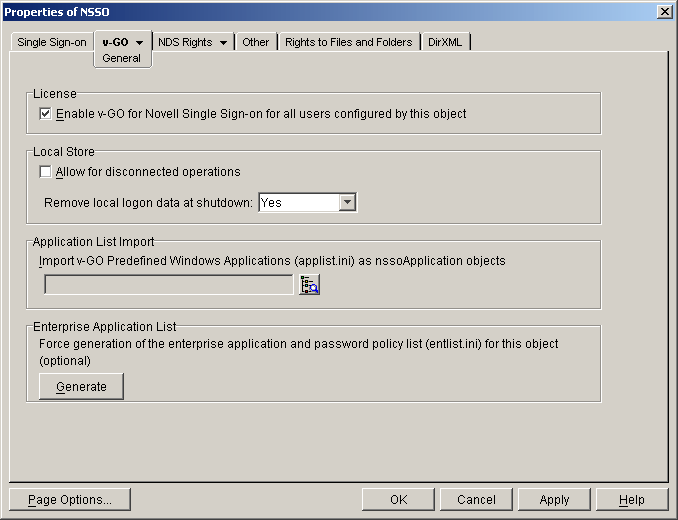
Navigate to and select the APPLIST.INI file, which is in the installation directory (for example, NOVELL\SSO\PASSLOGIX).
IMPORTANT: Only import APPLIST.INI once per nssoSingleSignon object and only if you want to apply Enhanced Protection or other options.
By default, these imported nssoApplication objects are created with the following options enabled:
- Enhanced Protection
- Allow User to Reveal Password
Enabling v-GO
To have unlimited use of v-GO and ConsoleOne administration of settings and policies, you must do the following:
- License the product for all users configured by this object
You must have purchased one of the following packages:
- v-GO for Novell Single Sign-on 2.1
- Single Sign-on 2.1 /v-GO Bundle
- Enable v-GO
If you don't enable v-GO, v-GO supports only the predefined applications in APPLIST2.INI and 5 Web sites.
-
Click the v-GO tab > General.

-
Check the Enable v-GO check box in the License box.
-
Accept the license agreement > click Apply.
Configuring the Single Sign-on Object
You configure the Single Sign-on object (nssoSingleSignon) by applying settings on Single Sign-on and v-GO property pages.
Setting Server Options
Using ConsoleOne, you can configure the Novell SecretStoreTM service.
-
Right-click the nssoSingleSignon object > select Properties.
-
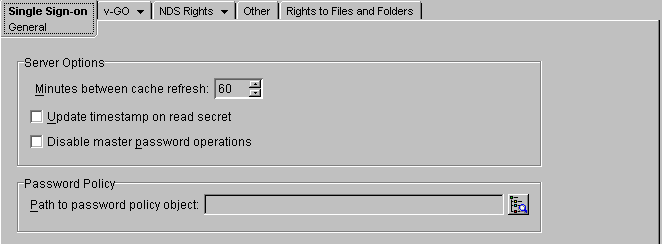
At the Single Sign-on General page, make the settings.
The following figure illustrates the nssoSingleSignon General page.
Setting Minutes between Cache Refresh
The SecretStore service caches some application-specific settings, such as those needed for NMASTM to enforce Graded Authentication on ReadSecret operations. This cache helps the service respond to requests more quickly. The default is 60 minutes between refreshes of the server cache. The minimum is 30 minutes (1/2 hour). The maximum is 1,440 minutes (24 hours).
Consider increasing the time for the following situations:
- You don't make frequent changes to NSSO objects.
- Taking longer for the NSSO system to enforce changes doesn't matter.
- You want to decrease the small overhead of refreshing data in the cache.
If an immediate update of the cache is needed, unload and reload the SecretStore service.
Updating the Timestamp
To have the SecretStore service record timestamp information on all ReadSecret operations, check the check box for this setting.
By default, the NSSO system doesn't update the timestamp. If you want to update the timestamp when a secret is read, check the check box. Every read then requires the NSSO system to modify the secret by updating the timestamp. This update requires more time.
Disabling Master Password Operations
To disallow all Enhanced Protection Master Password operations, check the check box for this setting. Then users cannot set or use their master passwords to unlock SecretStore.
Applying Password Policies
By creating and configuring an nssoPasswordPolicy object, you can control password policies for v-GO and application connectors that support password policies.
-
Right-click the nssoSingleSignon object > select Properties.
-
Click the Single Sign-on tab > General.
-
Click the Browse button > navigate to the nssoPasswordPolicy object, > select the object.
To create an nssoPasswordPolicy object, see Applying Password Policies.
Allowing for Disconnected Operations
v-GO uses a local, encrypted password store that functions as a cache while online. v-GO supports single sign-on while disconnected from NDS and SecretStore. This disconnected capability is especially useful for laptop users. By default, disconnected operations are permitted.
If you don't want users of this configuration to use this feature, uncheck the Allow for Disconnected Operations check box.
-
Right-click the nssoSingleSignon object > select Properties.
-
Click the v-GO tab > General.
-
Uncheck the Allow for Disconnected Operations check box.
Making Global Settings
If you enable certain settings, users can set single sign-on preferences at their workstations. Using drop-down lists in ConsoleOne, you can make global settings that allow or override those user preferences.
v-GO for NSSO has four property pages (General, Password, Logons, and Mainframe). Drop-down lists for making these global settings are spread through the four pages. In the following figure, the User Defined setting illustrates this drop-down list.

The drop-down list has three settings: No, Yes, and User Defined.
No and Yes are forced settings that disable (override) options in the user's preferences. The User Defined setting leaves the choice to the user.
Removing Local Logon Data
You can force v-GO to remove the local cache of secrets when a user shuts down a computer. This feature is most useful for environments in which multiple users log on to the same computer using the same account. (These are computer logons, not NDS logons.)52
To force users' workstations to remove the local cache of secrets:
-
Right-click the nssoSingleSignon object > select Properties.
-
Click the v-GO tab > General.
-
At the Remove Local Logon Data at Shutdown field, click the drop-down list > Yes.
To prevent users' workstations from removing the local cache of secrets, select No. To allow users to select an option at their workstations, select User Defined.
Using the Generate Button to Update
v-GO for NSSO downloads settings and password policies from attributes on this nssoSingleSignon object. These attributes are automatically updated whenever application and password policy objects are changed. If one of these objects is deleted, you can force an update to the v-GO configuration data by clicking this button. Updates will be applied to workstations when v-GO is next restarted.
-
Right-click the nssoSingleSignon object > select Properties.
-
Click the v-GO tab > General > Generate.
Recognizing Password-Protected Applications
v-GO can detect an application logon event for which no logon data has been stored. When this happens, you can force v-GO to recognize password protected applications and Web sites, and prompt users to add logons.
-
Right-click the nssoSingleSignon object > select Properties.
-
Click the v-GO tab > Password.
-
At the Auto-Prompt field, click the drop-down list > Yes.
If you select the Yes or User Defined setting, v-GO prompts users whether they want to add a logon. If users respond Yes, the Add Logon Wizard runs.
If you select the No setting, users can still add logon data by selecting Add Logon from the Novell Single Sign-on icon in the Windows system tray.
Immediately Entering an Application or Web Site
v-GO can detect application logon events for which logon data has been stored. When this happens, you can force v-GO to immediately press Enter and enter the application or Web site.
-
Right-click the nssoSingleSignon object > select Properties.
-
Click the v-GO tab > Password.
-
At the Auto-Enter field, click the drop-down list > Yes.
If you select the Yes or the User Defined setting, v-GO provides the username and password and presses Enter.
If you select the No setting, v-GO enters the data, allows the user to make needed modifications to the logon screen, and then presses Enter.
Revealing User ID and Password Fields
You can enable v-GO to reveal User ID and Password fields.
-
Right-click the nssoSingleSignon object > select Properties.
-
Click the v-GO tab > Password.
-
At the Reveal ID/Password field, click the drop-down list > Yes.
By default, users can use the v-GO My Logons interface to display saved logon details.
If you select the No setting, v-GO does not reveal the ID and password fields
You can control this setting at the application level by setting this property on each nssoApplication object. (You check the Allow User to Reveal Password check box.)
Defining Special Characters for Passwords
You can define the superset of special characters that can be used in passwords for any application.
-
Right-click the nssoSingleSignon object > select Properties.
-
Click the v-GO tab > Password.
-
In the Special Characters field, enter additional special characters that users can enter in their passwords.
Each nssoPasswordPolicy object has a Special Character Rules page. This page has an Unacceptable Special Characters field. You list unacceptable characters there.
For a given application or set of applications, the Unacceptable Special Characters field subtracts from the Special Characters field.
Displaying the NSSO Access Icon
You can force the NSSO system to display the small Novell Single Sign-on Access icon that appears on the title bar of the active window.

-
Right-click the nssoSingleSignon object > select Properties.
-
Click the v-GO tab > select Logons.
-
At the Access Icon field, click the drop-down list > Yes.
This icon provides access to v-GO's Add Logon and Logon functions. The icon is most useful if Auto-Prompt (on the Password page) and Auto-Recognize (on the Logons page) are set to No.
The setting, Yes, shows the icon. To force the icon not to display, select No.
To allow users to decide, select User Defined.
Displaying the Icon's Drop-Down List
By default, a drop-down list displays after a user clicks the NSSO Access icon on the window title. You can force the drop-down list not to appear.
-
Right-click the nssoSingleSignon object > select Properties.
-
Click the v-GO tab > Logons.
-
At the Display Dropdown field, click the drop-down list > No.
When the icon displays and the drop-down list is set to No, one of the following happens, depending on whether a logon exists for the application window:
- An Add Logon event
- A Logon event
Automatically Providing Logon Data
By default, v-GO automatically provides logon data to applications that logons have been created for. You can force v-GO not to do this.
-
Right-click the nssoSingleSignon object > select Properties.
-
Click the v-GO tab > Logons.
-
At the Auto-Recognize field, click the drop-down list > No.
The default setting, Yes, automatically provides logon data.
Setting the Timer
For faster logons, users can set a timer by using Programs > Single Sign-on > Single Sign-on > Settings > Logons. The timer determines how long credentials are cached.
Using ConsoleOne, you can override settings that users make at their workstations.
-
Right-click the nssoSingleSignon object > select Properties.
-
Click the v-GO tab > Logons.
-
Enter a value in the Timer field.
To override settings that users make at their workstations, enter a value in the Timer field. If you don't specify a value (including 0), users can specify any desired value at their workstations.
A higher number (for example, 15) speeds up the logon process because v-GO can quickly get logon credentials from the cache. If the setting is 15 minutes and that amount of time elapses, you must re-enter your NDS password when you next access the v-GO store to start an application or edit saved logons
In some ways, this feature acts as a limited screensaver. The timer doesn't lock the desktop, but does lock v-GO.
If you set the value to 0, users must provide their NDS password every time an application is launched.
Truncating Web Logon URLs
v-GO captures URLs through the Add Logon Wizard. You can specify how many levels of the URL v-GO will save.
For example, a URL is four levels: iClick.salem.vmp.com. If you set the value at 3, v-GO saves the URL as salem.vmp.com.
-
Right-click the nssoSingleSignon object > select Properties.
-
Click the v-GO tab > Logons.
-
Enter a value in the Truncate Web Logon URLs field.
You can edit the truncated path that v-GO writes during the Add Logon process.
Enabling Mainframe Support
You can override users' settings for HLLAPI terminal emulator support.
-
Right-click the nssoSingleSignon object > select Properties.
-
Click the v-GO tab > Mainframe.
-
At the Enter Mainframe Support field, click the drop-down list > Yes.
-
In the Default Terminal Emulator field, enter the name of the terminal emulator.
If a user has specified an emulator in the v-GO client's Mainframe page, you can override that setting. For a list of acceptable names, see MFRMLIST.INI in the v-GO client installation directory (C:\NOVELL\SSO\PASSLOGIX).
If users' workstations do not have more than one emulator, you can skip this setting.
Also, if you administer this nssoSingleSignon object for users that have different emulators, don't use this setting.
Previous | Next