The Main Menu
The Main Menu displays a list of all PCI slots in the system.
Figure 2
The Main Menu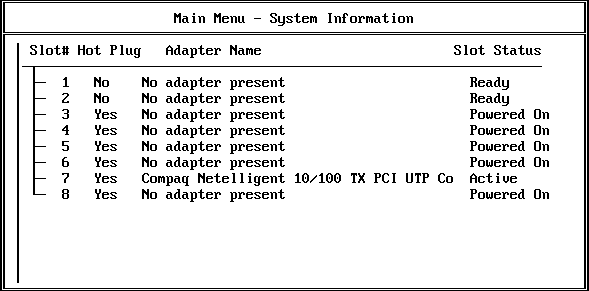
For each slot, the Main Menu displays the following information:
- The system board slot number
- Whether or not the slot is hot pluggable
- An adapter description field or name
- The status of the slot/adapter, which may include the following:
Powered Off - The lever is open on the slot and power to the slot is turned off.
Powered On - The lever has been closed, power is on to the slot, and the slot is empty (this is different from Ready because there is no card in the slot).
Ready - An adapter is in the slot and ready to be used but there is currently no driver loaded for it.
Active - A loaded driver is using this adapter and the adapter is believed to be in good working order.
Failed - This adapter's driver or Hot Plug driver indicated some type of device failure. The adapter can be removed and a new one added at this time.
Degraded - A device on the multi-device adapter has failed, but other devices on the adapter continue to function.
Processing... - An action is being performed on a slot/adapter.
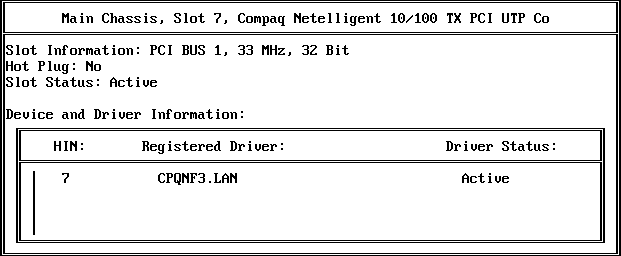
Pressing <Enter> on a selected slot of the Main Menu displays either the Slot Options or the Slot Detailed Information screen. Online, context-sensitive help is available to guide you through PCI Hot Plug actions.
Slot Options
This menu lists the options available for the highlighted Hot Plug slot (selection of a non-Hot Plug slot automatically displays the Slot Detailed Information screen).
Figure 3
Slot Options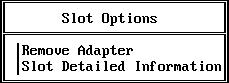
Depending on the driver, the state of the slot or adapter, and the capabilities of the system, different options appear on the menu.
The interlock mechanism is one feature that can influence what appears on the Slot Options menu. The interlock is a safety mechanism that shuts off power to a slot if the slot is opened while the power is still on. Not all hardware manufacturers provide an interlock mechanism, and not all interlock mechanisms work the same way. Refer to your hardware documentation for more information.
The following table describes the options on the Slot Options menu and the conditions under which they appear.