1.4 Configure NetWare Enterprise Web Server
By default, the Web server will be configured for Perl in NetWare5.1 and above. If you need to reconfigure the Web server Complete the following steps to enable Perl support for the NetWare Enterprise server.
-
Open the NetWare Web Manager in your browser. The syntax for this URL is typically:
https://server_name:adminport_number -
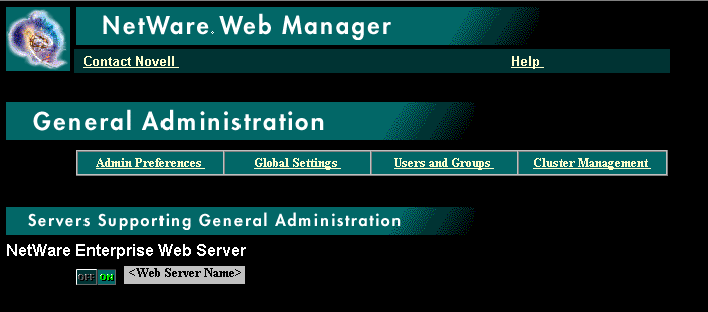
Log in to the server as an administrator and the server administration screen is displayed.
-
Click <Web server name> to display the NetWare Enterprise Web Server administration screen.

-
Then, Configure the CGI Directory.
HINT:The ON/OFF indicator must be set to On for executing this procedure.
1.4.1 Configure the CGI Directory
Before Perl can be used with the your Web Server, ensure that the CGI Directory is properly configured.
-
From the NetWare Administration screen, click Programs, then click CGI Directory. Add New CGI directory screen is displayed.

-
Click the Edit Button next to the line that reads Prefix:/perl.
-
Ensure that the CGI Directory for Perl is set to /Perl/lcgi/cgi2perl.nlm and the URl is /perl. If the values are not set, change them and then click OK.
-
The Obj.conf file resides in the sys:\Novonyx\suitespot\https-servername\config directory. Enter the following line defining PERL_ROOT, in the Obj.conf file using a text editor.
Init fn="lcgi_map_init" PERL_ROOT="sys:\perl\web"
Since this path defines the directory that is searched for scripts when running Perl from the Web server, ensure that the specified directory exists and is correctly named.
1.4.2 Configure and test your database connection - Oracle
The ODBC connection can be set up through the specified Web server using SQL connection manager.
-
Click Programs from the NetWare Enterprise Web server administration screen.
-
Then, click Server-Side JavaScript.
-
Select Yes to Activate the Server-Side JavaScript application environment. This will allow you to test the database connection after it has been created. Click OK.
-
Click Novell Servlet gateway.
-
Select Yes to Activate the Novell Servlet Gateway. This will allow you to run the servlet that helps to create your Data sources. Click OK.
-
Click ODBC Data sources.
-
Click Administer, then log in as the Administrator. The SQL Connector for NetWare screen is displayed.
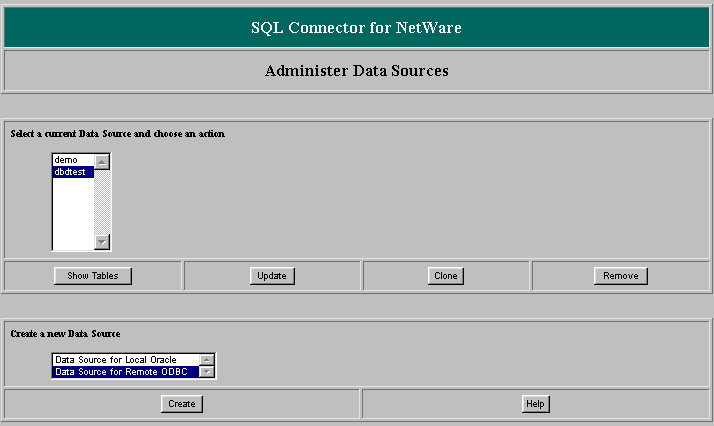
NOTE:A list of existing Data Sources is displayed only if configured.
-
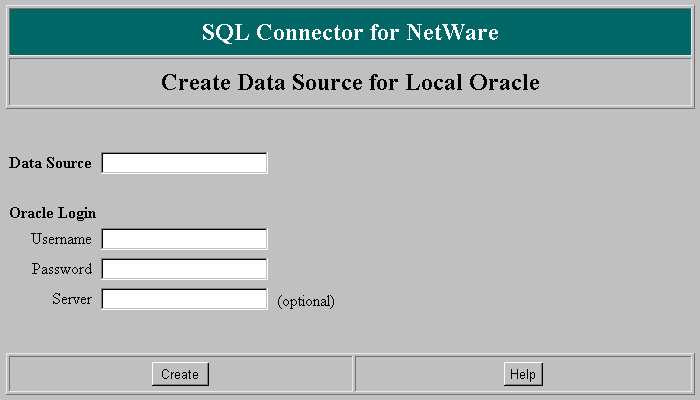
Highlight the data source type and click Create. The system assumes that you are connecting to an Oracle database on your NetWare server. Create Data Source for Local Oracle screen is displayed.
NOTE:Choose Remote ODBC if you are connecting to a database on NT server.
-
Fill the fields based on the following field descriptions
Data Source: The name you want to assign to your database.
UserName: The username assigned by Oracle.
Password: The password assigned by Oracle.
Server: (Optional).The Oracle TNS connection name for accessing a remote Oracle database, such as ora_world. The Oracle database administrator defines the TNS names.
NOTE:If you choose Remote ODBC as your Data source type in Step 9, this screen will require both Windows NT login information and ODBC data driver information. In the Data source field, enter the name you want to assign to your Windows NT database connection. In the ODBC Data Source Name field, enter the name of an existing ODBC data source. For the list of existing data sources click Control panel > ODBC in the NT machine.
-
Click Create to create the data source.
A monitor window gives details about the program's progress as it creates the data source. When the data source creation is completed, a status window will appear.
-
Click OK to return to the Administer Data Sources screen. The new data source is displayed in the Data Sources list.
-
Highlight the data source and click Show Tables to display a list of tables in the data source. These tables are useful to test the database connection.
For more information about database connectivity, see:
-
Netware 5.1 Documentation.. Click Database Services > Novell SQL Connector.
-
SQL integrator: A Data Request Broker for heterogeneous Data Access (Novell App Notes, May 1998)
Once the database connection is configured it should be tested to ensure proper functioning of the database. Proceed with the following steps on your NetWare Enterprise Web Server administration screen, to test the configuration.
-
Click ODBC Data Sources. Administer ODBC Data Sources screen is displayed.

-
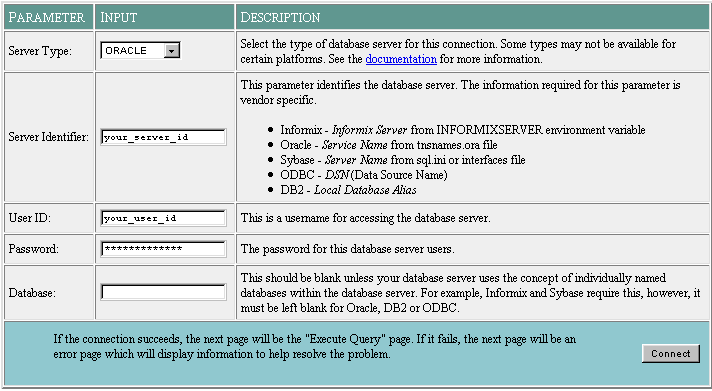
Click Test to launch the dbadmin JavaScript utility. Connect To Database screen is displayed.
IMPORTANT:The Server-Side JavaScript should be activated first, to execute this procedure properly. See step 2 under Configure and test your database connection - Oracle.
-
Enter the data specific to your database connection, and click Connect To Test your Connection.
HINT:If you have an ODBC server type, enter the newly created Data Source Name in the Server Identifier field.
If the connection is correct, the Execute Query screen will be displayed. Queries can be issued against the tables that were displayed when show Table was selected in step 13 of Configure and test your database connection - Oracle.
If the connection fails, an error page containing the solution for the corresponding problem is displayed.