1.7 Setting Up the Test Configuration
The Storage Access test groups each require unique hardware configurations. The configurations supported for storage products are shown in this section.YES CERTIFIED bulletins are available for storage products tested with one of these configurations, in conjunction with the appropriate test project.
The figures in this section show switch boxes or device power interrupts (DPIs) that should be connected as appropriate. To configure a test setup:
-
Select the appropriate test configuration and install the primary host bus adapter. This may be the adapter under test or it may be a previously certified adapter (if you are performing a different test). The adapter may already be integrated on the motherboard. This adapter is designated as the primary channel because it is the one most likely to service a hard disk drive containing the bootable DOS partition.
-
All configurations require the attachment of a CD-ROM and hard drive for use in installing NetWare.
-
Depending on the configuration, install zero, one, or two other host bus adapters as needed. Other adapters would be designated as the secondary, or tertiary channels. In case of driver/HBA testing, the adapters must be the same make, model, and revision.
-
Set your remaining hardware components according to the configuration diagrams on the following pages.
-
Apply power to all the devices and boot the machine.
1.7.1 Host Bus Adapters
- SCSI Driver/HBA Configuration—Onboard HBA Reduced Configuration
- IDE Driver/HBA Configuration—Onboard Reduced Configuration
- LVD Driver/HBA Configuration—Onboard HBA/Reduced Configuration
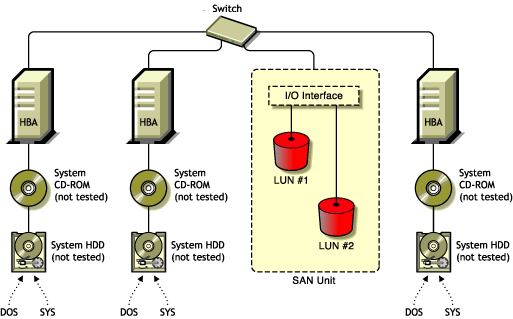
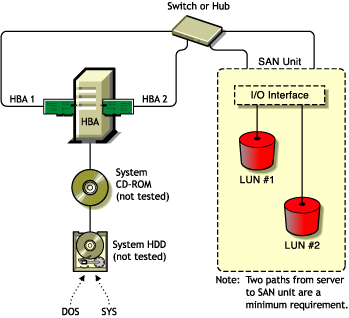
- Fibre Channel Adapter Configuration
- I20 RAID Controller Adapter Configuration—RAID Controller Adapter Configuration
- Mass Storage Solution/Subsystem Configuration
- Software RAID Configuration
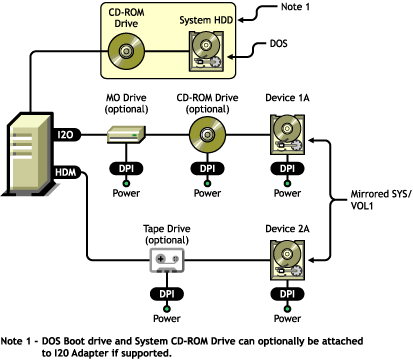
- I20 Adapter Configuration
- Fail-Over Configuration
SCSI Driver/HBA Configuration—Onboard HBA Reduced Configuration
Figure 1-1 Hardware Configuration
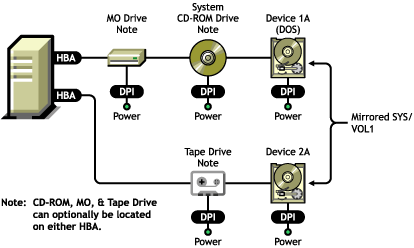
IDE Driver/HBA Configuration—Onboard Reduced Configuration
Figure 1-2 Hardware Configuration
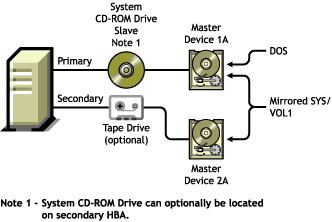
LVD Driver/HBA Configuration—Onboard HBA/Reduced Configuration
Figure 1-3 Hardware Configuration
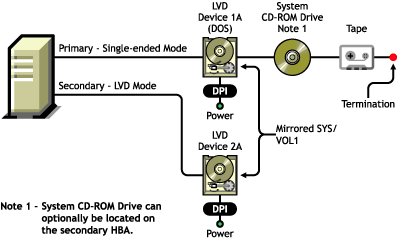
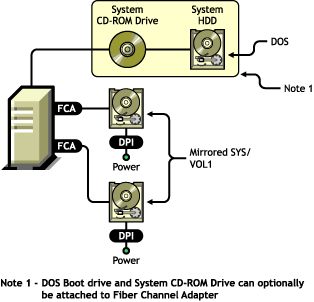
Fibre Channel Adapter Configuration
Figure 1-4 Hardware Configuration
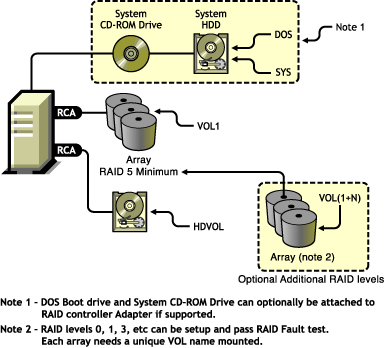
I20 RAID Controller Adapter Configuration—RAID Controller Adapter Configuration
Figure 1-5 Hardware Configuration
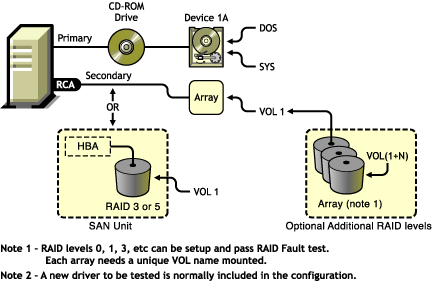
Mass Storage Solution/Subsystem Configuration
Figure 1-6 Hardware Configuration
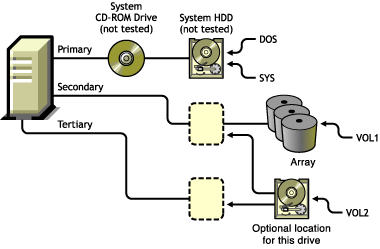
Software RAID Configuration
Figure 1-7 Hardware Configuration
I20 Adapter Configuration
Figure 1-8 Hardware Configuration
Fail-Over Configuration
Figure 1-9 Hardware Configuration
1.7.2 Custom Device Drivers
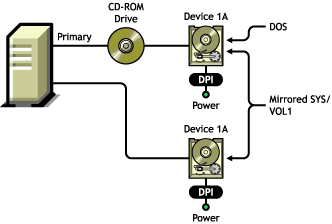
Hard Disk Driver (SCSI CDM) Configuration
Figure 1-10 Hardware Configuration
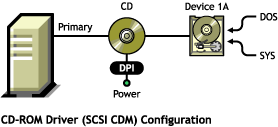
CD-ROM Driver (SCSI CDM) Configuration
Figure 1-11 Hardware Configuration
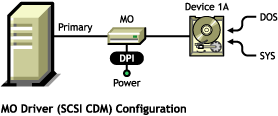
MO Driver (SCSI CDM) Configuration
Figure 1-12 Hardware Configuration
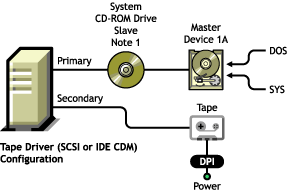
Tape Driver (SCSI or IDE CDM) Configuration
Figure 1-13 Hardware Configuration
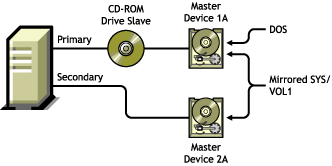
Hard Disk Driver (IDE CDM) Configuration
Figure 1-14 Hardware Configuration
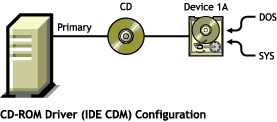
CD-ROM Driver (IDE CDM) Configuration
Figure 1-15 Hardware Configuration
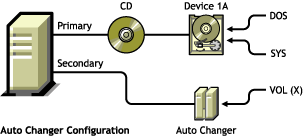
Auto Changer Driver Configuration
Figure 1-16 Hardware Configuration
1.7.3 Devices
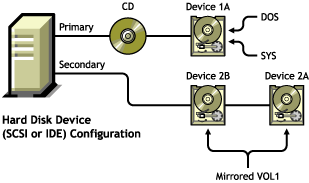
Hard Disk Device (SCSI or IDE) Configuration
Figure 1-17 Hardware Configuration
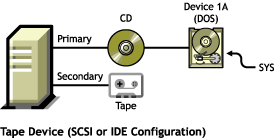
Tape Device (SCSI or IDE) Configuration
Figure 1-18 Hardware Configuration
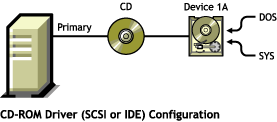
CD-ROM Device (SCSI or IDE) Configuration
Figure 1-19 Hardware Configuration
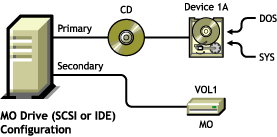
MO Device (SCSI or IDE) Configuration
Figure 1-20 Hardware Configuration
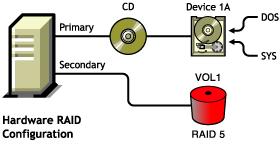
Hardware RAID Configuration
Figure 1-21 Hardware Configuration
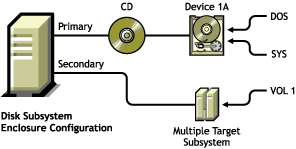
Disk Subsystem Enclosure Configuration
Figure 1-22 Hardware Configuration
Storage Area Network Device Configuration
Figure 1-23 Hardware Configuration