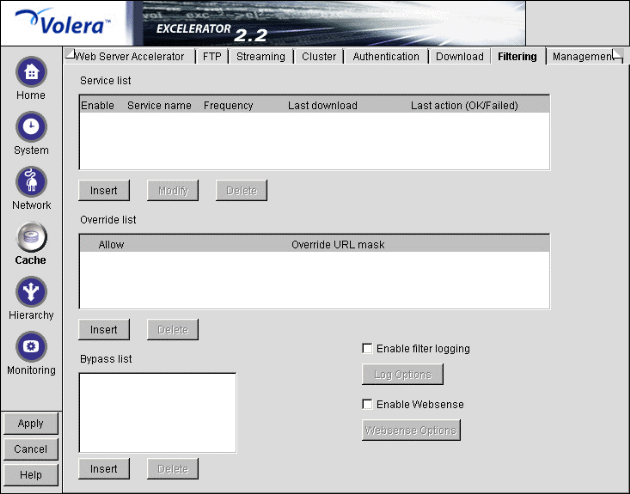
Figure 144
The Filtering tab lets you do the following:
When you have an account with the filtering service, you can perform scheduled downloads of the filter service files. You do not need a filtering service subscription to use your own override or bypass lists, however.
Service List: Contains all the filtering services you are currently subscribed to. It has the following display fields:
You can insert a new service, or modify or delete an existing one. See Insert Filter Service Dialog Box and Modify Filter Service Dialog Box.
Override List: A list of URLs you can create that overrides any filtering described in the service list. You can specify to never or always allow a specific URL.
You can use wildcards in describing the URL. See Critical Information about Wildcards in the Override List.
You can also select Insert to add members or Delete to remove an existing URL from the list.
Be aware that the appliance applies the action specified for the most specific or granular URL.
For example, if you have specified to always allow AnEducationalSite.org but to never allow AnEducationalSite.org/snakes, the appliance always vends everything on the site, except for objects with /snakes in the path because /snakes is a more granular URL.
IMPORTANT: When you enter a URL (hostname) in the Override list, Excelerator checks to see whether the hostname resolves to a single IP address. If so, a second entry is added to the list for the IP address that corresponds to the hostname entry. The same Allow status you specify for the hostname entry is applied to the IP address entry.
These entries are not linked together. If you delete one of the entries (hostname or IP address), the corresponding entry is not automatically deleted. Therefore, the override might continue to be in effect after you think it has been removed.
Also, if you change the Allow status of one of the entries, the other entry is not automatically changed. Excelerator processes IP address entries before hostname entries. Therefore, if you change the Allow status of the hostname entry and don't change the IP address entry, the previous override behavior will continue unchanged.
Bypass List: A list of appliance IP addresses and ports whose requests need to bypass appliance content filtering. Clicking Insert opens the Enter Filter Bypass dialog box wherein you can select one of the appliance's IP addresses and enter the port number.
Once an IP address and port have been inserted in the list, all requests pass through the specified appliance IP address and port unaffected by filtering.
Enable Filter Logging: Turns on logging of filter activity. Excelerator supports only appliance-specific filtering common log format for filter logging, which has different fields than the common log format used to log caching transactions.
Enable Websense: This option is not activated until you have installed a valid Websense license on the cache device. You can download a valid license from Volera's support pages on Novell.com or contact your Novell Authorized Reseller. For more information on installing licenses, see Installing and Upgrading Licenses.
After installing a valid Websense license, click Websense Options to complete the Websense integration. For more information, see Websense Options Dialog Box.
Path: Cache > Filtering > Insert under Service List
Figure 145 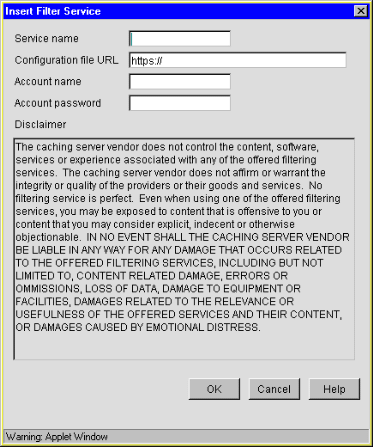
The Insert Filter Service dialog box lets you configure the appliance to download a filter service file.
Service Name: Enter the name you have selected to identify this filter service. Enter any text you want, with no spaces or special characters.
Configuration File URL: Enter the complete URL supplied by your filtering service for the filter service file.
Account Name: Enter the account name provided by your filtering service.
Account Password: Enter the password provided for your filtering service account.
To add a new service to the list, click OK > Apply. To ignore changes, click Cancel.
Path: Cache > Filtering > Service in Service List > Modify
Figure 146 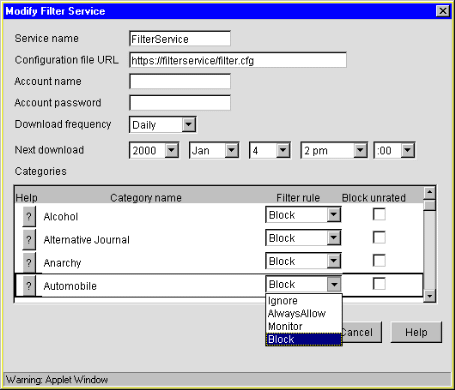
The Modify Filter Service dialog box allows you to modify the configuration of a filter service, including the service name, URL, account name, and account password, after the PICS description file has been downloaded.
Most filter services allow you to refresh their rating list as often as you like. When you initially configure a filter service, check the Next Download information to ensure timely activation of filtering. (Filtering doesn't start until a rating list has been successfully downloaded.)
The Categories list lets you configure filtering behavior for each category defined by your filter service.
Help: Click the question mark button to the left of the category name to display a category help file. If a category help file is not available, a generic help page appears.
Category Name: The category name is created by the service provider and identifies some aspect of Web data. Names might include Violence, Language, Adult Oriented, and Education. The appliance downloads the category names and associated help files when you specify the service.
Service providers rate Web pages for each category as either true or false. A page rated true for Violence has violent content as defined by the service provider. A page rated true for Education meets the service provider's criteria for the Education category.
Filter Rule: The appliance uses filter rules you create in combination with category ratings from your service provider to determine whether to vend, monitor, or block a page. You specify one of the following filter rules for each category.
Block Unrated: The Block Unrated check box appears only when the Block filter rule is selected. Checking the box causes the appliance to block all pages that the service provider has not rated for the category.
IMPORTANT: Checking this option sometimes causes pages to be blocked that appliance administrators hadn't anticipated. As you use this option, remember that many sites are not rated for all categories. The appliance will block all pages that are not rated for a category that is checked.
For example, a service provider has rated a page on trees as true for Education but has not assigned a rating for the Violence category since the page has no violent content. If an appliance administrator checks Block Unrated for the Violence category, the appliance will block the tree page even though it has no violent content.
Path: Cache > Filtering > Enable Websense > Websense Options
Figure 147 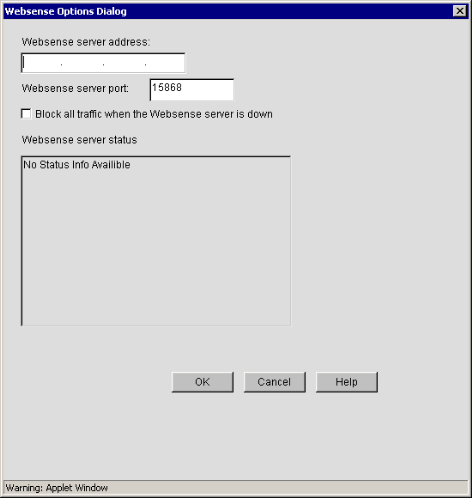
Use this dialog box to configure Websense Enterprise software.
IMPORTANT: This dialog box cannot be displayed until a Websense license is installed on the cache device. For more information on installing licenses, see Installing and Upgrading Licenses.