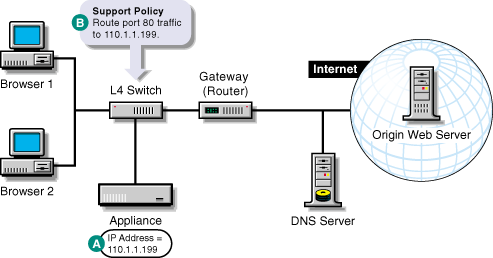
Figure 14 provides a visual map for the information in this section.
NOTE: The letters in Figure 14 are referenced in the table that follows. The addresses shown are for illustration purposes only. You will need to substitute actual addresses for your network.
Figure 14
| To | Do This | Notes |
|---|---|---|
Ensure your basic network configuration is complete |
|
|
Set up transparent proxy services on the appliance |
|
See A in Figure 14. When transparent proxy is enabled, it is active for all IP addresses on the appliance, except those configured for origin Web server acceleration services on the same port. No additional configuration is necessary for Excelerator to work with an L4 switch. For more information, see Transparent Handling Tab. |
Set up your L4 switch to route browser requests (port 80 traffic) to the appliance |
|
See B in Figure 14. |