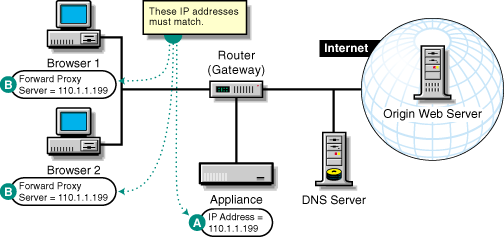
Figure 9 provides a visual map for the information in this section.
NOTE: The letters in Figure 9 are referenced in the table that follows. The addresses shown are for illustration purposes only. You will need to substitute actual addresses for your network.
Figure 9
Set up forward proxy services as follows:
| To | Do This | Notes |
|---|---|---|
Ensure your basic network configuration is complete |
|
|
Enable forward proxy services on the appliance |
|
See A in Figure 9. For more information, see Client Accelerator Tab. |
Enable the client browsers to use proxy services |
See the software vendor's documentation for more information. |
See B in Figure 9. Use one of the checked IP addresses as the address for the forward proxy server. Be sure to use the same port number as configured on the appliance. |