

IMPORTANT: RealProxy must be stopped before configuring transparent proxy services. Once the proxy service has been configured, restart RealProxy.
Transparent proxy enables the network administrator to force all RealPlayer clients on the network to go through the RealProxy. This is the best way to obtain large bandwidth savings through the RealProxy caching capabilities.
Transparent proxy works by redirecting traffic for the RTSP port (554) to the Excelerator appliance. This can be done through an L4 switch, a WCCP-capable router, or in inline deployment of the Excelerator. Methods for doing this are described in detail in Transparent/L4 RTSP Streaming Proxy in the Volera Excelerator 2.3 Administration Guide. In order to utilize RealProxy 8 as a transparent proxy it is necessary to configure an RTSP Transparent proxy service.
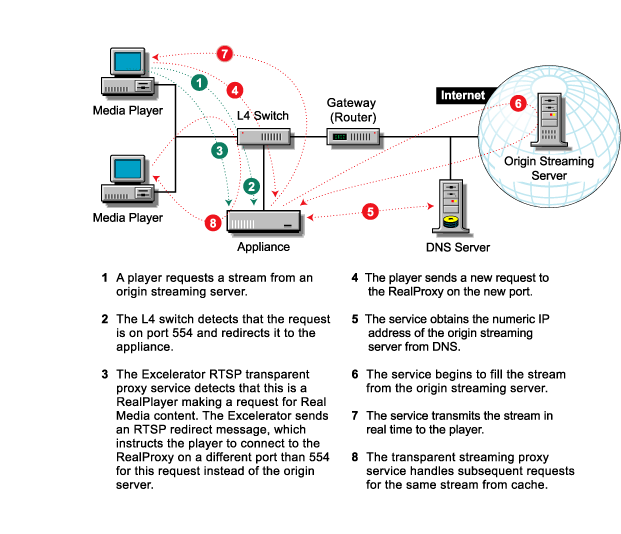
QuickTime transparent and RealProxy services can be configured at the same time. Typically the QT transparent service is configured for port 554, the standard RTSP port. If the RealPlayer sends requests to the standard RTSP port (554), the QT transparent service will redirect the request to the RealProxy service. Figure 1 shows an example of how the redirect process works if an L4 switch is being used.
Figure 1
RealProxy uses the port configured with the Real service. RealProxy cannot be configured to use the same port as any other streaming service of a different type. If a QuickTime transparent service is configured for port 554 (default for RTSP) and Real services are also configured an enabled (on a different port) and the RealMedia clients send requests to port 554, QuickTime will redirect the requests to the RealProxy, using the port RealProxy is configured with.
Because the Real Media request can be redirected, the appliance should be given a publicy routable IP address. If the appliance has multiple interfaces which are configured with IP addresses, the appliance will choose one of these interfaces to use for RealProxy redirects.
If you wish to limit the pool of addresses which may be chosen for RealProxy redirects, you may do this by using the IP Binding feature in the RealProxy 8. The IP Binding feature is configured through the RealSystem Administrator tool. This will prevent redirects from going to undesirable IP addresses, such as non-public addresses or IP addresses assigned to interfaces which are not currently attached to the network.