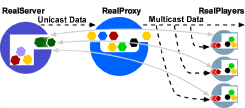
Multicasting helps you conserve bandwidth. It requires a specially configured network. In this chapter, you'll see how to set up RealProxy to multicast.
Multicasting is a way of sending a single live stream to multiple clients, rather than sending a stream to every single client.
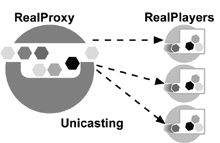
In contrast, regular unicasting transmission sends a stream to each client that requests it.
To take advantage of multicasting, both RealProxy and clients, as well as the routers between them, must be multicast-enabled. For this reason, multicasting is mostly used with intranets where routers can be configured for multicasts. Multicast delivery can be done over the Internet only where intermediary network devices have been multicast-enabled.
Multicast is automatically used (when available and configured) for pull split streams. It is not used with passthrough or cache mode.
This method of multicasting uses the RTSP protocol to send control information over a TCP channel. RealProxy maintains a control connection for each client. The data channel is multicast to all clients. RTSP multicast provides the following features:
 |
Note |
|---|
| RTSP multicasting works only with RealSystem G2 clients. |
Before you set up multicasting, you need to do two things:
Before setting up RealProxy, verify the following items with your network administrator:
In addition to network settings, clients must be configured to request multicast transmission of live material. Consult the client software's user guide for information on configuring the client.
As noted earlier, both RealProxy and clients, as well as the routers between them, must be multicast-enabled in order for you to distribute presentations using the multicast features. This section describes only what is required to enable RealProxy for multicast broadcasting.
There are two factors to take into account when establishing the addresses and port numbers that RealProxy will use for multicasting:
Although the information in this document will help you calculate the number of addresses and port numbers you'll need for multicasting, you'll still need to consult with your network administrator regarding the actual addresses you'll use.
For each file that you are transmitting via multicast, you must calculate the number of addresses you'll need. The number of addresses is based on the number of bit rates in the file. For simple RealVideo files, figuring the number of addresses and port numbers is relatively simple. SureStream files are more complex, as they can contain several bit rates, each with its own number of streams.
Unless you can find out the number of bit rates in the files that you are streaming, you'll have to guess. A safe number is six bit rates per file; the maximum number of bit rates that would be present in a single SureStream file is 14, yet files prepared for multicasts are likely to include only the higher encoding rates. A non-SureStream file would have at most one bit rate and two streams.
| Bit Rates | Addresses |
|---|---|
| 1 | 1 |
| 2 | 2 |
| 3 | 3 |
| ... | ... |
| n bit rates | n |
Follow the instructions below to set up back-channel multicasting.
554.
Refer to "Determining Required Addresses and Port Numbers" to calculate the exact number of addresses you'll need.
The value for Time to Live can range from 0 to 255. The larger the Time to Live, the greater the distance a data packet will travel.
The default value of 16 is enough to keep multicast packets within a typical internal network.
| TTL Value | Packet Range |
|---|---|
0 |
Local host |
1 |
Local network (subnet) |
32 |
Site |
64 |
Region |
128 |
Continent |
255 |
World |
True from the Resend list. This setting is optional. It adds some overhead to the traffic on your network; however, clients receive better quality multicasts.
To require that clients with IP addresses in the User List must connect in multicast mode, set Deliver Only to Yes. When this is selected, those clients not configured for multicast will not be able to receive the multicast, and will receive an error message instead. Use this feature when you want to restrict the multicast to a limited number of clients, or if you are multicasting a high-bandwidth presentation and do not want unicast to be an option.
Yes from the Delivery Only list.
0.0.0.0.
To indicate a single IP address, type 255.255.255.254 in the Netmask box. If you typed 0.0.0.0 in the To box, type the same thing in the Netmask box.
Repeat Step b through Step f for each set of clients that will be accessing your multicast.
|
|
Note |
|---|
| Access Control rules are enacted before User List rules. A client that is excluded by Access Control will not be able to connect to any multicasts, regardless of the rules you create here. (IP Access Control is described in Chapter 9, "Limiting Access to RealProxy".) |