Director Tutorials
To start getting familiar with the exteNd Director project for the Express Portal, which you can later use to:
Learn how the Express Portal, a typical exteNd Director portal application, is built and how it works
Develop your own portal application based on the Express Portal
Before you begin See About exteNd Director Tutorials.
 To open and explore the Express Portal project:
Make sure that the Express Portal has been installed on your system.
 If you need help with Express Portal installation, see the chapter About the Express Portal in the exteNd Director Portal Guide.
Go to the list of all programs on the Windows Start menu and select:
Novell exteNd 5.0>Director>Director Designer
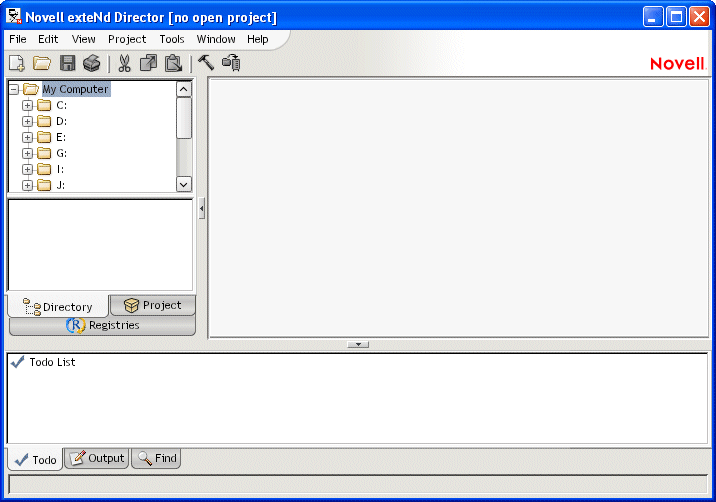
This displays the exteNd Director development environment, an integrated toolset for examining, editing, building, and deploying exteNd Director projects:
In the Navigation Pane (on the left side of the window), click the Directory tab.
This tab lets you browse your computer's file system. You'll use it now to see where the exteNd install has stored the files for the Express Portal project.
Expand the directory path where you installed Novell exteNd. This is typically:
C:\Program Files\Novell\exteNd5
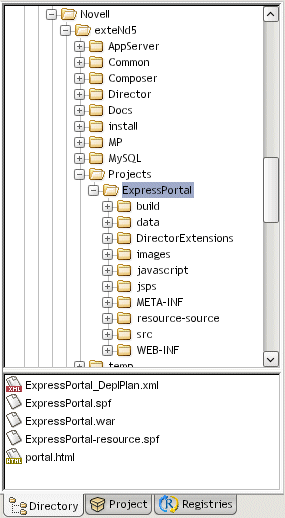
From there, expand and select the subdirectory Projects\ExpressPortal:
Notice that the Projects\ExpressPortal subdirectory contains:
The exteNd Director project (SPF) files for the Express Portal and its resource set: ExpressPortal.spf and ExpressPortal-resource.spf
The Web archive (WAR) file for deploying the Express Portal: ExpressPortal.war
The exteNd Application Server deployment plan file for deploying the Express Portal: ExpressPortal_DeplPlan.xml
Several subdirectories containing all of the supporting files for this exteNd Director portal application
Double-click the ExpressPortal.spf file.
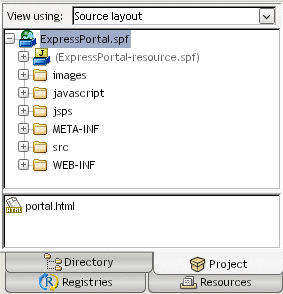
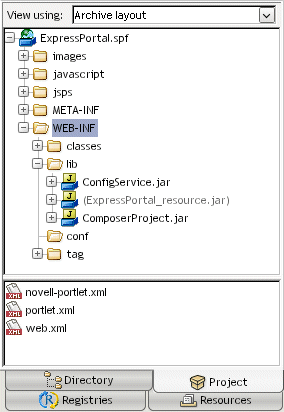
exteNd Director opens the Express Portal project and displays the Project tab of the Navigation Pane:
Use the dropdown control on the Project tab to change the view to Archive layout.
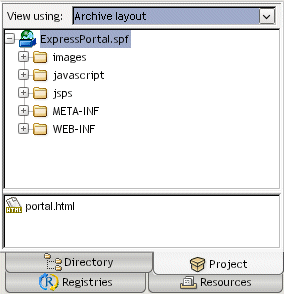
This gives you a J2EE-oriented look at the project; it shows the Express Portal files based on how they will be organized in the WAR file (ExpressPortal.war) generated for this project:
Briefly explore the project's directories to get an idea of what they contain. In particular, expand and select the WEB-INF directory to find the project's:
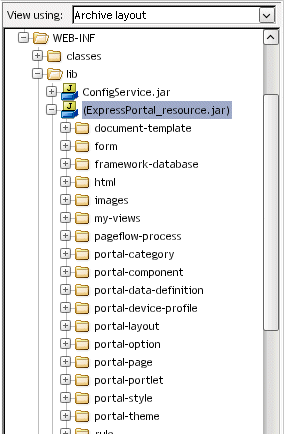
Expand WEB-INF\lib\ExpressPortal_resource.jar.
This is a JAR subproject that's provided to store any custom artifacts you add to the application. Notice that it includes subdirectories for the various types of artifacts (such as forms, images, etc.):
When you create new artifacts, they go into the appropriate subdirectory of ExpressPortal_resource.jar, where they automatically become part of the application's resource set (along with many pre-supplied files in other JARs).
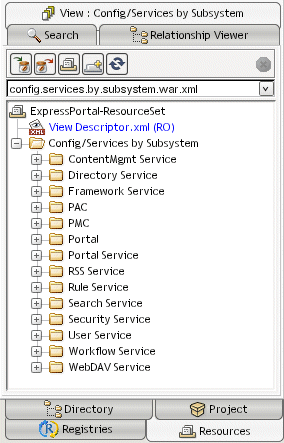
Click the Resources tab of the Navigation Pane:
The Resources tab enables you to explore the Express Portal files based on how they participate in the application's resource set. It often provides the most convenient entry point when you need to examine or modify a particular aspect of an exteNd Director project.
At the top of the Resources tab, make sure the child tab named View: view-name is currently selected.
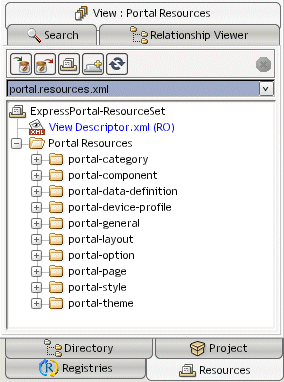
Then use the dropdown control on the tab to change the view to portal.resources.xml:
As its name indicates, this view lists files used to implement the application's portal features.
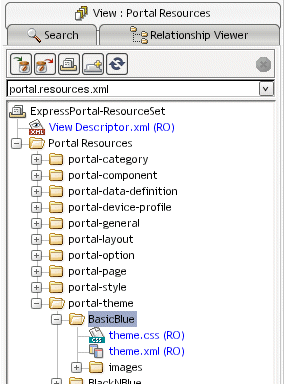
In this view, expand Portal Resources, then portal-theme, then BasicBlue.
The files that implement the portal's BasicBlue theme are listed:
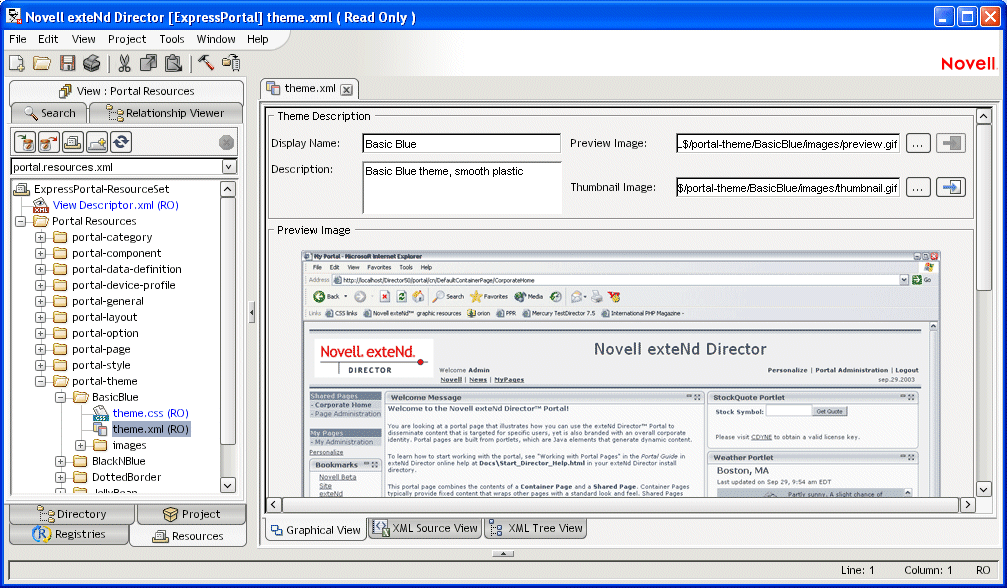
The BasicBlue theme descriptor opens in the theme descriptor editor (because this descriptor is a pre-supplied artifact, it is read-only). Now you can see how the BasicBlue theme is defined:
Try exploring other items in this view or in any of the other views.
When you're done exploring the Express Portal project, select File>Exit to close the project and quit the exteNd Director development environment.
Copyright © 2004 Novell, Inc. All rights reserved. Copyright © 1997, 1998, 1999, 2000, 2001, 2002, 2003 SilverStream Software, LLC. All rights reserved. more ...