Director Tutorials
Add some accessory portlets to a personal page, use the portlet options, and access portlet preferences.
Before you begin See About exteNd Director Tutorials
Audience This section is for portal end-users.
This section provides exercises that show you how to perform the following tasks:

The accessory portlets are a set of production-quality portlets that you can use on a personal or shared page in the ExpressPortal project or in your own exteNd Director project. They provide rich interaction with web sites, access to local applications, and other functions of interest to general users. Some of the accessory portlets have been converted from Novell Portal System (NPS) gadgets. All of the accessory portlets conform to the Java Portlet 1.0 specification.
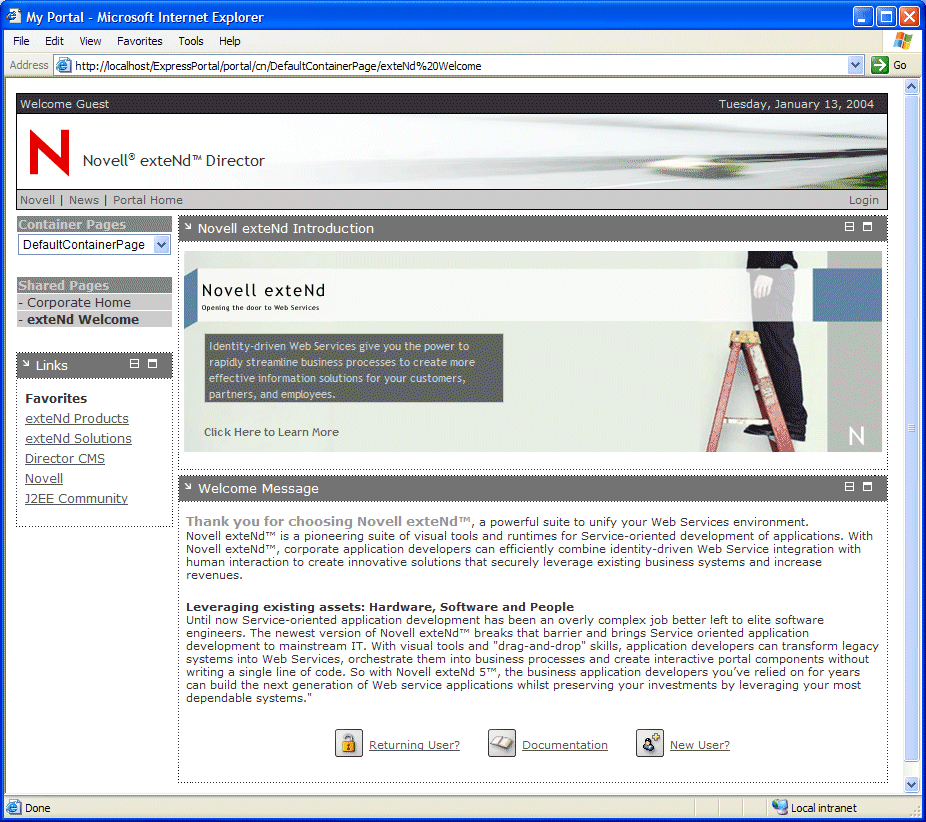
Open the Express Portal application by typing this URL:
http://host/ExpressPortal
NOTE: host is the machine on which the application is running. If the application is running on your local machine, use localhost.
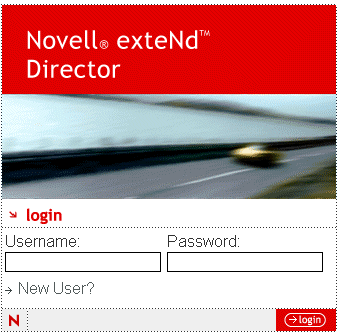
If you have logged in to ExpressPortal previously you can use the same name and password to access the default ExpressPortal page. Otherwise, create a new user by following these steps:
Fill in all of the requested fields. For example:
|
Field |
Sample Entry |
|---|---|
|
User ID |
MDoe |
|
password |
mdoe |
|
First Name |
Mary |
|
Last Name |
Doe |
|
|
mdoe@tutorial.com |
The login page reappears with a message indicating the new user has been successfully created.
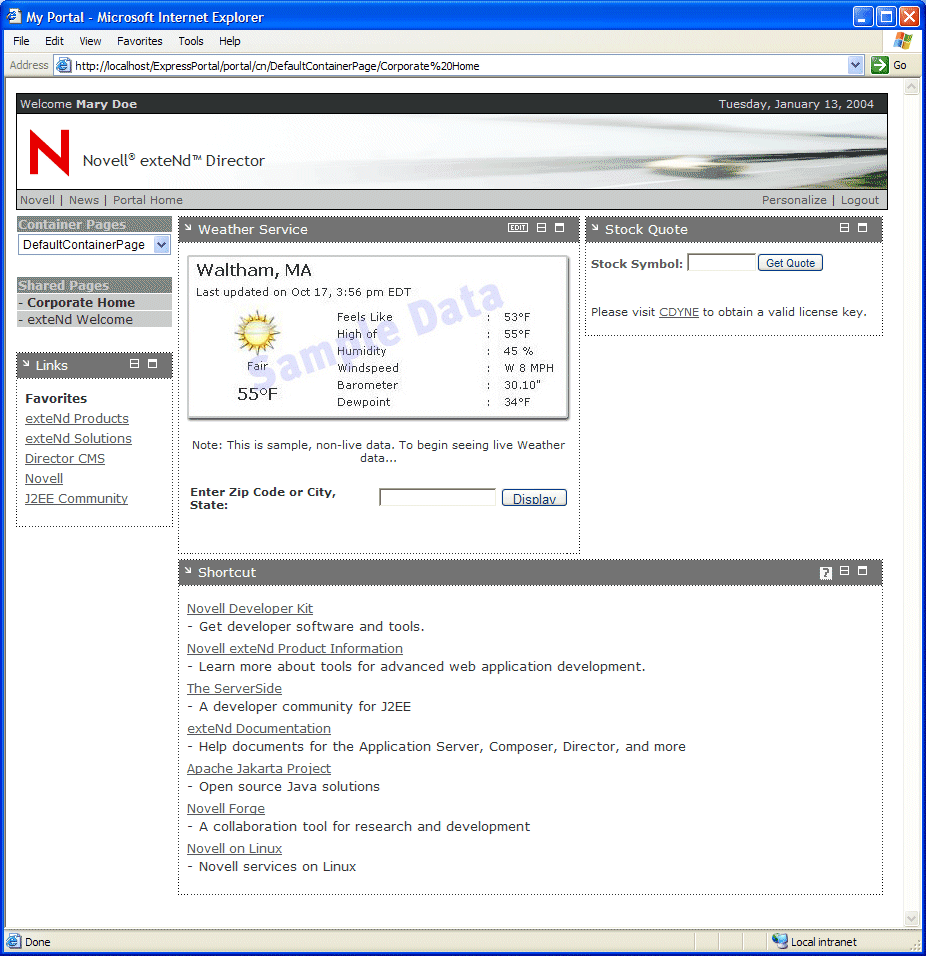
Log in using the new user and password.
TIP: Now you are ready to create a personal page with accessory portlets. Leave the default user page running in the browser and move to the next exercise.
 To create a personal page and add accessory portlets:
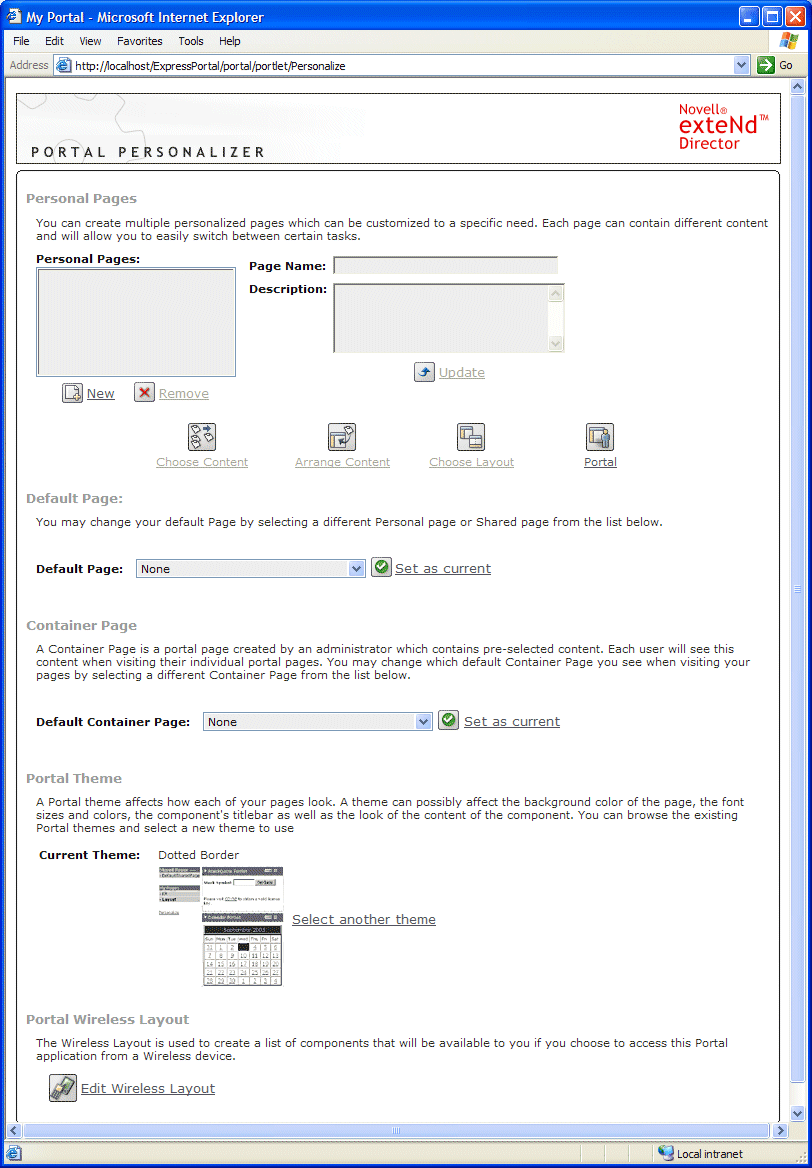
Click Personalize on the right side of the title bar.
Enter the following properties:
|
Property |
What to specify |
|---|---|
|
Page Name |
Enter My Accessory Portlets |
|
Description |
Enter Tutorial |
With the new page selected click Choose Content.
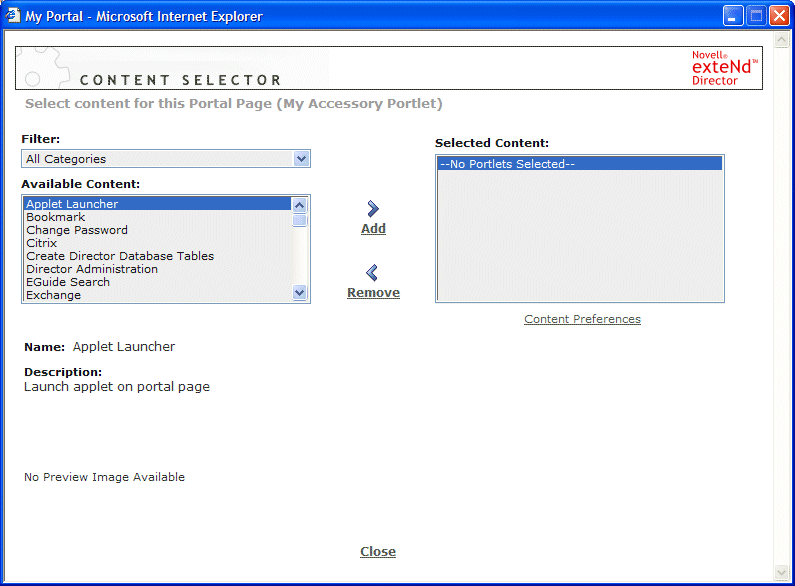
From the Available Content list add the following portlets to the page by clicking Add:
TIP: You can select multiple items by pressing the Ctrl key while clicking, then add all items as a group.
Close the Content Selector by choosing Close at the bottom of the form.
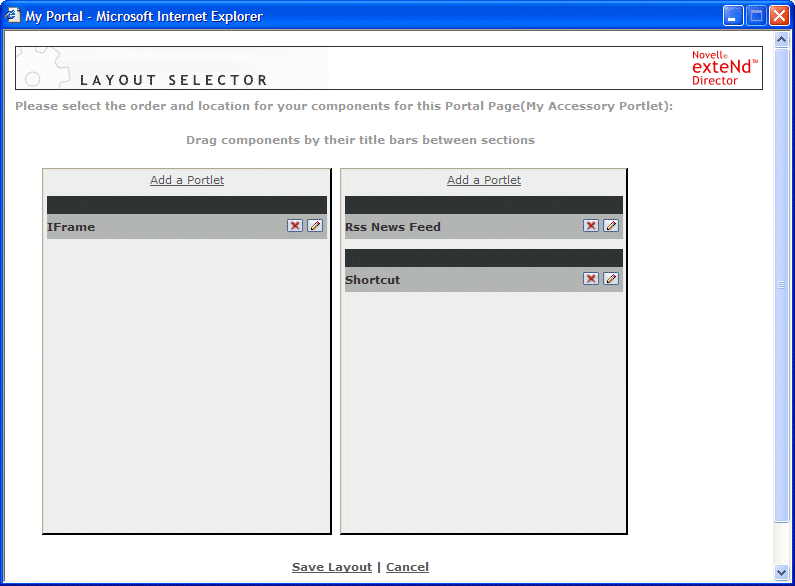
Click and drag Rss News Feed and Shortcut into the right column so the Layout Selector looks like this:
Click Save Layout at the bottom of the form.
The Layout Selector closes and the Portal Personalizer displays.
In the Portal Personalizer choose Portal.
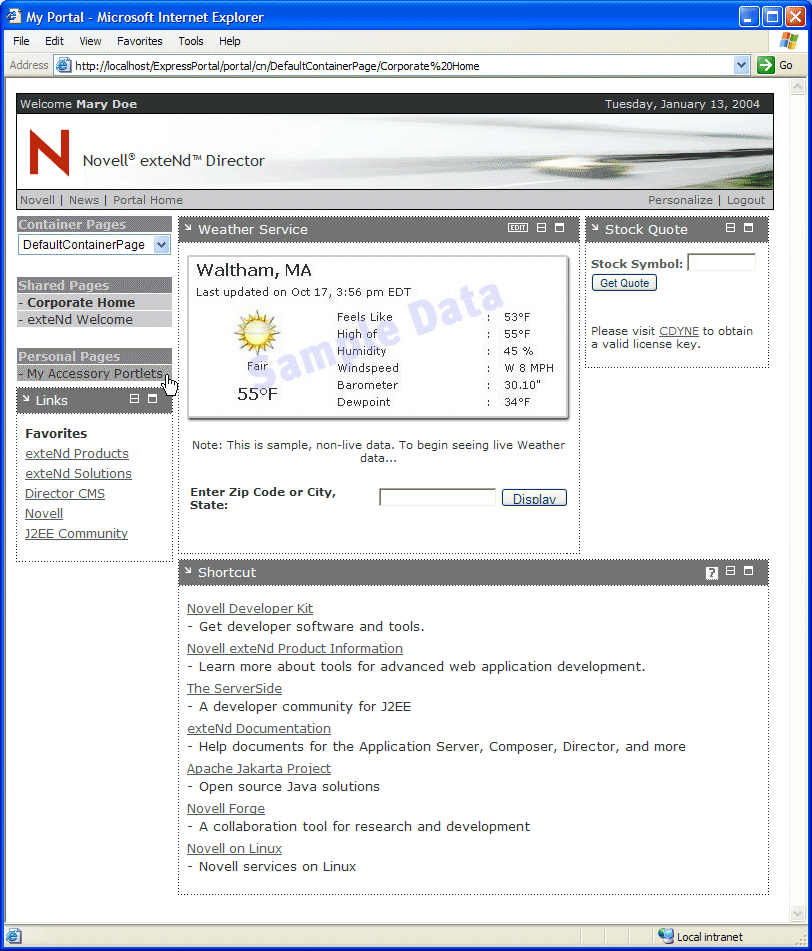
The default ExpressPortal page displays. Notice the new item My Accessory Portlets listed under Personal Pages in the navigation pane:
Select Accessory Portlets under Personal Pages.
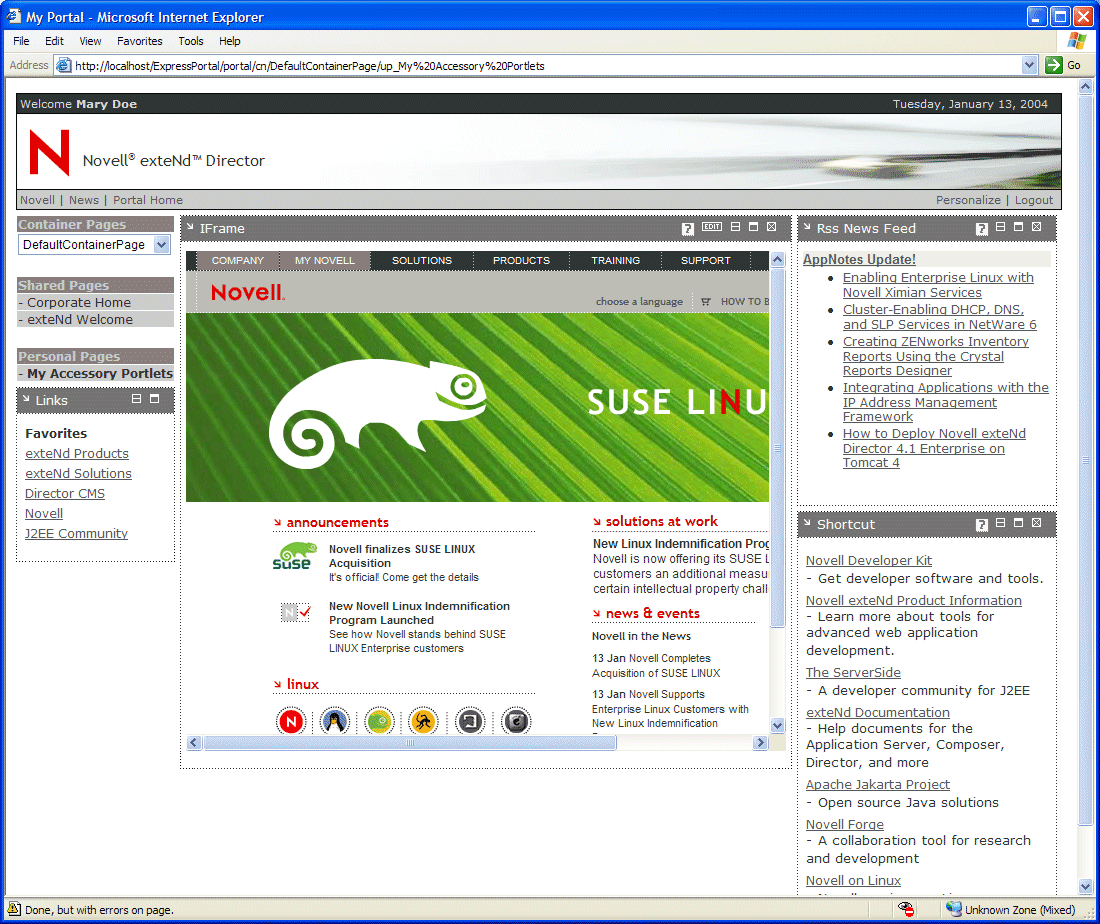
The new page displays the IFrame, Rss News Feed, and Shortcut portlets in the content frame. It should look something like this:
TIP: Now you are ready to learn about portal options. Leave this page running in your browser and move to the next exercise.
A portal option is an image or text that appears in the title bar of a portlet. Each portal option specifies a link that controls which action will be performed when the user clicks on the option. For example, a portlet title bar can provide buttons to allow the user to edit, minimize, or restore the portlet.
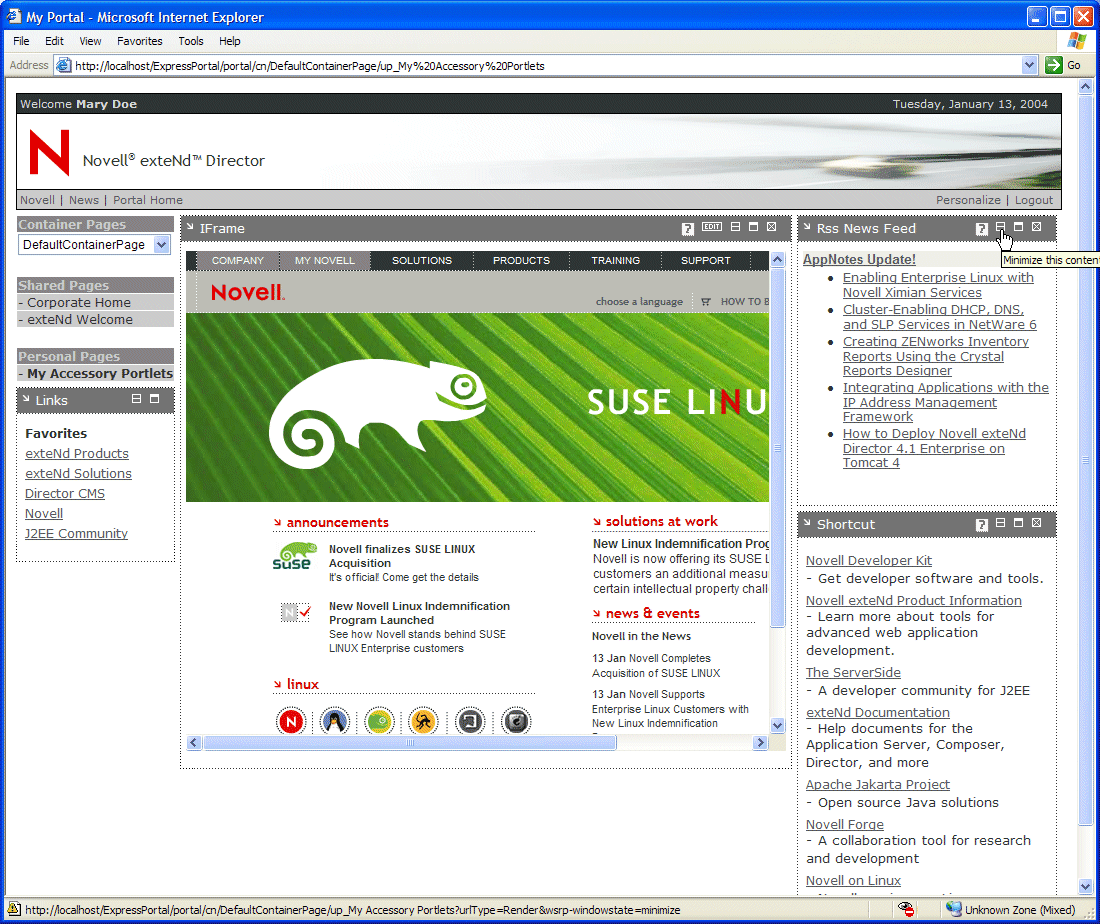
Move your cursor to the title bar of the RSS News Feed portlet and click the minimize button:
TIP: To display a tool tip hover over the option with your mouse.
The RSS News Feed portlet window is minimized and the minimize button is replaced with a restore window icon.
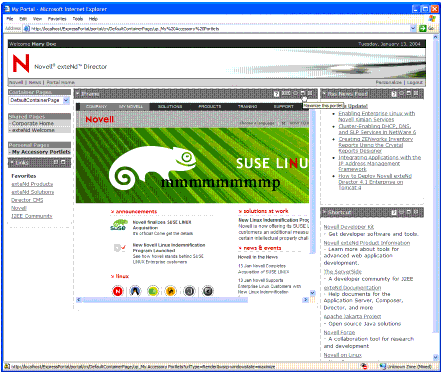
Move your cursor to the title bar of the iFrame portlet and click the maximize button:
The IFrame portlet window is maximized and the maximize button is replaced with a restore window icon.
Click the restore window icon.
NOTE: The IFrame portlet has an edit option that allows you to access portlet preferences as defined for this portlet.
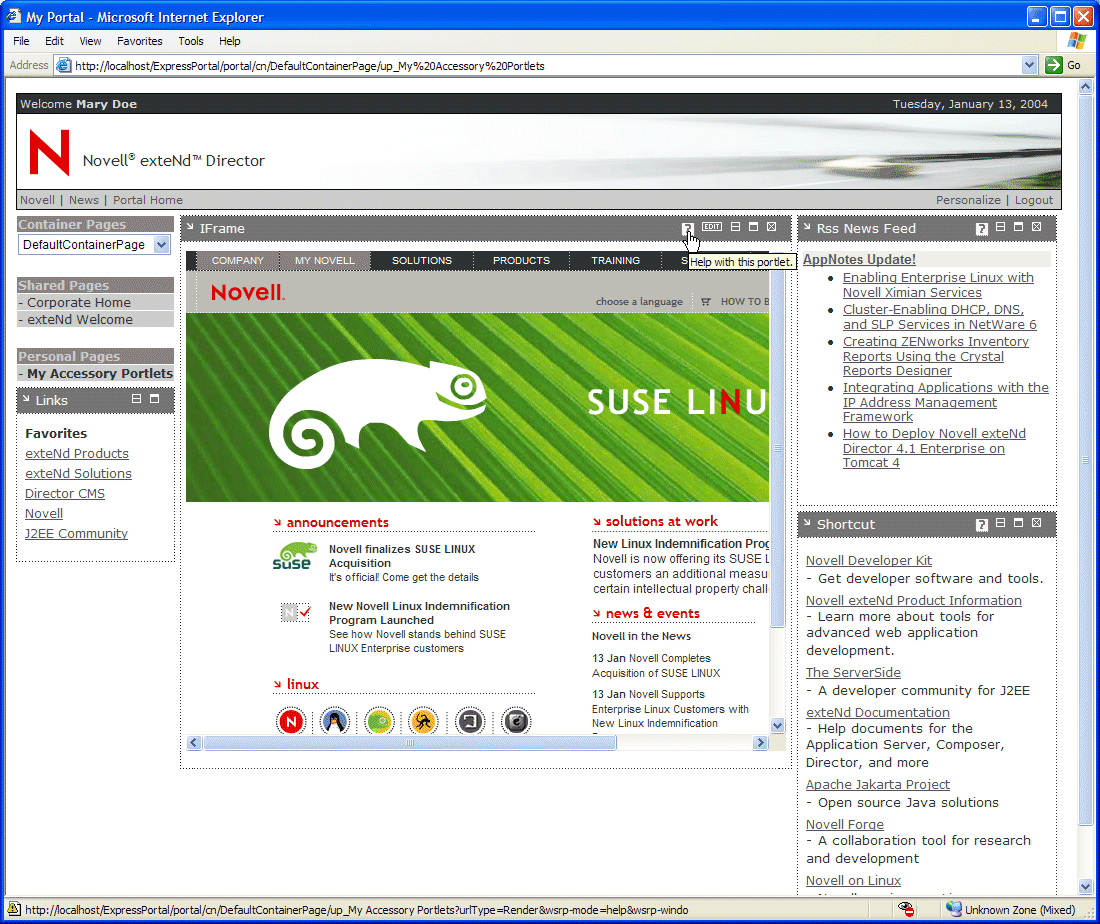
Each accessory portlet provides online help that can be accessed from an option in its title bar.
To access help for accessory portlets:
Click the help icon in the title bar of each portlet.
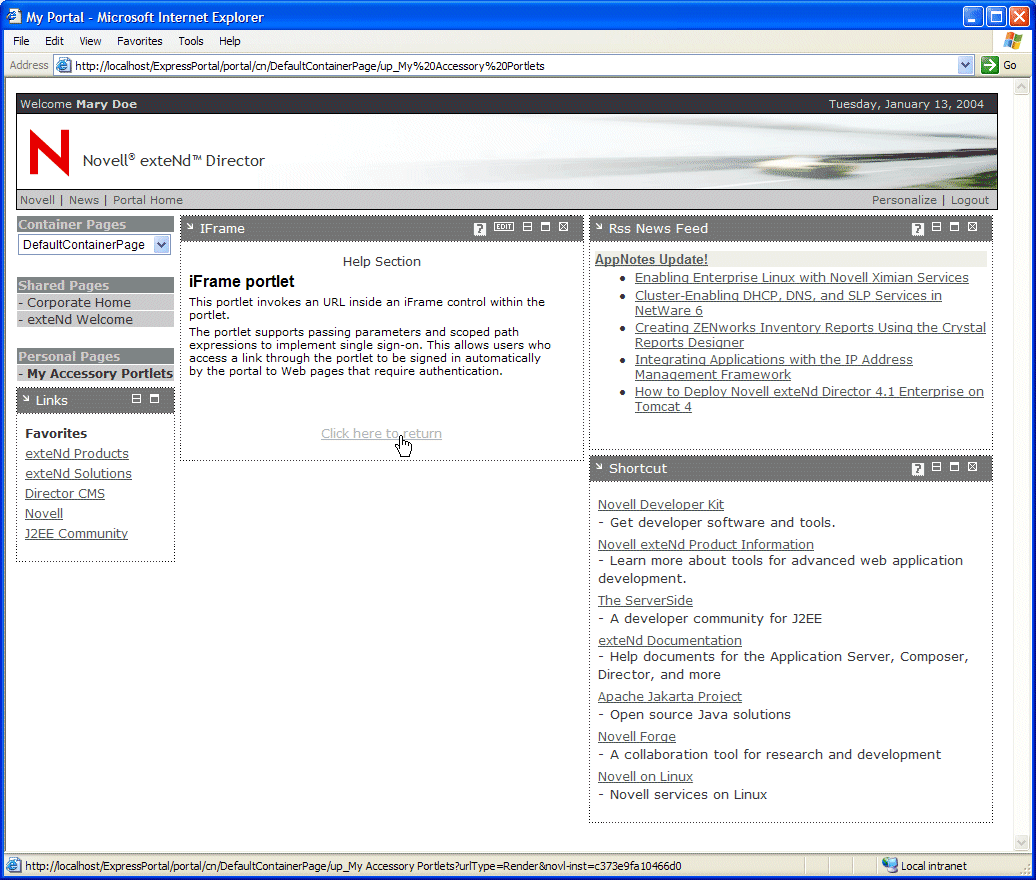
A general description of the portlet appears in the portlet window.
Choose Click here to Return at the bottom of each help window to dismiss the help text and restore the original content:
TIP: Now you are ready to learn about portlet preferences. Leave the page running in your browser and move to the next exercise.
Each of the accessory portlets has default content and behavior. You can customize portlets by modifying portlet preferences.
To access preferences for a portlet:
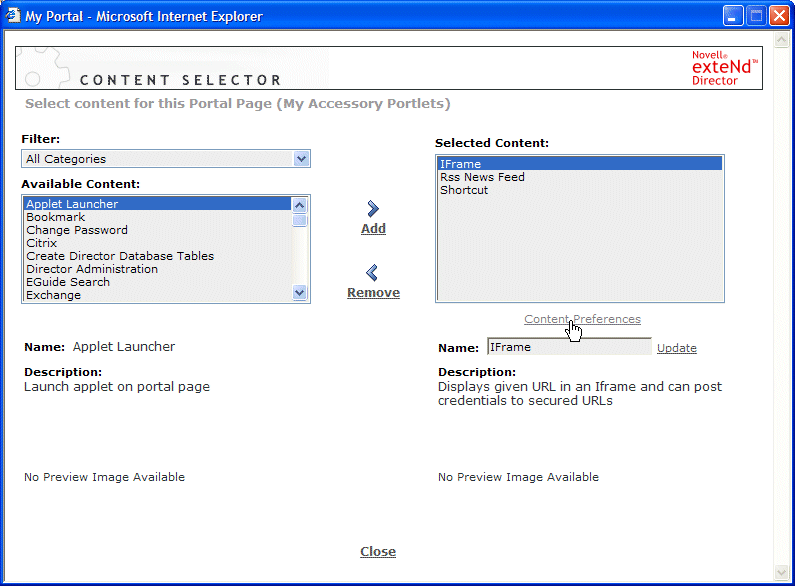
From the Selected Content box select iFrame and choose Content Preferences:
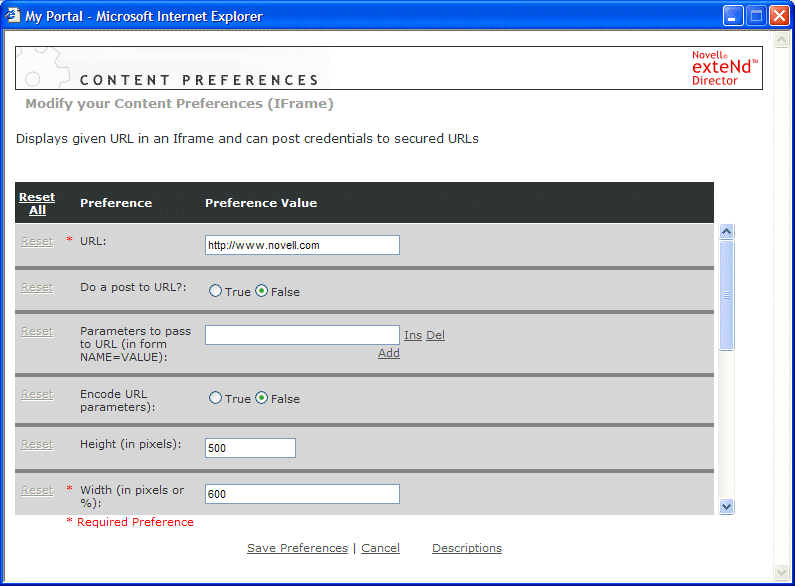
The Content Preferences editor opens for the iFrame portlet:
TIP: Now you are ready to access help for portlet preferences. Leave the Content Preferences editor open and move to the next exercise.
To access help for portlet preferences:
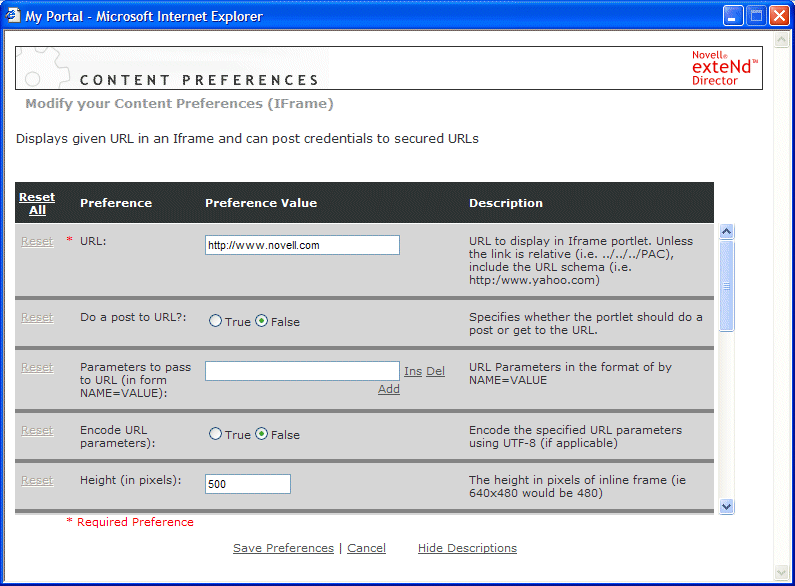
Select Descriptions at the bottom of the Content Preferences editor.
Help for each preference appears in the Descriptions column of the editor:
Copyright © 2004 Novell, Inc. All rights reserved. Copyright © 1997, 1998, 1999, 2000, 2001, 2002, 2003 SilverStream Software, LLC. All rights reserved. more ...