Director Tutorials
To create a container page and learn about its default portlets: Portal Page Controller, Page Navigation, and Page Header.
Before you begin See About exteNd Director Tutorials.
Audience These exercises are designed for portal administrators—users who belong to the PortalAdmin administrator ACL group.
This section provides exercises that show you how to perform the following tasks:

You use the Portal Administration tool to create and maintain container pages. This tool provides a GUI for creating pages, adding and arranging content, selecting layouts, and assigning pages to users and groups.
 To start the Portal Administration tool:
Start the exteNd Application Server where the Express Portal application has been deployed.
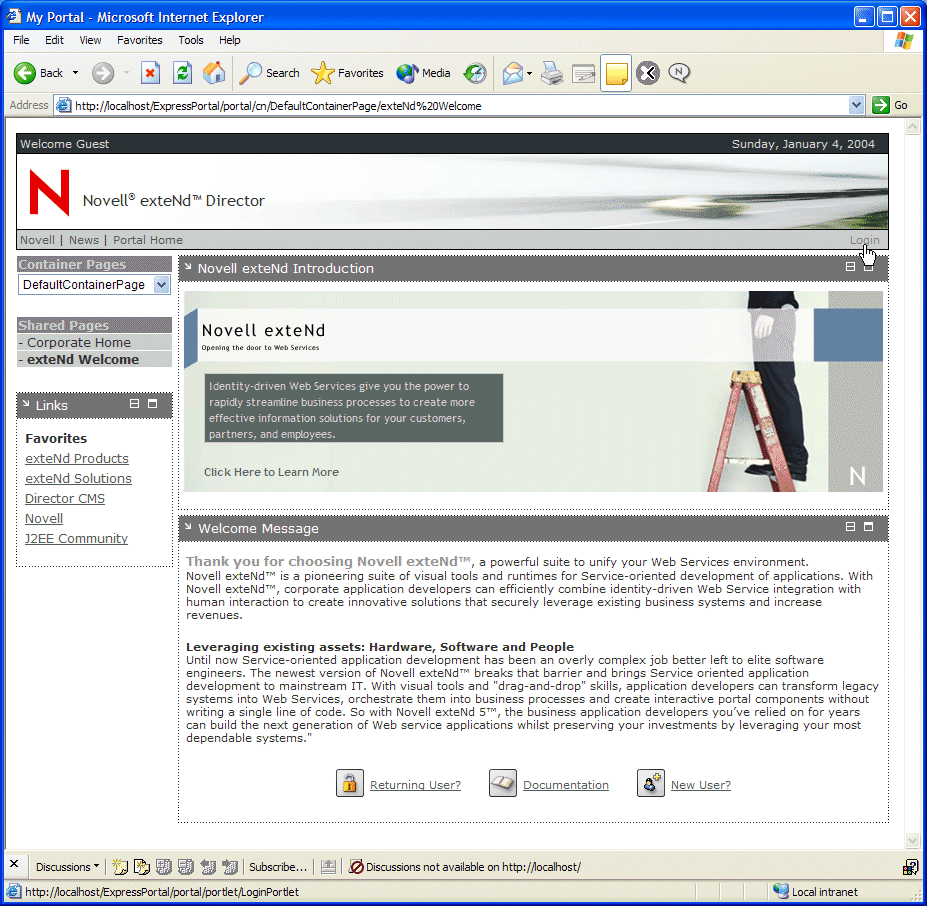
Start the Express Portal application by entering this URL in your browser:
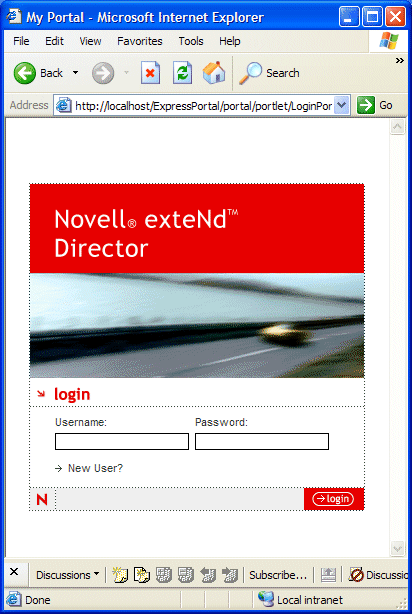
Log in as a portal administrator, then click login or the Enter key.
TIP: A portal administrator is a user who is a member of the PortalAdmin administrator ACL group. Check with your system administrator for the username and password to use.
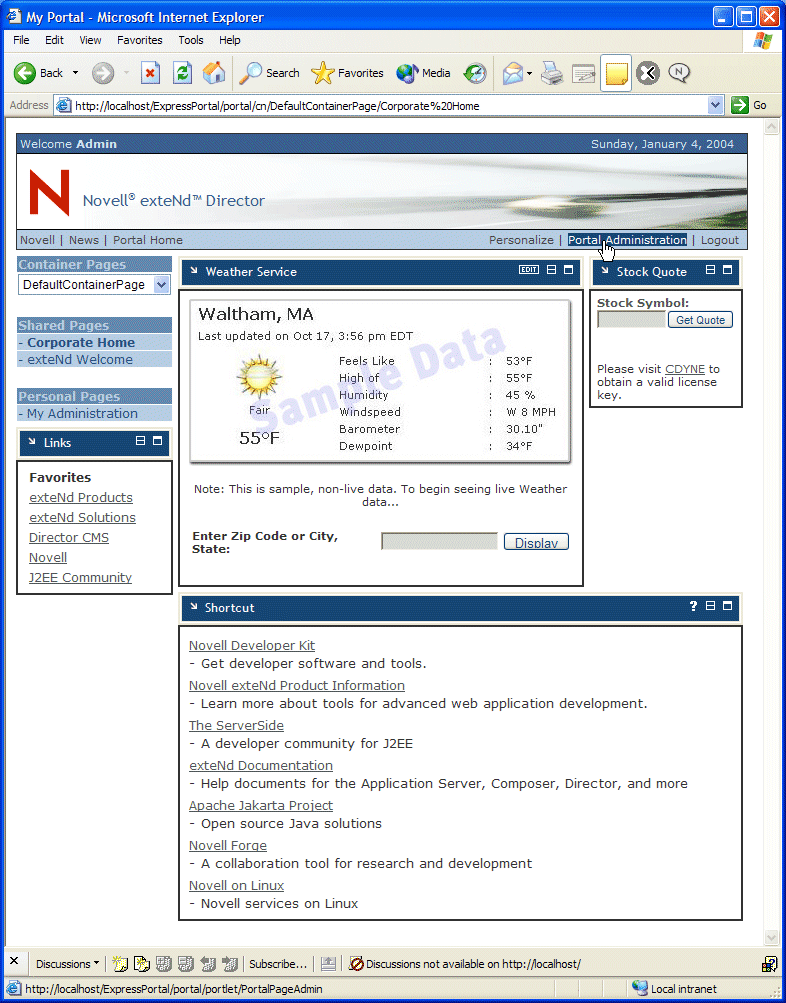
The default page for portal administrators opens in your browser.
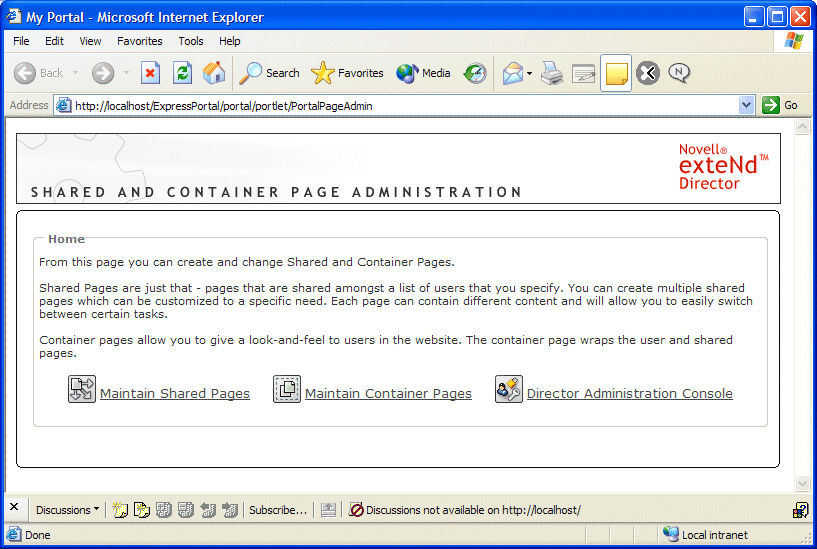
Start the Portal Administration tool by selecting Portal Administration.
TIP: Now you are ready to create a container page. Leave the Portal Administration tool running and move to the next exercise.
Portal administrators can create and maintain container pages using the Portal Administration tool.
A container page is a page that wraps shared and personal pages with a consistent look and feel.
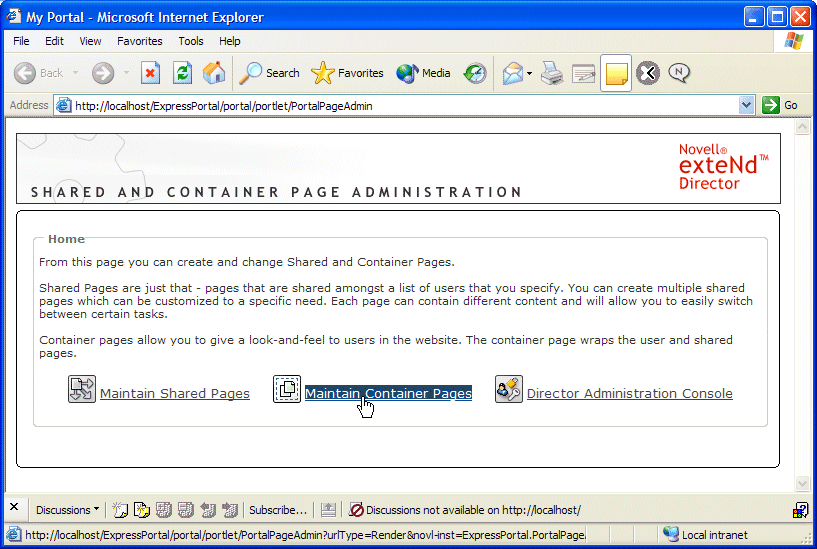
Select Maintain Container Pages in the Portal Administration tool:
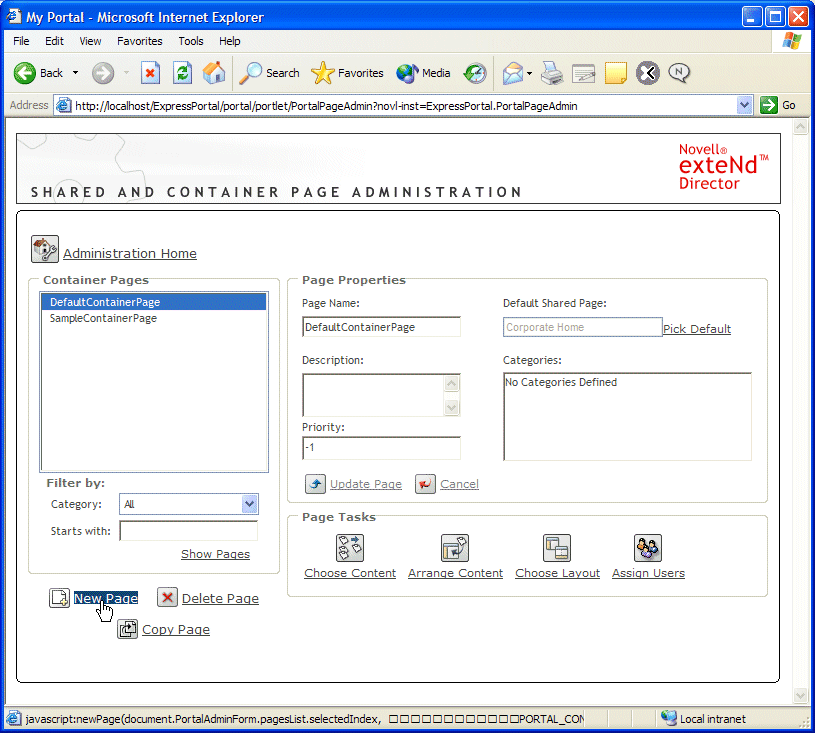
The container page administration tool opens in your browser.
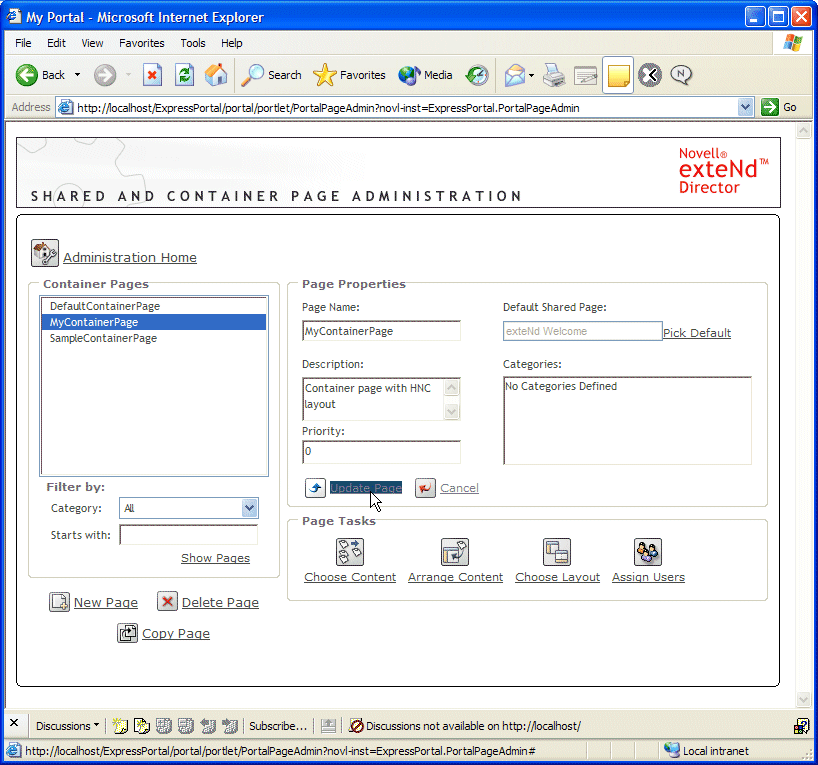
In the fields provided, enter the following information about the new container page:
The new page and its specifications are recorded in the portal.
TIP: Now you are ready to view the default layout of your container page. Leave your new container page selected in the container page administration tool and move to the next exercise.
exteNd Director provides a Portal Layouts tool for assigning layouts to portal pages. The default layout for container pages is the Header Nav Content layout, as described in the next procedure.
To view the layout of a container page:
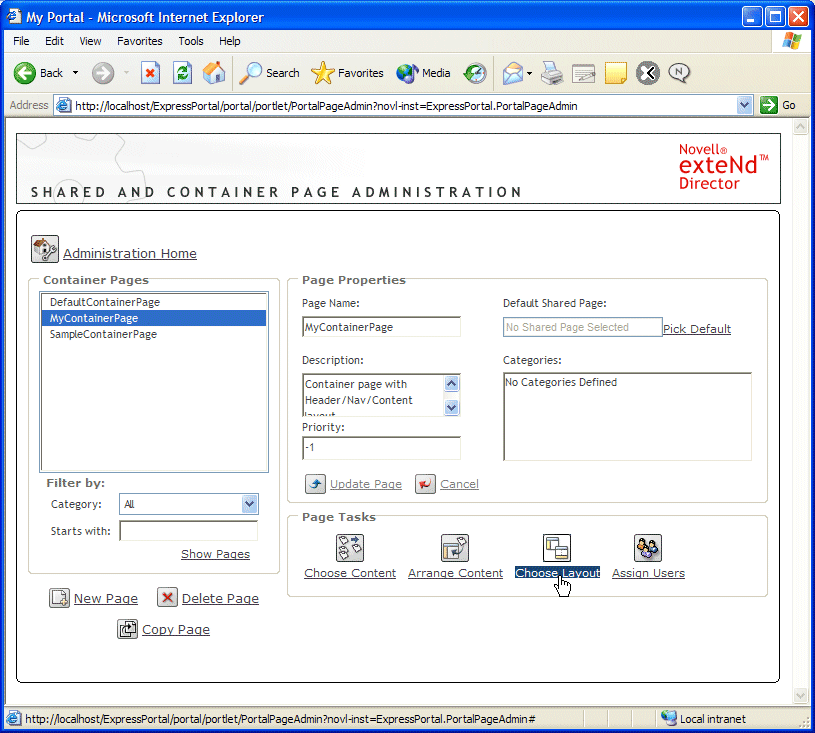
With your container page selected in the container page administration tool, select Choose Layout.
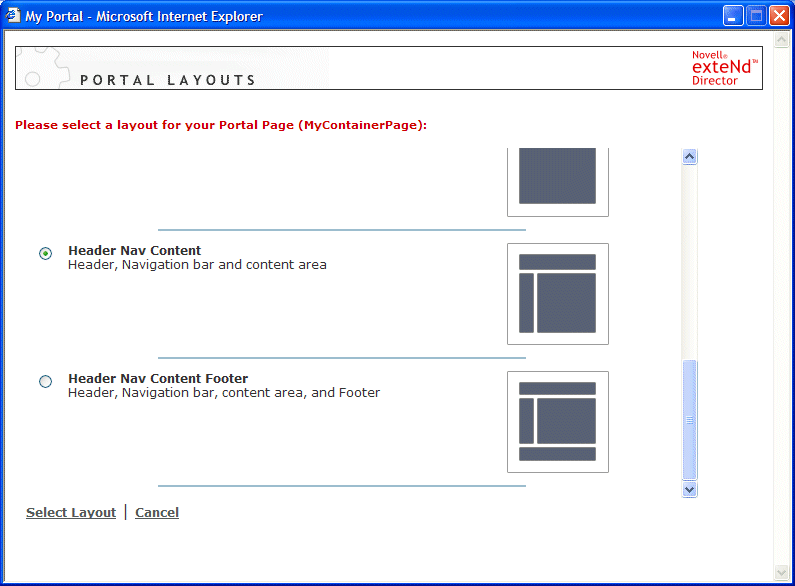
The Portal Layouts tool opens:
Note that the Header Nav Content layout is selected by default. As its name suggests, this layout partitions the page into header, navigation, and content areas. This is the layout you will use for your container page.
Scroll through the other layouts to see what options are available, but leave the Header Nav Content layout selected.
Click Cancel to close the Portal Layouts tool and return to the container page administration tool.
TIP: You are now ready to add content to your new container page. Leave the page selected in the container page administration tool and move to the next exercise.
The content of container pages—and all other types of exteNd Director portal pages—is generated by portlets. You add portlets to portal pages using the Content Selector tool, as described in the next procedure.
exteNd Director provides a set of prebuilt portlets that encapsulate business logic that you can add to your pages. You can also develop your own portlets in exteNd Director to generate custom content for portal pages, as described in Strategies for Developing Portlets.
To add content on a container page:
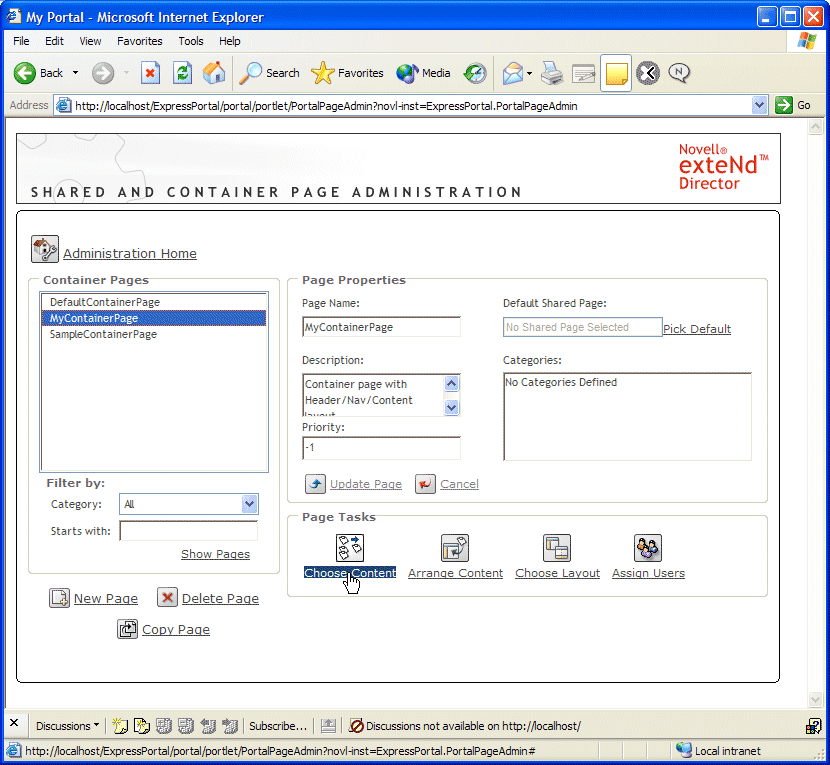
With your container page selected in the container page administration tool, select Choose Content:
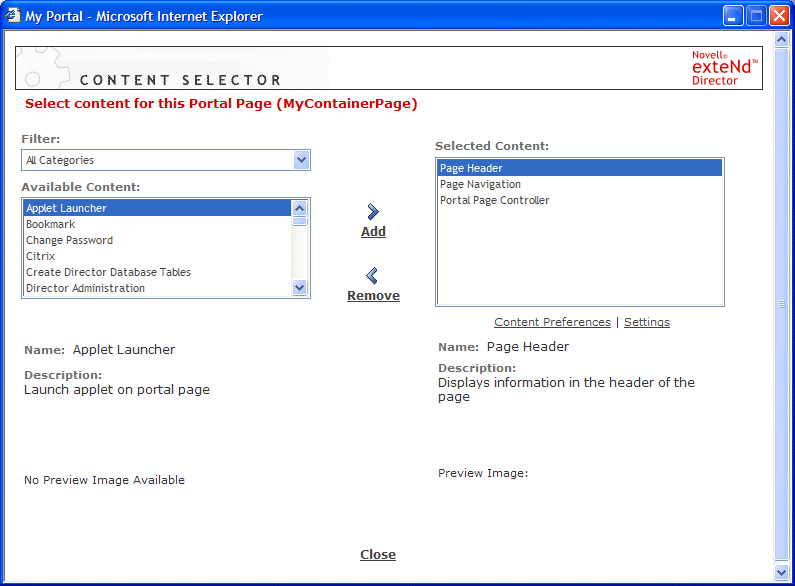
Look at the Available Content list.
This is a list of all portlets that have been registered in the Express Portal application. Registered portlets are also called portlet registrations.
Look at the Selected Content list.
Note that three registered portlets have been added to the container page by default:
You will learn more about these portlets in later exercises.
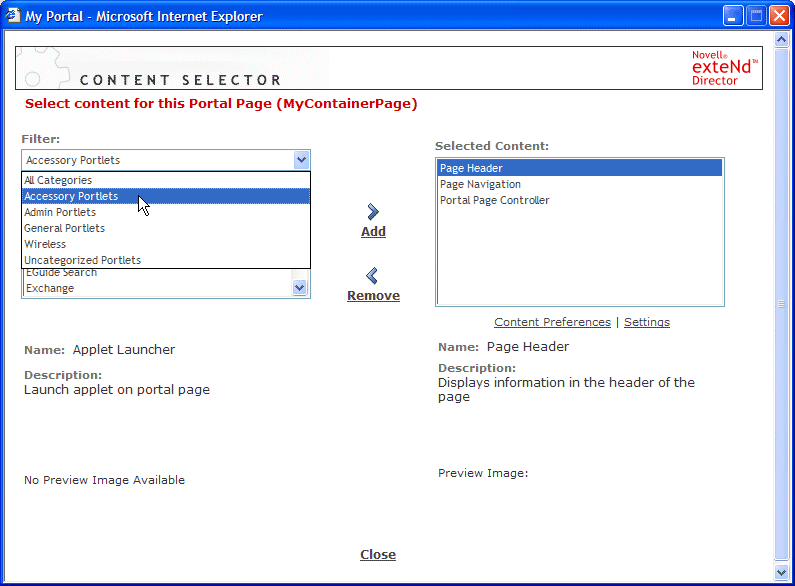
Add the Bookmark portlet to your container page by following these steps:
TIP: Now you are ready to arrange content based on the layout of your container page. Leave the page selected in the container page administration tool and move to the next exercise.
You use the Layout Selector to position portlets within the layout of the container page.
To arrange content on a container page:
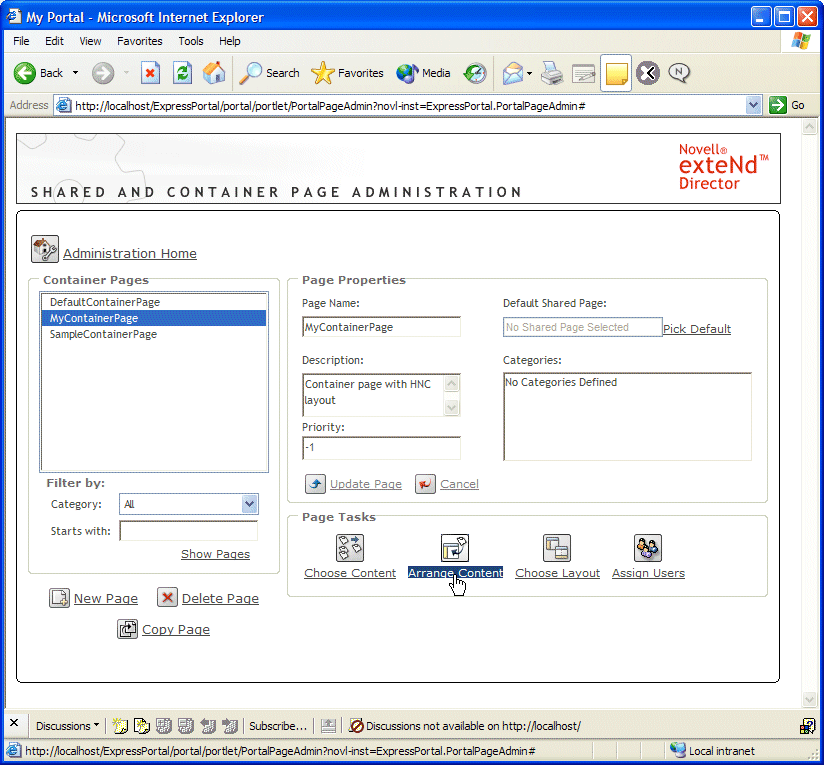
With your container page selected in the container page administration tool, select Arrange Content:
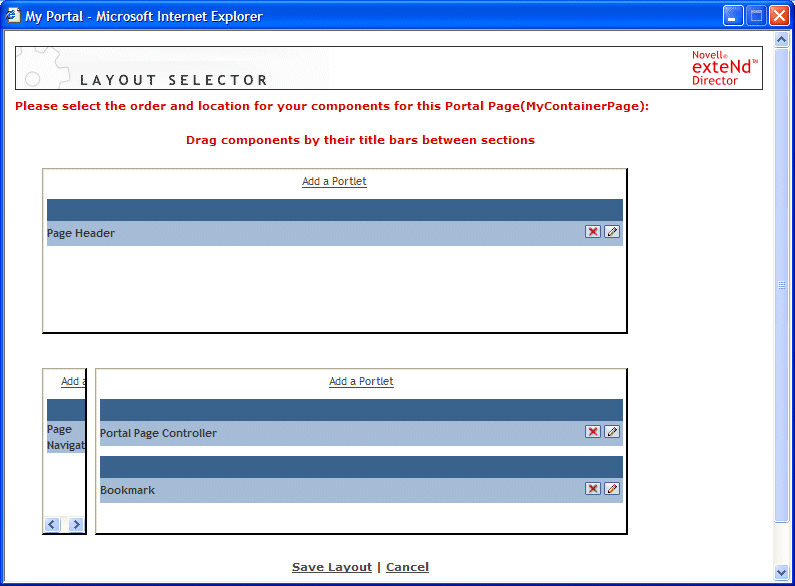
The Layout Selector tool opens in your browser.
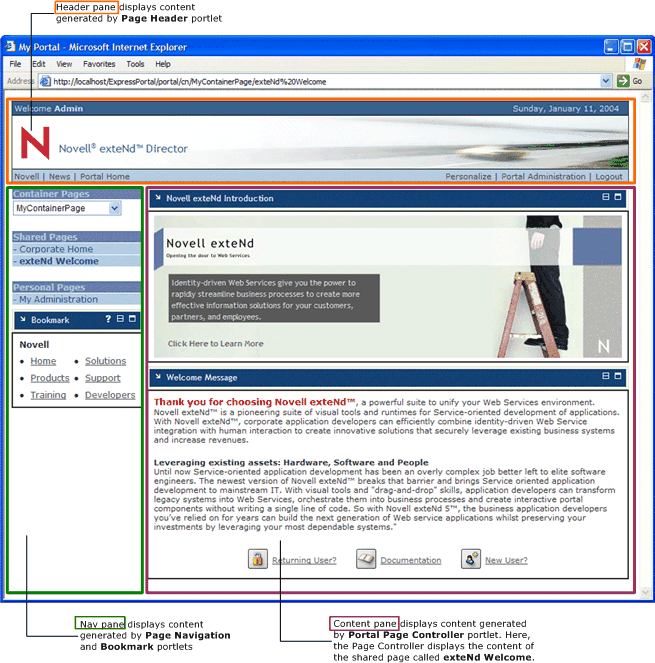
NOTE: The Portal Administration tool makes its best guess as to where to place portlets within the Header Nav Content layout. For example, it appropriately places the Page Header portlet in the Header pane, Page Navigation portlet in the Nav pane, and Portal Page Controller portlet in the Content pane. However, you will move the Bookmark portlet to the Nav pane in the next step.
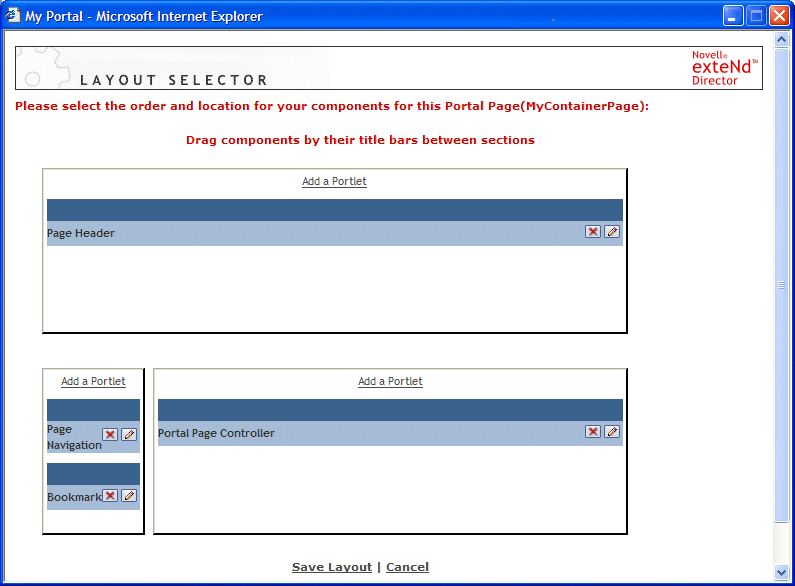
In the Layout Selector tool, move your cursor over the Bookmark portlet, hold down the left mouse button, drag the portlet to the Nav pane, and release the mouse button. Bookmark should appear under the Page Navigation portlet, as shown:
Click Save Layout to record your changes and close your browser.
TIP: Now you are ready to view your container page. Close all browser windows and move to the next exercise.
There are several ways to view a container page:
This section describes both procedures.
To view a container page from a navigation link:
In this exercise, you will view your container page from a navigation link on the default portal page for portal administrators. The navigation links are generated by the Page Navigation portlet. You will learn more about this portlet in a later exercise.
Open a new browser, start the ExpressPortal application, and log in as the portal administrator.
TIP: You can review these steps in Starting the Portal Administration tool.
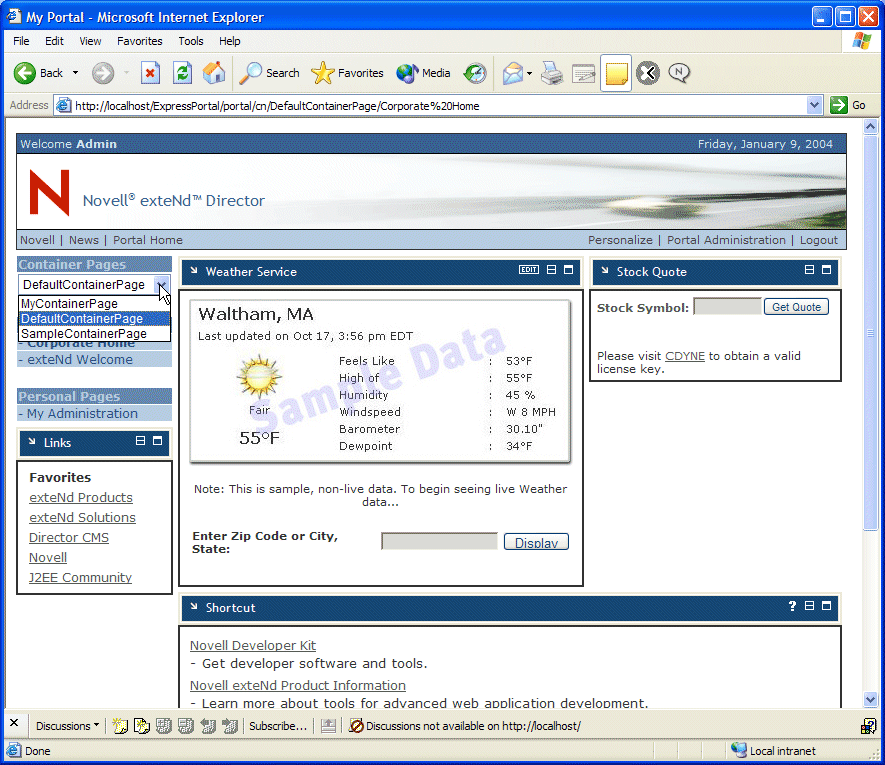
Expand the dropdown list under Container Pages:
NOTE: MyContainerPage appears at the top of the navigation list because you assigned the page a priority of 0, the highest priority.
MyContainerPage displays in your browser:
As you can see, the Portal Page Controller portlet displays the content of exteNd Welcome—the shared page you designated as the default shared page for your container page in the exercise Creating a container page. This shared page contains two portlets—Novell exteNd Introduction and Welcome Message—which generate the content you see in the Content pane of MyContainerPage.
To view a container page by typing an URL directly in a browser:
In your current browser session, enter the following URL to view MyContainerPage:
http://server/ExpressPortal/portal/cn/MyContainerPage
For example, if your server is localhost, enter:
http://localhost/ExpressPortal/portal/cn/MyContainerPage
MyContainerPage displays in your browser.
NOTE: If you enter the URL in a new browser session, you will need to log in again as the portal administrator, as described in Starting the Portal Administration tool.
Copyright © 2004 Novell, Inc. All rights reserved. Copyright © 1997, 1998, 1999, 2000, 2001, 2002, 2003 SilverStream Software, LLC. All rights reserved. more ...