Connect for Oracle E-Business Suite User's Guide
CHAPTER 3
To create a Component that utilizes the exteNd ComposerTM Connect for Oracle E-Business Suite, you need to do three things:
Create a Connection Resource (to allow your component to connect to an Oracle E-Business Suite system)
Create the Component itself (containing your business logic)
Each of these processes is discussed in detail in this chapter.
Before creating a component that interacts with an Oracle E-Business Suite system, you need to create a Connection Resource, which is a lightweight Composer object (xObject) that encapsulates basic connection information (parameter values) associated with a connection to a back-end system.
In addition to a connection resource, an Oracle Applications Component requires that you have already created XML templates so that you have sample input and output documents for use in designing your component. For more information, see "Creating an XML Template" in the Novell exteNd Composer User's Guide.
If your component design calls for any other resources, such as custom scripts, XSL, XSD, etc., you should create these before creating the Oracle Applications Component. For more information, see "Creating Custom Scripts" in the Novell exteNd Composer User's Guide.

You create different types of connection resource depending on the type of interaction with the Oracle E-Business Suite system that is desired. If your application needs to initiate Oracle E-Business Suite business events, you need to create an Oracle Applications Connection resource. If your application needs to process data when a business event occurs within the Oracle E-Business Suite system, you need to create an Oracle Applications Service connection.
You can specify Connection parameter values in one of two ways: as Constants or as Expressions. A constant-driven parameter uses the value you type in the Connection dialog every time the Connection is used. An expression-driven parameter allows you to set the value using a programmatic expression, which can result in a different value each time the connection is used at runtime. This allows the Connection's behavior to be flexible and vary based on runtime conditions each time it is used.
For instance, one very simple use of an expression-driven parameter in a Connection would be to define the User ID and Password as PROJECT Variables (e.g. PROJECT.XPATH("USERCONFIG/MyDeployUser"). This way when you deploy the project, you can update the PROJECT Variables in the Deployment Wizard to values appropriate for the final deployment environment. At the other extreme, you could have a custom script that queries a Java business object in the Application Server to determine what User ID and Password to use.
 To switch a parameter from Constant-driven to Expression driven:
Click the right mouse button in the parameter field you are interested in changing.
Select Expression from the context menu and the editor button will appear or become enabled.
Click on the button and then create an expression that evaluates to a valid parameter value at runtime. (Strings should be wrapped in double-quotes.)
To Create an Oracle Applications Connection Resource:
Select File > New > xObject. The New xObject dialog box is displayed.
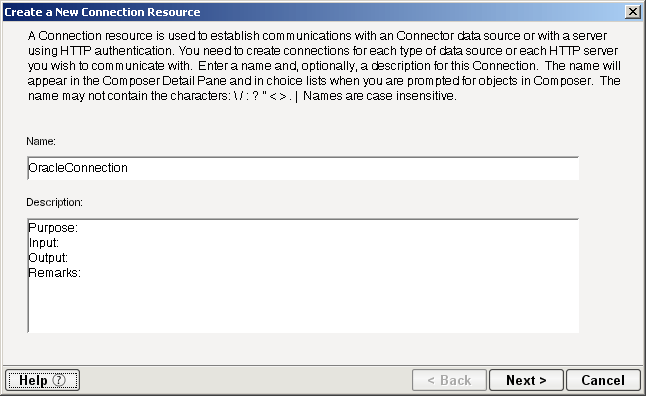
Double-click on Connection. The "Create a New Connection Resource" wizard is displayed.
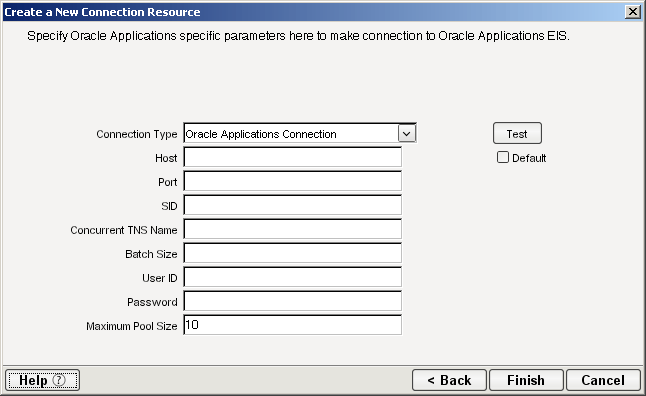
Select Oracle Applications Connection from the Connection Type list.
Type the name or IP address of the Oracle E-Business Suite database server in the Host field.
Type the number of the port on which the database is listening (e.g., 1521) in the Port field.
Type the name of the database service in the SID field. The SID is a unique name that is specified by the database administrator or the person who installed the Oracle E-Business Suite.
Type the logical name of the Oracle E-Business Suite database instance in the Concurrent TNS Name field. You can get this information from the Oracle database administrator. The TNS name that you specify in this field must be the same TNS name that is specified in the tnsnames.ora file that resides on the Oracle E-Business Suite database server. If a TNS name does not exist, you must create one. For information about creating a TNS name, see your Oracle administrator.
In the Batch Size field, type the number of request document records that the Connect buffers before inserting them into an Oracle E-Business Suite table (e.g., 10).
When the Connect reaches the end of the request document, it inserts any remaining buffered records. The Connect tracks this batch limit separately for each table, not aggregately for all tables. For example, if you set the Batch property to 25, and the Connect accumulates 18 input records for the GL_INTERFACE table and 25 for the BUDGET_INTERFACE table, the Connect continues to hold records for GL_INTERFACE but inserts the records for BUDGET_INTERFACE. The batch size property enables you to optimize I/O: inserting too few records at a time increases I/O overhead, and inserting too many at a time ties up database resources.
Type an Oracle database user ID in the User ID field. The user ID must have database access to the interface tables that you need to access.
In the Password field, type the password for the user specified in the User ID field.
Type the desired maximum pool size in the Maximum Pool Size field. This is a JCA setting that specifies the maximum number of connections to be allowed in the connection pool (not applicable for non-managed environments).
If desired, select Test to see if your connection parameters and network environment allow you to create a live connection. Composer displays a message indicating the success or failure of the test. The test connection is discarded immediately after the test. You can continue working with the connection resource, even if the connection fails.
NOTE: This test does not test the connection pool.
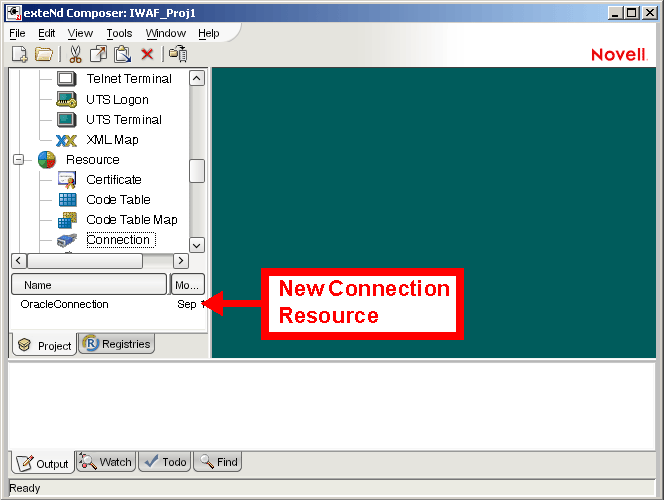
Select OK. The newly-created connection resource appears in the Composer Connection Resource detail pane.
To Create an Oracle Applications Service Connection Resource:
Select File > New > xObject. The New xObject dialog box is displayed.
Double-click on Connection. The "Create a New Connection Resource" wizard is displayed.
Select Oracle Applications Connection from the Connection Type list.
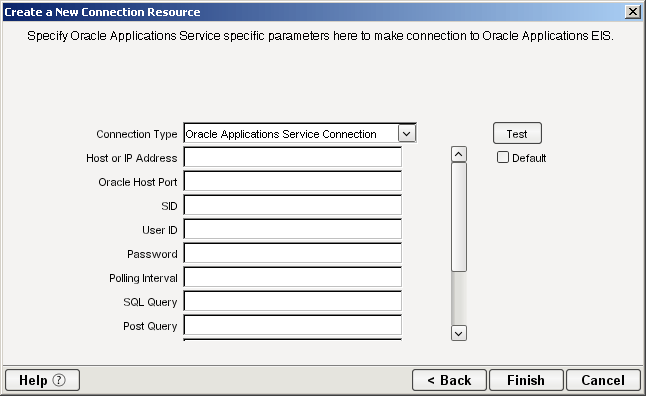
In the Host or IP Address field, type the name of the server on which the Oracle E-Business Suite database instance resides.
In the Oracle Host Port field, type the port number on which the database is listening.
In the SID field, type the name of the database service. The SID is a unique name that is specified by the database administrator or the person who installed the Oracle E-Business Suite.
In the User ID field, type an Oracle database user ID. The user ID must have database access to the interface tables being accessed.
In the Password field, type the password for the user specified in the User ID field.
In the Polling Interval field, type the interval (in milliseconds) in which the host is checked for input. The default is 3000 (3 seconds).
In the SQL Query field, type the SQL SELECT statement that the listener issues to poll the table. If the statement is omitted, it defaults to:
where table is the value of the Node Name property.
If the SQL statement includes a date column or long text column, you must provide a value for the Post Query property. The value you provide must not contain a date column or a long text column. This applies whether you provide an SQL statement here or rely upon the default. For example, the following SELECT statement retrieves all unprocessed records from the DISCRETE_JOBS table:
SELECT * FROM WIP_DISCRETE_JOBS DJWHERE DJ.WIP_ENTITY_ID > (SELECT WIP_ENTITY_ID FROM WIP.TEMP_NEW_WORK_ORDER_ENTITY_ID)
When the Connect reaches the end of the request document, it inserts any remaining buffered records. The Connect tracks this batch limit separately for each table, not aggregately for all tables. For example, if you set the Batch property to 25, and the Connect accumulates 18 input records for the GL_INTERFACE table and 25 for the BUDGET_INTERFACE table, the Connect continues to hold records for GL_INTERFACE but inserts the records for BUDGET_INTERFACE. The batch size property enables you to optimize I/O: inserting too few records at a time increases I/O overhead, and inserting too many at a time ties up database resources.
In the Post Query field, type one or more SQL statements that are executed after each new record is read from the table. If you specify more than one statement, terminate each with a semicolon (;).
The Post Query statements are case sensitive. The case used to specify the column names must match the case used in the SELECT statement in the SQL Query field. If the SQL Query field was omitted so that a default SELECT statement is used, the case used to specify the column names must match the case used to define the columns in the database's schema.
If you do not specify a value for Post Query, you must select the Issue Post Query Delete check box, which specifies that the Connect deletes each record after it is read. If you want to retain the table's data after it is read, specify a value for Post Query, and do not select Issue Post Query Delete. You can use the ? and ^ field operators in a post-query SQL statement
In the Node Name field, type name of the database table to query with the default SELECT statement if the SQL Query field is omitted. This is ignored if SQL Query is specified.
If no SQL statements have been entered in the Post Query field, select the Issue Post Query Delete check box. If SQL statements have been entered in the Post Query field, make sure that the Issue Post Query Delete check box is not selected. When selected, Composer deletes each record after it is read.
From the Metadata Connection list, select an Oracle Applications connection resource from the list of defined Oracle Applications Connection resources. This connection is used for acquiring metadata from the Oracle E-Business Suite system.
Type the desired maximum pool size in the Maximum Pool Size field. This is a JCA setting that specifies the maximum number of connections to be allowed in the connection pool (not applicable for non-managed environments).
If desired, select Test to see if your connection parameters and network environment allow you to create a live connection. Composer displays a message indicating the success or failure of the test. The test connection is discarded immediately after the test. You can continue working with the connection resource, even if the connection fails.
NOTE: This test does not test the connection pool.
Select OK. The newly-created connection resource appears in the Composer Connection Resource detail pane.
Before creating an Oracle Applications Component, you should create any XML templates that might be needed. XML templates are used to tell Composer which XML sample documents (e.g., input, output, scratch pad, fault, XSD, or DTD) to use. Once you've specified the XML templates, you can create a component that uses the sample documents to represent the inputs and outputs processed by your component. For more information about XML templates, see "Creating a New XML Template" in the Novell exteNd Composer User's Guide.
As part of the process of creating an Oracle E-Business Suite Component, you can select an existing Oracle E-Business Suite connection resource, or you can create a new one. If you create the connection beforehand, it is available for use by any Oracle E-Business Suite Components in the current project. If you have not already created at least one Oracle E-Business Suite connection resource in the current project, you will be prompted to do so when you try to create an Oracle E-Business Suite Component.
NOTE: You can still create a Component without first creating a Connection Resource, but you won't be able to use any debug features that depend on a live connection.
To Create a New Oracle E-Business Suite Component:
Select File>New>xObject. The New xObject dialog box is displayed.
NOTE: Alternatively, under Component in the Composer Navigator pane (Explorer view), you can highlight Oracle E-Business Suite, click the right mouse button, then select New.
Double-click on "Oracle Applications."
If you have not previously defined a connection resource, you are prompted to do so now (see Creating a Connection Resource).
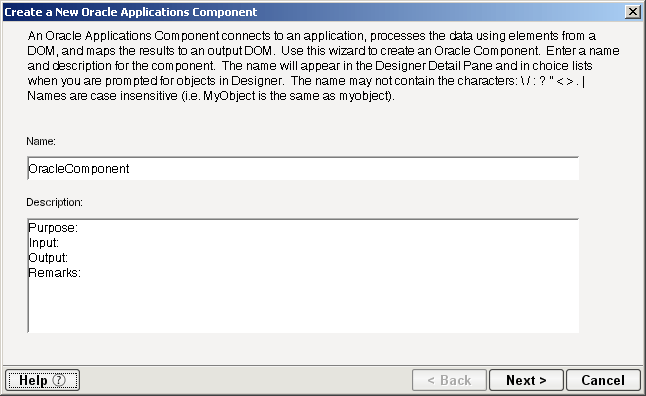
If you have already defined a connection resource, the "Create a New Oracle Applications Component" Wizard is displayed.
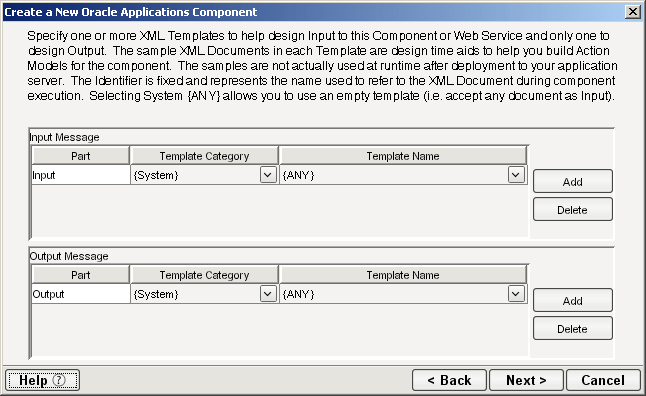
Select Next. The XML Input/Output Message Property Info panel of the New Oracle Applications Component Wizard is displayed.
Specify the Input and Output templates as follows:
Type a name for the template under Part if you wish the name to appear in the DOM as something other than "Input"
Select a Template Category if it is different than the default category.
Select a Template Name from the list of XML templates in the selected Template Category.
To add additional input XML templates, click Add, then choose a Template Category and Template Name for each.
To remove an input XML template, select an entry and click Delete.
Select an XML template for use as an Output DOM using the procedure described in the previous step.
NOTE: You can specify an input or output XML template that contains no structure by selecting {System}{ANY} as the Input or Output template. For more information, see "Creating an Output Document without Using a Template" in the Novell exteNd Composer User's Guide.
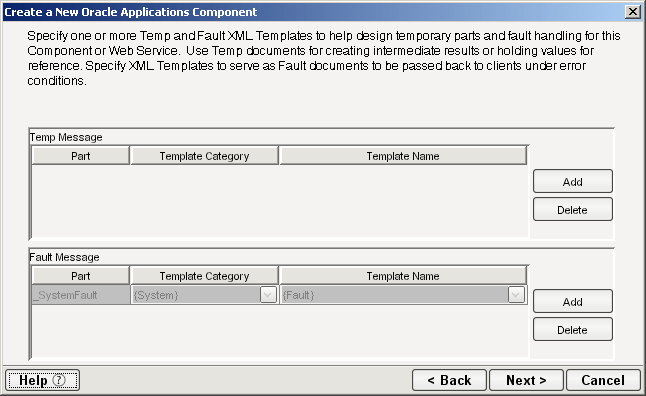
Select Next. The Temp and Fault XML Template panel is displayed.
If desired, specify a template to be used as a scratch pad under the "Temp Message" pane of the dialog box. This can be useful if you need a place to hold values that will be used temporarily during the execution of your component. Select a Template Category if it is different than the default category. Then select a Template Name from the list of XML templates in the selected Template Category.
Under the "Fault Message" pane, select an XML template to be used to pass back to clients when an error condition occurs.
To add additional input XML templates, click Add and choose a Template Category and Template Name for each. Repeat as many times as desired. To remove an input XML template, select an entry and click Delete.
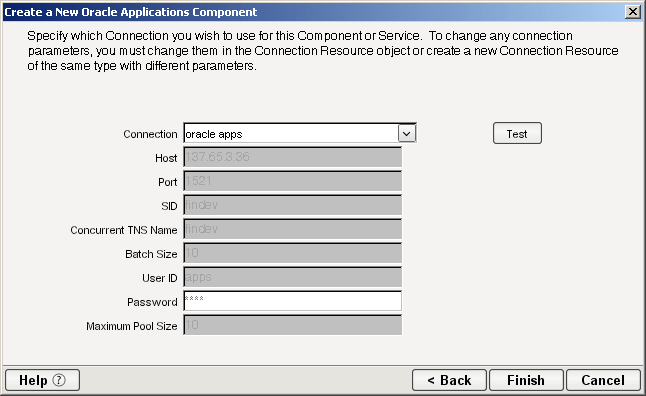
Select Next. The Connection Info panel of the Create a New Oracle Applications Component wizard is displayed.
Select an Oracle Applications connection from the Connection list. The Connection list displays the names of the Oracle Applications connection resources that have been defined in this project.
Select Finish. The component is created and the Oracle Applications Component Editor is displayed.
The Oracle Applications Component Editor includes all of the functionality of the XML Map Component Editor. It contains mapping panes for Input and Output XML documents, as well as an Action Model.
The Oracle Applications Component Editor also includes a Native Environment pane, which appears as a grey pane until you create an Oracle Applications Request action, at which time it will show a tabs for Request and Response panes with corresponding XML trees.
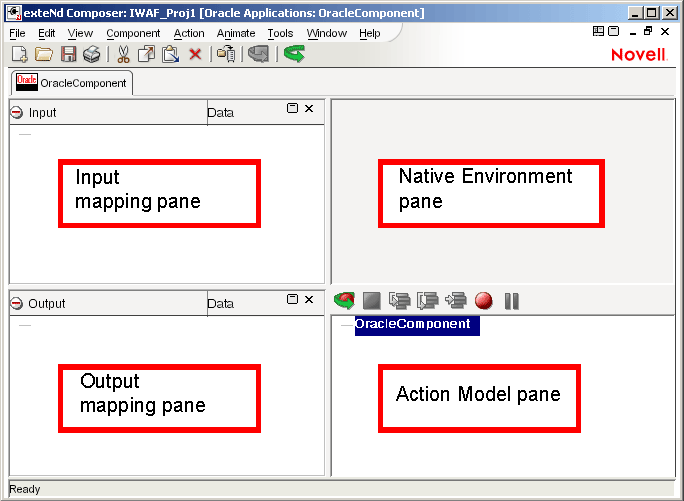
The Native Environment pane shown in the illustration is blank, because no Oracle Applications Request action has been created.
You can create all the normal Composer actions in the Action Model of your Oracle Applications component (e.g., XML Map, Function, Log, Send Mail). In addition, you can create an Oracle Applications Request action.
The Oracle Applications Request action communicates requests (XML request documents) to your Oracle E-Business Suite system and fetches responses back from the same system.
The Composer GUI for creating an Oracle Applications Request action allows you to
Specify the type of Oracle E-Business Suite business function that you want to invoke
Automatically generate XML schemas (request and response) for the particular business function that you want to use
Use the generated schemas to fine-tune the structure of the actual request document that you want to use (a request document that conforms to the schema but reflects your own "setup" choices and initialization parameters, etc.)
Automatically generate XML request and response documents that conform to the schemas and choices that you've made
You will see how this works in the following procedure.
To Create an Oracle Applications Request Action
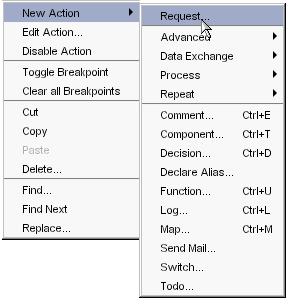
Right-click in the Action Model at the location in which you want the new action to appear, then select New Action > Request.
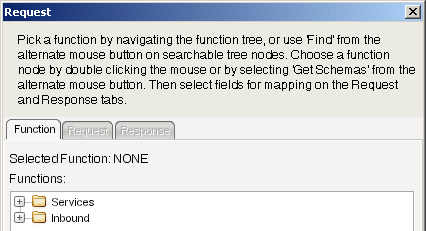
The Function pane of the Request dialog box is displayed. You use this pane to browse the available Oracle E-Business Suite Business Services.
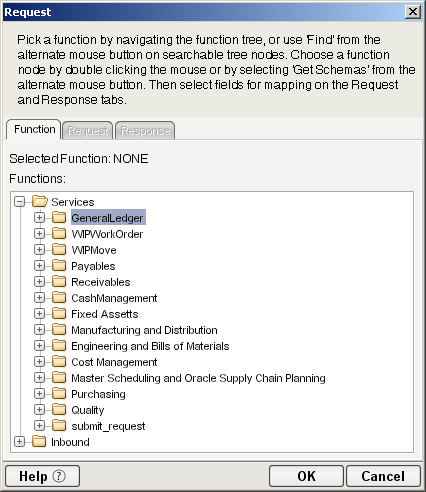
Click on the plus (+) sign to the left of a node in the tree view to expand the tree view for that node.
NOTE: If no nodes are displayed on the Function page, there may be an incorrect parameter in your connection resource. Check the parameters needed for connecting to your Oracle E-Business Suite server, then update your connection resource if necessary (see Creating a Connection Resource).
Position the mouse pointer over a node in the tree view to get ToolTip information about the node. ToolTips display the following information, depending on the node type:
Click on the plus sign to the left of a node to see the contents of the node.
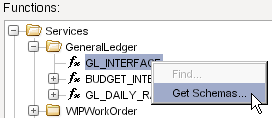
Right-click on the desired operation, then select Get Schemas from the context menu.
After a few seconds, the Request and Response tabs of the Request dialog box are enabled.
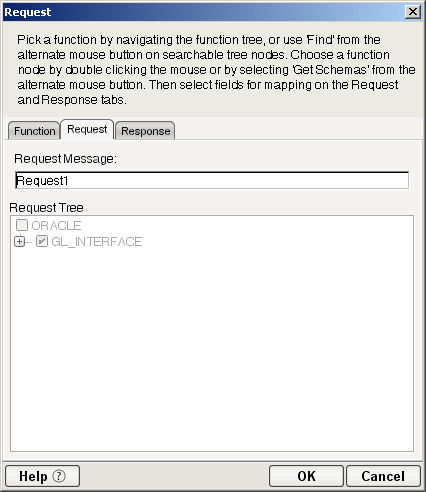
Type a name for the request message in the Request Message field, or accept the default name, as shown in the preceding illustration.
Expand the nodes of the Request Tree by clicking on the plus signs to the left of the nodes.
Select the elements that you want to include in the Request document by selecting or deselecting the check boxes in the node tree. Some nodes are greyed out (disabled). This is because the document schema determines the nodes that you can edit.
Composer strictly enforces schema rules. In other words, Composer will not let you specify an invalid request document. Items that you should not edit are disabled, and items that you can edit have context-menus that non-customizable nodes do not have. For example:
Mandatory elements and attributes are marked selected and disabled.
All child nodes are left unselected and disabled if the parent node is not selected.
A parent element, once selected, will autoselect mandatory elements and attributes of its children.
When a parent node is selected, you will need to select optional elements manually.
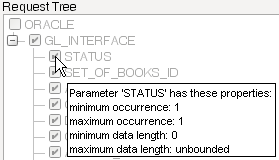
ToolTips are an important aid in using the Request and Response panes, because they display document-structure rules from the request and response document schema. Familiarize yourself with the ToolTip feature by letting the mouse hover over various nodes, as shown in the following illustration.
NOTE: The ToolTips that appear in this tree are also available in the Native Environment pane.
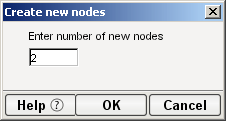
If a node has a Maximum Occurrence property of greater than one, a command called "Create new..." is available by right-clicking on the node. Selecting that command brings up the following dialog box:
Enter the number of additional instances of this node-type that you want to insert in the document, then click OK. New nodes are added to the document structure.
CAUTION: There is no Undo for this operation.
If an enumeration button ( ) is displayed to the right of a given node, you can click the button to choose from the list of appropriate (schema-allowed) values for that enumeration.
Visit all of the nodes in the request tree that are of interest to you, and use the Composer user interface features described in the preceding steps to customize the request document structure.
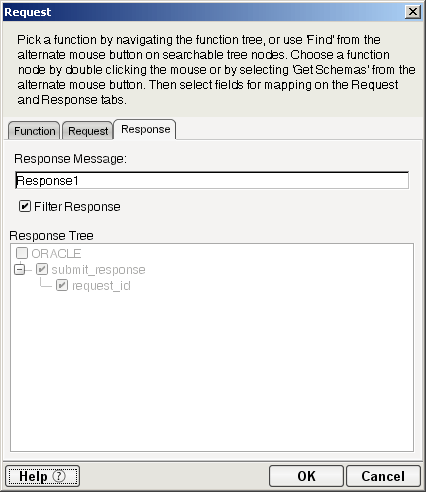
Click the Response tab at the top of the dialog box to bring the Response document pane forward. This pane shows a tree view of the Response document, similar to the one shown for the Request document. The same user interface features that applied to the Request document pane apply to the Response document pane.
Type a name for the response message in the Response Message field, or accept the default response message name.
Select or deselect Filter Response, as desired. Filter Response is selected by default. If deselected, the tree will be disabled and greyed (no longer editable), indicating that a default schema configuration will be used. If selected, you can customize the structure of the request document by selecting the nodes to be included in the response document.
Visit all of the nodes in the Response document tree and customize the settings as desired.
Select OK. The dialog closes and a new action appears in the Action Model of your component. The Native Environment Pane changes to show the Request and Response tabs along with tree views of the request and response documents.
To map a node of the Input document to a node in the Request document, drag a node from the Input pane and drop it on a node in the Request tab of the Native Environment pane. This automatically creates a new XML Map Action in the Action Model.
To map a node of the Response document to a node in the Output document, drag a node from the Response tab of the Native Environment pane and drop it on a node in the Output pane. This automatically creates a new XML Map Action in the Action Model. You can cut, copy, or delete the actions once they appear in the Action Model pane.
Add or remove actions from the Action Model to create the desired business logic.
Once you have created a Request Action in your Action Model (see Creating Actions in the Component Editor), you can go back and edit the Request and Response schema trees by double-clicking the Request Action in the Action Model. Double-clicking causes the Request dialog box to be displayed. You can use the Request and Response tabs to navigate the request and response document schemas and change your customizations as desired. When you exit from of the dialog box, your changes are reflected in the Native Environment Pane.
NOTE: If you manually edit the Request or Response documents in the Native Environment Pane (see Manually Editing the Request and Response Documents), you will not be able to reopen the Request Action dialog box. Avoid manually editing request/response documents. Instead, make modifications through careful use of the XML Map Action or by using Request.createXPath( ) and DOM methods in a Function Action.
After you have created a Request Action (see Creating Actions in the Component Editor), the Native Environment Pane portion of the Composer editor view displays Request and Response documents in tree-view form, as shown in the following illustration.
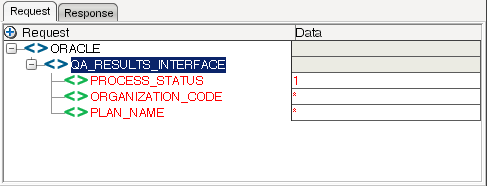
You can drag and drop data from the Input document to the Request document to create XML Map actions. You also can use drag-and-drop mapping to map from Response to Output. In the preceding illustration, a node is displayed in red. The red color indicates that data has been mapped to the node.
If you right-click anywhere inside the Request or Response tree views in the Native Environment Pane, a menu is displayed.
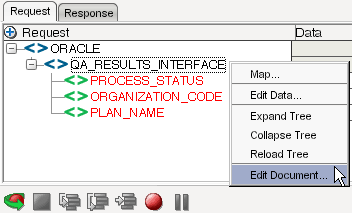
The Edit Document command in this menu opens the document in a text-editor, as shown in the following illustration.
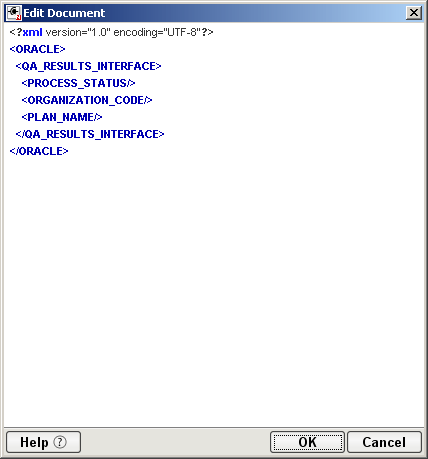
In this window, you can manually edit the Request or Response document.
CAUTION: If you manually edit the document, it may no longer conform to the original schema. As a result, you will no longer be able to open the document in the Request Action dialog box.
If you have manually edited a Request or Response document, double-clicking on the corresponding Request Action in the Action Model will cause the following message to be displayed:
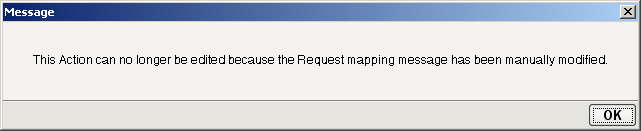
If this message appears, and you want to work with the document using the Request Action dialog box, you must recreate the action in order to see the original Request or Response document. Manual edits will be lost.
To prevent this situation from occurring, avoid making manual edits to Request or Response documents. Instead use XML Map Actions and Function actions to modify documents or node contents. Be aware that doing so may violate schema constraints. This will not necessarily cause runtime problems for your component when executing in the Composer Enterprise Server environment, because Composer does not validate the request document against the schema at runtime. However, your Oracle E-Business Suite system may validate incoming requests, in which case a manually-edited Request document can cause errors that are difficult to troubleshoot.
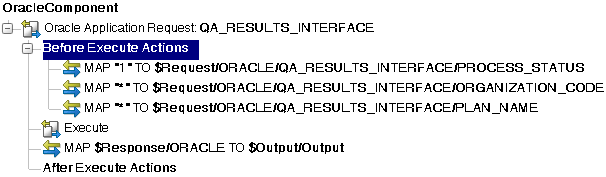
Whenever an Oracle Applications Request action is created in the Action Model, Composer adds two additional lines to the action list: Before Execute Actions and After Execute Actions. These are header labels (grouping labels) for blocks of actions that occur before the request is sent to the Oracle E-Business Suite system, or after a response document has come back, respectively. Typically you will want to map data fields from Input to Request and have those actions be grouped under the "Before Execute Actions" header. Likewise, any map actions or other action logic that you need to perform on the Response document after the Oracle E-Business Suite system executes your request should be grouped under the "After Execute Actions" heading.
This section describes how to use the exteNd ComposerTM Connect for Oracle E-Business Suite to create an Oracle Applications Service component to connect to Oracle E-Business Suite and listen for events. As part of the process of creating an Oracle Applications Service, you can select an existing Oracle Applications Service connection resource, or you can create a new one. If you create the connection beforehand, it is available for use by any Oracle Applications Services in the current project. If you have not already created at least one Oracle Applications connection resource in the current project, you will be prompted to do so when you try to create an Oracle Applications Service.
NOTE: You can still create an Oracle Applications Service without first creating a connection resource, but you won't be able to use any debug features that depend on a live connection.
To Create a New Oracle Applications Service:
Select File > New > xObject. The New xObject dialog box is displayed.
NOTE: Alternatively, under Service in the Composer Navigator pane (Explorer view), you can highlight Oracle Applications Service, click the right mouse button, then select New.
Double-click on "Oracle Applications Service."
If you have not previously defined a connection resource, you are prompted to do so now (see Creating a Connection Resource).
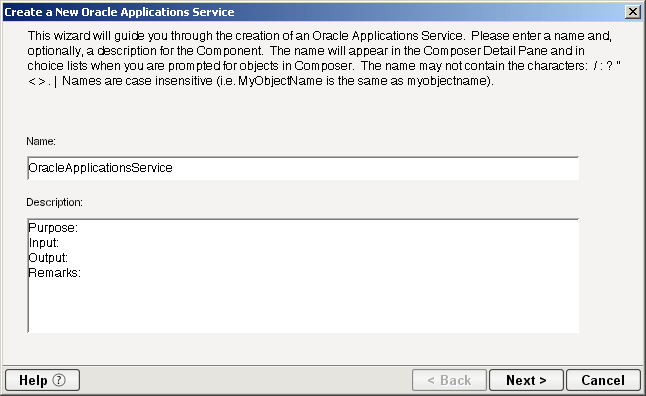
If you have already defined a connection resource, the "Create a New Oracle Applications Service" Wizard is displayed.
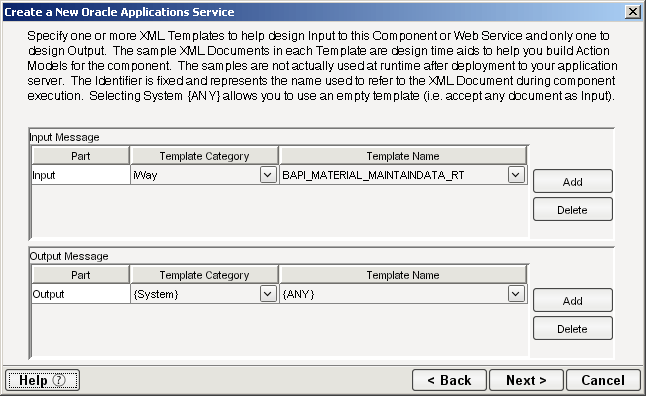
Select Next. The XML Input/Output Message Property Info panel of the New Oracle Applications Service Wizard is displayed.
Specify the Input and Output templates as follows:
Type a name for the template under Part if you wish the name to appear in the DOM as something other than "Input"
Select a Template Category if it is different than the default category.
Select a Template Name from the list of XML templates in the selected Template Category.
To add additional input XML templates, click Add, then choose a Template Category and Template Name for each.
To remove an input XML template, select an entry and click Delete.
Select an XML template for use as an Output DOM using the procedure described in the previous step.
NOTE: You can specify an input or output XML template that contains no structure by selecting {System}{ANY} as the Input or Output template. For more information, see "Creating an Output Document without Using a Template" in the Novell exteNd Composer User's Guide.
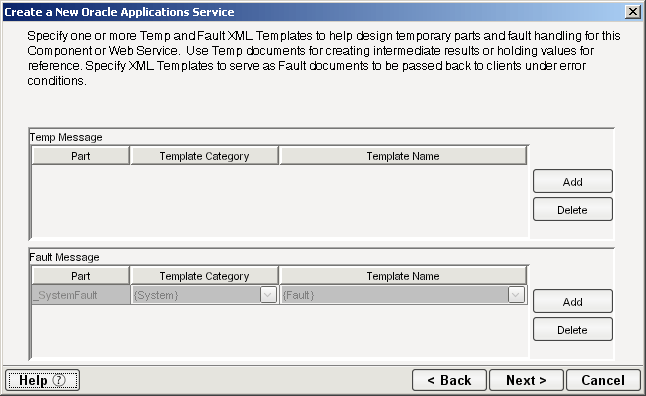
Select Next. The Temp and Fault XML Template panel is displayed.
If desired, specify a template to be used as a scratch pad under the "Temp Message" pane of the dialog box. This can be useful if you need a place to hold values that will be used temporarily during the execution of your component. Select a Template Category if it is different than the default category. Then select a Template Name from the list of XML templates in the selected Template Category.
Under the "Fault Message" pane, select an XML template to be used to pass back to clients when an error condition occurs.
To add additional input XML templates, click Add and choose a Template Category and Template Name for each. Repeat as many times as desired. To remove an input XML template, select an entry and click Delete.
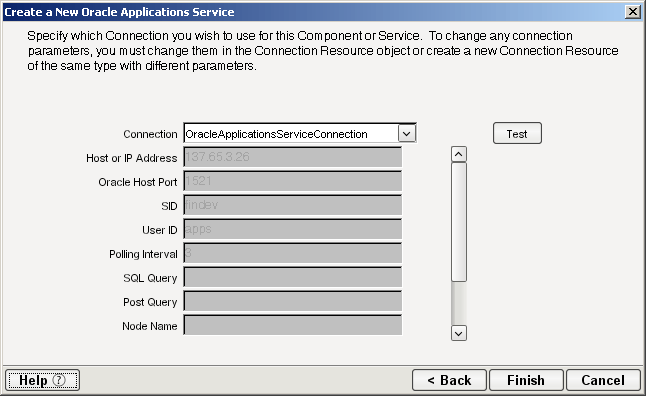
Select Next. The Connection Info panel of the Create a New Oracle Applications Service wizard is displayed.
Select an Oracle Applications Service connection from the Connection list. The Connection list displays the names of the Oracle Applications connection resources that have been defined in this project.
Select Finish. The component is created and the Oracle Applications Service Editor is displayed. The features of this window are identical to the features described in About the Oracle Applications Component Editor Window. The following sections describe the steps required to create an Oracle Applications Service Action.
You can create all the normal Composer actions in the Action Model of your Oracle Applications Service (e.g., XML Map, Function, Log, Send Mail). In addition, you can create an Oracle Applications Service Request action.
The Oracle Applications Service Request action is similar to a Switch action (see "The Switch Action" in the in the Novell exteNd Composer User's Guide). A Switch action allows program control to branch to a block of actions based on a match between an input value and a Case value. In an Oracle Applications Service Request, Composer receives a DOM, and compares a series of cases against the DOM. If an exact match occurs between the DOM and a case, execution branches to the actions listed underneath the case in the Action model. Cases are tested in the order listed; and once a match is found, execution of the match logic precludes execution of any other logic in the Oracle Applications Service Request.
To Create an Oracle Applications Service Request Action
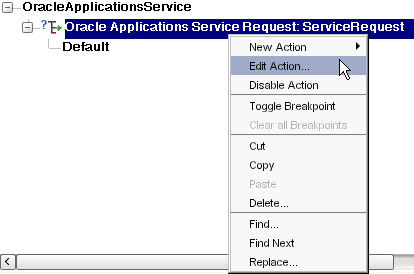
In the Action Model, right-click on Oracle Applications Service Request:
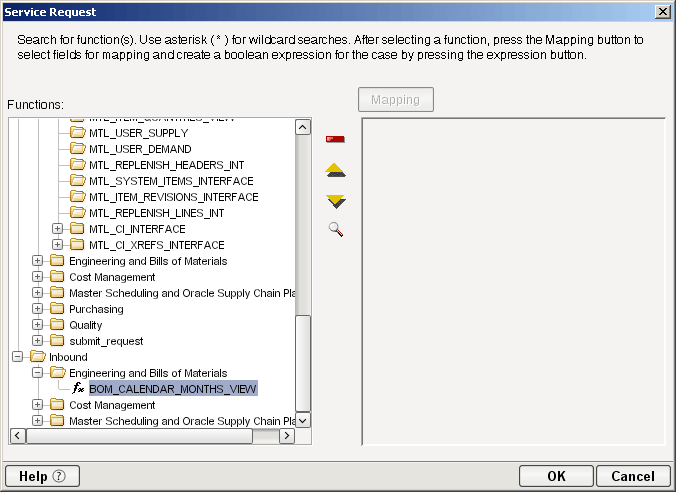
Select Edit Action. The Service Request dialog box is displayed.
In the Function tree, click on the plus (+) sign to the left of the Messages node to expand the tree view for that node.
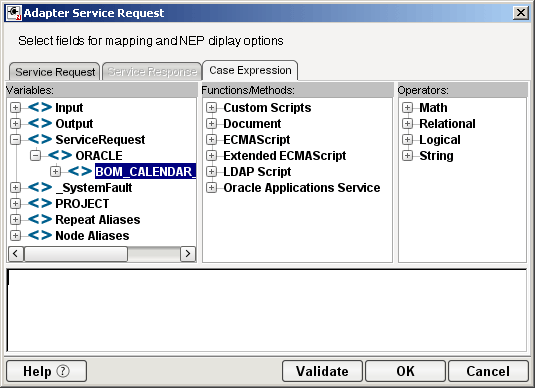
Right-click on the message name that you want to use for input and select Add Case, or double-click on the message name. The Adapter Service Request dialog box is displayed. This dialog box is similar to the Request dialog box (see Creating Actions in the Component Editor).
Select or deselect Filter Request, as desired. Filter Request is selected by default. If deselected, the tree will be disabled and greyed (no longer editable), indicating that a default schema configuration will be used. If selected, you can customize the structure of the request document by selecting the nodes to be included in the request document.
Expand the nodes of the Service Request Tree by clicking on the plus signs to the left of the nodes.
Select the elements that you want to include in the Service Request document by selecting or deselecting the check boxes in the node tree. Some nodes are greyed out (disabled). This is because the document schema determines the nodes that you can edit.
If the Service Response tab is enabled, click the Service Response tab at the top of the dialog box to bring the Service Response document pane forward. This pane shows a tree view of the Response document, similar to the one shown for the Request document. The same user interface features that applied to the Request document pane apply to the Response document pane.
Visit all of the nodes in the Response document tree and customize the settings as desired.
Click the Case Expression tab at the top of the dialog box to bring the Case Expression pane forward. This pane provides an Expression Builder that you use to build a case expression.
Type the static string values or the ECMAScript expressions that will be checked against the input DOM.
Select the OK button. The Service Request dialog box is displayed.
To add another case, repeat Step 3 through Step 12. The cases are listed from top to bottom in the order in which they are evaluated. Each Case value will be checked in turn, in the order you list them.
For optimal performance, list the most likely matches first.
You can change the order in which the cases are listed by clicking on the name of a case, then clicking the up or down triangle icons.
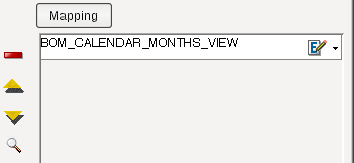
To edit a case, select the name of the case, then press the Mapping button. You can also select the name of the case, then select the Expression Builder button.
When you have finished adding cases, select OK. The Service Request dialog box closes and a new action appears in the Action Model of your component. The Native Environment Pane changes to show the Request and Response tabs along with tree views of the request and response documents.
In the Action Model, add actions to be performed to each case to create the desired business logic.
To map a node of the Input document to a node in the Request document, drag a node from the Input pane and drop it on a node in the Request tab of the Native Environment pane. This automatically creates a new XML Map Action in the Action Model.
To map a node of the Response document to a node in the Output document, drag a node from the Response tab of the Native Environment pane and drop it on a node in the Output pane. This automatically creates a new XML Map Action in the Action Model. You can cut, copy, or delete the actions once they appear in the Action Model pane.
When all of the Actions for a case have been evaluated, Composer sets the Service Response DOM.
The final case in the Action model is always labeled Default. This case is generated automatically and cannot be removed. Actions placed under Default are executed if and only if the none of the other cases are matched. While you are not required to place actions under Default, it is good programming practice to have at least some kind of fallback logic for the Default case, even if it's only a Log action or a Raise Error action.
The Request and Response document displays for Service Requests work similarly to the displays for Requests (see Request and Response Documents).
Once a project containing Oracle Applications Services has been deployed (see "Deploying Your Project" in the Novell exteNd Composer User's Guide), the Listener objects actively listen for messages each time you start your server. To manually start and stop these services you need to use the exteNd Oracle Applications Services Console. This browser-based console allows you to see the list of Oracle Applications Services, the status of each service (running or not running), the running tally (Count) of messages received, other administrative information, and a Start/Stop button.
To display the exteNd Oracle Applications Services Console:
From the Windows Start menu, select Programs > Novell Extend 5.2 > Composer > Composer Server Console. A dialog box for entering the application server administrator ID and password is displayed.
Type your administrator ID and password, then select OK. The Composer Server Console page is displayed.
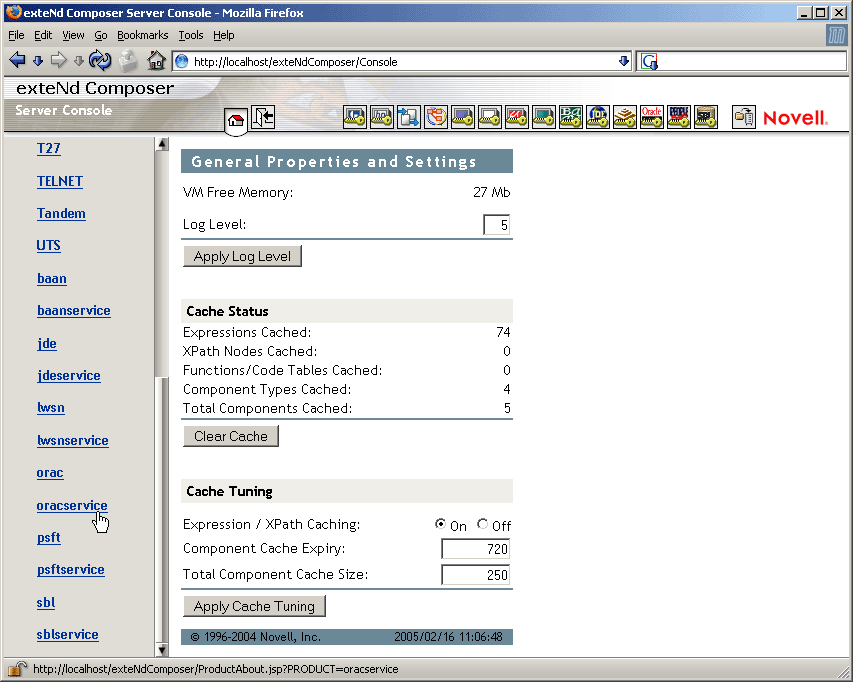
Scroll down the About Products list on the left side of the page until you see the link titled "oracservice".
Select the "oracservice" link. A page is displayed that provides information (e.g., version, license number, copyright) about the Connect. It also displays a Console button.
Select the Console button. The Oracle Applications Service console page is displayed. This page lists any Oracle Applications Services that have been deployed.
To stop an Oracle Applications Service, select the appropriate Stop button (the button will then change to Start).
NOTE: If messages are being handled by a service at the time of the Stop command, there may be some delay before the service actually exits. Select the Refresh button periodically until the "Running" column of the console says No for the service.
To undeploy an Oracle Applications Service:
From the Windows Start menu, select Programs > Novell Extend 5.2 > AppServer > Server Management Console.
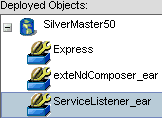
Expand the database containing the deployed objects that you want to manage:
See Appendix A to this guide for a list of ECMAScript extension methods that can be used with the Oracle E-Business Suite Connect.
Copyright © 2004-2005 Novell, Inc. All rights reserved. Copyright © 1997, 1998, 1999, 2000, 2001, 2002, 2003 SilverStream Software, LLC. All rights reserved. more ...
 )from the toolbar.