77.3 Controlling Access to GroupWise Web
The Access Control settings for GroupWise Web enable you to allow or deny logins of GroupWise users and resources to the GroupWise Web platform. These settings are managed in the GroupWise Administration Console.
The system default is to allow the use of GroupWise Web for all GroupWise users. You can retain this global setting, change it to the opposite global setting to prevent all users from accessing GroupWise Web, or use one of the global settings with added exceptions to allow or prevent access to individual users or resources, or collectively based on object type.
For example, you can add an exception for all users (and resources) in a particular group, post office, or domain object. After saving the exception, the opposite action of the selected global setting is enforced on those users to either deny or allow access.
IMPORTANT:If you block access to GroupWise web and want to add users to a whitelist to use GroupWise Web, the user’s visibility must be set to level or they cannot be added to the whitelist.
77.3.2 Checking User Access to GroupWise Web
You can check GroupWise access settings for individual users or resources via the GroupWise Administration Service for a quick lookup of possible exceptions or to troubleshoot for a user that cannot log in. Simply enter the identifying domain, post office, and user or resource name using the URL syntax below and the access status is returned for that object.
https://<admin service IP address>:<admin port>/gwadmin-service/gwwebservers/acltest/domain/<domain name>/postoffice/<post office name>/object/<user or resource name>
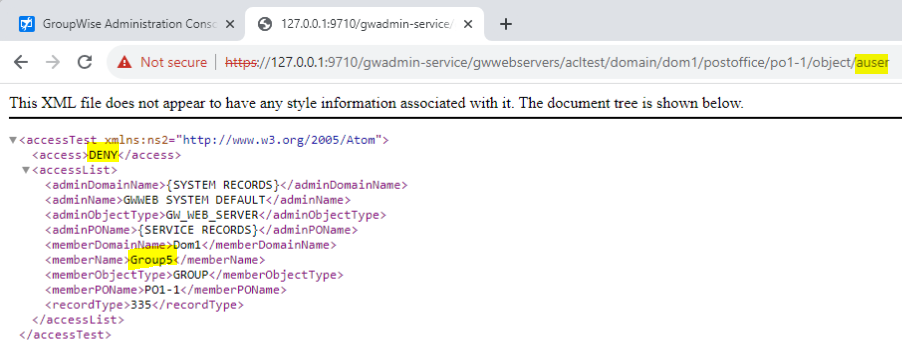
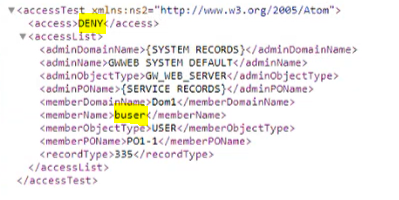
Two examples are provided below of returns for “buser” and “auser”. This check provides the same information as the POA log, so you can check what the Access Control is for specific users.
Example 1. This check shows the user is denied access based on an individual Access Control exception.
Example 2.This check shows that the user is denied access because an Access Control is set on a group that the user is a member of.