Connect for Oracle E-Business Suite User's Guide
CHAPTER 2
This chapter describes how to set up and configure the Integration ManagerTM Connect for Oracle E-Business Suite.
The following requirements must be completed before you can use the Integration Manager Connect for Oracle E-Business Suite:
Determine the release number of your Oracle E-Business Suite system. The Integration Manager Connect for Oracle E-Business Suite supports Oracle E-Business Suite Releases 10.7 through 11x.
Locate or acquire the Oracle JDBC driver. The Integration Manager Connect for Oracle E-Business Suite requires the Oracle JDBC driver for JDK 1.4.
Update the classpath in xconfig.xml, in both the design environment and on the server, to reflect the addition of the Oracle JDBC driver. See Adding the Oracle JDBC Driver to the Design-Time Environment and Adding the Oracle JDBC Driver to the Novell Application Server Environment.
Update the license for your Integration Manager Connect for Oracle E-Business Suite installation. See Updating the Design-time Software License and Updating the Runtime License.
The steps necessary to accomplish these requirements are discussed in detail in the following sections.

Before attempting to use the Integration Manager Connect for Oracle E-Business Suite (which is installed automatically as part of the default Integration Manager installation process), you must complete the installation by obtaining and installing the Oracle JDBC driver. This library is proprietary to Oracle and is not shipped by Novell nor installed as part of Integration Manager.
You need the Oracle JDBC driver for JDK 1.4 (ojdbc14.jar). The Oracle JDBC driver file should be included in your Oracle E-Business Suite installation. If it is not, you can download the Oracle JDBC driver from the following URL:
http://www.oracle.com/technology/software/tech/java/sqlj_jdbc/index.html
When you have located the Oracle JDBC driver, you must add it to the classpath in both your design-time and runtime environments, as described in the following sections.
 To add the Oracle JDBC Driver to your design-time configuration
If Integration Manager is running, shut it down before proceeding.
Obtain the Oracle JDBC Driver file (see Oracle JDBC Driver), if it is not included in your Oracle E-Business Suite installation.
Copy the Oracle JDBC Driver file to the /Common/lib folder of the Integration Manager installation directory on your design-time computer.
To add the Oracle JDBC Driver to the design-time classpath
Locate your xconfig.xml file under /Composer/Designer/bin and open the file in a text editor.
Scroll to the bottom. Within the <RUNTIME> element, you should see many <JAR> entries.
Add an additional <JAR> element that specifies the path to the Oracle JDBC Driver file, as follows:
<JAR>..\..\..\Common\lib\ojdbc14.jar</JAR>
This entry tells the class loader where it can find the Oracle JDBC Driver file.
If the application server is running, shut it down before proceeding.
Obtain the Oracle JDBC Driver file (see Oracle JDBC Driver), if it is not included in your Oracle E-Business Suite installation.
Copy the Oracle JDBC Driver file to a suitable location on your application server. The exact location doesn't matter, as long as you create a classpath entry pointing to the Oracle JDBC Driver file location, as described in the following steps.
Update the application server classpath. For the Novell exteNd application server, locate the AgJars.conf file in the AppServer/bin directory and open the file in a text editor.
Create a new entry in the "MODULE COMMON" section, as follows:
$SS_LIB ../../Common/lib/ojdbc14.jar
This example assumes that you have placed the JAR files in the application server /Common/lib directory. Edit this path as required to reflect the actual target directory.
NOTE: For application servers other than Novell exteNd, follow the application server vendor's instructions for updating the classpath.
Obtain a valid license string from your Novell representative.
NOTE: You use the same license string to activate the design-time and runtime versions of Integration Manager Connect for Oracle E-Business Suite.
Select About Integration Managerfrom the Help menu. The About Integration Manager dialog box is displayed.
Select System. The System Information dialog box is displayed.
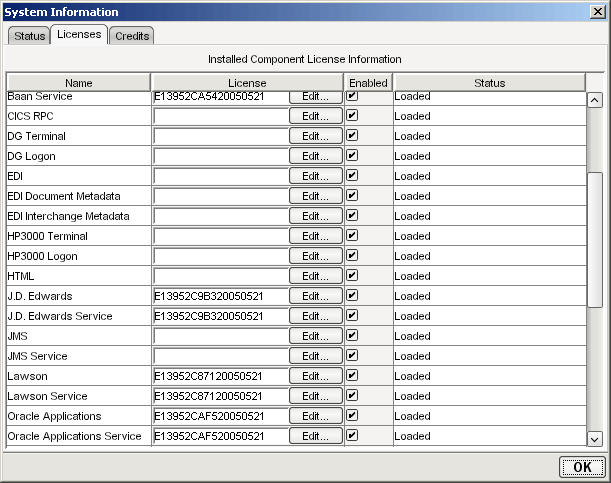
Click on the Licenses tab, located in the upper left corner of the System Information dialog box. The license information for your Integration Manager installation is displayed.
Scroll down until you see the row for Oracle Applications.
NOTE: The Connect ships with an Evaluation license string which may be used for 90 days.
To use the evaluation license string, select the check box in the Enabled column and skip to Step 10. To enter a different license string, select the check box in the Enabled column. The Edit button in the Oracle Applications row is enabled.
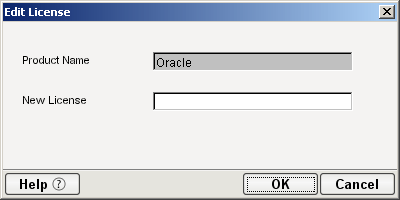
Select Edit in the Oracle Applications row. The Edit License dialog box is displayed.
Type the license string for the Integration Manager Connect for Oracle E-Business Suite in the New License field.
Scroll down until you see the row for Oracle Applications Service.
Repeat Step 7 through Step 9 for the Oracle Applications Service row.
NOTE: If you are using the Tomcat application server, copy the jca10apis.jar from the \NIM6\Server Resources\Tomcat directory (Windows) or nim/Server Resources/Tomcat directory (Linux) to the Tomcat Composer\lib and shared\lib directories before attempting to update the runtime license.
Make sure that the Novell Integration Manager Enterprise Server is installed.
Start the application server. The Novell Integration Manager Enterprise Server starts automatically when you start the application server.
Open a browser window and navigate to the Novell Integration Manager main administrative console. Typically, this is at:
http://localhost/exteNdComposer
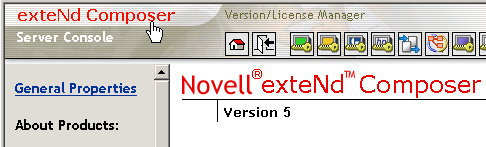
In the upper left corner of the console window, click the Integration Manager logo immediately above the words "Server Console," as shown in the following illustration.
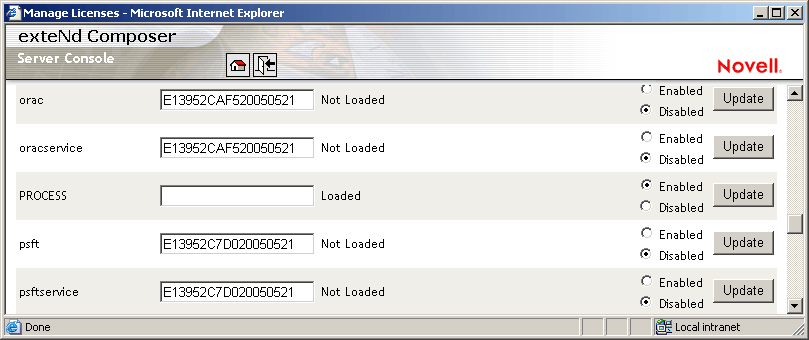
In the content area of the main frame, near the bottom, click Licenses. The Manage Licenses window is displayed. This window shows the license status of every Integration Manager Connect. See the following illustration.
Scroll down to the entry labeled "orac".
NOTE: The Connect ships with Evaluation license strings which may be used for 90 days.
Type a license string in the text field in the "orac" row; then select Enabled in the "orac" row. To use the evaluation license string, just select Enabled.
Type a license string in the text field in the "oracservice" row; then select Enabled in the "oracservice" row. To use the evaluation license string, just select Enabled.
Copyright © 2004-2005 Novell, Inc. All rights reserved. Copyright © 1997, 1998, 1999, 2000, 2001, 2002, 2003 SilverStream Software, LLC. All rights reserved. more ...