Associating the Application Object with Users
You associate the application with a user by adding the User object, a Group object to which the user belongs, or a container object (Organizational Unit, Organization, or Country) in which the user resides to the Application object's association list.
-
In ConsoleOne, right-click the Application object > click Properties.
Click the Associations tab to display the Associations page.
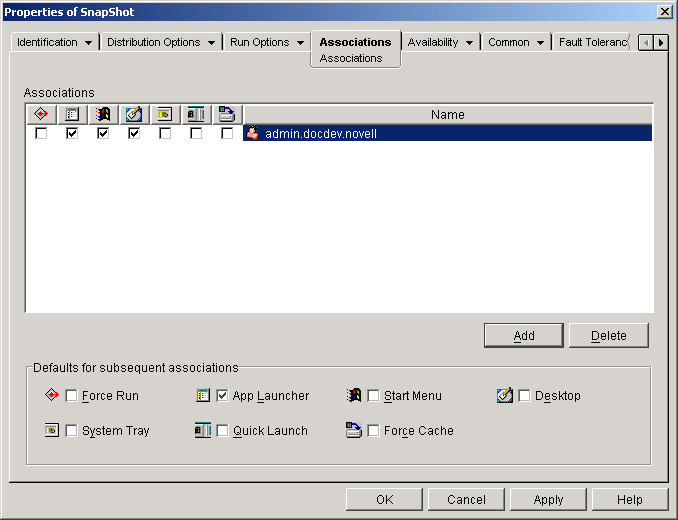
Click Add > browse and select a User object, Group object, or container object > click OK to add the user, group, or container to the Associations list.
Select the options you want applied to the Application object. By default, the App Launcher option is already checked, which causes the Application object to be displayed in the Application Launcher/Explorer window.
Force Run: Runs the Application object as soon as Application Launcher/Explorer or Workstation Helper starts and the Application object is available.
You can use the Force Run option in conjunction with several other settings to achieve unique behaviors. For example, if you use the Force Run option with the Run Application Once option (Run Options tab > Applications page), as soon as the Application object is distributed it will be run one time and then removed from the workstation. Or, suppose that you want to run the Application object immediately one time at a pre-determined time. If so, select Force Run, select the Run Application Once option on the Application page (Run Options tab), and define a schedule using the Schedule page (Availability tab).
If you want to force run several applications in a specific order, mark each of them as Force Run. Then give each Application object a numeric order by using the Order Icon Display option on the Icon page (Identification tab).
IMPORTANT: When associating an Application object with a workstation, Force Run will not work if the Application object uses a Microsoft Windows Installer (.MSI) package. This is true only when the Application object is associated with a workstation. Force Run works with .MSI Application objects associated with users.
App Launcher: Adds the Application object's icon to the Application Launcher/Explorer window.
Start Menu: If the workstation is running Application Explorer, this option adds the Application object to the Windows Start menu. The Application object will be added to the top of the Start menu, unless you assign the Application object to a folder and use the folder structure on the Start menu. See the Application object's Folders page (Identification tab).
Desktop: If the workstation is running Application Explorer, this option displays the Application object's icon on the Windows desktop.
System Tray: If the workstation is running Application Explorer, this option displays the Application object's icon in the Windows system tray.
Quick Launch: Displays the Application object's icon on the Windows Quick Launch toolbar.
Force Cache: Forces the application source files and other files required for installation to be copied to the workstation's cache directory. The user can then install or repair the application while disconnected from NDS. The files are compressed to save space on the workstation's local drive. For more information about caching applications, see Running in Disconnected Mode.
IMPORTANT: This option is required only if you want to ensure that the user can install or repair the application while disconnected from NDS. Without this option selected, the user will still be able to launch the application in disconnected mode, provided the application has already been distributed (installed) to the workstation.
Associating the Application Object with Workstations
You associate the application with a workstation by adding the Workstation object, a Workstation Group object to which the workstation belongs, or a container object (Organizational Unit, Organization, or Country) in which the workstation resides to the Application object's associations list.
IMPORTANT: Each workstation that will be associated with applications must first be imported into NDS as a Workstation object. For details about importing workstations, see Automatic Workstation Import in Deployment.
-
In ConsoleOne, right-click the Application object > click Properties.
Click the Associations tab to display the Associations page.
Click Add > browse and select a Workstation object, Workstation Group object, or container object > click OK to add the workstation, group, or container to the Associations list.
Select the options you want applied to the Application object. By default, the App Launcher option is already checked, which causes the Application object to be displayed in the Application Launcher/Explorer window.
Force Run: Runs the Application object as soon as Application Launcher/Explorer or Workstation Helper starts and the Application object is available.
You can use the Force Run option in conjunction with several other settings to achieve unique behaviors. For example, if you use the Force Run option with the Run Application Once option (Run Options tab > Applications page), as soon as the Application object is distributed it will be run one time and then removed from the workstation. Or, suppose that you want to run the Application object immediately one time at a pre-determined time. If so, select Force Run, select the Run Application Once option on the Application page (Run Options tab), and define a schedule using the Schedule page (Availability tab).
If you want to force run several applications in a specific order, mark each of them as Force Run. Then give each Application object a numeric order by using the Order Icon Display option on the Icon page (Identification tab).
IMPORTANT: When associating an Application object with a workstation, Force Run will not work if the Application object uses a Microsoft Windows Installer (.MSI) package. This is true only when the Application object is associated with a workstation. Force Run works with .MSI Application objects associated with users.
App Launcher: Adds the Application object's icon to the Application Launcher/Explorer window.
Start Menu: If the workstation is running Application Explorer, this option adds the Application object to the Windows Start menu. The Application object will be added to the top of the Start menu, unless you assign the Application object to a folder and use the folder structure on the Start menu. See the Application object's Folders page (Identification tab).
Desktop: If the workstation is running Application Explorer, this option displays the Application object's icon on the Windows desktop.
System Tray: If the workstation is running Application Explorer, this option displays the Application object's icon in the Windows system tray.
Quick Launch: Displays the Application object's icon on the Windows Quick Launch toolbar.
Force Cache: Forces the application source files and other files required for installation to be copied to the workstation's cache directory. The user can then install or repair the application while disconnected from NDS. The files are compressed to save space on the workstation's local drive. For more information about caching applications, see Running in Disconnected Mode.
IMPORTANT: This option is required only if you want to ensure that the user can install or repair the application while disconnected from NDS. Without this option selected, the user will still be able to launch the application in disconnected mode, provided the application has already been distributed (installed) to the workstation.
Click the NDS Rights tab > click Trustees of This Object.
Associating the Application object with the workstation enables Application Launcher/Explorer to display the object on the workstation. Any users who will run the application on the workstation must be trustees of the Application object. Trustee rights are not granted automatically; you must manually give default trustee rights to each user.
Click Add Trustee > select the user you want to add as a trustee > click OK to add the user to the trustee list. Repeat this step for all users you need to add.
Click OK to save the Application object information.