Application Launcher
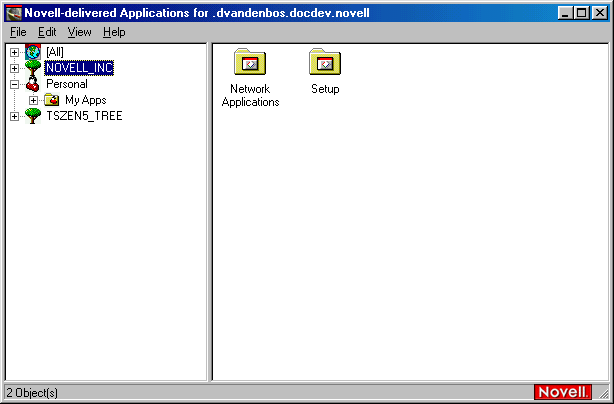
Application Launcher, shown below, is a standalone window that can be accessed from the workstation's desktop.
NOTE: You can replace the Windows desktop with the Application Launcher windows. For instructions, see Using Application Launcher as the Windows Shell.
The Application Launcher window is divided into two panes, much like Windows Explorer. In the left pane, Application Launcher displays the following:
- [All] folder: Contains all applications that have been distributed to the user. This is an administrator-controlled feature. By default, it is enabled, which means the folder appears. You can disable the feature if desired.
- NDS trees: Each tree contains the applications, located within the tree, that have been distributed to the user or workstation. Application Launcher displays only the trees to which the user is authenticated.
- Personal folder: Provides a location for the user to create personal folders for organizing applications. This is an administrator-controlled feature. By default, it is disabled, which means the folder does not appear.
When the user selects a tree or folder in the left pane, the right pane displays the items (folders or applications) that are contained within the tree or folder.
Using the Application Launcher window, the user can do the following:
- Run an application by double-clicking the application's icon in the right pane. Depending on the application and how it is configured in NDS, before running the application Application Launcher may install files to the workstation, map drives, or change workstation configuration files or settings.
- View the properties of an application. The properties include a description of the application, information about people to contact for help with the application, the times when the application is available for use, and the workstation requirements established for the application.
- Log in to NDS (or to another NDS tree).
- Disconnect Application Launcher from NDS so that the user can work offline. Disconnecting Application Launcher from NDS does not log the user out of NDS.
As administrator, you control the availability of certain features that enable users to do the following:
- Uninstall an application.
- Cache an application's installation files to the user's workstation so that the user can install or verify (fix) the application while disconnected from NDS.
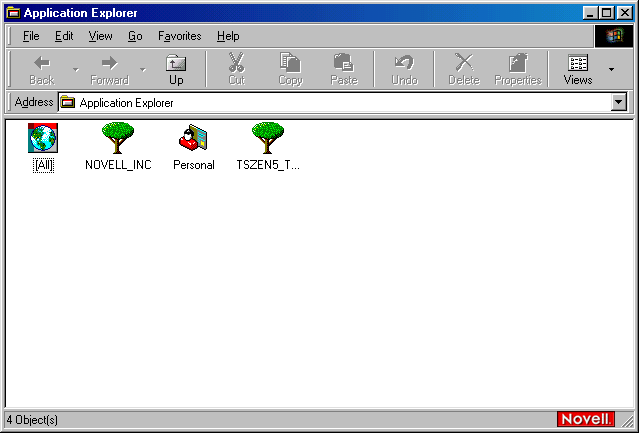
Application Explorer, shown below, is also a standalone window that can be accessed from the Windows desktop.
In addition, with Application Explorer, you can configure Application objects to display on the Windows desktop, the Start menu, the system tray, and the Quick Launch tool bar. The Application Explorer window displays the following:
Using the Application Explorer window, the user can do the following:Application Explorer