Icons/Shortcuts Page (.AOT/.AXT Application Object Only)
The Icons/Shortcuts property page, shown below, determines the icons and shortcuts that Application Launcher/Explorer will create when distributing the application to the workstation. You can add the application's icon as an item in a program group or as a shortcut on the workstation's desktop or in a folder. You can also delete existing icons, shortcuts, and program groups.
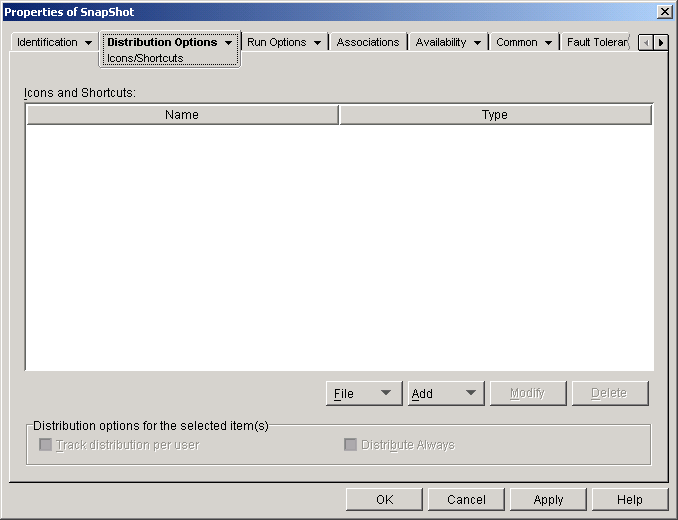
The icons and shortcuts you add with this page are in addition to the Application object's icon. While the Application object's icon may cause various actions to occur, including installing the application or running it, the icons and shortcuts defined on this page link directly to the application's executable file and simply launch the application.
You can use icons and shortcuts in combination with other options to create the user environment you want. For example, you could define the icons and shortcuts you want created and configure the Application object to run one time (Run Options > Applications). When a user selected the Application object, Application Launcher/Explorer would run the application one time, create the icons and shortcuts, perform any other tasks specified by the Application object's properties, and then remove the Application object's icon from the workstation. Thereafter, the user would need to select the icon or shortcut to launch the application.
IMPORTANT: Program groups and program group items are supported on Windows 95/98 workstations but not on Windows NT/2000 workstations. Shortcuts are supported on all four Windows versions.
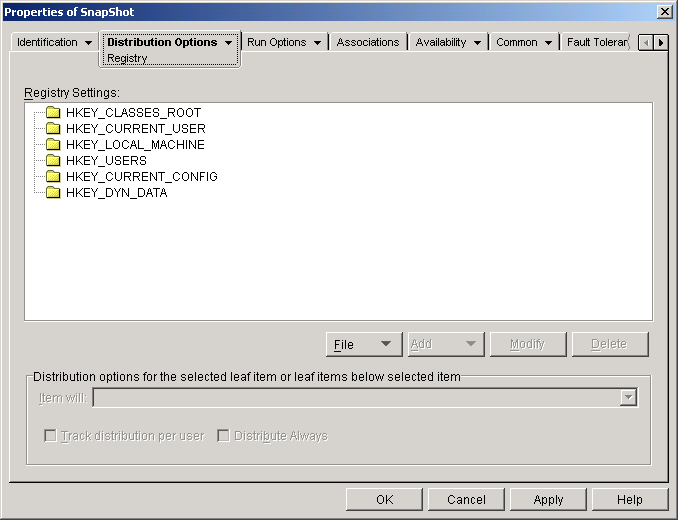
This list displays the icons and shortcuts that will be created when the application is distributed to a workstation. Click File > Find to search for icon and shortcut definitions that include certain information. Click File > Import to import icons and shortcuts from another Application object. Click Add to add a new program group, program group item, or shortcut. Select an icon or shortcut from the Icons and Shortcuts list > click Modify to change the information associated with it. Select an icon or shortcut from the Icons and Shortcuts list > click Delete to delete it from the list. Use this option if you have enabled users with roaming profiles on your network and you need to track a particular icon and shortcut definition. In the Icons and Shortcuts list, select the icon or shortcut you want to track > check this option. Use this option if you want to create or delete the icons and shortcuts every time the application is distributed. In the Icons and Shortcuts list, select the icon or shortcut to always distribute > check this option. The Registry property page, shown below, determines the registry settings that Application Launcher/Explorer will create or delete when distributing the application to a workstation.
The Registry Settings tree displays all settings that have been defined for the registry. When the application is distributed to a workstation, Application Launcher/Explorer will modify the workstation's registry according to the settings in this tree. If you used a .AOT, .AXT, or .MSI file when creating the Application object, the tree automatically includes all registry settings that are defined in those templates. Click File > Find to search for specific keys, value names, or value data in the registry. Click File > Import to import registry settings from another Application object's .AOT or .AXT file, or from a registry file (.REG). Click File > Export to export the registry settings to a registry file (.REG). To export the settings to a .AOT or .AXT file format, you must export the entire Application object using the Export Application Object option located on the Tools > Application Launcher Tools menu. This option lets you add registry settings to the Registry Settings tree. Only settings displayed in the Registry Settings tree will be created or deleted when the application is distributed. To add a registry key or value, select the registry folder where you want to add the key, or select the key where you want to add a value > click the Add button > choose one of the following options: Key: Adds a key to the selected registry folder. Binary: Adds a binary value to the selected key. Expand String: Adds an expand string value to the selected key. Default: Adds a default string value to the selected key. DWORD: Adds a DWORD value to the selected key. Multi-String Value: Adds a multi-value string to the selected key. String: Adds a string value to the selected key.
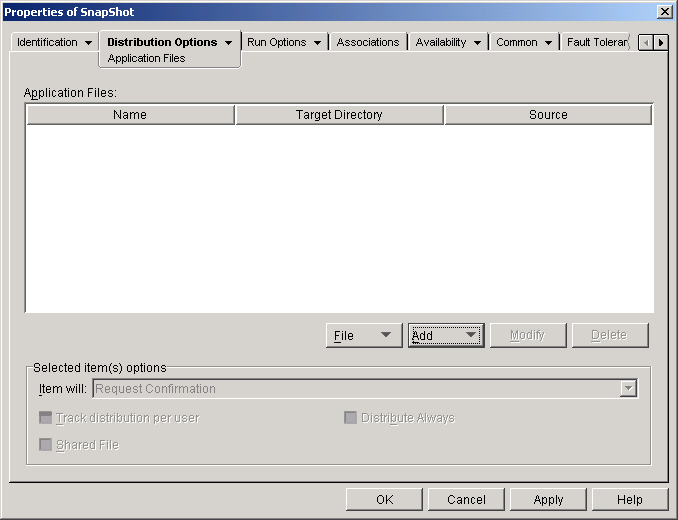
Once the key or value is added to the Registry Settings tree, you can use the Distribution Options list to determine whether or not the key or value is created in the workstation's registry or deleted from the registry. You can use a macro for a key name, value name, or value data. For information about macros, see Macros. Select the key or value you want to modify > click Modify. Select the key or value you want to delete > click Delete. When you delete a key, everything subordinate to the key will also be deleted. Use these options to set individual distribution options for settings included in the Registry Settings tree. Use this option to specify whether the registry setting will be created or deleted during distribution. In the Registry Settings tree, select the setting > select either Create or Delete from the Item Will list. If you delete a setting that has subordinate settings, the subordinate settings will also be deleted. Use this option if you have enabled users with roaming profiles on your network and you need to track a particular registry setting. In the Registry Settings tree, select the registry setting you want to track > check Track Distribution Per User. Use this option if you want to create or delete a registry setting every time the application is distributed. In the Registry Settings tree, select the registry setting to always distribute > check Distribute Always. The Application Files property page, shown below, specifies the application files that Application Launcher/Explorer will install or remove when distributing the application to a workstation.
The Application Files list displays all files and directories that will be installed or removed during distribution. The name, target directory (the location on the workstation where the file will be installed), and source (the file or directory that is being used to install the file) are listed for each application file or directory. If you used a .AOT or .AXT file when creating the Application object, the list automatically includes all files and directories that are defined in those templates. Click File > Find to search for specific items in the list. You can search for text in the Name, Target Directory, or Source fields. For example, you could search for all files and directories that are being installed under the Program Files directory. Click File > Import to import application files and directories from another Application object's .AOT or .AXT file. This option lets you add files or directories to the Application Files list. Only files and directories displayed in the Application Files list will be installed to or removed from the workstation during distribution. File: To add a file to the list, click Add > File to display the Edit Files dialog box. In the Source File field, specify the file to be used as the source of the installation. You can use a mapped drive, UNC path, or macro, or you can browse and select the file (for example, \\SERVER1\VOL1\BOOKMARKS\BOOKMARK.HTM or %SOURCE_PATH%\BOOKMARK.HTM). The source file can be a single file that will be copied, multiple files (for example, %SOURCE_PATH%\*.*), or a snAppShotTM application source (.FIL) file. If you are deleting a file from the workstation, leave this field blank. In the Target File field, specify the file on the workstation to which the source file will be copied (for example, C:\PROGRAM FILES\NOVELL\BROWSER\BOOKMARK.HTM). You can also substitute a macro for the target path (for example, %TARGET_PATH%\BOOKMARK.HTM). If you are copying multiple files using a wildcard (*.*), specify the destination directory only (for example, C:\PROGRAM FILES\NOVELL\BROWSER\). If you are deleting the file from a workstation, enter the full path for the file from the perspective of the workstation > check the Target File to Be Deleted box.
Directory: To add a directory to the list, click Add > Directory to display the Edit Directory dialog box. In the Name field, specify the directory to create or delete on the workstation (for example, C:\PROGRAM FILES\NOVELL). You can also substitute a macro for the directory path (for example, %DIRECTORY_TARGET_PATH%\NOVELL). Check the Directory to Be Deleted box if you want to delete the directory from the workstation. Otherwise, the directory will be created on the workstation.
Select the file or folder you want to modify > click Modify. Select the file or folder you want to delete > click Delete to remove it from the Application Files list. Use these options to set individual distribution options for files and directories included in the Application Files list. Select a file in the Application Files list > select one of the following options from the Item Will list: Copy Always: Copies the file regardless of whether the file currently exists on the workstation. Copy if Exists: Copies the file only if the file currently exists on the workstation. Copy if Does Not Exist: Copies the file only if the file does not currently exist on the workstation. Copy if Newer: Copies the file only if its date and time are newer than the existing file's date and time, or if the file does not currently exist on the workstation. Copy if Newer and Exists: Copies the file only if it already exists on the workstation and has an older date or time. Copy if Newer Version: Copies the file only if its internal version is newer than the existing file's version (if version information is present). This is useful if you want to update the version of a .EXE or .DLL based on the compiled version information. Request Confirmation: Prompts the user to verify that the file should be copied. Copy if Different:Copies the file if its date, time, or size is different than the existing file's date, time, or size. Delete: Deletes the file from the workstation.
Select a folder in the Application Files list > select one of the following options from the Item Will list: Create: Creates the directory on the workstation. Delete: Deletes the directory from the workstation.
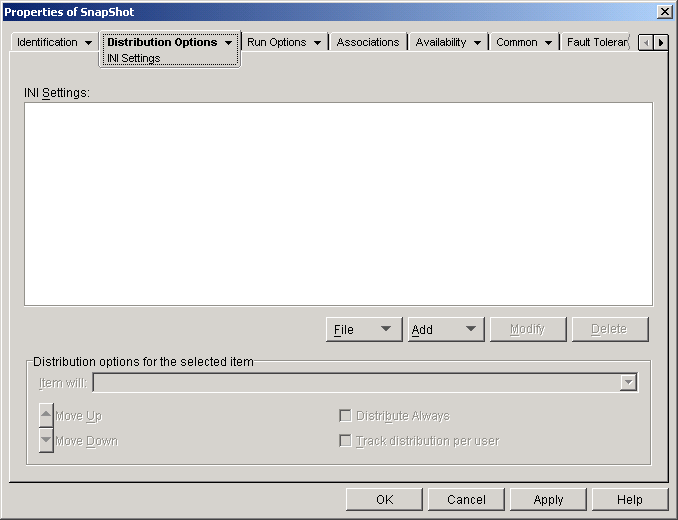
Use this option if you have enabled users with roaming profiles on your network and you need to track a particular file or directory on a per-user per-workstation basis. In the Application Files list, select the file or folder you want to track > check Track Distribution Per User. Use this option if you want to create or delete a file or folder every time the application is distributed. In the Application Files list, select the file or folder to always distribute > check Distribute Always. Use this option to mark a file as a shared file (that is, one that will be used by more than one application). Shared files are usually Windows .DLL files. SnAppShot detects shared files when it discovers application installation changes on a workstation. The INI Settings property page, shown below, determines the .INI settings that Application Launcher/Explorer will create or delete when distributing the application to a workstation.
The INI Settings tree displays the .INI files that have been defined for the application, as well as all sections and values that have been added to each .INI file. When the application is distributed to a workstation, the .INI files are created if necessary, or existing .INI files are modified as needed. If you used a .AOT, .AXT, or .MSI file when creating the Application object, the tree automatically includes all .INI settings that are defined in those templates. Click File > Find to search for specific files, sections, or values. Click File > Import to import .INI settings from another Application object's .AOT or .AXT file, or from a .INI file. Click File > Export to export the settings to a .INI file. To export the settings to a .AOT or .AXT file, you must export the entire Application object using the Export Application Object option located on the Tools > Application Launcher Tools menu. This option lets you add INI settings to the INI Settings tree. Only settings displayed in the INI Settings tree will be created or deleted when the application is distributed. You can add a file to the tree, a section to a file, or a value to a section. To do so, select the appropriate item in the tree > click the Add button > choose one of the following options: File: Adds a file to the INI Settings tree. After you name the file, you can begin adding sections to it. Section: Adds a section to the selected file. After you name the section, you can begin adding values to it. Value: Adds a value to the selected section. You must specify the value name and value data.
Once you've added a value to the INI Settings tree, you can use the Distribution Options list to determine whether or not it is created or deleted from the workstation. If the value needs to be created but the file or section does not exist, Application Launcher/Explorer will create the file or section before adding the value. You can use a macro for a section name, value name, or value data. Select the file, section, or value you want to modify > click Modify. Select the file, section, or value you want to delete from the INI Settings tree > click Delete. When deleting a file or section, everything subordinate to it will also be deleted. Use these options to set individual distribution options for value settings included in the INI Settings tree. Select a value in the INI Settings tree > select one of the following options from the Item Will list: Create Always: Creates the value regardless of whether the value currently exists in the section. Create if Does Not Exist: Creates the value only if the value does not currently exist in the section. Create if Exists: Creates the value only if the value currently exists in the section. Create or Add to Existing Section: Creates the value if the value does not currently exist in the section. If the value exists, it adds this value to the section in addition to the one that already exists. This is useful, for example, if you need multiple values of the same type, such as two "DEVICE=" values. Create or Append to Existing Value: Creates the value if the value does not currently exist in the section. If the value exists, it appends the data for the new value to the existing value. The first character in the value data needs to be the separator character, such as a space. Delete: Deletes the value from the section. Delete or Remove From Existing Value: Deletes the value from the section, or, if the value has multiple data entries, removes this value's data entry from the value. For example, suppose the following setting is in the WIN.INI file: Run = sol.exe calc.exe. Using this option, you can remove just calc.exe, leaving the following: Run = sol.exe. The first character in the value data needs to be a separator character, such as a space.
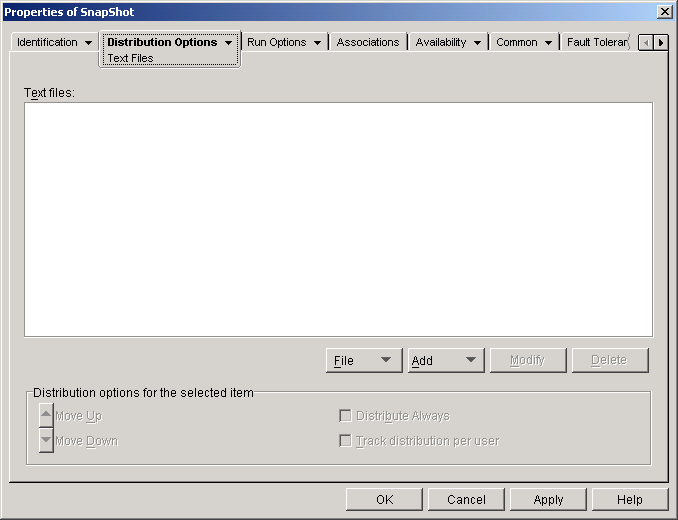
Use this option if you have enabled users with roaming profiles on your network and you need to track a particular INI setting. In the INI Settings tree, select the setting you want to track > check Track Distribution Per User. Use this option if you want to create or delete a setting every time the application is distributed. In the INI Settings tree, select the setting to always distribute > check Distribute Always. Use these options to position sections and values in the order in which you want them to be created, modified, or deleted. In the INI Settings tree, select the section or value to move > click Move Up or Move Down. The Text Files property page, shown below, determines the modifications that Application Launcher/Explorer will make to text files (such as CONFIG.SYS and AUTOEXEC.BAT) when distributing the application to a workstation.
The Text Files tree shows all the text files that will be modified or added when the application is distributed. Each modification to a file is displayed subordinate to the file. Click File > Find to search for specific files or information in the Text Files tree. Click File > Import to import text files from another Application object's .AOT or .AXT file. This option lets you add text file modifications to the Text Files tree. Only the modifications displayed in the Text Files tree will be made when the application is distributed. File: To add a text file to the tree, click Add > File to create the file entry. You can type the filename or the path and filename (for example, AUTOEXEC.BAT or C:\AUTOEXEC.BAT). Only local workstation drives, UNC server paths, and macros are valid. In general, you should specify a path if possible. If you enter the filename only, Application Launcher/Explorer will search all directories specified in the workstation's PATH environment variable. If it does not find a matching filename, it will assume the file doesn't exist and create it in the first directory specified in the PATH variable.
Change: To add a change to a file that is in the Text Files list, select the file, click Add > Change to display the Edit Text File dialog box. Make the desired changes. Click Help in the Edit Text File dialog box for information about each of the dialog box fields. You can add multiple modifications to a text file. For example, you may want to make one modification that replaces text in the file and another modification that adds text to the end of the file. Each modification you add is displayed beneath the text file in the Text Files list.
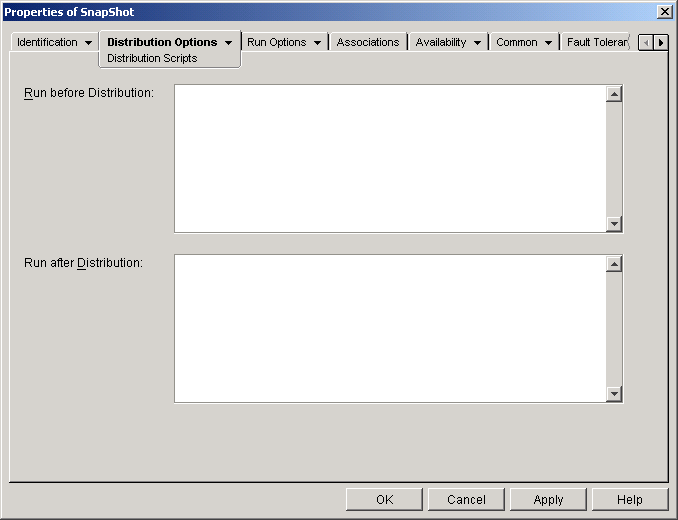
To change the name of a text file, select the file in the Text Files tree > click Modify > enter the new name. To edit one of the text file's modifications, select the modification in the Text Files tree > click Modify to display the Edit Text File dialog box > make the desired changes. Click Help in the Edit Text File dialog box for information about each of the dialog box fields. In the Text File tree, select the text file or text file modification you want to delete > click Delete. Use these options to set individual distribution options for text files and text file modifications. The options change depending on whether you have selected a text file or a text file modification in the Text Files tree. This option appears only when you have selected a text file. Check this option if you don't want users to reboot after you make changes to the selected text file. The Reboot and Prompt Reboot options on the Distribution Options > Options page override this setting. These options appear only when you have selected a text file modification. Click Move Up or Move Down to position the modification according to the order in which you want it applied. This option appears only when you have selected a text file modification. Check this option if you want the selected modification to be applied every time the application distributes. This option appears only when you have selected a text file modification. Check this option if you have enabled users with roaming profiles on your network and you need to track the selected modification. The Distribution Scripts property page, shown below, defines the scripts Application Launcher/Explorer will execute when distributing the application.
The scripts support the same commands and syntax as the Novell ClientTM, with the exception of the ones listed below. For script commands, syntax, and examples, see the Novell Client documentation on the Novell Documentation Web site. Application Launcher/Explorer will not output anything to the screen, display errors, or support the following commands:
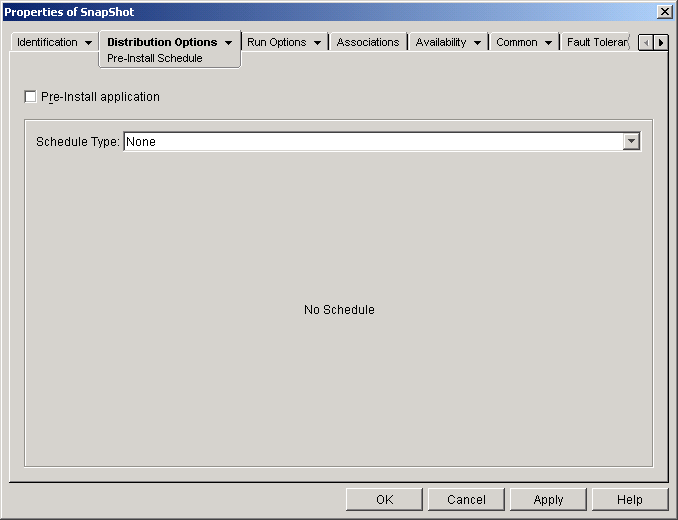
Use this text window to enter any script commands you want executed before the application is distributed. The script is executed in the order shown below: Use this text window to enter any script commands you want executed after the application is distributed. The script is executed in the order shown below: The Pre-Install Schedule property page, shown below, enables Application Launcher/Explorer to install the application to a workstation before the user launches the Application object the first time. Because you can specify when the installation will take place, this enables an off-line, or "lights-out," distribution of the application and saves the user the wait associated with installing the application. For example, you could pre-install the application after work hours so the application is ready to use when the user comes to work.
With a pre-install, Application Launcher/Explorer performs all workstation-related distribution processes (file copying, modifying text files, .INI files, and workstation registry settings). Then, when the user double-clicks the Application object, Application Launcher/Explorer finishes the installation by performing any user-specific distribution processes (modifying user registry keys, etc.). You can pre-install an application that is associated with either workstations or users. For user-associated applications, the user must be logged in and Application Launcher/Explorer must be running. For workstation-associated applications, a user does not need to be logged in. IMPORTANT: On Windows NT/2000 workstations, if a user is not logged in, the user-specific macros will point to the default user directories. This scenario affects the ability to place folders and icons on the Start menu. There are two ways to solve this issue: 1) Mark the macro entries in the Application object as Track Distribution Per User or 2) Change the user-specific macro to an All Users macro (i.e. %*PROGRAMS% to %*COMMONPROGRAMS%).
Check this option to enable the application to be pre-installed. If you don't check this option, the application will not be pre-installed, even if you establish a schedule. Select the type of schedule you want to use. You can choose None, Specified Days, or Range of Days. Use this option to indicate no schedule. The application will be pre-installed as soon as the system requirements have been established (Availability > System Requirements page) and the application has been associated with the object (Associations page). Use this option to select specific dates when you want to pre-install the application. You cannot select more than 350 specific dates. Date Range: The Date Range list displays all dates when the application will be pre-installed. To add a date, click Add > select the date you want > click OK to display it in the list. Times for Selected Dates: Select the availability start time and end time. The times apply to all dates in the Date Range list. Spread from Start Time (in Minutes): Enter a number of minutes between available times if you don't want multiple workstations installing the application at once for fear of overloading the network. The spread option spreads out access times over the number of minutes specified so that all pre-installations don't occur at the same time.
Use this option to select a range of days to pre-install the application. You can also use this option to pre-install the application only on certain days of the week within a given range of dates. Date Range: To define the range of days, select a start date and an end date > select the days (Sunday through Saturday) within the established date range. Times for Selected Range: Select the availability start time and end time. The times apply to each day in the established date range. Spread from Start Time (in Minutes): Enter a number of minutes between available times if you don't want multiple workstations installing the application at once for fear of overloading the network. The spread option spreads out access times over the number of minutes specified so that all pre-installations don't occur at the same time. Use the Schedule in GMT for All Clients: The schedule is based on the workstation's time zone. If your network spans different time zones and you schedule an application to run at 1:00 p.m., it runs at 1:00 p.m. in each time zone. You can select this option to have workstations run applications at the same time regardless of their time zones (for example, 1:00 p.m. Rome time and 11:00 p.m. Los Angeles time).
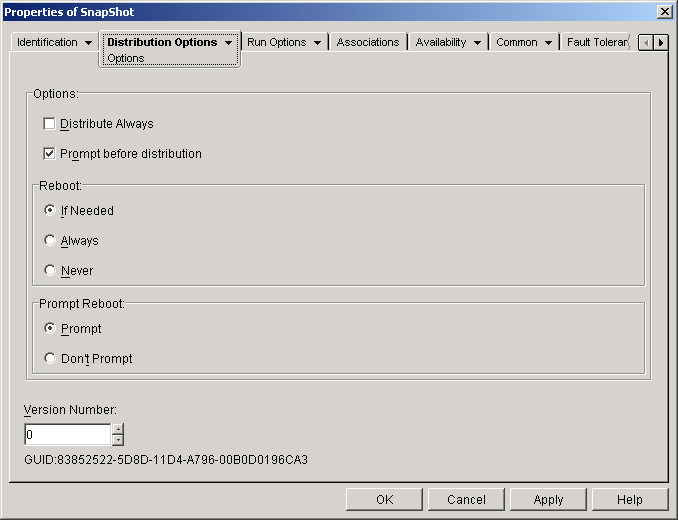
The Options property page, shown below, determines general options to be used by Application Launcher/Explorer when distributing the application to a workstation.
These options let you determine if the application should always be distributed and if the user should be prompted to accept or reject the distribution. Check this option to force a distribution of the entire Application object every time the user runs the application or when the application is set for a force run on the workstation. This option is useful to ensure that all application settings are updated every time the application runs. If you need only specific Application object settings to be distributed each time, you can update settings on a case-by-case basis. For example, if you want to always distribute a particular registry key and value, you can set the Distribute Always option on the Registry Settings page (Distribution Options tab) for that particular key and value. This setting overrides the Distribute Always option on the Registry Settings, INI Settings, Application Files, Icons/Shortcuts, and Text Files pages (Distribution Options tab). Check this option to prompt users whether or not they want the application distributed to their workstation. Users are prompted the first time they click the application icon; all subsequent times they are not prompted. To better help users make a decision about installing the application, the prompt includes the text you've entered in the Description page (Identification tab). Select how a workstation reboot should occur. The available options are: If Needed: Application Launcher/Explorer reboots the workstation if changes need to be made that cannot occur while Windows is running (such as replacing open DLLs). Always: Application Launcher/Explorer always reboots the workstation after distributing the application. Never: Application Launcher/Explorer does not reboot the workstation. The changes take effect the next time the workstation reboots.
Select whether or not the user is prompted to reboot the workstation. The version number is a unique number between 0 and 65535 that you can increment as you make revisions to the Application object. If you increment the version number, the application is distributed again the next time the user launches the Application object. The GUID (global unique identifier) is generated using the version number and is changed each time you change the version number. When Application Launcher/Explorer distributes an application to a workstation, it adds the GUID to the registry's HKEY_LOCAL_MACHINE for tracking purposes. You can use the GUID to track and troubleshoot distributed applications. For example, if you want to ensure that a particular application has been distributed to a workstation, you can compare the GUID as recorded in the Application object's Distribution page with the GUID that is currently included in the workstation's registry. Using the Synchronize Distributed GUIDs option (Tools > Application Launcher Tools menu), you can make several Application objects share the same GUID. This is useful if you are distributing a suite of applications. Using the Generate New GUIDs option (Tools > Application Launcher Tools menu), you can also ensure that two or more applications have different GUIDs. Icons and Shortcuts
File
Add
Modify
Delete
Track Distribution Per User
Distribute Always
Registry Page
Registry Settings
File
Add
Modify
Delete
Distribution Options
Item Will
Track Distribution Per User
Distribute Always
Application Files Page (.AOT/.AXT Application Object Only)
Application Files
File
Add
Modify
Delete
Selected Item(s) Options
Item Will
Track Distribution Per User
Distribute Always
Shared File
INI Settings Page
INI Settings
File
Add
Modify
Delete
Distribution Options
Item Will
Track Distribution Per User
Distribute Always
Move Up / Move Down
Text Files Page (.AOT/.AXT Application Object Only)
Text Files
File
Add
Modify
Delete
Distribution Options
No Reboot Needed If Modified
Move Up / Move Down
Distribute Always
Track Distribution Per User
Distribution Scripts Page
Run Before Distribution
Run After Distribution
Pre-Install Schedule Page (.AOT/.AXT Application Object Only)
Pre-Install Application
Schedule Type
None
Specified Days
Range of Days
Options Page
Options
Distribute Always
Prompt Before Distribution
Reboot
Prompt Reboot
Version Number
GUID