DNS/DHCP Management Console User Interface
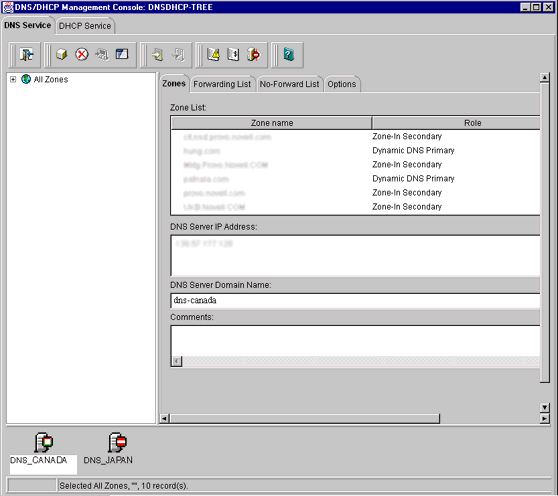
The DNS/DHCP Management Console manages one NDS tree at a time. Figure 8 shows the main user interface window for DHCP Services.
Figure 8
DNS/DHCP Management Console User Interface
If the DNS/DHCP Management Console is launched from the NetWare Administrator utility, the NDS tree the administrator is browsing will be set as the target NDS tree. When the DNS/DHCP Management Console is launched, it will prompt you to select a tree as the target NDS context.
In this release, the administrator must log in to the desired NDS tree prior to launching the DNS/DHCP Management Console. To manage objects in a different NDS tree, the administrator must exit the utility, change context to the other NDS tree, and launch the utility again. The current NDS tree name is displayed in the utility's caption bar.
There are two main tab pages within the DNS/DHCP Management Console: DNS Service and DHCP Service. There are three pages within each tab page. The left page displays the managed DNS or DHCP objects in tree form. The right page displays the detailed information about the highlighted object in the left or bottom page. The bottom page lists either the DNS or DHCP servers configured to provide necessary services.
The resources are organized according to the object hierarchy and the implicit ordering of objects. For example, all IP addresses displayed within the left page of the DHCP Service page are in ascending numeric order. In the DNS Services page, all zones or resource records within a zone are listed in alphanumeric order.
An administrator can expand the logical container objects, such as Subnet or Subnet Address Range, to see the detailed list of subordinate objects or collapse them to see a concise view of the entire database by double-clicking the logical container object or by selecting the object and clicking the expand/collapse button next to the object.
Subnet and Subnet Pool objects can be created under O, OU, L, or C objects. Subnet Address Range and IP Address objects must be created beneath the Subnet container object. However, because of the IP address of an IP Address object, the subnet address range and IP Address objects can be contained within a subnet address range's address block. The Subnet Address Range and IP Address objects are displayed as subordinate objects below the Subnet Address Range object in the left tree page to show the logical relationship. The DNS Zone object, DNS Server object, and DHCP Server object can be created in the context of an O, OU, L, or C.
All DNS and DHCP objects are created as NDS objects and are subject to NetWare Administrator convention. Therefore, when creating a new object, the administrator should always name the object first in each Create dialog box.
Some objects, such as DHCP server, DNS server, DNS zone, Subnet, and Subnet Pool, can be created in any context. The Create dialog box of these objects has the NDS tree browsing capability; therefore, an administrator with Write or Supervisor rights can select a specific context.
A newly created object's button on the tool bar is context-sensitive in relation to the highlighted item in either service's left tree page. The administrator's right to the DNS or DHCP objects will not be verified until the administrator performs an update, delete, or create against the target objects.
The DNS and DHCP objects available in the new object dialog's creation list box depend on the selected object in the left tree page. Table 7, Object Creation Rules lists the rules for each container object.
Table 7. Object Creation Rules
After a new DNS or DHCP object has been created, the DNS/DHCP Management Console grants the objects Read and Write rights to the Locator object.
For fast and efficient searching, the distinguished names of newly created zones, DNS servers, subnets, and DHCP servers are added to the corresponding attribute of the Locator object. Renaming or deleting these objects is automatically performed by NDS because of the built-in feature for NDS distinguished names.
After a new DNS or DHCP object has been created, the DNS/DHCP Management Console provides the administrator with the choice of staying in its current focus or setting the focus on the newly created object. The utility also displays its detailed information page in the right page. This feature is provided as a convenience to administrators and can be used by checking the Define Additional Properties check box.
The DNS/DHCP Management Console offers no menu items. All functions are provided by the tool bar. The functions that are relevant for the item selected in the left tree page or bottom server page are highlighted to show their availability. Figure 9 shows the tool bar.
Figure 9
Tool Bar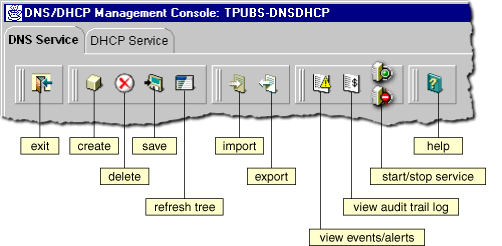
Each button shown on the tool bar has roll-over help associated with it; if you position the cursor over the icon, the icon's name appears. Table 8 lists when each tool bar button is enabled in relationship to the selected object.
Table 8. Tool Bar Buttons
The status bar displays two fields in the bottom page of the DNS/DHCP Management Console. The first field shows the current database access interface in progress. The second field displays the current selected object or operation status. Figure 10 shows the status bar and two DNS server icons. The status bar is at the bottom of the figure.
Figure 10
Status Bar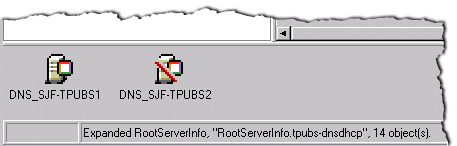
Server icons are displayed in the lower portion of the DNS/DHCP Management Console. As shown in Figure 11, the DHCP server represented by the icon on the right is operational, but operations have been suspended. The slash through the icon on the left indicates that the server might not be operational.
Figure 11
DHCP Server Icons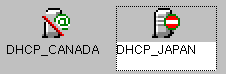
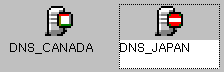
Figure 12 shows icons representing two DNS servers. Both servers are operational, NAMED.NLM has been loaded and each can communicate with the DNS/DHCP Management Console, but the operation of the server on the right, DNS_JAPAN, has been suspended.
Figure 12
DNS Server Icons