

| |
The following utilities can be used to troubleshoot NetWare Link/Frame Relay:
The Frame Relay Trace utility (FRTRACE) can be used locally at the router or server console, or remotely from a workstation that is running RCONSOLE. FRTRACE offers the following features:
The command for this DOS executable file has the following format: FRDISP <saved_file> <output_file> /d , with the /d option causing a decode for the link management protocol and RFC 1490
Frame Relay Console (FRCON), an SNMP console-based utility, provides interface statistics, virtual circuit statistics, and the SNMP trap log. You can enable or disable the following enterprise-specific SNMP traps: physical bandwidth threshold trap, interface status change trap, and DLCI status trap. In addition, you can configure the upper and lower threshold values for the bandwidth threshold trap in NIASCFG.
MONITOR displays various system statistics, including the
LAN/WAN Driver Information option, that allows you to view generic and custom WAN driver statistics. These statistics enable you to determine whether the driver is sending and receiving frames and whether errors are detected (CRC errors, no ECB, receive overflow, packet too big, and others). Other relevant statistics include the following:
MONITOR also shows the data terminal equipment (DTE) and data circuit-terminating equipment (DCE) circuit signals (DTR, DSR, DCD, RTS, and CTS) that indicate whether the required interface signals are present and whether the DTE-DCE handshake has been completed successfully. If a driver provides transition counters (increments for each signal transition) for DTE and DCE signals, these counters can be useful indicators for link disconnects caused by router power cycles, DSU/CSU power cycles, and so on. CRC errors and aborts are good indicators for line noise/interference-related problems. The MSMTxFreeCount statistic indicates whether a network interface board is accepting frames (if the MSMTxFreeCount statistic is zero, the board is no longer accepting frames for transmission). DMA errors and receiver restarts are indicators for potential network interface board-level (firmware and hardware) errors.
This section describes various methods you can use to test NetWare Link/Frame Relay.
Figure 8 and Figure 9 show how the equipment to be tested is connected.
Figure 8
Customer-to-Network Hookup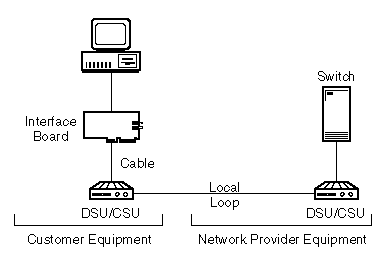
Figure 9
End-to-End Hookup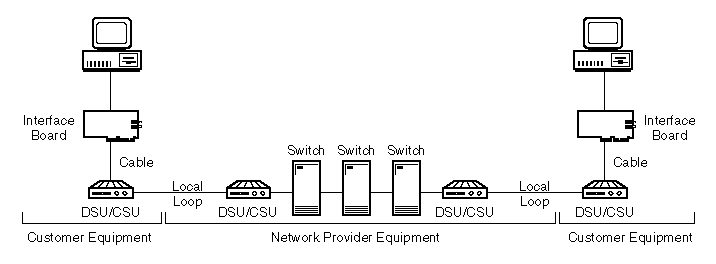
This test involves connecting two ports of a router through a modem eliminator or a pair of DSU/CSUs. To start this test, select the Point-to-Point Test option in NIASCFG (parameter path: Select Configure NIAS > Protocols and Routing > Network Interfaces > a specific frame relay interface > Expert Configuration > Parameter Group).
Alternatively, two ports can be connected through a special crossover cable (sometimes called a null modem cable). In addition to selecting the Point-to-Point Test option in NIASCFG, one port must provide a clock signal to drive the other port, which is configured in NIASCFG (parameter path: Select Configure NIAS > Protocols and Routing > Network Interfaces > select an interface > Interface Speed). Only one port speed must be specified; the other port must remain externally clocked.
Because the two connected ports form a loop, the network protocol can issue error messages. Also, in this case, PING does not allow you to verify connectivity across the loop. However, this test does allow you to verify whether a router can transmit and receive packets properly.
You can also use the DSU/CSU built-in loopback feature to perform a single-port loopback test at either the local (customer) DSU/CSU or remote (network) DSU/CSU.
Because no remote router is present, network protocol connections (IP, AppleTalk, source route bridge, and Internetwork Packet ExchangeTM [IPXTM] connections) are not established. However, this test allows you to verify whether a router can transmit and receive packets properly.
This test involves connecting two Novell® routing interfaces through a modem eliminator or a pair of DSU/CSUs. To start this test, select the Point-to-Point Test option in NIASCFG (parameter path: Select Configure NIAS > Protocols and Routing > Network Interfaces > a specific frame relay interface > Expert Configuration > Parameter Group).
Alternatively, two routers can be connected through a null modem cable. In addition to selecting the Point-to-Point Test option in NIASCFG, one port must provide a clock signal to drive the other port, which is configured in NIASCFG (parameter path: Select Configure NIAS > Protocols and Routing > Network Interfaces > select a specific frame relay interface > Select Interface Speed). Only one port speed must be specified; the other port must remain externally clocked.
An incorrectly made crossover cable can cause problems that are difficult to isolate; therefore, we recommend using a modem eliminator.
This test can check router-to-router connectivity and is preferred over the loopback test.
In Table 5, an X indicates which tests can be used to test the components shown in Figure 8 and Figure 9.
Table 5. Test Matrix
In Table 6, an X indicates which tools can be used to test the different hardware and software components.
Table 6. Test Tools Matrix
| |