

| |
WMDMMGR is a windows-based modem script editing tool used to create and modify modem descriptions and PPP login scripts used with Novell Internet Access Server 4.1. If you need additional information, you can obtain detailed context-sensitive online help for WMDMMGR by pressing the F1 key.
After installing Novell Internet Access Server 4.1, the WMDMMGR utility and message files are located in the SYS:SYSTEM\UTILS directory. Files containing modem descriptions and login scripts are located in the SYS:SYSTEM directory.
Modem descriptions, saved in files with .MDC extensions, define the commands and capabilities of a modem. By using modem description files, Novell Internet Access Server 4.1 components offer modem independence to applications and users, enabling support for new modems without waiting for a new version of the software.
The Novell Internet Access Server 4.1 components execute scripts in the modem description files to perform modem operations as the application requires. Neither the modem control components nor the software products are specific to any one modem or set of modems. Any details specific to modems are contained in the modem description files.
Login scripts, saved in files with .LSC extensions, are PPP login scripts customized to match the sequences expected by online service providers.
This topic contains the following sections:
To use WMDMMGR, start your Windows* 3.1 or Windows 95* operating system and follow these steps:
Log in to Novell Directory ServicesTM .
Map a network drive to the SYS: volume.
Change directory to SYS:SYSTEM\UTILS.
Novell recommends that you copy the WMDMMGR.EXE file and the MDC files to your workstation and launch WMDMMGR there.
Double-click the WMDMMGR.EXE icon.
WMDMMGR is launched and the File Open window is displayed.
Select the drive mapped to the SYS: volume and select the SYSTEM directory.
All available modem script files are displayed in the File Name column. Change the List Files of Type field to Login Script Files to see a list of existing login script files.
Novell Internet Access Server 4.1 has three modem description files created by Novell LabsTM and installed in the SYS:SYSTEM directory. These three modem description files define over 400 modems. Table 1 lists the modem description files provided with Novell Internet Access Server 4.1.
Table 1. Existing Modem Description Files
Modem Description File |
Contains Modem Scripts |
NIASCERT.MDC |
that are certified by Novell Labs |
NIASMDM1.MDC |
for modems named from A-L |
NIASMDM2.MDC |
for modems named from M-Z |
If the modem you have is not already defined in one of these files, you will need to create a new modem description. If your modem is defined but the description does not work, refer to Modifying a Modem Description to make the appropriate changes.
If you have upgraded to Novell Internet Access Server 4.1 from the 4.0 release, NetWare MultiProtocol RouterTM 3.1 software, or NetWare ConnectTM 2.0 software, you might find that the modem you were using is not defined in the modem scripts for Novell Internet Access Server 4.1. If this happens, consider one of the following solutions:
NOTE: During Novell Internet Access Server 4.1 installation, modem description files for Novell Internet Access Server 4.0 and versions of MultiProtocol Router are backed up to the SYS:SYSTEM\BACKUP directory. Modem description files for NetWare Connect 2.0 are left in to SYS:SYSTEM\AIO. Novell Internet Access Server 4.1 uses the modem description files in SYS:SYSTEM.
WMDMMGR enables you to create modem descriptions and to customize the modem descriptions to match the behavior of your modem. To create a modem description, launch WMDMMGR and follow these steps:
NOTE: Make sure you have the operation manual for your modem available for reference.
Select New from the File menu.
WMDMMGR opens the New dialog box and prompts you to choose Modem Script or Login Script.
Select Modem Script.
WMDMMGR opens the List of Modems dialog box. You can now enter the optional file version and manufacturer/copyright information.
Click Add.
WMDMMGR opens the Modem Description dialog box. Many of the fields that appear are set with default values that might or might not be appropriate for the modem you are defining. Refer to your modem manual to obtain the correct values and commands for each modem feature.
Make entries for the modem being defined.
Enter the name of the modem being defined in the Name field. Enter the appropriate values for Default, Maximum, and Fixed rates. Check the Single Fixed Rate box if the modem being defined can only use the rate specified in the Fixed Rate field when using the Fixed DTE Rate feature. Specify the Output Delay and Link Type.
NOTE: For ISDN terminal adapters (TA), make sure you use the configuration program that comes with the TA before using it in Novell Internet Access Server 4.1. It might be necessary to configure the service profile identification number (SPID) or D-channel protocol as specified by your ISDN service provider.
Click Initialization to edit the list of operations for initializing the modem.
The initialization disables all features shown in the dialog box (autoanswer, compression, etc.). When an application uses the modem, the features that are requested are enabled using the individual scripts defined for the feature. Refer to the modem's operation manual for information about disabling each of the features shown on the dialog box.
Click Hang-up to edit the list of operations for hanging up a call.
Click other Control Strings group buttons to edit the list of operations and enable the feature named by the button.
Click Responses to bring up the dialog box to edit the responses generated by this modem.
Click OK to save changes to this modem script entry.
The List of Modems dialog box is displayed.
Select either File > Save or File > Save Copy As to save changes to this modem description file.
To make the newly created modem description available to the Novell Internet Access Server 4.1 software, refer to Installing a Modem Description or PPP Login Script.
WMDMMGR enables you to customize the modem descriptions to match the behavior of your modem.
NOTE: By default, the modem description files installed by Novell Internet Access Server 4.1 are read-only. Before modifying a file, coy it to a local drive and modify it there to eliminate any effect on the server.
To modify a modem description, launch WMDMMGR and follow these steps:
Select File > Open from the WMDMMGR main window to select a modem description.
Select the name of the modem that you want to modify from the List of Modems dialog box and click Modify.
You can double-click the modem name instead of clicking the Modify button.
NOTE: For ISDN terminal adapters, make sure you use the configuration program that comes with the TA before using it in Novell Internet Access Server 4.1. It may be necessary to configure the SPID or D-channel protocol as specified by your ISDN service provider.
Enter a new name for the modem being defined in the Name field.
By entering a new name, you retain the original modem description.
Change the Default, Maximum, and Fixed rates as required for this modem type.
Check the Single Fixed Rate box if this modem can only use the rate that is specified in the Fixed Rate Field when using the Fixed DTE Rate feature.
Modify the Output Delay and Link Type fields as required for this modem type.
Click Control Strings group buttons to edit the list of operations and enable the feature associated with each button.
IMPORTANT: Be sure to verify the output strings in the script with the modem specification provided in the modem manual.
Click Responses to bring up the dialog box for editing the responses generated by this modem.
Click OK to save changes to this modem script entry.
WMDMRGR displays the List of Modems dialog box.
Choose File > Save or File > Save Copy As to save the changes to this modem description file.
To make the newly created modem description available to the Novell Internet Access Server 4.1 software, refer to Installing a Modem Description or PPP Login Script and perform the steps described.
Response strings in modem descriptions enable recognition and interpretation of data sent from the modem. This recognition and interpretation informs the modem control software of the success or failure of a command and enables modem control to detect a call's arrival.
Because responses generated by modems differ, the modem description must supply sufficient information to enable modem control to recognize the modem responses. Response strings contain one or more pairs of substrings. The first substring of the pair, the modem response, gives the input string to be recognized. The second substring of the pair represents the meaning of the string.
Because of the complex responses found in newer modems, it is sometimes necessary to perform multistage matching of modem response strings.
For example, when using negotiation progress monitoring to capture added information about connections, the Protocol response can be received. The first stage of recognition would identify the input as the Protocol message. The second stage of recognition identifies the particular substrings that may be present in this message. Up to four stages of recognition are allowed.
Modem control accumulates ASCII characters received from a modem until a carriage return character (hexadecimal D or decimal 13) is received. All other control characters are ignored. The accumulated string is then compared to the match strings in the Responses keyword string. When a match is found, the meaning is interpreted and the appropriate action is taken.
The Modem Responses dialog box displays the list of modem responses configured for each modem. Each line in the table describes one modem response. To view the responses for a modem, follow these steps:
Launch WMDMMGR.
Double-click the WMDMMGR icon or select Run and designate the path to the WMDMMGR.EXE file.
Select the modem description file (.MDC) that contains the modem you want to modify.
Select the modem description and click Modify.
The modem description dialog box is displayed. The Responses button is displayed in the bottom right corner of this window.
Click Responses.
The Responses dialog box is displayed, listing all of the currently defined responses for the selected modem.
The left-most column, Modem Responses, contains characters sent by the modem to the DTE. When modem control monitors modem responses, it collects characters received until it receives a carriage return. It then compares the input string with all match strings.
NOTE: The input string is not case-sensitive, and the compare operations occur in the order they are listed.
Only the initial characters of a response must match the match string. For example, the match string ERR matches response strings for both ERROR and ERRONEOUS, but not ERASE. This makes the order in which the match strings occur important.
The rest of the columns on this window are known as meanings strings and convey status, transfer rate, features, and match chaining. These columns define what the recognized response means to modem control, such as
To add a new response for a modem, go to that modem's Responses window, decide where to place the new response in the list of currently defined responses, and follow these steps:
Click a response either in front of or after the location where you want to place the new response, and click Add before... or Add after...
The Modem Response Meaning window is displayed.
In the Response field, enter a string of ASCII characters that represent the expected modem response.
In the Status field, select a status that the expected modem response should convey to modem control.
In the Rate field, select a transfer rate if applicable for this response.
In the Feature field, select a feature to associate with this connection, if applicable.
Click OK to save the new modem response.
To modify a response for a modem, go to that modem's Responses window, select the response to modify, and double-click that entry. The Modem Response Meaning window is displayed, enabling you to modify the response. Click OK to save your changes, or click Cancel to abandon.
To delete a response for a modem, go to that modem's Responses window, select the response to delete, and click the Delete button.
WMDMMGR enables you to create customized PPP login scripts to match the sequences expected by online service providers. Login script files can contain one or more login scripts. You can have a different login script for each service provider you use. Novell Internet Access Server 4.1 has a sample login script file, ISPLOGIN.LSC, installed in the SYS:SYSTEM directory. You can modify the scripts contained in that file or create a new login scripts file.
IMPORTANT: Ensure that you have a sequence of interactions for communicating with the online service provider. This information might be available from your the online service provider or you may gather this information by using a workstation terminal program or dialer software to call the online service provider and capture the input and output sequences.
To create a new login script file, launch WMDMMGR and follow these steps:
Select File > New > Login Script.
WMDMMGR opens the List of PPP Login Scripts dialog box. You can enter optional file version information.
Click Add.
WMDMMGR displays the Sample Login Script dialog box. When a new script is created, some fields are seeded with default values that might or might not be appropriate for the script you are defining. Refer to the online service provider for information relevant to your setup.
Enter the name of the login script being defined in the Name field.
Enter the prompts for the substitution tags that will be used in the script in the fields in the Prompts group. Clear any prompts that will not be used.
Click Configure to configure the operations that make up the script.
WMDMMGR displays the Script Operations list.
Add and delete operations from the list of operations as required by the online service provider. Click OK.
When adding operations to the list, be sure to consider any timing parameters required by the online service provider. For example, a service provider may require a delay after receiving a response.
Click OK to save the changes to the current script entry and return to the List of PPP Login Scripts dialog box.
Select File> Save or File > Save Copy As to save the changes to this login script.
To make the newly created login script available to the Novell Internet Access Server 4.1 software, refer to Installing a Modem Description or PPP Login Script and perform the steps described. An example of a PPP login script follows.
Figure 2
Example PPP Login Script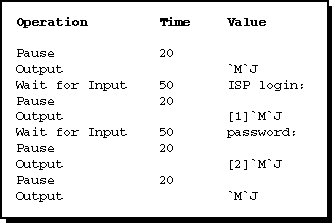
WMDMMGR enables you to modify customized PPP login scripts to match the sequences expected by online service providers. Login script files can contain one or more login scripts. You can have a different login script for each service provider you use. Novell Internet Access Server 4.1 has a sample login script file, ISPLOGIN.LSC, installed in the SYS:SYSTEM directory. You can modify the scripts contained in that file or create a new login scripts file.
NOTE: By default, the login description files installed by Novell Internet Access Server 4.1 are read-only. Before modifying a file, copy it to a local drive and modify it there to eliminate any effect on server operations.
IMPORTANT: Ensure that you have a sequence of interactions for communicating with the online service provider. This information might be available from your the online service provider or you can gather this information by using a workstation terminal program or dialer software to call the online service provider and capture the input and output sequences.
IMPORTANT: If you have previously installed Novell Internet Access Server 4.0 or MultiProtocol Router 3.1 and used login scripts, they are backed up to the SYS:SYSTEM\BACKUP directory during the installation of Novell Internet Access Server 4.1. You must upgrade the scripts to 4.1 format using WMDMMGR before using them. WMDMMGR might request additional configuration information before the scripts can be saved in 4.1 format.
To modify a login script file, launch WMDMMGR and follow these steps:
Select File > Open.
Change the List Files of Type field to Login Scripts (.LSC).
Select the login script file that you want to modify and click OK.
Select the login script within the login script file and click Modify.
Make selected changes to the parameters listed in the Login Script Parameter Prompts window.
Click Configure to configure the operations that make up the script.
WMDMMGR displays the Script Operations list.
Add and delete operations from the list of operations as required by the online service provider. Click OK.
When adding operations to the list, be sure to consider any timing parameters required by the online service provider. For example, a service provider may require a delay after receiving a response.
Click OK to save the changes to the current script entry and return to the List of PPP Login Scripts dialog box.
Select File > Save to save changes to this login script or File > Save Copy As to save this file as a new login script file.
To make the modified login script available to the Novell Internet Access Server 4.1 software, refer to Installing a Modem Description or PPP Login Script and perform the steps described.
To install a new or modified modem description or login script, copy the file containing it to the SYS:SYSTEM directory of the Novell Internet Access Server. You should not use duplicate names for modem descriptions or login scripts within the modem description (.MDC) or login script (.LSC) files. If modem scripts have duplicate names, the software checks for the Novell Labs certification and script version number to decide which to use. However, if login scripts have duplicate names, an error is reported.
If you modified a file to create a new file, remove any old copies of the file so that there are no script duplications.
After you copy the files into SYS:SYSTEM, enter reinitialize system from the NetWare server console. This command causes the Novell Internet Access Server 4.1 software to reload the modem descriptions and login scripts.
NOTE: Because the reinitialize system command affects other software components such as protocol stacks and LAN/WAN boards on the server, you might want to wait until the system is not in heavy use before issuing the command.
Use the Delete button from the List of Modems dialog box to delete unwanted modem description entries. Use the DOS command DEL or Window File Manager to delete unwanted modem description files.
Use the Delete button from the List of PPP Login Scripts dialog box to delete unwanted PPP login script entries. Use the DOS command DEL or Window File Manager to delete unwanted login description files.
| |