

| |
This section is applicable only if you have NetWare ManageWise software installed on the network. This allows the ManageWise operator to manage remote access information from within the ManageWise product.
To allow ManageWise to support remote access, complete the following steps:
The files are located in the SYS:SYSTEM\NWCNMS subdirectory of the remote access server.
Use the SNMP MIB compiler in the Tools menu to integrate the MIB files.
Select the Add command to configure a profile for the scalar objects and for each remote access table object that you want to access. See the Management Guide in the ManageWise documentation set for information on using the SNMP profile editor.
This ensures that ManageWise can now recognize remote access data.
An alert is a record of a network event alerting you to problems and conditions on the network.
Remote access alerts can be viewed from any of the following management consoles:
You can view remote access alerts from the Alarm Monitor and the Alarm Report in the ManageWise product. For more information about the Alarm Monitor and Alarm Report, see the documentation that is shipped with the ManageWise product.
The Alarm Monitor displays real-time information about all the alerts that occurred since you started ManageWise. Figure 48 shows sample alerts from all the products that ManageWise manages.
Figure 48
Sample Alerts from the Alarm Monitor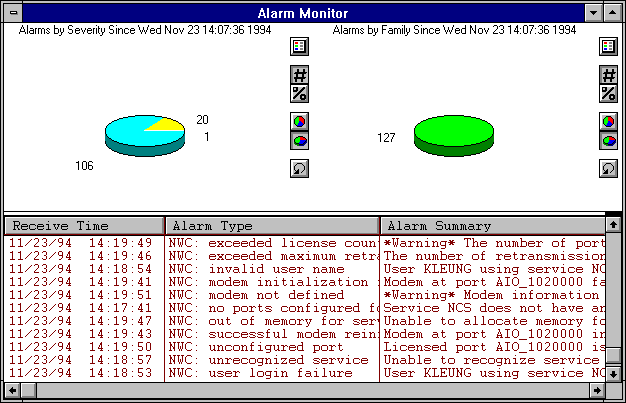
If you have the Alarm Monitor window open, then remote access alerts pop up on the screen as they occur.
The Alarm Report window, shown in Figure 49, displays information about alerts that are logged in the database.
Figure 49
Alarm Report in ManageWise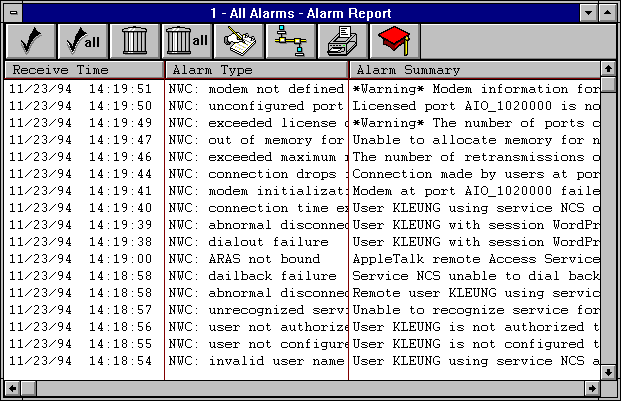
From the Alarm Report window, you can obtain more detailed information about a particular alert.
Support for Open NetView allows the NetView operator to view remote access alerts from a NetView console.
To allow NetView to support remote access alerts, complete the following steps:
This unlocks the Communication Executive master database, CSMASTER.DBA.
This utility updates the CSMASTER.DBA file. At the system prompt (:), enter
load nvaltdb source [destination]
Replace source with SYS:SYSTEM\NWC_NV.CPG. Specify the volume, pathname, and filename with the extension CPG.
Replace destination, which is optional, with the volume and directory path in which the Btrieve formatted file is placed. The default pathname for the output file, NWC_NV.BTV, is SYS:SYSTEM.
This process allows the NetView console operator to monitor remote access alerts. Figure 50 shows a sample NetView console monitoring alerts.
Figure 50
Monitoring Alerts from the NetView Console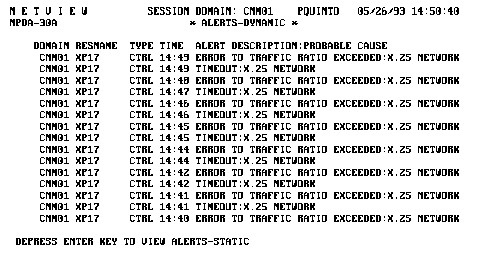
| |