

| |
The following paragraphs describe how to use the terminal mode option in NIASCFG, the NCS Debug utility, and NWCRPAIR to troubleshoot remote access.
You can use the Terminal Mode option to
To use the Terminal Mode option, load NIASCFG and follow this path:
Select View Status for NIAS > Remote Access > Display Port Status > port you want to view > Terminal Mode
When you select the Terminal Mode option, a terminal window is displayed, through which you can interact with the device connected to the selected port. Input is sent to the AIO port as you type. Any output from the port is displayed as it is received. If local echo is enabled, keyboard input is also displayed. Only ASCII input is accepted and sent to the AIO port. Use the special-function keys defined in Table 33.
Table 33. Terminal Mode User-Input Keys
After selecting Terminal Mode, press the Insert key to view and select the Terminal Window Options. Table 34 lists the available options.
Table 34. Terminal Mode Options
The NCS Debug utility helps you debug NCS connections. Start the NCS Debug utility by entering the following command:
load ncs -t
The -t parameter enables the NCS Debug Window to be displayed and saves a record of all NCS port activity in an ASCII text file called NCSTRACE.LOG in the SYS:SYSTEM directory. The size of the log file is limited to 800 KB. After the file reaches that size, the entries wrap around to the beginning of the file and logging continues.
After it is loaded, the NCS Debug utility displays a window with information similar to that shown in Figure 51. (The information shown in Figure 51 displays the server in its initial start-up phase.) As data transfers occur, lines are displayed with a date, timestamp, and function control block (FCB) information.
Figure 51
NCS Debug Utility Output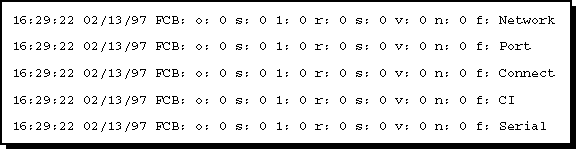
Table 35 defines the FCB output lines and fields. Seven of the nine FCB fields are displayed; the DATAFLAGS and REVNBR fields are not displayed. The right-most field lists the FCB's destination.
Table 35. NASI Functional Control Block
By observing the data transfers, you can determine if the sequences are correct and, possibly, determine where problems may exist.
The NWCRPAIR.NCF is a troubleshooting utility that recovers corrupted Btrieve* files. Corrupted Btrieve files may be the result of a remote access server abend (terminate program execution abnormally). Use this utility if you receive an initialization failure when you bring up remote access with NWCSTART. Enter the following commands at the server console:
nwcstop
unload cssysmsg
nwcrpair
You will be prompted several times to press Enter as NWCRPAIR recovers the list of remote access database files. When NWCRPAIR finishes, you will be returned to the NetWare console prompt.
Then, bring up remote access with NWCSTART. Do not delete the Btrieve files unless the files are unrecoverable. If you delete the files, you will lose the remote access configuration. You will have to issue the following command to define the remote access services.
load svcdev sys:system\connect\svcs.def
After issuing the command, re-enter port and service configuration.
| |