 . The Workflow map displays the entry points (blue
boxes), transitional States (orange boxes) and exit points (red boxes).
To move a Problem through the Workflow select a Status in the Next Action
field, when the Problem is in Edit Mode.
. The Workflow map displays the entry points (blue
boxes), transitional States (orange boxes) and exit points (red boxes).
To move a Problem through the Workflow select a Status in the Next Action
field, when the Problem is in Edit Mode.When a Problem is created it is assigned a Workflow that governs the lifecycle of the Problem. The SLA allocated to the Problem determines the Workflow options made available for the Problem. Before saving the Problem, the User can adjust the system assigned Workflow, if more than one Workflow option is available.
After the Workflow is assigned
to the Problem, all stages of the assigned Workflow can be viewed by selecting
. The Workflow map displays the entry points (blue
boxes), transitional States (orange boxes) and exit points (red boxes).
To move a Problem through the Workflow select a Status in the Next Action
field, when the Problem is in Edit Mode.
The User moves the Problem through the Workflow Lifecycle by adjusting the options displayed in the Next Action field.
To move a Problem through the stages of the Workflow, in the Summary tab of the Problem Information screen:
Click Edit
The Next Action field with a drop down list of Status options is displayed
below the Status field.
Click on the Next Action field
The Status options are displayed. This list is based on the configuration
of the assigned Workflow.
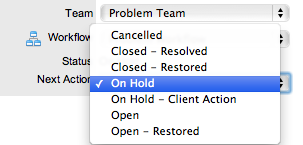
Select a State
Click Save.
The selected Status is assigned to the Problem with the updated logic
applied (i.e., the SLA Timers may now be active or inactive based
on the newly assigned State configuration. See: Status.)
Each State of a Workflow can be customized for either internal support contract management that is monitored by an OLA, or out-sourced to an external support provider, which is monitored by an Underpinning Contract.
When a Problem moves into a State that is governed by an Underpinning Contract, for internal contract control the Problem is assigned to a Service Level Manager. This allows the Manager to maintain control of the Problem and to easily follow up with the external service provider, if required. The assigned SLM will be able to adjust the current Status, add Notes and update the Contract Monitor information in the Impact tab.
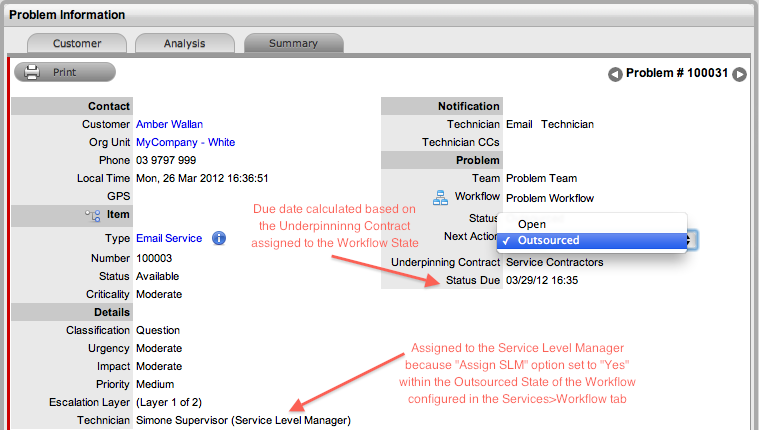
Alternatively, the Workflow State can be configured for the Technician assigned at the time the Problem is moved to the Underpinning Contract State to maintain Problem editing privileges and manage adherence to the assigned service agreement. If the Workflow is configured for the responsibility of the Problem to be maintained by the Technician when the Problem is in an external contract state the Technician will be able to adjust the current Status, add Notes and, if the Technician is assigned the Internal Process of Service Level Management, amend the Contract Monitor information in the Impact tab.
Within the Summary screen, the Status Due field is visible when a Workflow Status is monitored by an OLA. The time, date and percentage remaining information displayed is calculated using the OLA's Target Resolution time.
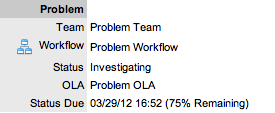
To ensure that all Problems are managed throughout the Workflow, the Team assigned to the Problem when it is first logged within the system is set as the default Team. If a Problem moves to a State that has an OLA assigned with a Team, the Problem is re-assigned to that OLA's Team. When the Problem moves out of the OLA State to a State where no OLA or Team is assigned, the Problem is re-assigned to the default Team.
When the Contracts or Invoices functionality is enabled and a Problem is created, the system will verify the service entitlement status of the Customer and if a valid contract is not in place, the new Problem is assigned a Status of "Pending-No Contract" and locked until a valid contract is associated with the Problem.
In a Request Group where the Customer and Organizational Unit does not have a Contract, if an Item applied to a request has a Contract and another does not, a relevant Status will be applied to each request. The User will be able to edit the request with a valid Contract, but the request without a Contract will be locked down to a Pending - No Contract Status, until a valid Contract is applied to the Problem.
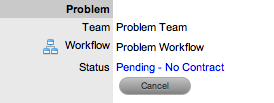
The assigned Technician is automatically sent the NoContractCreateRequestSummary when the request is saved with the Status. See: Contracts