
Customers can be assigned to a Company within the system. This can be refined by allocating the Customer to a Department, and if relevant, to a specific Room. This information is stored within the Organizational Unit details.
Companies can exist without Departments, but Departments and Rooms can only be created as part of Company information.
Technicians can also be assigned to service specific Organizational Units.
The Organizational Unit list can be filtered to display the following views:
System List Filters |
Description |
|---|---|
Organizations |
Shows the Companies supported by the service desk. |
Org. Units |
Lists all Departments included within Companies. |
All |
Lists complete Org Units, with Company and Department names. |
To change the List View, select the relevant option from the Filter list.
Organizational Unit relationships can also be mapped from an authentication server. By default this is not enabled. To activate Customer Organizational Unit mapping, as an Administrator go to the Advanced tab for the selected authentication server within Admin>Setup>Authentication. Select Yes for the Import Customer Organizational Units option.
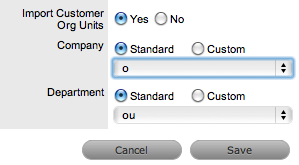
The details of the Org. Units are not populated upon this synch, only the Org Unit names. For the Org Unit details to be assigned to Customer or User Information, create the Org Unit in the Supervisor>User>Org Units tab and ensure the Org Unit name is identical to what is stored in the authentication server. If the details are not identical, the system will create another Org. Unit.
Use the Details tab to create an Organizational Unit.
To create an Organizational Unit:
Select User>Organizational Units
Click New
Complete the Organizational Unit Name
Select
Organizations or Org. Units within the Filter drop-down list
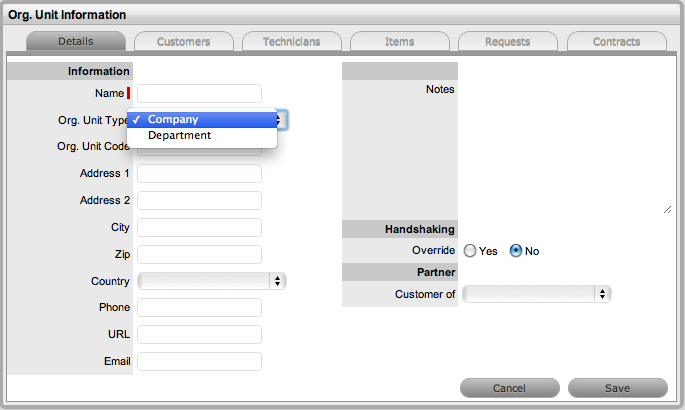
Enter other details, if required
Adjust
the System Default Handshaking Close Action days for the Org. Unit,
if required
Select Yes in the Handshaking Override field and enter the number
of Days to lapse before an Incident will close if the Customer does
not respond to the handshake email notification.
If
appropriate, set the Partner Organization
(The Partner Organization is an external service provider that includes
Partner Users who can manage requests logged with the system for Customers
associated with the Company or Department being created.)
Click Save.
When multiple Customers are assigned to an Organizational Unit, a Primary Contact person can be allocated for the Org Unit. This is the preferred person the Service Desk will contact for issues relating to the Org Unit.
To assign a Primary Contact:
Select User>Organizational Units
Select
an Org Unit Name
The Details tab is displayed. If Customers have been assigned to the
Org Unit a Primary Contact field will be visible.
Within
the Details tab, click Edit
The Find Customer box is displayed. (Note that this search is only
visible when Customers have been assigned to the Org. Unit)

Search for the Customer. To view all available Customers click Search without entering a Customer last name in the search field
Click the Customer name to assign them as the Primary Contact
Click Save.
When an Organizational Unit owns multiple Items, within the Default Item field an Item can be used as the one to be automatically applied to all requests created via email for the Organizational Unit.
To assign a Default Item:
Select User>Organizational Units
Select
an Org Unit Name
The Details tab is displayed with the Default Item visible at the bottom
of the first column.
Within
the Details tab, click Edit
The Find Item box is displayed.
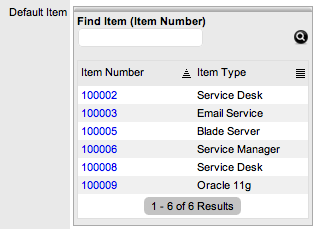
Search
for the Item. To view all available Items click  without entering an Item Number in the search field
Click the Item Number link to assign it as the Default Item
Click Save.
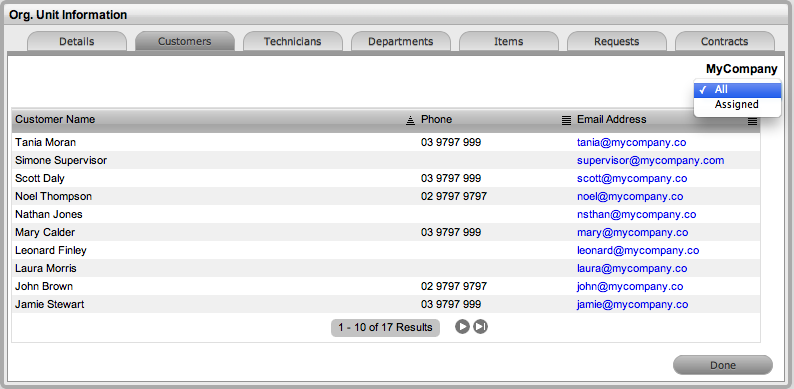
This tab displays all Customers assigned
to the Organizational Unit. Customers cannot be added within this screen,
as they are allocated to Org. Units when they are created or through the
User>Customer>Customer Information screen. The list can be filtered
based on Customers directly assigned to the Org. Unit, or all Customers
associated with Company Org. Units including those associated with related
Departments.
The Technicians tab allows support technicians
to be assigned as key support staff for an Org. Unit. This means when
requests are created, the system checks if the Item’s Organizational Unit
has Technicians assigned to service its request. If so, the request is
routed to a Technician assigned to the Org. Unit.
To assign a Technician to an Organizational Unit:
Select User>Organizational Units
Select Org Unit Name
Move to the Technicians tab
Click Edit
Click
New
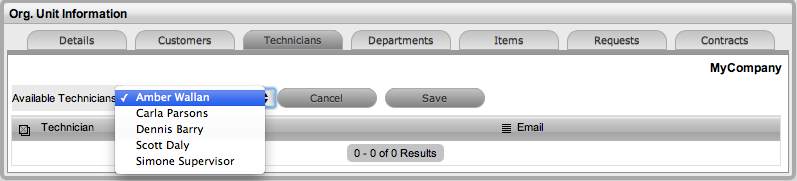
Select a Technician name from the drop-down list
Click Save
Select Done.
To delete a Technician assignment:
Select User>Organizational Units
Select the Org Unit Name
Move to the Technicians tab
Click Edit
Tick the checkbox next to the Technician name
Click Delete
Click Done.
The Departments tab allows Company group information to be refined. Departments are created for a Company within the Departments Tab.
To create a Department:
Select User>Organizational Units
Select Org Unit Company Name
Move
to the Departments tab

Click New
Enter the Department Name
Enter other details, if required
If
the System Default Handshaking Close Action days is to be adjusted
for the Org. Unit, select Yes in the Handshaking Override field.
Enter the number of Days to lapse before an Incident or Request
will close if the Customer does not respond to the handshake email
notification.
Click
Done
The system will move to the Department Editor, to allow Rooms to be
added to the Department.
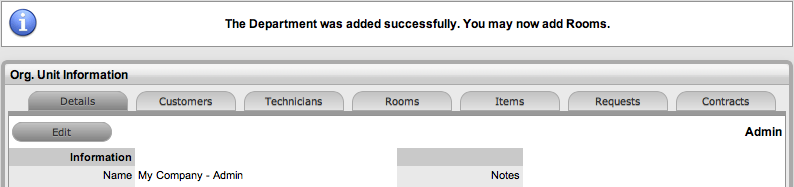
Select the Rooms tab if Rooms are to be added immediately
Click Edit
Select
New
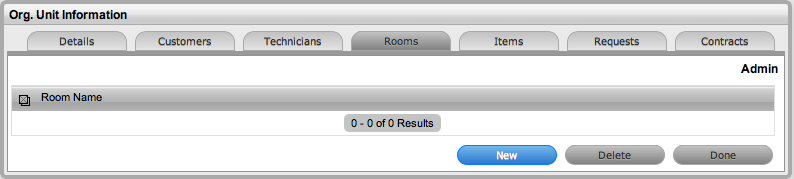
Enter the Room details
Click Save
Click
New to add another Room or select Done.
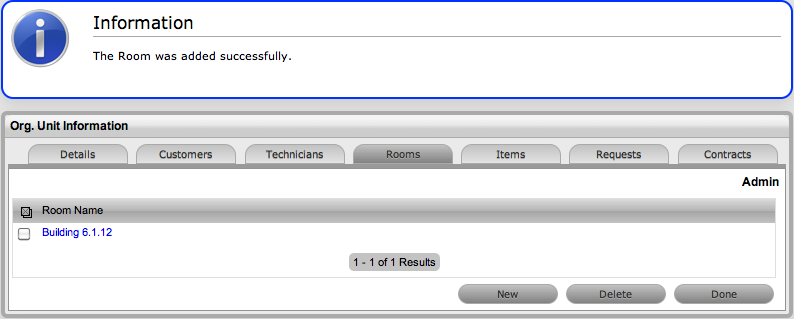
Department details are edited through the Org. Units Filter of the Organizational Unit list.
To edit a Department:
Go to User > Org Units
Select the filter option Org.Units (sys)
Select a Department from the list provided
Click Edit
Modify the details as necessary
Select Save.
To expand Department details, Room locations
can be created. This allows Customers to be assigned to specific locations
within an Organizational Unit. The Rooms tab is only visible for Department
Org Units that are accessed through the Org.Unit
filter of the Org Unit list.
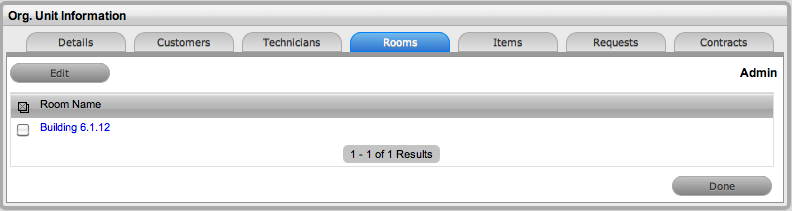
To add a Room to a Department:
Within
the Organizational Units list select the Org.Units filter
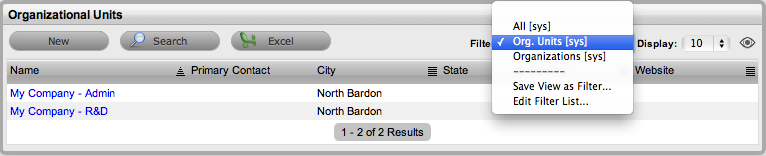
Select the relevant Depart/Org.Unit link
Move to the Rooms tab
Click Edit
Click New
Enter the Room Name
Click Save.
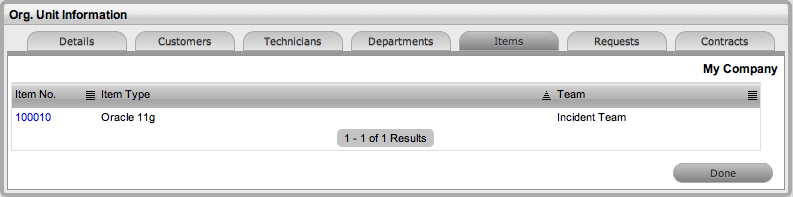
This tab lists all the Items that have been
assigned to the Organizational Unit.
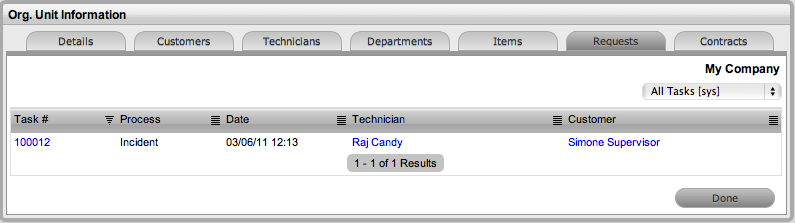
This tab lists all requests generated by
the Organizational Unit. To view or modify a request, select the Task#
hyperlink.
The Contracts tab displays an Organizational Unit's current contract status. An Organizational Unit can be assigned an SLA or, when Billing is enabled, a Contract. An Organizational Unit can have only one active Contract in the system at any one time, and must have an assigned Primary Contact.
To update the Service Level assignment:
User>Organization Units
Select
the required Org Unit
The Org Unit Information screen will open.
Select
the Contracts tab, click Edit
If a Primary Contact has not been assigned to the Org Unit a system
prompt will notify the User to create a Primary Contact. See: Primary
Contact.
In SLA Details, using the drop-down menu, select the SLA
Select Save.
When Contracts are in use throughout the
application, timeframes are set for Service Levels and Contract history
is displayed within the Contracts tab. It is also possible to assign a
Service Level and/or Contract within the Contracts tab.
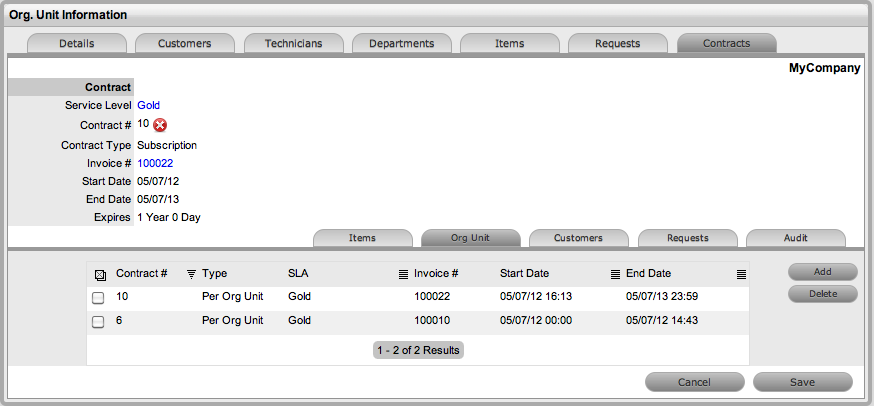
To create a new contract for an Organizational Unit:
To assign a Contract to an Org Unit, a Primary Contact must be nominated for the Org Unit or the system will prompt the User to assign a Primary Contact during the Contract assignment process. This means, prior to creating the Contract assign at least one Customer to the Org Unit and then designate a Customer as the Primary Contact.
Select User> Organizational Units
Select the Organizational Unit's Name
Move
to the Contracts tab
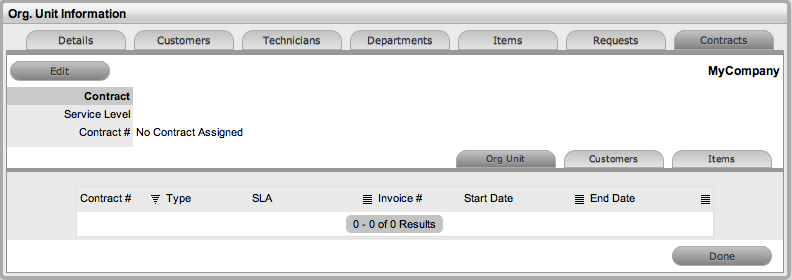
Click Edit
Click

The system will state that the existing contract will be updated if
the action is continued, click OK.
Select
a Service Level from the list
When selected, the screen expands to display start and end date fields.
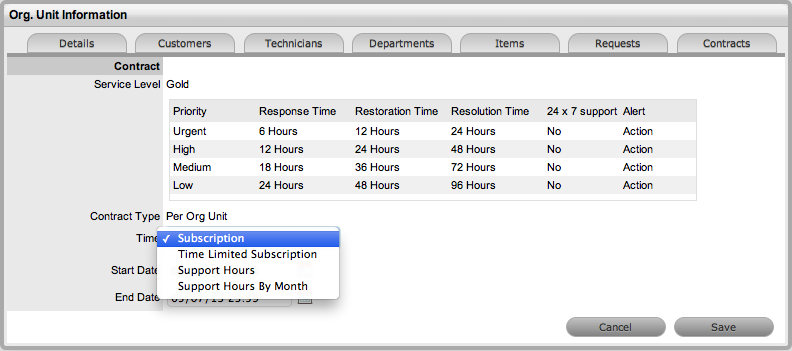
For
the Per Org Unit Contract Type the Time Period for the Contract can
be defined:
Subscription if selected, the
Start and End Dates are automatically set to a year from the date
of creation, but can be edited if required.
Time Limited Subscription if
selected, the Support Hours field is displayed and the number of support
hours purchased by the Customer should be entered. Also, the Start
Date and End Date fields should be completed manually by entering
the length of time for the subscription period, or the system will
default to entering a year from the date of creation.
Support Hours if selected,
the number of support hours purchased by the Customers should be entered.
Support Hours by Month if selected,
set the number of hours purchased per month and define which day of
the month contract is to rollover to start the new month. The Total
Support Hours will automatically be calculated based on the Start
and End Dates set for the Contract.
If the fields are left blank the default contract length of one year
is assigned. If the start date is in the future, the Pending Contract
status is assigned. See Pending Contracts.
Click Save
Click
Next to continue
The system reverts to the Contracts summary screen.
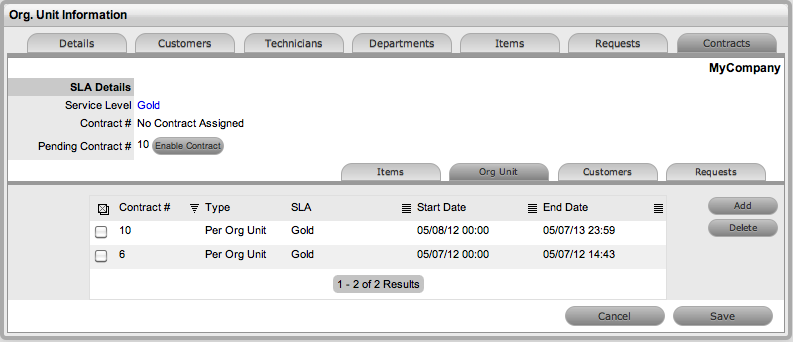
Click
Save
A success message is displayed.

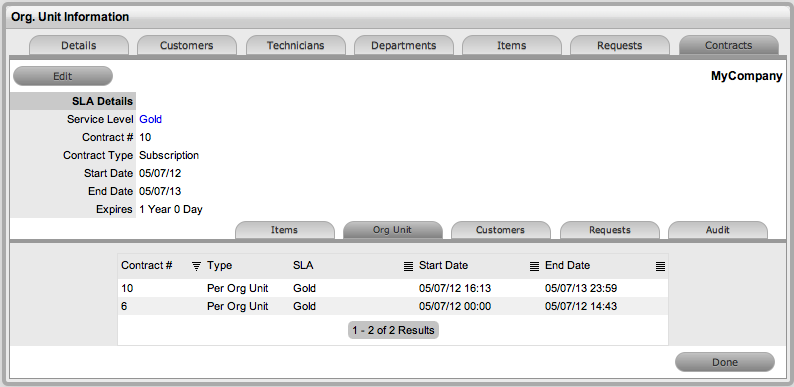
If Invoices are enabled, a new invoice is automatically saved within the Finance>Invoices screen for the newly created Contract. If payment is required, a Pending Invoice Number is displayed and once processed, the Contract will be listed in the Org.Unit Information>Contracts>Org.Unit tab.
To delete a current Contract, as a Supervisor User,
select  next to the Contract Number. Alternatively,
to delete a current or queued Contract, within the Contract>Org Unit
tab check the field next to the relevant Contract # and select the Delete
button.
next to the Contract Number. Alternatively,
to delete a current or queued Contract, within the Contract>Org Unit
tab check the field next to the relevant Contract # and select the Delete
button.
The Items and Customers tab within the Org Unit>Contracts screen is used to list all the Items and Customers Contracts that are associated with the selected Org Unit.
