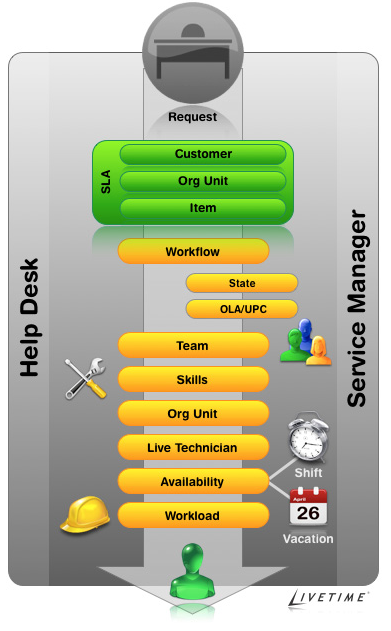
The logic behind Technician assignment within the system is more than the application basing the allocation on the Technician location, load or skill set, as more extensive parameters are considered when routing requests to Technicians. By understanding the variables within the assignment process, Users can configure the system to better reflect the Workflow of its service support Team environment.
When an Incident is logged with the Help Desk, it is allocated to a Team based on the Item assigned to the Incident.
Figure 1: Incident assignment logic
After the Team has been assigned to the request, the application:
Checks if the Team has escalation layers, and validates the capability of Technicians in Layer One.
To make an assignment within the layer, the system checks if Technicians are assigned areas of specialty - Skills or Classifications. If so, the system matches the Classification of the Incident with the Classifications supported by the Technician.
If multiple Technicians are assigned the relevant Classification, or if specific Classifications are not assigned to the Technicians within the Team, then the system verifies if Team members have been assigned to support specific Organizational Units. If so, the application will match the Organizational Unit of the Customer to the Technician.
If the Team Live Priority feature has been enabled, the system checks for team Technicians logged into the application. If multiple matches have been made between the Technician skills and the Incident's Classification, and the Org Unit of the Customer and Technician, the system checks for Technicians logged into the application. However, if no match is made between the skills and Organizational Unit, it will still check for the logged-in User if the Live Priority Team functionality is active.
If there are multiple valid Technicians based on skill, Org Unit and/or logged-in User, the application will allocate the Incident to a Technician with the lightest request load.
It should be noted that if the Technician Define Work Hours option has been enabled in the Admin>Setup>Privileges>User, the hours of work MUST be defined within the Super>User>Users>Schedule tab, otherwise the system will ignore the Technician Assignment logic and automatically allocate new requests to the Team Lead.
Please note that these are not the only forces that govern request assignment.
Other factors that determine the routing of requests include the Team
assigned to Workflow State, the Technician assignment privilege and whether
Incident Queues is enabled.
The "Self Assign" functionality allows the application to override the business logic of request assignment. This feature enables the automatic allocation of requests to the Technician who creates the request. A Supervisor User can activate "Self Assign" for requests on a per Team basis, within the Team Information screen.
That about covers the automated routing of Incidents, but support Teams
who prefer to create a queue or holding bay for newly created Incidents
are also catered for in the system.
Incident queues are activated on a per Team basis. This means, where one
support Team may use the automated routing process, another can create
a holding bay. The holding bay allows Technicians to choose their jobs
from the Queue, as opposed to having Incidents automatically assigned
by the system.
The Administrator User can activate the Incident Queue feature in the application
Setup. The Supervisor User then enables the option within the Team Information
screen, as required. Incidents assigned to a team with this preference
enabled are assigned to the System User. To access Incidents held within
the Queue, Technicians use the Incident Queue filter within the Incident
tab.
The Incident can then be re-assigned to a specific Technician within the
Summary tab of the Incident. See: Incident
Queue.