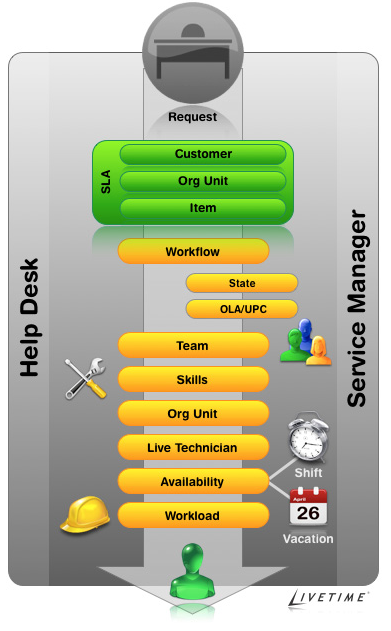
When an Incident is created a Customer and Item, be that an actual object or service, are associated with the Incident. The Customer's concern or query is classified based on a list derived from the Category and Type of the Item assigned to the Incident. Then based on the system configuration, the Incident is assigned to a Technician in a Team associated with the SLA and Workflow assigned to the Incident.
Figure 1: Request assignment logic
After the Team has been assigned to the Incident, the application goes through the following steps:
Checks if the Team has escalation layers, and validates the capability of Technicians in Layer One.
To make an assignment within the layer, the system checks if Technicians are assigned areas of specialty - Skills or Classifications. If so, the system matches the Classification of the Incident with the Classifications supported by the Technician.
If multiple Technicians are assigned the relevant Classification, or if specific Classifications are not assigned to the Technicians within the Team, then the system verifies if Team members have been assigned to support specific Organizational Units. If so, the application will match the Organizational Unit of the Customer to the Technician.
If the Team Live Priority feature has been enabled, the system checks for Team Technicians logged into the application. If multiple matches have been made between the Technician Skills and the Incident's Classification, and the Org Unit of the Customer and Technician, the system checks for technicians logged into the application. However, if no match is made between the Skills and Organizational Unit, it will still check for the logged in User if the Live Priority Team functionality is active.
If there are multiple valid Technicians based on Skill, Org Unit and/or Logged In User, the application will allocate the request to a Technician with the lightest request load.
To work on a newly created or existing request, within the Summary tab you can:
Review an Incident and associated Item details
Move an Incident from open to closed, and any state in between
Escalate an Incident
To access a complete summary of Notes in one screen, along with the
associated Incident details select  .
.