Details Tab
To successfully create an Incident, the Incident must be profiled by
completing the Request Type, Classification and Description details. Within
the Details tab, there is also the option to select any relevant Quick
Call Templates that have been configured for the Item Type assigned to
the Incident.
Entering an Incident Description
To
profile the Incident:
Define
the Request Type
The New Incident option is locked in if there are no Quick Call templates
available for the Item or Process.
Select
a Classification
If multiple Items are assigned to the Request, the option to assign
a specific Classification for each Item Request is provided.
Complete any required
Custom Fields
Define
the Subject content, if desired
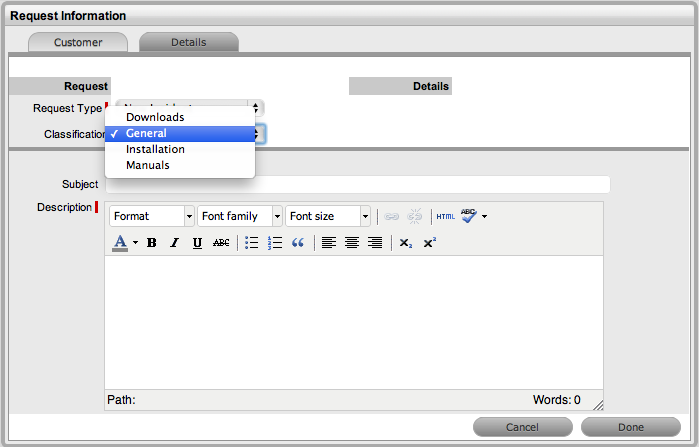
Enter
all relevant information within the Description field
This is a mandatory field.
Click Done to enter
the new Incident into the system.
When an Incident is submitted successfully, the Incident Summary
Tab is displayed. If the Force Analysis functionality is
enabled in the application's Setup, the system will move to the Analysis Tab.
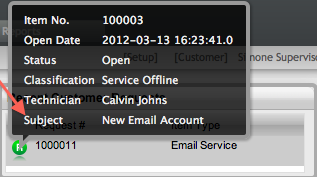
Request Subject
It is recommended that a summary be included in the Subject field, as
the details recorded in the Subject field are displayed in scroll-over
summaries throughout the application. For example, when a new Incident
is being entered for a Customer, a Recent Customer Requests list is displayed
during the Incident creation process for all Items the Customer owns either
directly or via shared ownership. The Requests list includes a scroll-over
summary where Subject content is displayed, if the Subject is completed
for a request. Subject information can also be included within a column
in the Incidents List View, for a quick glance summary of an Incident.