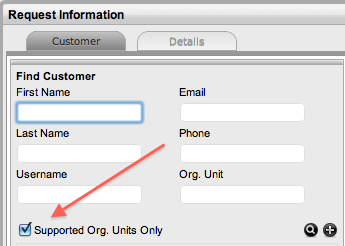
Customer Tab - Incidents
The first step in creating a new Incident requires a Customer be assigned
to the Incident. There are two ways to assign a Customer to an Incident,
either search and select an existing Customer, or create a new Customer.
Create an Incident for an existing Customer
To search and assign a Customer who already exists in the system:
Go to Operations>Incidents
Click New
Search and select a
Customer
Within the Find Customer field, enter any known Customer details or
leave the search fields blank to access the complete Customer list.
If Custom Fields have been enabled in the Customer Information screen,
the Advanced Search option can be used to search on data recorded
within these fields.
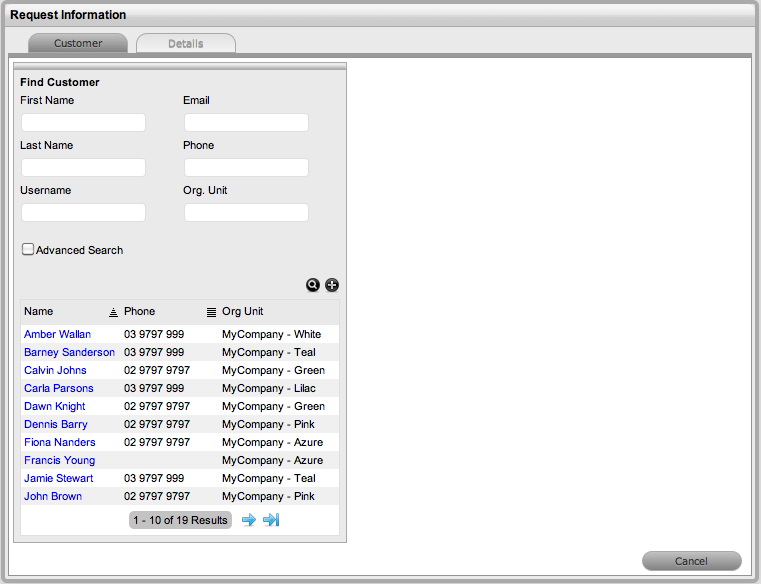
Click  to search the Customer database
Select the relevant
Customer Name hyperlink to assign the Customer details to the Incident.
The screen will open the Find Item field.
See: Advanced Search Options.
Create an Incident for a new
Customer
If the Customer does not exist within the system, an account can be
created when entering the Incident:
Select Incident>Incident
Click New
Within the Find Customer
field, select 
An expanded editable Customer details form is displayed.
Enter the Customer details
Click Save.
The form will revert to a non-editable screen of the newly entered
details and display the Items
Tab.
Incidents for Partner Organization Customers
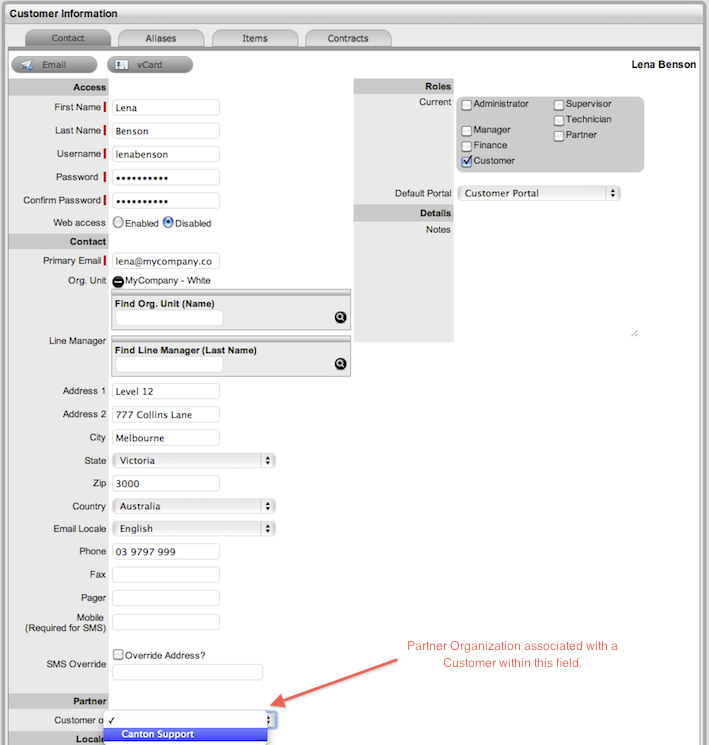
Customers can be assigned to a Partner, in one of two ways:
When
a Partner logs in and creates a new Customer, the Customer is automatically
assigned to that Partner
When
the Administrator option Edit Customer Partner is enabled, and the
Partner is assigned to the Customer within the Customer Information
screen of the User > Customers tab.
Supported Org Units Only option
This
option is visible within the Find Customer search field, if the logged
in User has been assigned to support specific Organizational Units. Uncheck
the option, if search results are to include Customers belonging to all
Organizational Units recorded in the system.