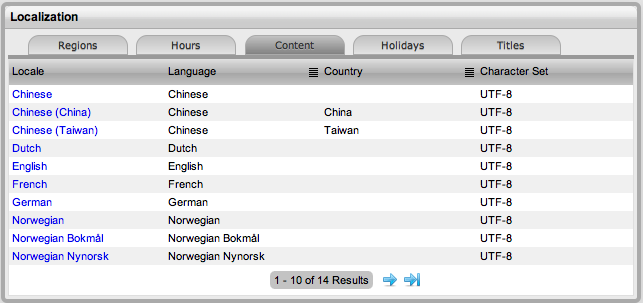
The Content tab allows Users to configure automated messages, user interface and system objects content for language files used by the application.
The customized content is applied to Customers and Users by setting the Email Locale option in their account information screen.
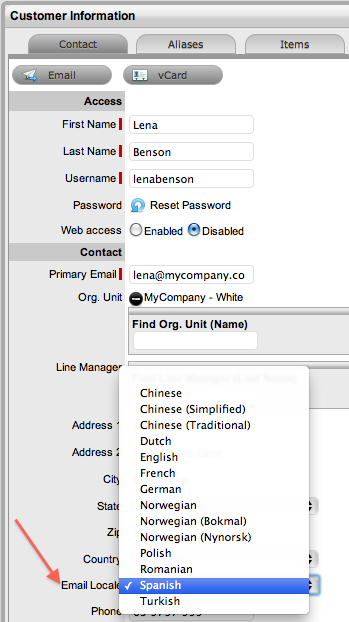
Content can be customized across the following elements and messages:
It is recommended that the localization of user interface content, email and sms messages be done after they have been configured and reviewed within the Setup>Email and Setup>Customize tabs, respectively.
To customize content:
Select Setup>Localization
Move to the Content tab
Select the Locale link for the language file that is to be edited
Within
the Category field, select the element to be customized
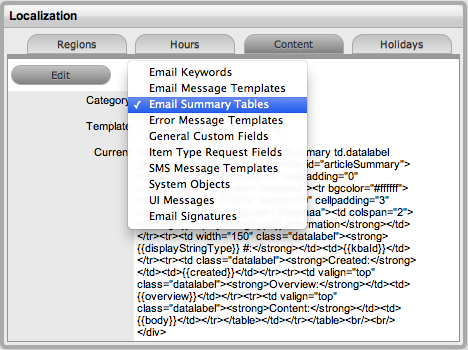
Within
the default field displayed when the relevant Category is selected,
choose the element to be customized
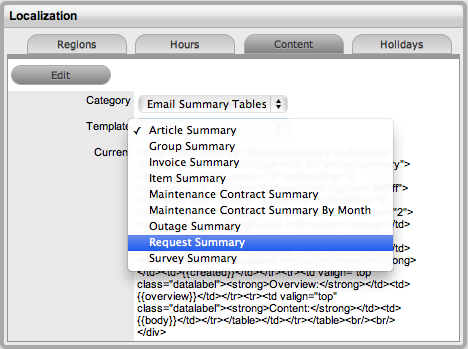
Click
Edit
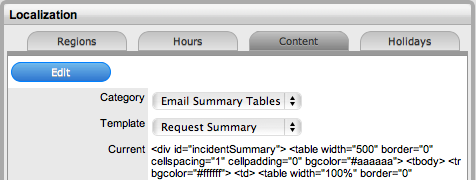
Amend
the content and format, if required
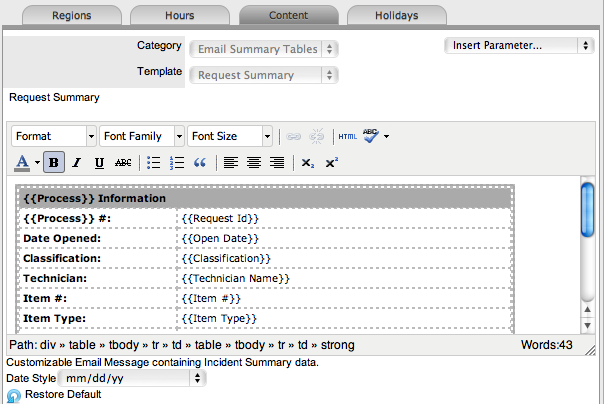
Click
Save.
Repeat the above process
for all the relevant elements in the default list or select the Content
tab to return to the Locale list.