Attachments Tab
Adding an Attachment
To add an Attachment:
-
Select an Incident number ID
-
Click Edit
-
Select the Attachment tab
-
Click


-
Click Choose File to browse and select a file
-
Mark Private, if the attachment is not to be available on the Customer Portal
-
Enter a file Description, if necessary
-
Select
 to upload the file or
  to cancel the process.
The uploaded Attachment is automatically date stamped and shown as a file name link along with its file size.
To open an Attachment, select the file name hyperlink.
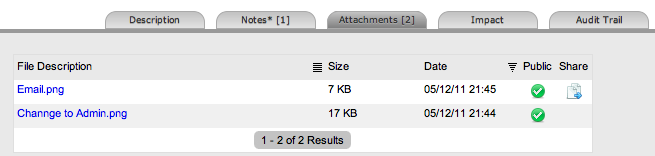
NOTE:Incidents that are part of a Group and have attachments uploaded within the Group Details Screen, display
 within the Share Column.