Select Setup >Email
> Server
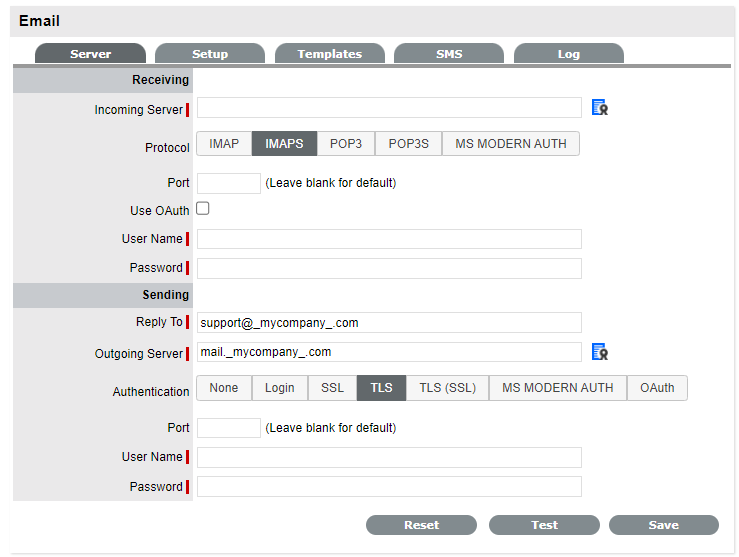
The Email sub-menu option is used to configure the system’s incoming
and outgoing email settings.
Note: The MS MODERN AUTH and OAuth base authorization is available only from ZENworks Service Desk 8.3.1.
The system uses email to notify Customers about:
Login information
Request creation, updates and closure
Contract renewals
Invoice management
Purchase Order creation.
Emails notify Service Desk Users of:
Request allocation
Escalations and SLA reminders, warnings and breaches
Amendments to requests made by other Users
Addition or removal of requests from Groups
Required request approvals.
For detailed information regarding managing requests using email polling see Email Polling and Request Creation in the Appendices of this guide.
To enter email server details:
Select Setup >Email
> Server
Enter the Receiving
and Sending Details:
Receiving |
|
Incoming Server |
The incoming server used by the system to receive emails. |
Protocol |
The protocol of the incoming email account IMAP, IMAPS, POP3, POP3S and IMAPS with Microsoft Modern Auth. OAuth based authentication is available for IMAPS and POP3S When you select the secured protocol such as IMAPS, POP3S or MS MODERN AUTH, a certificate icon will be displayed, click the icon to view the certificate of the server. For more information on Microsoft Modern Auth, see Microsoft Modern Authentication. For more information on OAuth based authentication, see OAuth based authentication. |
Transport |
This option is visible if IMAP or POP3 has been set for the email account protocol. Select to secure the transport layer to encrypt the whole channel, if relevant to your email server configuration. |
Port |
Can be left blank for the default, or enter a port. |
User Name |
Enter User Name for the incoming mail server. |
Password |
Enter the account Password. |
Sending |
|
Reply To |
The default system email address and the account that the email polling feature uses. |
Outgoing Server |
The outgoing (or SMTP) server used by the system to send emails. When you select the authentication as SSL, TLS (SSL), MS Modern Auth or OAuth, a certificate icon will be displayed, click the icon to view the certificate. |
Authentication |
If your SMTP server requires sender identification before sending email select between Login, SSL, TLS, MS Modern Auth, or OAuth depending on the server configuration. Additional fields might be displayed based on the selected authentication method. For more information on Microsoft Modern Auth, see Microsoft Modern Authentication. For more information on OAuth based authentication, see OAuth based authentication. |
Port |
Enter a different port, or leave blank to use the default. |
User Name |
When authentication is required, enter the SMTP authorization details. |
Password |
When authentication is required, enter the account password. |
Click Save.

To delete the content in all fields within the Server tab, select the Reset button. The system will display a message requiring verification of the Reset selection. Click OK to verify and clear all fields.

To test if the email configuration is correct for sending email, click Test. This will send a message to the Administrator, using the Outgoing Server details that have been provided.
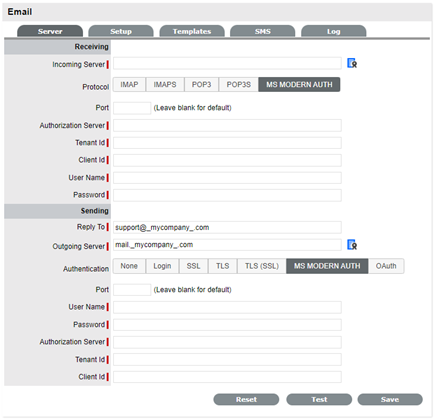
Microsoft Modern Auth uses IMAPS for incoming and SMTP for sending emails.
Following are the server settings for default Microsoft Office 365 configuration:
Authorization Server: https://login.microsoftonline.com
Incoming Server (IMAPS): outlook.office365.com
Outgoing Server (SMTP): smtp.office365.com
Ensure that you verify these settings with respective service provider.
Register ZENworks Service Desk as an application with the Azure Active directory.
For more information, see Registering an Application or any documentation provided by the service provider.
Obtain OAuth parameters (Tenant Id, Client Id) from the Azure for the registered ZSD application.
In the Azure portal, open the registered application, go to Authentication, and ensure that you set Allow public client flows to Yes.
Ensure that the email address configured can access Microsoft 365 email using IMAP and Authenticated SMTP.
Ensure that the email address configured does not have multi-factor authentication enabled.
Note: If multi-factor authentication cannot be disabled or you do not want to use public client flows, then you can use OAuth Based Authentication. The OAuth Based Authentication works with O365 Modern Authentication.
This option is available for IMAPS and POP3S for receiving emails and SMTP for sending emails.
Register ZENworks Service Desk as an application with the respective email provider.
For more information, see any documentation provided by the service provider.
Note:While registering the application, use the following URLs as the redirect URI of type Web, Web Server, or Web Application:
https://<FQDN>/Live Time/WebObjects/LiveTime.woa/wa/oauthlanding
Ensure that you add redirect URIs of all the public interfaces (IP or domain name) of ZENworks Service Desk.
Obtain OAuth parameters (Client ID, Client Secret, OAuth Scope, Auth URL, Token URL).
Ensure that the email address configured can access email using IMAP/POP3 and SMTP.
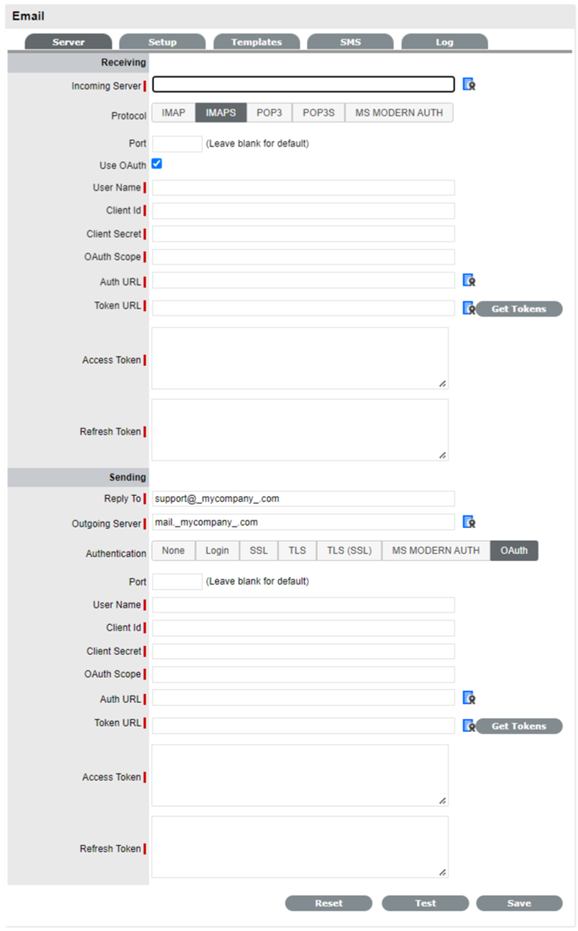
After specifying all the details, click Get Token. You will be redirected to the provider UI for authentication. After successful authentication, you will be redirected back to ZSD portal, where generated tokens will be displayed. Copy the respective tokens to the email configuration page, save the changes and then test the connection.
Note: If tokens are expired, then ZSD will automatically try to regenerate the token. If the regeneration of token fails, an alert will be displayed to the administrator to check the configuration and regenerate the tokens using the above steps again.
Following are the default settings for Microsoft Office 365 and Gmail:
Note: Ensure that you verify these settings with respective service provider.
Auth URL: https://login.microsoftonline.com/<your_tenant_id>/oauth2/v2.0/authorize?prompt=consent
Token URL: https://login.microsoftonline.com/<your_tenant_id>/oauth2/v2.0/token
Scopes:
Sender (SMTP): https://outlook.office.com/SMTP.Send offline_access
Receiver (IMAPS): https://outlook.office.com/IMAP.AccessAsUser.All offline_access
Receiver (POP3S): https://outlook.office.com/POP.AccessAsUser.All offline_access
Auth URL: https://accounts.google.com/o/oauth2/v2/auth?prompt=consent&access_type=offline
Token URL: https://oauth2.googleapis.com/token
Scopes:
Sender (SMTP): https://mail.google.com/
Receiver (IMAPS/ POP3S): https://mail.google.com/