Monitoring Specific Agents
On NetWare® servers, you can monitor the TED agents (Distributor Agent and Subscriber Agent) and the Policy/Package Agent at the server console where they are running. In addition, you can monitor the agents running on any platform (NetWare, Windows, or UNIX) from Internet Explorer using the ZfS Management role in iManager.
- Managing the TED Agents from the Remote Web Console
- Managing the Policy/Package Agent from the Remote Web Console
- Opening Multiple Remote Web Console Windows
Managing the TED Agents from the Remote Web Console
To access the Remote Web Console for a Distributor or Subscriber in iManager:
-
Click Roles and Tasks in the top frame > expand ZFS Management in the left frame > click Remote Web Console.
-
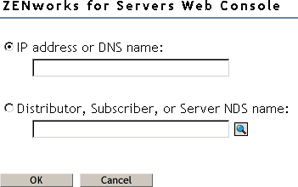
Specify the IP address or DNS host name of a server where the Distributor Agent or Subscriber Agent is running.
or
Browse to and select a Distributor or Subscriber object or the Server object representing the server where the Distributor Agent or Subscriber Agent is running.
-
Click OK.
-
In the Available Services field, select Tiered Electronic Distribution.
Tabs at the top of the Remote Web Console frame provide various types of information related to the TED agents. Additional options are available on each tab.

You can click Help on each Remote Web Console page for information on using the features available on that page.
-
Continue with the task that you want to perform:
- Managing TED Objects
- Monitoring TED Agent Status
- Monitoring Distribution Status
- Forcing TED Agent Actions
- Managing Security Certificates
The tables below summarize these tasks, detail the Remote Web Console tab and option to use for each task, and indicate whether the task can also be performed using ConsoleOne.
Managing TED Objects
Be aware that if the Distributor has not been refreshed since changes were made to object properties in eDirectory, the object properties displayed in the Remote Web Console will be different from the object properties displayed in ConsoleOne.The Remote Web Console displays object information from the point of view of the Distributor Agent.
Monitoring TED Agent Status
You can look up error messages that appear in the event logs in "Tiered Electronic Distribution Errors" in "Policy and Distribution Services" in the Troubleshooting guide.
Monitoring Distribution Status
Forcing TED Agent Actions
Managing Security Certificates
Managing the Policy/Package Agent from the Remote Web Console
The Policy/Package Agent always runs along with the Subscriber Agent. It is responsible for installing the software and enforcing the policies that the Subscriber Agent receives and extracts. The Remote Web Console enables you to manage the Policy/Package Agent, which is not possible using ConsoleOne.
To access the Remote Web Console for a Policy/Package Agent in iManager:
-
Click Roles and Tasks in the top frame > expand ZFS Management in the left frame > click Remote Web Console.
-
Specify the IP address or DNS host name of a server where the Subscriber Agent is running.
or
Browse to and select a Subscriber object or the Server object representing the server where the Subscriber Agent is running.
-
Click OK.
-
In the Available Services field, select Policy/Package Agent.
Tabs at the top of the Remote Web Console frame provide various types of information related to the Policy/Package Agent.

You can click Help on each Remote Web Console page for information on using the features available on that page.
-
Continue with the task that you want to perform.
The table below summarizes these tasks and details the Remote Web Console tab for each task.
Opening Multiple Remote Web Console Windows
On any Remote Web Console page, click Detach in the upper right corner to display the current page in a new browser window. This enables you to access multiple Remote Web Console features at the same time. For example, you could detach one window for the TED agents and another window for the Policy/Package Agent. Or you could detach a window for the Remote Web Console and still be able to perform other ZfS Management tasks in the main Novel iManager window.