Subscriber Groups
The following sections provide concepts and instructions for the Subscriber Group object:
Understanding Subscriber Groups
A Subscriber Group is an eDirectory object (TED Subscriber Group) used for grouping Subscribers objects.
Functional Relationship with Other TED Objects
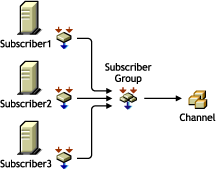
The following illustrates a Subscriber Group's relationship with Subscribers and Channels.

Subscriber Group Description
A Subscriber Group is used for grouping Subscribers that have the same Distribution needs.
Subscriber Groups are useful when you will be sending several different Distributions to the same set of Subscribers. There is no need to create a Subscriber Group if it will only be associated with one Channel.
For example, Distribution A will be in Channel A, Distribution B will be in Channel B, and so on. Then, without using a Subscriber Group, you would need to subscribe each of your Subscribers to Channel A, then each to Channel B, and so on, which could be a very long process. However, by using a Subscriber Group, you will only need to create the group, add the Subscribers to it, then subscribe that one group to each Channel.
Another use of a Subscriber Group is that when the group is associated with two or more Channels, you can edit the group's membership more easily than making the same changes in multiple Channels. For example, to remove a Subscriber from one Subscriber Group, you just edit that one group's properties. To remove that same Subscriber from several Channels, you would need to edit each Channel's properties.
Creating and Configuring Subscriber Groups
-
In ConsoleOne, select the container to hold the Subscriber Group object > click File > New > Object > TED Subscriber Group.
-
In the New TED Subscriber Group dialog box, enter a name for the Subscribe Group (worksheet item 17) > click Define Additional Properties > click OK.
-
In the General Settings tab, enter a description.
-
To populate the group with Subscribers, click the Members tab > do the following:
-
Click Add > browse for and select the Subscriber objects (worksheet item 18) > click OK.
-
To remove any Subscribers from the list, select the Subscribers > click Delete.
-
To view the properties of any Subscriber, select the Subscriber > click Details.
-
-
Click OK when you have finished configuring the Subscriber Group object.