10.4 Logging Configuration
Identity Manager enables you to configure the events that are logged by using several predefined levels, or by individually selecting each event you want to log. Changes to the configuration settings are also logged.
User-defined events, discussed in Section 10.4.2, User-Defined Events, are logged any time logging is enabled, and are never filtered by the Metadirectory engine.
Logging is configured on a driver set or on an individual driver. Drivers can inherit logging configuration from the driver set. For information on the eDirectory™ attributes containing log information, see Section 10.4.3, eDirectory Objects.
By default, only critical and user-defined events are logged.
10.4.1 Selecting Events to Log
You can select events for a driver set or for a specific driver.
Logging Events for the Driver Set:
-
In iManager, select , then click .
-
Browse to and select the Driver Set object, then click .
-
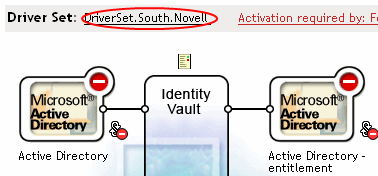
Click the Driver Set name. The Modify Object page appears.
-
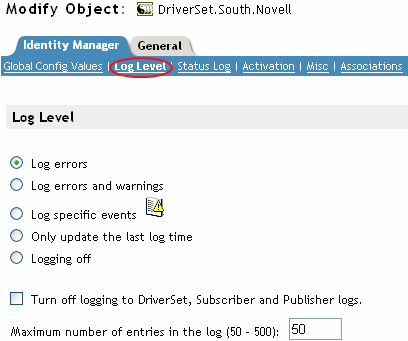
Select on the tab.
-
Select the logging option that is required for your environment.
Option
Description
Log errors
This is the default log level. This option logs all events with an error status, and also user-defined events.
With this option selected, you receive only events with a decimal ID of 196646, with an error message stored in the first text field.
Log errors and warnings
This option logs all events with an error or warning status, and also user-defined events.
With this option selected, you receive only events with a decimal ID of 196646 and 196647, with an error or warning message stored in the first text field.
Log specific events
This option enables you to select specific events to log from a list. Click the
 icon to select events. User-defined events are always logged.
To log any event other than an error or warning, you must select it from this list. If you select this option, you must also select errors and warnings if you want to continue to log them. For a list of all available events, see Identity Manager Events.
Only update the last log time
Only user-defined events are logged. When an event occurs, the last log time is updated, so you can view the time and date of the last error in the status log.
Logging off
Only user-defined events are logged.
Turn off logging to DriverSet, Subscriber and Publisher logs
Turns off logging to the Driver Set object log, and to the Subscriber and Publisher logs.
Maximum Number of Entries in the Log
This setting allows you to specify the maximum number of entries to log in the status logs. See Section 10.7.2, Viewing Status Logs for details.
-
After you have selected the events you want to log, click .
Logging Events for the Driver:
-
In iManager select , then click .
-
Browse to and select the Driver Set object, then click .
-
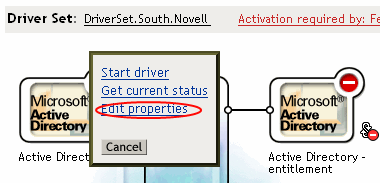
Click the upper right corner of the driver icon, then select .
-
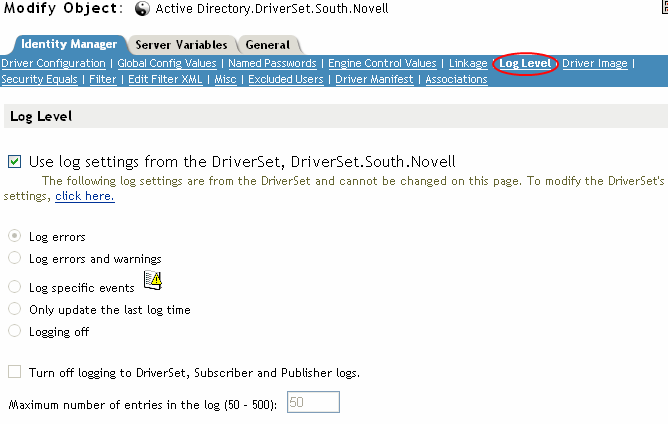
Select on the tab.
-
(Optional) By default, the Driver object is configured to inherit log settings from the Driver Set object. To select logged events for this driver only, deselect use log settings from the Driver Set.

-
Select the logging option that is required for your environment.
Option
Description
Log errors
This is the default log level. This option logs all events with an error status, and also user-defined events.
With this option selected, you receive only events with a decimal ID of 196646, with an error message stored in the first text field.
Log errors and warnings
This option logs all events with an error or warning status, and also user-defined events.
With this option selected, you receive only events with a decimal ID of 196646 and 196647, with an error or warning message stored in the first text field.
Log specific events
This option enables you to select specific events to log from a list. Click the
icon to select events. User-defined events are always logged.
To log any event other than an error or warning, you must select it from this list. If you select this option, you must also select errors and warnings if you want to continue to log them. For a list of all available events, see Identity Manager Events.
Only update the last log Time
Only user-defined events are logged. When an event occurs, the last log time is updated, so you can view the time and date of the last error in the status log.
Logging Off
Only user-defined events are logged.
Turn off logging to DriverSet, Subscriber and Publisher logs.
Turns off logging to the Driver Set object log, and to the Subscriber and Publisher logs.
Maximum Number of Entries in the Log
This setting allows you to specify the maximum number of entries to log in the status logs. See Section 10.7.2, Viewing Status Logs for details.
-
After you have selected the events you want to log, click .
Identity Manager Events
A listing of all events logged by Identity Manager is contained in the Section C.0, Identity Manager Events and Reports.
Driver Start and Stop Events
Identity Manager can generate an event whenever a driver starts or stops. The following table contains details about these events:
Table 10-1 Driver Start and Stop Events
For details on creating Novell Audit notifications based on these events, see Section 10.6, Sending Notifications Based on Events.
Error and Warning Events
Identity Manager generates an event whenever an error or warning is encountered. The following table contains details on these events:
Table 10-2 Error and Warning Events
For details on creating Novell Audit notifications based on these events, see Section 10.6, Sending Notifications Based on Events.
Remote Loader Events
The following events are logged from the remote loader:
Table 10-3 Remote Loader Events
For details on creating Novell Audit notifications based on these events, see Section 10.6, Sending Notifications Based on Events.
10.4.2 User-Defined Events
Identity Manager enables you to configure your own events to log to Novell Audit. Events can be logged using an action in Policy Builder, or within a style sheet. Any information you have access to when defining policies can be logged.
Event IDs
Event IDs between 1000 and 1999 are allotted for user-defined events. You must specify a value within this range for the event ID when defining your own events. In Novell Audit, this ID is combined with the Identity Manager application ID of 003.
Log Levels
Log levels enable you to group events based on the type of event being logged. The following predefined log levels are available:
Table 10-4 Log Levels
Generating Events Using Policy Builder
In Policy Builder, events are logged by selecting the action.
-
Select the condition to be met before the event is generated, then select the action.
-
Specify an event ID.
-
Select a log level.
-
Click the
 icon next to the
field to launch the Named String Builder.
icon next to the
field to launch the Named String Builder.
-
Use the Named String Builder to construct named strings corresponding to the custom data fields:

-
Click to return to the Policy Builder to construct the remainder of your policy.
See
Generate Event
in the
Policy Builder and Driver Customization Guide
for information on how to configure a policy to log events.
Generating Events Using Status Documents
Status documents generated through style sheets using the <xsl:message> element are sent to Novell Audit with an event ID corresponding to the level attribute of the status document as specified in the following table:
Table 10-5 Status Documents
The following example generates an Novell Audit event 0x004 and value1=7777, with a level of EV_LOG_STATUS_ERROR:
<xsl:message>
   <status level="error" text1="This would be text1" value="7777">This data would be in the blob and in text 2, since no value is specified for text2 in the attributes.</status>
</xsl:message>
The following example generates an Novell Audit event 0x004 and value1=7778, with a level of EV_LOG_STATUS_ERROR:
<xsl:message>
   <status level="error" text1="This would be text1" text2="This would be text2" value1="7778">This data would be in the blob only for this case, since a value for text2 is specified in the attributes.</status>
</xsl:message>
10.4.3 eDirectory Objects
This section provides details on the Novell eDirectory attributes that store log data. You do not need to modify these attributes directly, because these objects are automatically configured based on your selections in iManager.
The Identity Manager events you want to log are stored in the DirXML-LogEvent attribute on the Driver Set object or Driver object. The attribute is a multivalue integer with each value identifying an event ID to be logged.
Before logging an event, the engine checks the current event type against the contents of this attribute to determine whether the event should be logged.
Previous versions of Identity Manager used the DirXML-DriverTraceLevel attribute to set up logging levels. The logging level was specified on each Driver object, and did not support inheritance. In versions after Identity Manager 2, Driver objects can inherit this information from the Driver Set object. The DirXML-DriverTraceLevel attribute of a driver object has the highest precedence when determining log settings. If a Driver object does not contain a DirXML-DriverTraceLevel attribute, the engine uses the log settings from the parent driver set object.