Integration Module for Enterprise User's Guide
CHAPTER 3
Deploying the Driver

Deploying the Driver from Integration Manager
This section describes how to deploy the Integration Module for Enterprise - Custom Edition portion of your project. To deploy project components that connect to external applications, refer to the documentation for the Integration Manager Connect for the external application, and to the Novell Integration Manager User's Guide.
 To deploy an Integration Module for Enterprise - Custom Edition project:
Before you deploy the driver, make sure that you have set up a Server Profile and specified the deployment path (see "Creating a Server Profile" on page 17).
NOTE: For more information about deployment options, see "Deploying Your Project," in the Novell Integration Manager User's Guide.
- In the Project tab in the Navigator Frame, scroll down to the bottom and click on Deployment.
-
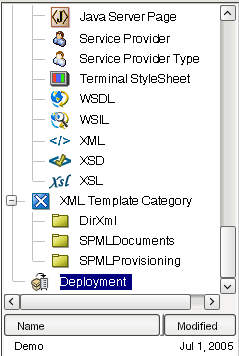
- The Integration Module for Enterprise - Custom Edition includes a sample deployment xObject named "Demo". You will probably want to change this name to better describe your project.
- Right-click on the Demo deployment xObject, and select Properties. Integration Manager displays the deployment Properties dialog box.
- Select the Deploy tab.
-
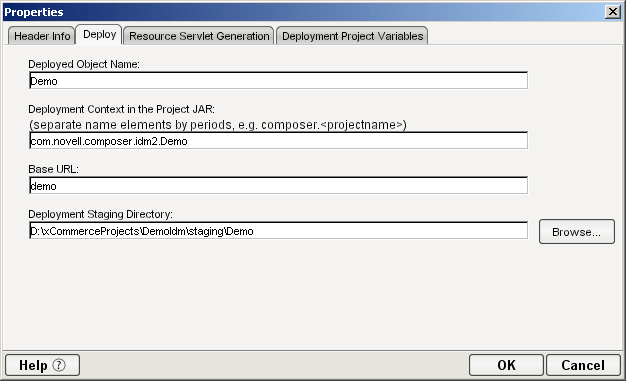
- Integration Manager fills in the Deployment Object Name field with the name of the deployment xObject. If desired, change the Deployment Object Name to a name that is appropriate for your project.
- Integration Manager fills in the Deployment Context in the Project JAR field with a default deployment context. If desired, change the deployment context in the Deployment Context in the Project JAR field to one that is appropriate for your application.
- Integration Manager fills in the Base URL field with a URL based on the deployment xObject name. If desired, change the Base URL to one that is appropriate for your project.
- If desired, change the default path in the Deployment Staging Directory field. Integration Manager uses this directory as a working directory during deployment, creating deployment objects and descriptor files.
- Select OK.
- In the Navigator frame, right-click on the name of the deployment object and select Deploy Project. The Deployment dialog box is displayed.
- Select Deploy. Integration Manager deploys the project using the deployment path specified in the server profile for the project.
- NOTE: If you have previously deployed your driver, made a change, and redeployed, you may receive a message in the Integration Manager System Output pane that some files (for example, xconfig.jar) could not be copied ("access denied"). This is because the files in question are already in the NDS lib directory from a previous deployment, and they are locked by eDirectory. If you have not made changes that affect the functionality of your Integration Manager environment (for example, enabling a Connect; changing license strings for a Connect) you can ignore the message. If you have made changes that affect the functionality of your Integration Manager environment, then your xconfig.jar has changed, and you will need to stop the eDirectory server, then repeat the steps in this procedure to deploy your project from Integration Manager.
Configuring the Driver in Identity Manager

Creating the Driver Object
To create the driver object:
- Log into the instance of iManager that manages your eDirectory server.
- Open the DirXML Utilities node in the iManager navigation frame.
-
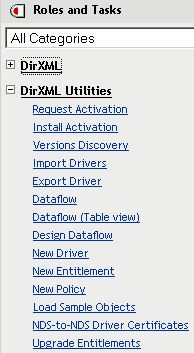
- Select New Driver. The Create Driver Wizard is displayed:
-
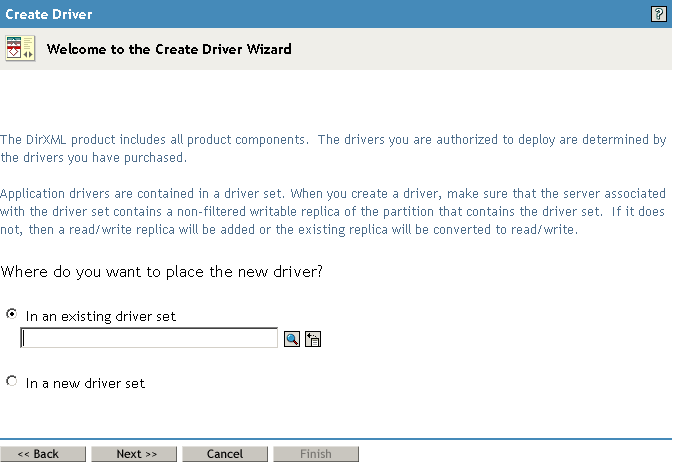
- The next step is to select where you would like to create the new driver. You can create the driver in an existing driver set, or create a new driver set.
- NOTE: When you set up a new driver, you can usually place the driver in an existing driver set. Use a new driver set for the first driver in a new Identity Manager installation. See the Identity Manager documentation for detailed information about driver sets and the iManager procedures for creating and configuring driver sets.
- Select a driver set option, then select Next. The next screen in the Create Driver Wizard is displayed:
-
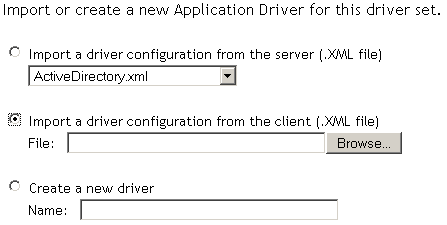
- Select the Import a driver configuration from the client option, then select the Browse button and navigate to the ComposerDriver.xml file in the \Composer\Designer\lib\IDM2 directory in the Integration Manager installation directory. Select the file, then select Open to return to the Create Driver Wizard.
- Select Next. The Create Driver Wizard displays a page that you use to name the driver.
-
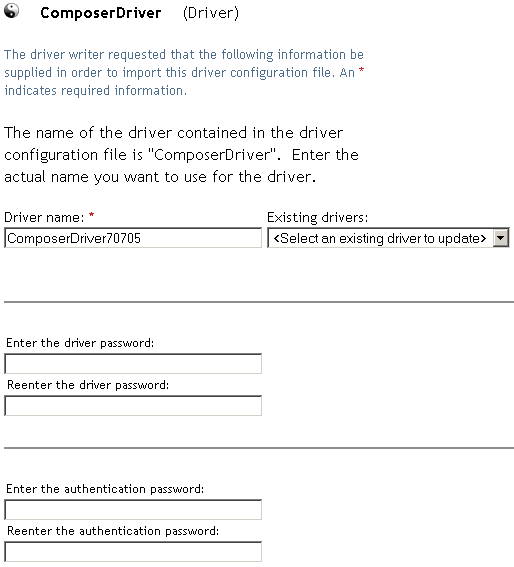
- The default name of the driver, from the configuration file, is ComposerDriver. While you can use the default name, you may want to choose a more meaningful name for your project.
- If desired, type a new name for the driver in the Driver name field.
- Leave the Enter the driver password and the Enter the authentication password fields blank.
- Select Next. A message indicating that the driver configuration is being imported is displayed, then the next page of the Create Driver wizard is displayed:
-
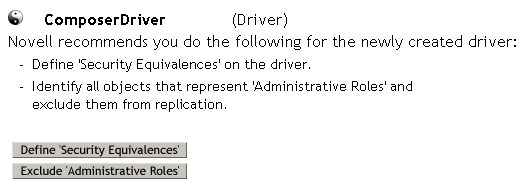
- The driver object must be granted sufficient eDirectory rights to any object that it reads or writes. You can do this by granting Security Equivalence to the driver object. The driver must have Read/Write access to users, post offices, resources, and distribution lists, and Create, Read, and Write rights to the post office container. Normally, the driver should be given security equal to Admin.
- NOTE: The next two steps can be completed at a later time, if desired (by using the iManager driver administration features), but we strongly recommend that you complete these steps now.
- Click Define Security Equivalences. A new window is displayed:
-
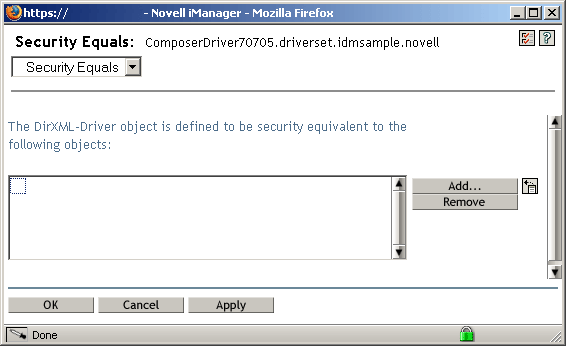
- Select Add. A window is displayed that you use to select an object in the tree that has the appropriate level of rights that you would like to assign to this driver (for example, "admin").
-
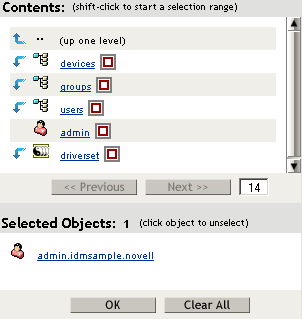
- Select an object from the tree, then select OK. You are returned to the previous window.
- Select OK. You are returned to the Create Driver wizard.
- Select Exclude Administrative Roles. The Excluded Users window is displayed.
- Select Add. A window is displayed that you use to browse the directory tree for users who should be excluded from having their data passed to the driver. Normally, you would exclude admin objects, since replicating their data across a driver connection is not good practice in most cases.
- Select the administrative roles that you want to exclude, then select OK. You are returned to the previous window.
- Select OK. You are returned to the Create Driver wizard.
- Select Next. A driver summary page is displayed.
- Select finish with Overview. A graphical representation of the driver in eDirectory is displayed:
-
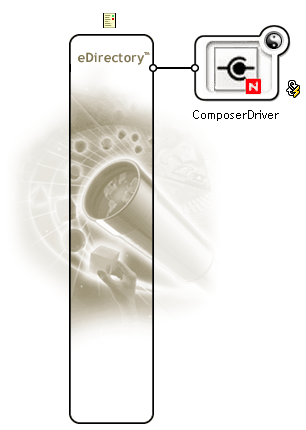
- NOTE: You can view this screen again at any time by using the DirXML Overview link under DirXML Management in the iManager navigation tree.
- The new driver appears as a large icon connected to the eDirectory trunk. The next step is to configure driver settings.
Configuring Driver Settings
To configure driver settings:
- If the DirXML overview screen is not currently displayed, display it by selecting the DirXML Overview link under DirXML Management in the iManager navigation tree.
- Click the large driver icon:
-
- The DirXML Driver Overview is displayed:
-
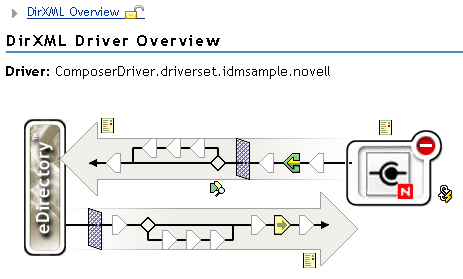
- The top horizontal arrow represents the Publisher channel and the bottom horizontal arrow represents the Subscriber channel. As you pass the mouse pointer over an object in the graphic, a description of the object is displayed:
-
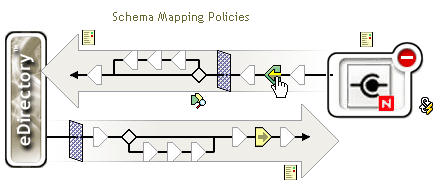
- Click on the Schema Mapping Policies icon for the Publisher channel. The Schema Mapping Policies dialog box is displayed:
-
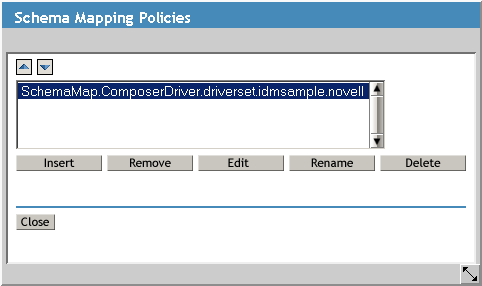
- Select Edit. The DirXML Policy dialog box is displayed.
- Select Refresh Application Schema.
- Select Add, then select the classes to map from the drop down lists under the eDirectory Classes and Application Classes lists:
-

- Select Attributes. The DirXML Schema Mapping Policy Editor is displayed:
-
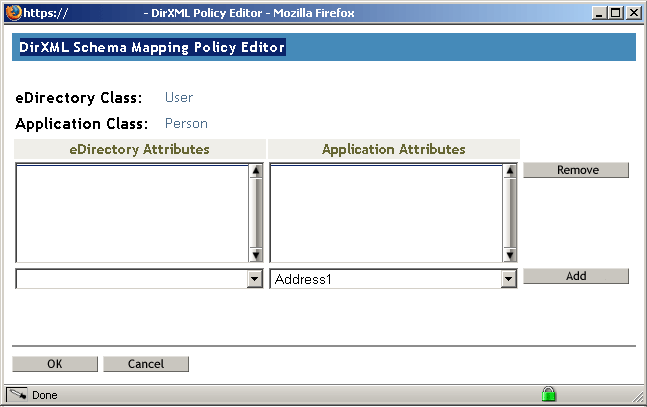
- Select an attribute from the drop down list in the Application Attributes column; then select an attribute to which to map the application attribute from the drop down list in the eDirectory Attributes column.
-

- Select Add.
- Repeat Step 8 and Step 9 until you have mapped all of the attributes that you need to map.
-
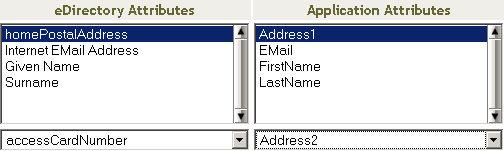
- Select OK. You are returned to the DirXML Policy dialog box.
- Select OK. You are returned to the Schema Mapping Policies dialog box.
- Select Close. You are returned to the DirXML Driver Overview page.
- Click the Driver Filter icon for the Publisher channel.
-
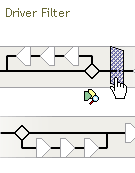
- The filter window is displayed:
-
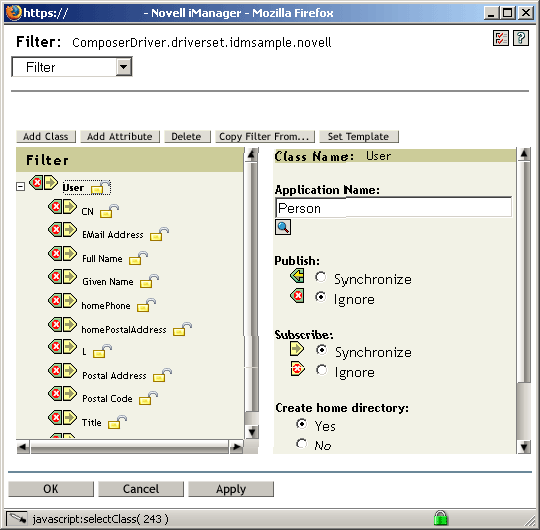
- Filters enable you to specify the classes and attributes that an application can send to and receive from eDirectory. The read-only Filter list on the left shows the attributes of the class. The Class Name list on the right displays options associated with the target object. Click the help button in the filter window for more information about the features of this window.
- Specify the attributes that the application can send to and receive from eDirectory. Select Synchronize for an attribute if you want changes to attribute values to be reported and synchronized. Select Ignore if you do not want changes to attribute values to be reported and synchronized.
- Select OK. You are returned to the DirXML Driver Overview page.
- Repeat Step 3 through Step 16 for the Subscriber channel.
- Click on the driver icon (on the right side of the page) to display the Modify Object dialog box.
- Check that the driver parameters are correct for your environment.
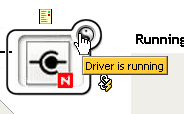
- To start or stop the driver, click on the rounded "status indicator" in the upper right corner of the driver icon, and select the appropriate command from the menu.
-
Copyright © 2004 Novell, Inc. All rights reserved. Copyright © 1997, 1998, 1999, 2000, 2001, 2002, 2003 SilverStream Software, LLC. All rights reserved. more ...