

| |
If you already have an UNIX NIS Server (text-based) and you want the new NetWare NIS Server to serve the same data served by the old NIS server, you can copy all those text files into the specified location and then run the migration utility to create NDS entries for a specified domain.
The migration utility creates the Domain object in the default context as well as two other containers in the same context with the names domainname_U and domainname_G. During the migration, the utility searches for existing NDS users and groups under the containers specified by the SEARCH_ROOT configuration parameter (specified in NFS.CFG) and, based on the migration option specified, modifies the UNIX information of those objects. If the objects are not found, the users are migrated to domainname_U and the groups are migrated to domainname_G. The rest of the data is migrated under the Map objects created under the Domain object.
IMPORTANT: The User and Group objects will not be created under the passwd and group Map object. They will spread across the NDS tree and DomainName_U, DomainName_G depending upon the SEARCH_ROOT configuration parameter.
Maps can be migrated using the following three options:
UPDATE---(Default) Updates all existing objects' information with the new information. If no objects exist, it creates new ones.
REPLACE---Deletes all existing objects and creates new ones. For passwd and group maps, the old objects are not deleted.
MERGE---Retains all existing objects' information and logs them as conflicting records in the MAKENIS.LOG file. If no objects exist, it creates new ones.
Before migrating the users and groups, remove the password field ("*", "x", or "!") from the corresponding text file and then migrate. After doing this, you can set the UNIX password. This is done by making the UNIX machine an NIS client to the NetWare machine, logging in as that NIS user, and running an NIS client utility named YPPASWD to set the UNIX password.
NOTE: The password for a migrated UNIX user (one who already has the password) cannot be set from an NIS client. A password can be set only for users who do not have a password.
For more information on UNIX user management, see UNIX User Management Using eDirectory .
Migration, by default uses the makefile SYS:ETC/NIS/NISMAKE, which contains the location of the text file for every map. The general syntax of the migration utility is:
makenis [-r resultfilename -[r]d domainname [-n context] [-f nismakefilename] {[mapname -[l|b]p line or byte object in mapname]...}
NOTE: All options should be used only in the specified order.
makenis -d domainname
The parameter domainname is mandatory.
makenis -r resultfilename -d domainname
makenis -rd domainname
makenis -d domainname -x contextname
Edit the context parameter by prefixing each of the dots in the Relative Distinguished Names with a backslash (\) to distinguish them from NDS names.
makenis -d domainname -f makefilepath
To specify the text files that you want to migrate, modify the NIS makefile. The NIS makefile is in the following format: The comment character is the pound sign (#). If nothing is specified, all the files in the makefile are migrated. For each map, you can specify the SECURE parameter so that only requests coming from secure ports are able to access the data. You can also specify the migration options: UPDATE, REPLACE, or MERGE. For the Password map, you can specify two additional parameters: -u uid (which stops users with a UID less than a particular value from migrating to NDS) and AUTOGEN (which generates a UID from the program itself). You must specify the text file in the full path in DOS name format.map name full path parameters (if any)
makenis -d domainname mapname1, mapname2
makenis -d domainname mapname -lp lineoffset
Or makenis -d domainname mapname, -bp byteoffset
Line offset is used to start migration from a particular line from the map text file. If the migration fails while migrating large maps, instead of migrating it again from the beginning, you can specify the byteoffset to start from the offset specified in the migration log file. For more details on this offset, refer to the description of the configuration parameter FILEMARK_LOG_FREQ in NIS.CFG. Makenis adds users to the Members attribute, gives the user the rights equivalent to that of the group, and updates its Group Membership attribute.
In the left panel of ConsoleOne, click The Network.
Select the server's tree where you want to manage the domains and maps.
Click the toolbar M icon.
The following panel appears:
Figure 5
Migration Panel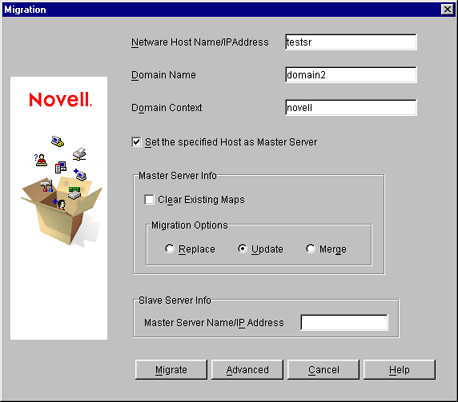
To migrate a domain, enter the NetWare Host Name/IP Address, Domain Name, and Domain Context.
To set the NIS Server as master for this specified domain, check Set the Specified Host As Master Server.
In the Master Server Info section, check Clear Existing Maps if you want to clear the maps already present.
Click the radio button for the type of the migration you want to perform: Replace, Update, or Merge.
To set the NIS Server as Slave Server, enter the Master Server Name/IP Address in the Slave Server Info section.
To migrate the domain for default maps, click Migrate.
The available default maps are ethers, hosts, networks, protocols, RPC, services, passwd, group, netgroup, and bootparams. By default, these files should be present in SYS:\ETC\NIS.
To migrate the domain for specific maps, click Advanced to go to the Map Information panel.
Figure 6
Map Information Panel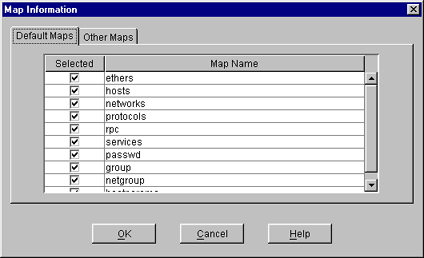
To modify an existing map or add a new map, click Add to go to the Add Map panel.
Figure 7
Add Map Panel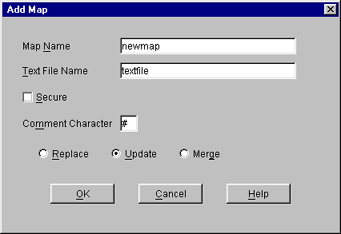
Click Migrate.
NOTE: When performing special map migration through ConsoleOne, the complete path of the file is required (for example, SYS:ETC\NIS\PHLIST).
You can add and modify the information of a User or Group object that already exists in NDS.
In the left panel of the ConsoleOne main menu, click the NDS tree where the object resides.
If you do not find the tree, click Novell Directory Services and then select the tree and log in to it.
Double-click the container named domainname_U, where the User objects reside.
The User objects under this particular container appear.
Right-click the User object whose properties you want to change and click Properties.
The following panel appears, displaying the various tabs that should be specified to add and modify the user information in NDS.
All the tabs except the UNIX Profile tabs are standard forms.
Figure 8
UNIX Profile Tab of User Properties Panel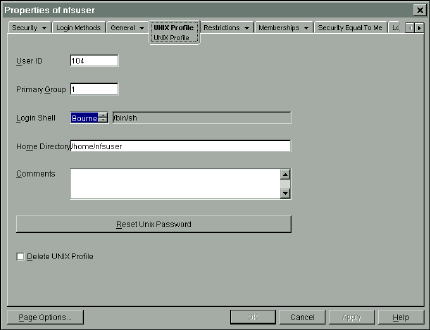
To modify the UNIX user profile, click UNIX Profile and specify the information in the following fields:
User ID---The users' UNIX UID.
Primary Group---The group ID (GID) of the group this user belongs to. To enter the GID of the user, click Browse and select the appropriate group.
Login Shell---The preferred login shell of the user.
Home Directory---The home directory the user wants to be placed in while logging in to the system.
Comments---Any other comments that the user might want to specify.
Reset UNIX Password---Use to reset the user's UNIX password.
Click Apply > OK.
In the left panel of the ConsoleOne main menu, click the NDS tree where the object resides.
If you do not find the tree, click Novell Directory Services and then select the tree and log in to it.
Double-click the container domainname_G, where the Group objects reside.
The groups under this particular container appear.
Right-click the Group object whose properties you want to change and click Properties.
The following panel appears, showing the various forms which should be specified to add and modify the group information in NDS.
All the forms except the UNIX Profile form are standard forms.
Figure 9
UNIX Profile Tab of Group Properties Panel
To modify the UNIX group profile, click the UNIX Profile tab and specify the information in the following field:
Group ID---The group's UNIX GID.
Click Apply > OK.
To add a new user, do the following:
In the left panel of the ConsoleOne main menu, click the context where you want to add the new user.
Select File > New, and then click User.
Enter the user information.
To add a new group, do the following:
In the left panel of the ConsoleOne main menu, click the context where you want to add the new group.
Select File > New, and then click Group.
Enter the group information.
To make this newly added user/group an NIS User and NIS Group record, add the attribute nisUserGroupDomain to the object. This attribute holds a list of the domains to which that record belongs.
IMPORTANT: When any update to a UNIX profile is done from ConsoleOne, execute NFSSTOP and NFSSTART, for NFS server to get the modified UNIX information.
To delete a user, do the following:
In the left panel of the ConsoleOne main menu, click the context where you want to delete the user from.
To delete the user from all the domains and from NDS, select the user and delete by pressing the Delete key on the keyboard.
Or,
To delete the user from a specific domain, right-click User > Properties > Other Tab > nisUserGroupDomain attribute > Select the domain and delete by clicking the Delete button.
To delete a group, do the following:
In the left panel of the ConsoleOne main menu, click the context where you want to delete the group from.
To delete the user from all the domains and from NDS, select the group and delete by clicking the delete button.
Or
To delete the group from a specific domain, right - click User > Properties > Other Tab > nisUserGroupDomain attribute > Select the specific domain and delete by clicking the Delete Button.
When the migration utility, makenis is executed, the log file MAKENIS.LOG is created by default in SYS:\ETC\NIS. This file records messages that provide following information:
IMPORTANT: Even in a clustered environment, MAKENIS.LOG is created in SYS:\ETC\NIS or in the path specified in the configuration parameter LOG_FILE_PATH.
| |