5.3 Creating a Trusted Provider
The procedure for establishing trust between providers begins with obtaining metadata for the trusted provider. If you are using the Novell Identity Server, protocol-specific metadata is available via a URL. Examples of metadata URLs for server 10.1.1.1 would be:
-
Liberty: http://10.1.1.1:8080/nidp/idff/metadata
-
Liberty: https://10.1.1.1:8443/nidp/idff/metadata
-
SAML 1.1: http://10.1.1.1:8080/nidp/saml/metadata
-
SAML 1.1: https://10.1.1.1:8443/nidp/saml/metadata
-
SAML 2.0: http://10.1.1.1:8080/nidp/saml2/metadata
-
SAML 2.0: https://10.1.1.1:8443/nidp/saml2/metadata
The default values nidp and 8080 are established during product installation; nidp is the Tomcat application name. If you have set up SSL, you can use https and port 8443.
-
In the Administration Console, click > > > > .
For the protocol, click , , or .
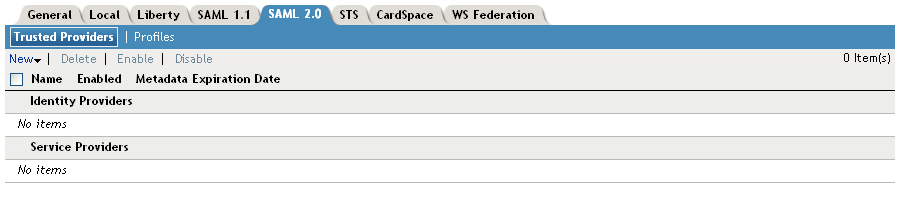
-
Click , then click or .

-
In the option, specify a name by which you want to refer to the provider.
-
Select one of the following sources for the metadata:
Metadata URL: Specify the metadata URL for a trusted provider. The system retrieves protocol metadata using the specified URL.
If your Identity Server and Administration Console are on different machines, use HTTP to import the metadata. If you are required to use HTTPS with this configuration, you must import the trusted root certificate of the provider into the trust store of the Administration Console. You need to use the Java keytool to import the certificate into the cacerts file in the security directory of the Administration Console.
Linux: /opt/novell/java/jre/lib/security
Windows: C:\Program Files\Novell\jre\lib\security
If you do not want to use HTTP and you do not want to import a certificate into the Administration Console, you can use the option. In a browser, enter the HTTP URL of the metadata. View the text from the source page, save the source metadata, then paste it into the option.
Metadata Text: An editable field in which you can paste copied metadata text from an XML document, assuming you obtained the metadata via e-mail or disk and are not using a URL. If you copy metadata text from a Web browser, you must copy the text from the page source.
Embedded Service Provider: (Liberty only) Access Gateway and application server agents (J2EE or Windows) include an Embedded Service Provider (ESP) that can be trusted by identity providers. ESPs run in the same enterprise as the identity provider, and are therefore created and configured in the same directory. The ESP enables all of the single-sign on functionality for Access Gateway or agent. Installed ESPs are displayed in a drop-down list for you to select as a trusted entity. You do not need to enter metadata for an ESP; it is automatically generated.
Manual Entry: (SAML 1.1 only) Allows you to enter metadata values manually. When you select this option, the system displays the Enter Metadata Values page. See Editing a SAML 1.1 Identity Provider’s Metadata.
-
Click .
-
Review the metadata certificates, then select one of the following actions:
-
(Identity Provider only) Configure an authentication card to use with this identity provider. Fill in the following fields:
ID: (Optional) Specify an alphanumeric value that identifies the card. If you need to reference this card outside of the Administration Console, you need to specify a value here. If you do not assign a value, the Identity Server creates one for its internal use
Text: Specify the text that is displayed on the card to the user.
Login URL: (Conditional) If you are configuring an authentication card for SAML 1.1, specify an Intersite Transfer Service URL.The URL has the following format, where idp.sitea.novell.com is the DNS name of the identity provider and idp.siteb.novell.com is the name of the service provider:
https://idp.sitea.novell.com:8443/nidp/saml/idpsend?PID=https://idp.siteb.novell.com:8443/nidp/saml/metadata&TARGET=https://idp.siteb.novell.com:8443/nidp/app
For more information, see Specifying the Intersite Transfer Service URL for the Login URL Option.
Image: Specify the image to be displayed on the card. Select the image from the drop down list. To add an image to the list, click .
Show Card: Determine whether the card is shown to the user, which allows the user to select and use the card for authentication. If this option is not selected, the card is only used when a service provider makes a request for the card.
-
Click . The system displays the trusted provider on the protocol page.
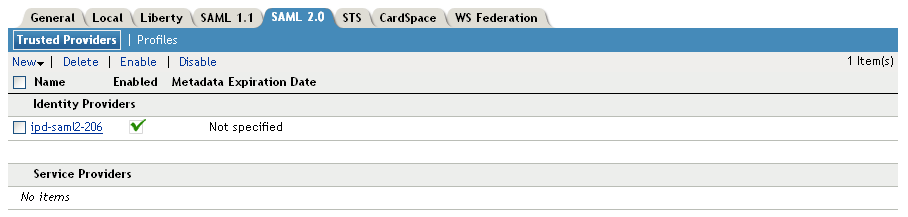
-
Click , then update the Identity Server.
The wizard has you configured the required options and relies upon the default settings for federation. For information about how to configure the default settings and how to configure the other available options, see Section 5.4, Modifying a Trusted Provider.