6.3 Authenticating with a Personal Card
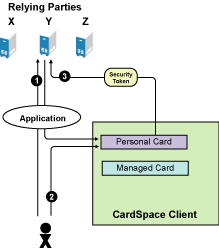
The following scenario explains how to configure the Identity Server to be a relying party and then allow the user to log in to the Identity Server using a personal card. Figure 6-3 illustrates this process:
Figure 6-3 Using a Personal Card to Authenticate to a Relying Party
-
The user requests authentication at the Identity Server by entering the base URL of the Identity Server in browser. This opens the user portal application.
-
The user selects an authentication card that requires a personal card.
-
From the available cards in CardSpace, the user selects the card that meets the security requirements, and the CardSpace client software sends it to the Identity Server.
To configure this scenario:
-
In the Administration Console, click > > .
-
In the section, enable and .
-
Click CardSpace > , then fill in the following fields:
ID: (Optional) Leave this field blank.
Text: Specify the text that is displayed on the card to the user, for example, CardSpace.
Image: Select the image from the drop-down list. For CardSpace, you can use the default CardSpace image or any other image in the list.
Show Card: Enable the option. The Identity Server then displays this card as a login option.
-
In the Profiles section, click , then fill in the following fields:
Name: Specify a display name for the profile, such as Personal Card.
ID: (Optional) Leave this field blank.
Text: Specify the text that is displayed on the card to the user for this profile, such as Personal Card.
Issuer: From the drop-down list, select
Token Type: SAML 1.1 is displayed as the token type for the assertion.
-
Click , then specify the attributes for the personal card.
Attribute set: Select the attribute set.
Required attributes: From the list, move the attributes that you want the card to return to the list.
For this scenario, move and to the list. The attribute should always be in the required list.
Optional attributes: From the list, move the attributes that the card can return, but is not required to return, to the list.
For this scenario, move .
-
Click , then specify the user identification method.
Satisfied contracts: (Optional) For this scenario, do not select a contract.
Allow federation: Enable this option so that the personal card can be linked with the user’s account. If you do not enable this option, the user is always prompted for credentials.
Authenticate: Select Authenticate for the user identification method. This prompts the user for a name and a password the first time the card is used for authentication.
-
Click > .
-
Update the Identity Server.
-
In the browser, enter the base URL of the Identity Server.
-
Select the authentication card you have created.
The CardSpace selector opens.
-
Create a personal card that meets the requirements of the authentication profile. Provide a value for First Name claim and optionally for the Last Name.
-
Save the card, then click .
-
Enter the username and a password for an account in the user store.
You are logged in. On subsequent logins, you do not need to enter the username and password.
A personal card can be used to access resources protected by an Access Gateway, but it needs used with a managed card. For this scenario, you need to complete the tasks in the following sections:
For more information about configuring the Identity Server to be a relying party and the other available options, see Section 6.6, Configuring the Identity Server as a Relying Party.