8.3 Configuring the Attribute Matching Method
If you enabled the option when selecting a user identification method, you must configure a matching method.
The Liberty Personal Profile is enabled by default. If you have disabled it, you need to enable it. See Section 10.2, Enabling Web Services and Profiles.
-
In the Administration Console, click > > > > > > .
-
Click .
-
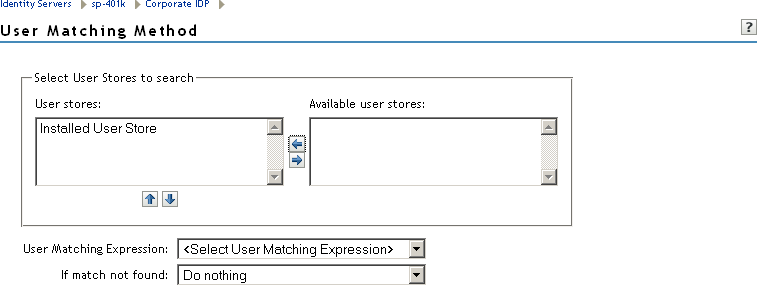
Select and arrange the user stores you want to use.
Order is important. The user store at the top of the list is searched first. If a match is found, the other user stores are not searched.
-
Select a matching expression, or click to create a look-up expression. For information on creating a look-up expression, see Section 4.3, Configuring User Matching Expressions.
-
Specify what action to take if no match is found.
-
Do nothing: Specifies that an identity provider account is not matched with a service provider account. This option allows the user to authenticate the session without identifying a user account on the service provider.
IMPORTANT:Do not select this option if the expected name format identifier is persistent. A persistent name format identifier requires that the user be identified so that information can be stored with that user. To support the option and allow anonymous access, the authentication response must be configured for a transient identifier format. To view the service provider configuration, see Section 5.4.6, Configuring an Authentication Response for a Service Provider.
-
Prompt user for authentication: Allows the user to specify the credentials for a user that exists on the service provider. Sometimes users have accounts at both the identity provider and the service provider, but the accounts were created independently, use different names (for example, joe.smith and jsmith) and different passwords, and share no common attributes except for the credentials known by the user.
-
Provision account: Assumes that the user does not have an account at the service provider and creates one for the user. You must create a provisioning method.
-
-
Click .
-
(Conditional) If you selected when no match is found, select the icon. For information on this process, see Section 8.4, Defining the User Provisioning Method.
-
Click twice, then update the Identity Server.