

| |
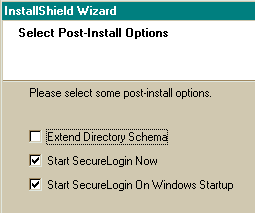
For SecureLogin to be able to save user single sign-on information, the eDirectory schema must be extended. Therefore, on the first workstation that you install into an NDS eDirectory tree, select Extend Directory Schema.
Do not select Extend Directory Schema for subsequent installations. You only extend the eDirectory tree schema once for SecureLogin.
To extend the schema of a given tree, you must have sufficient rights over the [root] of the tree.
If required, the workstation installation program will automate the extension of eDirectory.
Before attempting to update the schema, the InstallShield program checks to see whether the schema has been extended. To prevent InstallShield from repeatedly looking to update the schema, leave the Extend Directory Schema check box unchecked.
This option grants existing users rights to the SecureLogin attributes on the User object. Therefore, unless you have modified the user template object to give new users these rights (or otherwise made similar arrangements), you might need to run this tool whenever you add new SecureLogin users.
At the Select Post-Install Options screen, select Extend Directory Schema > click Next.
The extension may take some time to filter throughout your network, depending on the size of your network and the speed of the links.
Enter an eDirectory context so that SecureLogin can assign rights to User objects.
If this is the first installation of SecureLogin, you will be prompted to define a context where you would like the User objects' rights to be updated, allowing users access to their own single sign-on credentials.
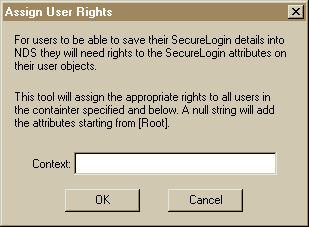
If the installation program displays a message similar to FFFFFD9D, you have probably entered an incorrect context or included a leading dot in the context.
Select a program folder for SecureLogin icons > click Next > Finish.
| |