

| |
This section describes how to access the external auditing menu tree and how to select an external audit trail for auditing. Password-based access is not supported for external audit trails. You should have read Using the AUDITCON Utility, which describes how to run AUDITCON and navigate the menu tree.
When you run AUDITCON, it displays a screen with one of the five Available audit options menus. The particular entry menu you see depends only on your current volume and the state of that volume audit trail.
NOTE: The external auditing state is independent of the state of volume and container auditing. You do not have to enable auditing of a volume or container or have access to a volume or container audit trail to perform external auditing.
Choose External auditing from the initial Available audit options menu (101, 102, or 103).
Press Enter.
AUDITCON displays menu 2000, which shows the full screen for external audit trail management. The second line of the header defines the NDS context where you are working.
Figure 107
Menu 2000: AUDITCON Full Screen for External Audit Trail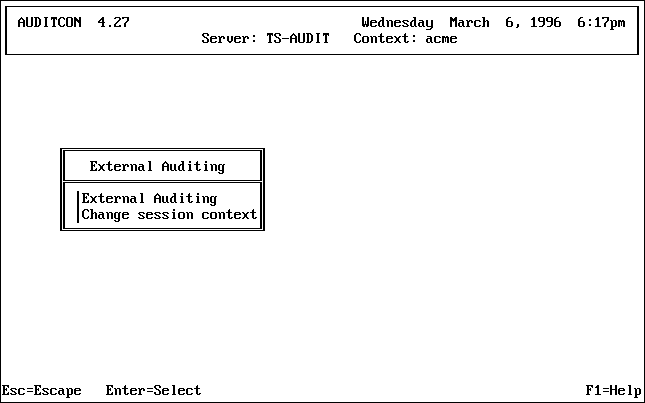
WARNING: The top line of the screen only shows the session (container name), and does not show the name of the external audit trail being manipulated. You must remember which external audit trail is in use to ensure that your actions are as intended.
To perform external audit management, your session context (shown in the second line of the header area) must point to the external audit trail.
AUDITCON provides two methods of changing your NDS session context.
To define a different external audit trail for auditing, choose Change session context in the External auditing menu (2000) and press Enter.
AUDITCON displays menu 2001, which allows you to edit the current session context
Figure 108
Menu 2001: Edit Session Context
Edit the current session context by backspacing and typing over the existing container name or pressing Home and inserting text at the beginning of the line.
When you are done, press Enter to change context to the specified external audit trail object.
If the Audit File object does not exist, AUDITCON displays an error report.
Return to menu 2000, then choose External auditing to begin auditing the Audit File object.
WARNING: AUDITCON does not display the name of the currently selected external audit trail on the screen. It is your responsibility to remember which audit trail you are working on at all times.
This section describes the second method of changing your NDS session context that was referred to in Change Session Context This option allows you to browse the Directory tree to select an Audit File object for auditing, then displays a menu that allows you to begin auditing that external audit trail. If you have already selected the container, then you do not need to browse the Directory tree.
Choose External auditing in the External auditing menu (2000) and press Enter.
AUDITCON displays menu 2010, which allows you to iteratively browse the Directory tree to select an external Audit File object for auditing.
Figure 109
Menu 2010: Audit Directory Tree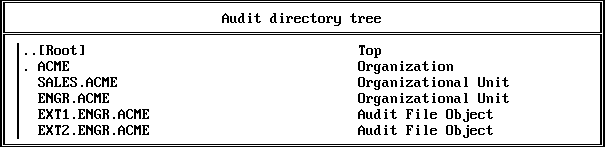
AUDITCON displays the parent of the current container (in this case, [Root], indicated by ..), the current container (in this case, ACME, indicated by .), any containers within the current container (in this case, SALES.ACME and ENGR.ACME), and any external Audit File objects within the current container (in this case, EXT1.ACME and EXT2.ACME).
NOTE: AUDITCON displays as external audit trails those Audit File objects that have the Audit Type property set to External. If your Audit File object was created with a utility that did not set the Audit Type property to External, then AUDITCON will be unable to locate it, and you will be unable to manage it.
If the menu does not show the external audit trail you want to audit, keep choosing the nearest ancestor and pressing Enter until AUDITCON shows the desired external Audit File object.
For example, if you want to audit EXT3.ENGR.ACME, which is not shown in menu 2010, you would first select ENGR.ACME. AUDITCON changes the session context and displays menu 2010-Updated.
Figure 110
Menu 2010-Updated: Audit Directory Tree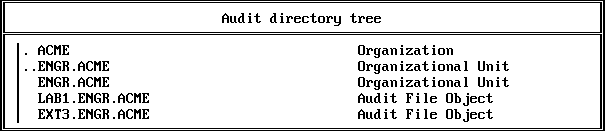
Move the cursor to the desired external Audit File object, and press F10 to review the external audit trail or press Enter to display menu 2010 with the new session context. From 2010 you can select the current object for auditing.
AUDITCON now changes your NDS context to the selected external audit trail, and updates the context field in the display header area to show the name of the container where that Audit File Object is found.
WARNING: AUDITCON does not display the name of the currently selected external audit trail on the screen. It is your responsibility to remember which audit trail you are working on at all times.
If, instead of using an existing external audit trail, you want to create a new audit external audit trail, you should select the container as shown above. Instead of pressing F10 to select an existing Audit File object, press Insert.
Unlike volume or container audit trails, external audit trails are not created automatically by enabling auditing. Rather, you must use AUDITCON to create a new Audit File object.
AUDITCON will establish a default configuration for the new Audit File object, including setting up the Audit Path property of the Audit File object to point to a volume where the external audit data will be stored. However, AUDITCON won't set up the Audit Link List property of the Audit File object to point to other objects (for example, workstations) that might generate audit data, nor will it set up the Audit File Link property of the other objects to point to the Audit File object.
NOTE: If your client vendor supplies a tool to set up the Audit Link List and Audit File Link properties, it is a good idea to use it to assist in the maintenance of your audit trail. However, it is not necessary to set these properties, and if you do not set them it will not have any negative impact on performance or security. NetWare Administrator will not delete an Audit File object if it has a non-empty Audit Link List property.
NetWare does not impose any limits on the number of external audit trails you can have. Consult your client documentation for guidance on how to determine how many external audit trails you need, and how they should be managed. Note that AUDITCON does not provide any means for merging records from multiple external audit trails, so it is best not to create too many different trails which would require manual correlation.
WARNING: If you have more than one type of client that uses external audit trails (that is, from two different workstation vendors), you should not allow them to insert their audit records into the same audit trail. Although audit records are identified as to the vendor that created them, post-processing software might not include facilities to sort out the different vendor record types.
Depending on your client architecture, it might be important what container the Audit File objects are stored in, and what volume holds the actual audit data. See your client documentation for any such restrictions.
Creating the external audit trail consists of selecting the name of the Audit File object and selecting the volume and server where the Audit File object will be stored.
Once the Audit File object is created, you can use a tool such as NetWare Administrator to set NDS rights to allow auditors access to the Audit File object (and the corresponding audit data) for management purposes and to allow clients to append to the audit trail. See Controlling Access to Online Audit Data for a description of the rights needed for each of these purposes.
Follow the instructions in External Auditing to choose a container, and then press Insert.
Type the common name of the external Audit File Object you want to create (for example, EXT3) in the Name field, and press Enter.
Do not enter the distinguished object name.
AUDITCON now displays a list of available volume objects on which the files that collect auditing data can be placed.
Move the cursor to the desired volume, and press F10 to select it.
The menu will now appear as in menu 2061.
Figure 111
Menu 2061: Create External Audit File Object
Press F10 to create the Audit File object or Esc if you don't want to create the object.
If you press F10, AUDITCON creates the Audit File object in the specified container and the external audit data files in the specified server.
The external audit trail is now enabled. AUDITCON will update the screen to show the newly created external audit trail at the top, and will place you in menu 2101.
After you've selected a specific container for auditing, AUDITCON selects the screen to display depending on
Table 17 summarizes the algorithm AUDITCON uses to determine which screen to display.
Table 17. External Audit Trail Entry Screens
| Sufficient Rights | Container Audit Enabled | Screen |
|---|---|---|
Yes |
Yes |
Menu 2101 |
Yes |
No |
Enable External Auditing displayed as the only option |
No |
Yes |
Error message |
No |
No |
Error message |
The three top-level Available audit options menus for external auditing are summarized, as follows.
Menu 2101: AUDITCON displays this menu when the auditor has NDS rights to the selected external audit trail.
Figure 112
Menu 2101: Available Audit Options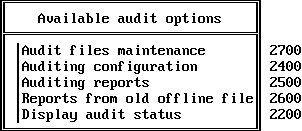
When the selected external audit trail is not enabled for auditing, this screen displays Enable External Auditing as the only option.
When you do not have rights to access the audit trail, an error report displays.
| |