

| |
AUDITCON allows you to process online and offline audit files to extract and review the information the server has collected for you. Processing consists of displaying audit information on the AUDITCON screen (viewing) and generating printable reports (printing).
This section describes how to process online audit files, that is, the current audit file or old audit files that have been archived (rolled over) by the server but are still maintained as audit files by the server. See Generating Reports from Offline Audit Files for information on how to process offline audit files.
For external audit, textual audit reports are provided only for audit history (management) records. For this reason, there is no post-selection filtering capability provided. To see the externally generated audit records, you must store them into a file (using the Report audit file or Report old audit file options) and then post-process them with a client-specific audit utility.
WARNING: Because AUDITCON places temporary files in the directory you were in when you started AUDITCON, and these temporary files contain audit data, you must not generate any reports unless your current directory is protected from access by users who are not authorized to see audit data.
Choose Auditing reports from the Available audit options menu (2101).
AUDITCON displays menu 2500.
Figure 116
Menu 2500: Auditing Reports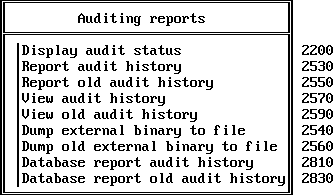
Choose the desired auditing report option, and press Enter.
You have several options available for creating and viewing reports from the records in audit files:
These options are addressed in the following sections.
This section describes how to generate a formatted text version of the auditor events in the current audit file.
NOTE: The procedures described in this section allow you to generate audit history report files on your local workstation. See your client documentation for details on how to use your workstation's security mechanisms to protect these files.
Choose Report audit history from the Auditing reports menu (2500).
AUDITCON prompts you for the name of the output file.
Enter the pathname for the file and press Enter.
AUDITCON attempts to create the file and displays an error screen if it cannot.
NOTE: If you do not specify a complete pathname, including the drive letter, AUDITCON leaves the report on your current drive. The safest approach is to specify the full pathname for your output file.
AUDITCON retrieves records from the current audit file, formats the records, and writes them to your output file. AUDITCON displays a Reading file message in the header area of your screen and a Please wait ... notification in the menu area. When it is finished, AUDITCON returns to menu 2500.
To review the contents of your report, exit to DOS and either print or use an editor.
This section describes how to generate a binary version of the externally generated events in the current audit file. You cannot directly print the server's audit files because
Once you have the stored binary version of the audit data, you should use a client-specific tool to generate textual versions of the audit data.
In addition, post-selection of the audit records is done with the client-specific tool. See your client documentation for instructions on how to manipulate the binary data.
WARNING: The audit file report contains audit records that must be protected. You must use appropriate workstation or server protections to protect against access to the file by unauthorized individuals.
The current audit file is a work in progress. As such, a report that is generated on the current audit file might not be the same as a subsequent report generated on the same file.
Note that storing external audit data (described here) is not the same as making a complete copy of an audit file (as described in Copy Old Audit File). They differ in two ways:
Each record in the stored external audit file consists of an external audit record header and client-specific audit data (as described in Audit File Formats).
Enter the pathname for the file and press Enter.
AUDITCON attempts to create the file and displays an error screen if it cannot.
Choose Dump External Binary to File from the Auditing reports menu (2500).
AUDITCON prompts you for the name of the output file.
NOTE: If you do not specify a complete pathname, including the drive letter, AUDITCON leaves the report on your current drive. The safest approach is to specify the full pathname for your output file.
AUDITCON retrieves records from the current audit file and writes unformatted records to your output file. Depending on the size of the audit file, this can be a time consuming process. AUDITCON displays a Reading file message in the header area of your screen and a Please wait ... notification in the menu area. When it is finished, AUDITCON returns to menu 2500.
To review the contents of your report, exit to DOS and use a client-specific tool to examine the audit data.
This section describes how to generate a formatted text version of the auditor events in an old online audit file.
Choose Report old audit history from the Auditing reports menu (2500).
AUDITCON displays menu 2550, which lists up to 15 old audit files that are still maintained online by the server. The old audit files are sorted by date and time (oldest first). The dates and times displayed show when the audit file was created (that is, when it started accumulating audit events).
Figure 117
Menu 2550: Select Old Audit File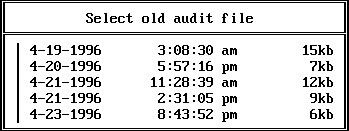
Move the cursor to choose the desired audit file, then press Enter.
AUDITCON prompts you for the name of the output file.
Enter the pathname for the file and press Enter.
AUDITCON attempts to create the file and displays an error screen if it cannot.
NOTE: If you do not specify a complete pathname, including the drive letter, AUDITCON leaves the report on your current drive. The safest approach is to specify the full pathname for your output file.
AUDITCON retrieves records from the current audit file, formats the records, and writes them to your output file. AUDITCON displays a Reading file message in the header area of your screen and a Please wait ... notification in the menu area. When it is finished, AUDITCON returns to menu 2500.
To review the contents of your report, exit to DOS and either print or use an editor.
This section describes how to generate a binary version of the externally generated events in an old audit file. You cannot directly print the server's audit files, because the server's audit files are not directly accessible to network clients and the server's audit files are stored in a compressed format.
Once you have the stored binary version of the audit data, you should use a client-specific tool to generate textual versions of the audit data. In addition, post-selection of the audit records is done with the client-specific tool. See your client documentation for instructions on how to manipulate the binary data.
WARNING: The audit file report contains audit records that must be protected. You must use appropriate workstation or server protections to protect against access to the file by unauthorized individuals.
Note that storing external audit data (described here) is not the same as making a complete copy of an audit file (as described in Copy Old Audit File). The two differ in two ways:
Each record in the stored external audit file consists of an external audit record header and client-specific audit data (as described in Audit File Formats).
Choose Dump Old External Binary to File from the Auditing reports menu (2500).
AUDITCON displays menu 2560, which lists up to 15 old audit files that are still maintained online by the server. The old audit files are sorted by date and time (oldest first). The dates and times displayed show when the audit file was created (that is, when it started accumulating audit events)
Figure 118
Menu 2560: Select Old Audit File
Move the cursor to choose the desired audit file and press Enter.
AUDITCON prompts you for the name of the output file.
Enter the pathname for the file and press Enter.
AUDITCON attempts to create the file and displays an error screen if it cannot.
NOTE: If you do not specify a complete pathname, including the drive letter, AUDITCON leaves the report on your current drive. The safest approach is to specify the full pathname for your output file.
AUDITCON retrieves records from the selected old audit file and writes unformatted records to your output file. Depending on the size of the audit file, this can be a time consuming process. AUDITCON displays a Reading file message in the header area of your screen and a Please wait ... notification in the menu area. When it is finished, AUDITCON returns to menu 2500.
To review the contents of your report, exit to DOS and use a client-specific tool to examine the audit data.
This section describes how to display a listing of the auditor events on the screen of your workstation.
Choose View audit history from the Auditing reports menu (2500).
AUDITCON reads the current audit file and displays screen 2570, the first screen of audit history events.
Figure 119
Menu 2570: Audit History Events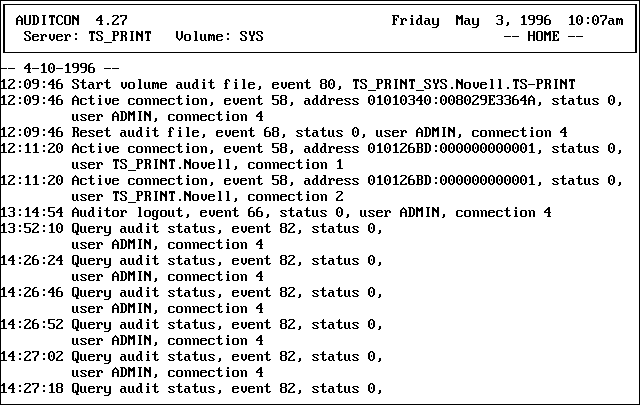
Press the Home, End, Page Up, Page Down, and arrow keys to move through the display. When you are finished, press Esc and answer Yes to return to menu 2500.
NOTE: The Auditor login event means that an auditor began accessing the audit file, while the Auditor logout event means that an auditor ceased accessing the access file. These events do not indicate user logins or logouts.
This section describes how to display a listing of the auditor events from an old online audit file to the screen of your workstation.
Choose View old audit history from the Auditing reports menu (2500).
AUDITCON displays menu 2590, which lists up to 15 old audit files that are still maintained online by the server. The old audit files are sorted by date and time (oldest first). The dates and times displayed show when the audit file was created (that is, when it started accumulating audit events).
Figure 120
Menu 2590: Select Old Audit File
Move the cursor to choose the desired audit file, then press Enter.
AUDITCON retrieves records from the current audit file, formats the records, and displays them to your screen (menu 2570).
Press the Home, End, Page Up, Page Down, and arrow keys to move through the display. When you are finished, press Esc and answer Yes to return to menu 2500.
This section describes how to generate a formatted text version of the auditor events in the current audit file in a format suitable for loading into a database.
Choose Database report audit history from the Auditing reports menu (2500).
AUDITCON prompts you for the name of the output file.
Enter the pathname for the file and press Enter.
AUDITCON attempts to create the file and displays an error screen if it cannot.
NOTE: If you do not specify a complete pathname, including the drive letter, AUDITCON leaves the report on your current drive. The safest approach is to specify the full pathname for your output file.
AUDITCON retrieves records from the current audit file, formats the records, and writes them to your output file. AUDITCON displays a Reading file message in the header area of your screen and a Please wait ... notification in the menu area. When it is finished, AUDITCON returns to menu 2500.
Exit to DOS and use an appropriate database loading program to insert the audit history records into a database for review.
See Format of the Database Output File for a description of the format of the database file.
This section describes how to generate a file containing the auditor events in an old online audit file in a form suitable for loading into a database.
Choose Database report old audit history from the Auditing reports menu (2500).
AUDITCON displays menu 2830, which lists up to 15 old audit files that are still maintained online by the server. The old audit files are sorted by date and time (oldest first). The dates and times displayed show when the audit file was created (that is, when it started accumulating audit events).
Figure 121
Menu 2830: Select Old Audit File
Move the cursor to choose the desired audit file, then press Enter.
AUDITCON prompts you for the name of the output file.
Enter the pathname for the file and press Enter.
AUDITCON attempts to create the file and displays an error screen if it cannot.
NOTE: If you do not specify a complete pathname, including the drive letter, AUDITCON leaves the report on your current drive. The safest approach is to specify the full pathname for your output file.
AUDITCON retrieves records from the current audit file, formats the records, and writes them to your output file. AUDITCON displays a Reading file message in the header area of your screen and a Please wait ... notification in the menu area. When it is finished, AUDITCON returns to menu 2500.
Exit to DOS and use an appropriate database loading program to insert the audit history records into a database for review.
See Format of the Database Output File and Audit File Formats for a description of the format of the database file.
Each line in the output file represents a single audit record. Each line consists of a series of comma-separated fields in the following order:
This format is suitable to be imported into most databases by specifying that the input is a comma separated text file.
| |