

| |
This section describes how you can use AUDITCON's external audit trail configuration menu to define how audit files are handled (size, threshold, automatic archive, and recovery from audit file overflow).
Choose Auditing Configuration from the Available audit options menu (2101).
AUDITCON displays menu 2400, which lists more configuration options.
Figure 114
Menu 2400: Auditing Configuration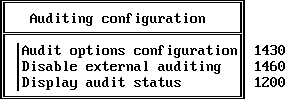
Choose the desired configuration option, and press Enter.
These configuration submenus are addressed in the following sections.
WARNING: When you make changes to the external audit configuration, you might receive a message that AUDITCON was unable to update the Audit File object. If this occurs, it is possible that your configuration changes could be lost.
Choose Audit options configuration from the Auditing configuration menu (2400).
AUDITCON displays menu 2430, which defines the current audit configuration for the external audit trail.
Figure 115
Menu 2430: Select Audit Configuration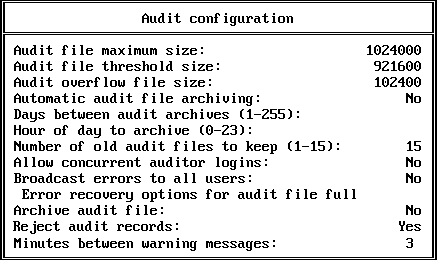
The following list describes the available configuration parameters for external audit trails. The first nine parameters (Audit file maximum size through Broadcast errors to all users) have the same meaning as for volume auditing.
For more information on these parameters, refer to the description of the corresponding volume configuration parameters in Audit Options Configuration.
WARNING: When computing the overflow audit file size (as described in Audit Options Configuration) for an external audit trail, you must use the value for the number of service processes on the server where the audit data is stored.
The server provides two options for handling external audit file overflow. The options are: Archive audit file and Reject audit records.
Table 18. Overflow Options
| Overflow option | Description |
|---|---|
Archive audit file |
With this setting, the server archives the current audit file and creates a new audit file. If necessary (because the maximum number of old online audit files already exists), the server deletes the oldest of the old online audit files. |
Reject audit records |
With this setting, the server refuses to accept additional externally generated audit records when the current audit file has reached the Audit file maximum size or the server cannot write the current audit file (for example, out of disk space). The server does not attempt to roll over to a new audit file, even if audit files and disk space are available. To recover, you must reset the current audit file as described in Reset Audit Data File. This is the only overflow option that guarantees that you will not lose audit data. Consequently, if collecting audit data is important, then you should use this setting, even thought it might inconvenience users. |
Minutes between warning messages |
The server sends warnings to the console at this frequency if the audit file is full and the overflow option is configured to either Disable record submission or Reject audit records. |
Enter the new configuration value in the field you want to change.
For numeric fields, type the new value over the old value and press Enter. For Yes/No fields, type Y or N.
Depending upon your change, the server might modify other values on the configuration screen. For example, if you set Automatic audit file archiving to No, the server will blank out the entries for Days between audit archives and Hour of day to archive.
Review the settings on the current screen and change as required.
Press Esc to exit the menu.
NOTE: Audit files consume disk resources that might be needed by other users. Before you define the number and size of audit files, discuss your projected disk space requirements with an administrator for the server.
When you disable an external audit trail, you stop the server from accepting or recording audit events to the external audit file, but you do not delete the Audit File object or the audit files. The Audit File object remains in effect and is reused (to provide an initial configuration) if you re-enable auditing for the external audit trail.
After external auditing has been disabled, it can be re-enabled using the Enable External Auditing menu (see Enabling External Auditing).
Choose Disable external audit trail from the Auditing configuration menu (2400).
AUDITCON asks you to confirm that you want to disable auditing for the external audit trail.
Choose Yes and press Enter to disable auditing, or No to continue auditing.
AUDITCON returns to menu 2010.
| |