

| |
This section describes how you can use AUDITCON to close, copy, delete, and display the server's old audit files. These mechanisms work only for old audit files (the files maintained online by the server). You cannot perform these operations on offline audit data files. The only operation you can perform on the server's current audit file is to reset the file, which causes the server to create a new current audit file.
WARNING: Maintenance of each container audit trail must be performed on a single server which holds a replica of the audit trail. It doesn't matter which one you choose, but all auditors of the container must use that copy. Failure to use a single copy for maintenance can cause unexpected results and/or loss of configuration changes.
Choose Audit files maintenance from the Available audit options menu (1101).
Press Enter.
AUDITCON displays menu 1700, which lists more maintenance options.
Figure 104
Menu 1700: Audit Files Maintenance
This section describes how to copy old online audit files to removable media (for example, diskettes or magnetic tapes), workstation directories, or network drives. The primary reason for copying an audit file is to save the contents of the file before you delete it from the server (see Delete Old Audit File). You might also want to copy an old audit file to removable media to save it for evidence or to keep it for long-term storage.
Choose Copy old audit file from the Audit files maintenance menu (1700).
AUDITCON displays menu 1710, which lists up to 15 old audit files that are maintained online by the server. The old audit files are sorted by date and time (oldest first). The dates and times displayed show when the audit file was created (that is, when it started accumulating audit events).
Figure 105
Menu 1710: Select Old Audit File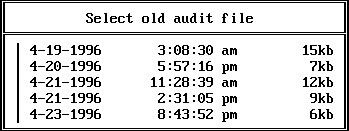
NOTE: There is no mechanism for copying the contents of the current audit file. If you want to copy this data, you must first reset the audit data file (see Reset Audit Data File).
You can copy only one file at a time. If you want to copy multiple audit files, perform the steps in this section once for each file.
Move the cursor to select the desired audit file, then press Enter.
AUDITCON prompts you for the name of the offline audit file.
Enter the filename of the destination audit file and press Enter.
The pathname must be a DOS pathname on your local workstation, for example, A:\AUDIT301.DAT, C:\AUDIT\FILE1.DAT, or F:\AUDITOR\VOL1\A950224.DAT. If you do not specify a drive letter and directory, AUDITCON will leave the audit file in your current directory. The default pathname is AUDITOLD.DAT on your local drive.
AUDITCON displays a Please wait message while it copies the audit file from the server to your offline destination file. When it has copied the file, AUDITCON returns to menu 1700.
If you copy audit files from the server onto your local workstation's file system, you must ensure that the audit data is properly protected by your workstation.
If you copied the audit file onto removable media (for example, a diskette or tape cartridge), attach a diskette or tape label that shows the server name, volume name, your name, the date, time, and size of the audit file, along with any other specific comments that you feel are important. You must also ensure that the media is physically protected.
The purpose of this information is to ensure that in the future you can load the medium and generate meaningful audit reports from it.
WARNING: When backing up old audit files, you must remember to back up the file from each server that holds a replica of the audited container. Otherwise, you can lose some audit records that are stored on some (but not all) copies of the audit file.
NOTE: One strategy that is commonly used is to set the maximum audit file size so that one audit file will fit on a 1.44 MB diskette. See Audit Options Configuration for information on setting the audit file size.
The frequency at which you should copy the server's audit files to offline storage depends on how fast your server fills up audit files. If your server archives audit files on a periodic basis (as opposed to filling up the audit file), then you can set the number of audit files to 10 or 15, and copy/remove online audit files once per week without expecting to overflow the number of audit files.
This section describes how to delete an old audit file from the server's online storage after you've copied the file to offline storage or decided that you do not need to save the file.
WARNING: When you delete an old container audit file, you must delete the file on each server that holds a replica of the audited container.
Choose Delete old audit file from the Audit files maintenance menu (1700).
AUDITCON displays menu 1720, which lists up to 15 old audit files that are maintained online by the server. The dates and times displayed show when the audit file was created (that is, when it started accumulating audit events). The old audit files are sorted by date and time (oldest first).
Figure 106
Menu 1720: Select Old Audit File
NOTE: There is no mechanism for deleting the current audit file. If you want to delete the data in the current audit file, you must first reset the audit data file (Reset Audit Data File).
You can only delete one file at a time. If you want to delete multiple audit files, perform the steps in this section once for each file.
Move the cursor to select the desired audit file, then press Enter.
AUDITCON confirms that you want to delete the audit file.
WARNING: After you delete an online audit file, there is no way to recover the contents of the file. Do not delete the file unless you are absolutely certain that you will not require the data in the audit file. If there is any doubt, copy the audit file (Copy Old Audit File) to offline storage before you delete the file.
This section describes how to reset the current audit file. Reset is a manual means of causing the current audit file to be archived, that is, to cause the current audit file to become an old audit file and to establish a new current audit file.
Manual reset might be necessary, for example, if the server stops processing container requests because the volume is in an overflow state. See Audit Trail Overflow for information on recovering from container overflow.
Choose Reset audit data file from the Audit files maintenance menu (1700).
AUDITCON requests confirmation that you want to perform the reset.
Choose Yes and press Enter to reset the current container audit file.
| |