

| |
This section describes how you can use AUDITCON's container audit configuration menu to define
If the audit file is configured for level 2 passwords, and you don't have NDS access, then you must have the level 2 password to modify the auditing configuration. If you've logged in with a level 1 password, AUDITCON prompts for the level 2 password after each operation. See Controlling Access to Online Audit Data for information on password levels.
Choose Auditing Configuration from the Available audit options menu (1101).
AUDITCON displays menu 1497, 1498, or 1499, which list more configuration options, depending on the setting of the ALLOW AUDIT PASSWORDS option and whether you have sufficient rights to the Audit File object. See Getting Started for the definition of sufficient rights.
Table 14 summarizes the algorithm AUDITCON uses to determine which menu it will display, based on the above two variables.
Table 14. Container Audit Configuration Menu Selection
| Allow Audit Passwords = ON | Sufficient Rights | Menu |
|---|---|---|
Yes |
Yes |
1497 |
Yes |
No |
1498 |
No |
Yes |
1499 |
No |
No |
1499 |
Figure 74
Menu 1497: Auditing Configuration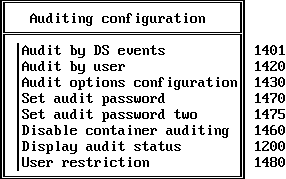
Figure 75
Menu 1498: Auditing Configuration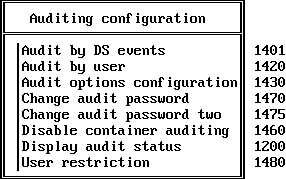
Figure 76
Menu 1499: Auditing Configuration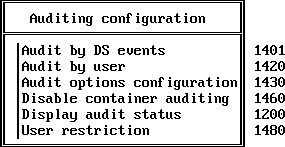
Choose the desired configuration option, and press Enter.
These configuration submenus are addressed in the following sections.
WARNING: When you make changes to the container audit configuration, you might receive a message that AUDITCON was unable to update the Audit File object. If this occurs, it is possible that your configuration changes could be lost.
Configuration of each container audit trail must be performed on a single server which holds a replica of the audit trail. It doesn't matter which one you pick, but all auditors of the container must use that one copy. Failure to use a single copy for configuration can cause unexpected results and/or loss of configuration changes.
This section describes how you preselect the NDS events to be audited in the container audit file. Preselection is the operation of telling the server, in advance, which types of audit events you want the server to record in an audit file. By preselecting the events that are important in your organization, you conserve disk space for recording other audit events.
NOTE: By default, the events you select will be recorded for all users of the container. If you only want to audit actions of certain users, you should set the User restrictions flag in the User restriction menu, and then preselect the specific users whose actions you want to record using the Audit by user menu.
You cannot generate audit reports for events or users that were not preselected for auditing when the event occurred. For example, if you need to review logins by a user two weeks ago, but you did not have logins preselected at that time, you will not be able to generate an audit report for these events. You must balance your need for certain audit information with the resources required to audit those events.
Choose Audit by DS events from the Auditing configuration menu (1497, 1498, or 1499).
AUDITCON displays menu 1401 which lists the NDS events that you can preselect for auditing. These events are usually associated with user actions performed at client workstations, and the audit record includes the identity of the user that requested the service.
Figure 77
Menu 1401: Audit by DS Events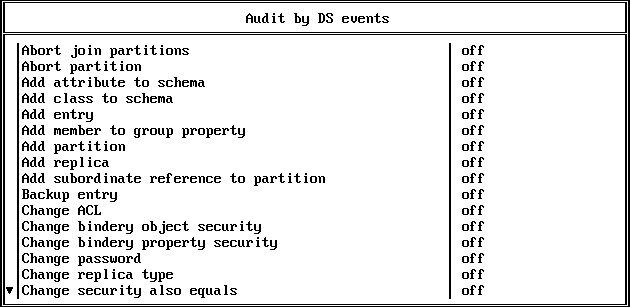
The following additional events can be displayed by scrolling the Audit by DS events screen.
WARNING: In addition to the events that are preselected for auditing, container audit trails also include pseudo-events that establish the context for reviewing audit events. For example, the server records logins and logouts for users in other containers, even if logins and logouts are not selected for the current container.
Determine the list of events that you want to audit. Move the cursor to each event and press F10 to toggle it to OFF or ON.
You can press F8 to toggle all events to ON or OFF.
When you have set and reviewed the audit event configuration, press Esc.
Choose Yes to save the changes and return to menu 1497, 1498, or 1499, or No to leave the audit events unchanged.
If level 2 passwords are enabled, AUDITCON will prompt for the level 2 password before making the change.
By default, selected container events are recorded for all users. If you want to preselect by user for container events, then you must use the User restriction menu to set the User restrictions flag for the container to Yes. The User restriction menu is reached from the Auditing Configuration Menu.
NOTE: If an auditor has rights to audit any volume or container in the network, that auditor is able to enable or disable auditing for any user in the Directory tree.
When you select a user for container auditing, the selection applies to all volumes and containers on all servers in the network. You cannot select user BOB for auditing of events on container LAB1.ENGR.ACME without also having BOB audited for events on all other volumes and all other containers in the network.
WARNING: The server keeps user audit flags in the associated User objects in NDS, but does not save that information when you back up NDS. If you ever restore NDS from a backup, the audit flags will be lost. You must keep a manual record of all users you've preselected for auditing to restore that information.
Table 15 shows a sample form for recording which users have been marked for auditing. You must keep a record of all such users for recovery purposes. If NDS is ever restored from a full backup, you will use this list to reconstruct your audit settings. Failure to keep such a record and use it can result in loss of audit data.
Table 15. Sample Format for User Auditing Settings
NOTE: Because NDS is a distributed system and some servers might be offline at any given time, selecting a user for auditing might involve a long delay before NDS can synchronize this information throughout the network.
Choose Audit by user from the Auditing configuration menu (1497, 1498, or 1499).
AUDITCON displays menu 1420, which lists containers that can hold User objects.
Figure 78
Menu 1420: Audit Directory Tree Users
Choose the container that holds the User objects and press Enter.
AUDITCON expands the menu to list the objects in that container.
To preselect a user for volume and container auditing, use the up and down arrow keys to scroll within the window. Choose a user and press F10 to toggle the user audit flag to ON or OFF.
You can preselect users in other containers by selecting the container, which will then show the users in that container. Non-User objects (for example, Organizational Unit objects) are displayed, but you cannot toggle the audit flag for those objects.
When you have set and reviewed the audit event configuration, press Esc.
Choose Yes to save the changes and return to menu 1420, or choose No to leave the audit events unchanged.
Choose Audit options configuration from the Auditing configuration menu (1497, 1498, or 1499).
AUDITCON displays menu 1430, which defines the current audit configuration for the container audit trail.
Figure 79
Menu 1430: Audit Configuration
The following list describes the available configuration parameters for container auditing. The first ten parameters (Audit file maximum size through Force dual-level audit passwords) are the same for container auditing and volume auditing. For more information on these parameters, refer to the description of the corresponding volume configuration parameters in Audit Options Configuration.
The line Force dual-level audit passwords is omitted if the ALLOW AUDIT PASSWORDS console parameter is OFF.
WARNING: When computing the overflow audit file size for a container audit trail, you must use the maximum value for the number of service processes on all servers where the container is stored. That is, if the container is stored on servers A, B, and C, you must use the highest value for the number of service processes in your calculation. Otherwise, your value might not be large enough and you could lose some audit data.
The server provides three options for handling container audit file overflow. The options, as shown in Table 16, Overflow Options, are Archive audit file, Disable audited events, and Disable event recording.
Table 16. Overflow Options
Move the cursor to the field you want to change and enter the new configuration value.
For numeric fields (for example, Audit file maximum size), type the new value into the field over the previous value, then press Enter. For Yes/No settings, type Y or N to change the value. Depending upon your change, the server might modify other values on the configuration screen. For example, if you set Automatic audit file archiving to No, the server will blank out the entries for Days between audit archives and Hour of day to archive.
If you enable Force dual-level audit passwords, AUDITCON will immediately prompt you (twice) to enter the new level 2 password.
Review the settings on the current screen, and change any settings as needed.
When you are finished, press Esc to exit the menu.
Choose Yes to save the changes and return to menu 1497, 1498, or 1499, or choose No to leave the audit configuration unchanged.
WARNING: Audit files consume disk resources that might be needed by other users. Before you define the number and size of audit files, discuss your projected disk space requirements with an administrator for each server that holds a replica of the container.
Controlling Access to Online Audit Data describes the use of the password-based mechanism for accessing audit files. This section describes how to change both level 1 and level 2 passwords. This section is applicable only if the ALLOW AUDIT PASSWORDS option is set to ON.
This procedure assumes that the auditor (not the system administrator) is the one performing these procedures and that the administrator has previously established the passwords and has shared them with the auditor. The auditor can change the level 1 password after logging in to the container.
To change the level 1 password, choose Change audit password from the Auditing configuration menu (1497, 1498, or 1499).
Enter the current (level 1) audit password as prompted by AUDITCON.
AUDITCON does not echo any password information to the screen.
If dual-level passwords are enabled, AUDITCON prompts you to enter the level 2 password before you can change the level 1 password. AUDITCON allows you to change the level 2 password using the same procedure used to change the level 1 password.
Enter the new (level 1) audit password when prompted by AUDITCON.
AUDITCON prompts you twice for the new password. This ensures that the auditor did not make an error when entering the password.
AUDITCON does not check the password for length, alphanumeric characters, or other characteristics of strong passwords, nor does it ensure that it is different from the previous password. Uppercase and lowercase characters are treated identically.
WARNING: If you use audit passwords to control access to the audit file, be sure not to reuse your server password as the audit password.
Controlling Access to Online Audit Data describes the use of the password-based mechanism for accessing audit files. This section describes how to set level 1 passwords and level 2 passwords (if level two passwords are enabled).
To set the level 1 password, choose Set audit password from the Auditing configuration menu (1497, 1498, or 1499).
AUDITCON prompts you to enter the new (level 1) container password.
Enter the new password as prompted by AUDITCON.
AUDITCON does not echo any password information to the screen
If dual-level passwords are enabled, AUDITCON prompts you to set the level 2 password before you can set the level 1 password. AUDITCON allows you to set the level 2 password using the same procedure used to change the level 1 password.
AUDITCON then prompts you to reenter the new password.
Reenter the new password when prompted by AUDITCON.
This ensures that the auditor did not make an error when entering the new password.
AUDITCON does not check the password for length, alphanumeric characters, or other characteristics of strong passwords, nor does it ensure that it is different from the previous password. Uppercase and lowercase characters are treated identically.
If dual-level passwords are enabled, AUDITCON prompts for you to enter the level 2 password before it will change the level 1 password.
WARNING: If you use audit passwords to control access to the audit file, be sure not to reuse your server password as the audit password.
NOTE: If you use a password to control access to an audit file, and forget the audit password, then you must use the rights-based as described in Controlling Access to Online Audit Data. Once you have access to the audit trail, you can reset the password as described in this section.
When you disable container auditing, you stop the server from recording audit events to the container audit file, but you do not delete the Audit File object for the container audit trail. The Audit File object remains, and is reused (to provide an initial configuration) if you re-enable auditing for the container.
After container auditing has been disabled, it can be re-enabled using the Enable External Auditing menu (see Enabling Container Auditing).
Choose Disable container auditing from the Auditing configuration menu (1497, 1498, or 1499).
Choose Yes and press Enter to disable auditing, or choose No to continue auditing.
AUDITCON returns to menu 1010.
This menu provides for setting the following audit control flags in the current container's Audit File object Audit Policy.
User Restriction. By default, when you preselect a container event (see Audit by DS Events), the events you select are audited for all users. However, if you set the User restriction flag, the server audits only those users that have been specifically preselected for auditing (see Audit by User).
Audit NOT_LOGGED_IN. Before a user logs in to NDS, the server permits the user to perform limited searches through the Directory. By default, the server does not audit these unauthenticated user events. However, if you set the Audit NOT_LOGGED_IN users flag, the server will record these events in the current container audit file.
These flags pertain only to the currently selected container and do not affect other container or volume audit files. Unlike the per-user audit flag (which is global across the network), the User restriction and Audit NOT_LOGGED_IN users flags must be set individually for each volume and container. The two flags are independent of each other, so you can set either flag without affecting the other.
WARNING: If you set the User restrictions flag to Yes, you must also preselect those users you want audited, using the procedures shown in Audit by User or Audit by User. Setting the User restrictions flag to Yes without preselecting any users will mean that no container events will be recorded in the audit trail.
If you set the User restrictions flag to Yes but leave the Audit NOT_LOGGED_IN users flag set as No, then actions of unauthenticated users will not be audited.
Unlike the per-user audit flag (which is global across the network), the User restrictions and Audit NOT_LOGGED_IN users flags must be set individually for each volume and container and apply only to that volume or container.
Choose User restriction from the Auditing configuration menu (1497, 1498, or 1499).
AUDITCON displays menu 1480, which allows you to select the user restriction parameters for the container.
Figure 80
Menu 1480: User Restriction
Review the settings on the current screen, and change any settings as required.
Press Y to set a value to Yes or press N to set the value to No.
When you are finished, press Esc to exit the menu.
Choose Yes to save the changes and return to menu 1497, 1498, or 1499, or choose No to leave the user restrictions configuration unchanged.
| |